 Vidova
How to make a character edit with AI: one character, one song
Make a character edit with AI: write the story in one line, put the biggest moment on the drop and slow only one to three moments. Tools compared.
 Vidova team
Last updated
The short answer
Vidova is an AI video editor: you upload clips of one character and a song, say who the edit is about, and its agent finds the moments and cuts them on the song's beats on a timeline you can change. To make a character edit, pick moments that tell one story, put the biggest on the drop and slow it down. CapCut, After Effects and Alight Motion do this by hand.
Key takeaways
- Write what the edit says about the character in one sentence before you pick a clip. Every shot then has a reason to be there.
- Put the character's biggest moment on the song's drop, and slow only one to three moments.
- Mute the clips and let one song carry the edit, unless one line of dialogue is your hook.
Tools for a character edit, compared
| Tool | How it works | Runs on | Price and limits | Fits |
|---|---|---|---|---|
| Vidova | You upload clips and a song and describe the edit in chat. The agent cuts it on a timeline | Browser, or the Telegram bot on a phone. No iPhone or Android app yet | Plans from $49 a month, with no watermark | People who want the edit made, then changed by asking |
| CapCut | You place the clips and draw speed curves from 0.1x to 10x | Mac, Windows, browser and phone | Free plan. The Pro price differs by country | People who want to make each speed ramp by hand |
| Adobe After Effects | You animate by hand with presets and animation tools | Desktop app | US$22.99 a month on the annual plan, billed monthly | Experienced editors who want control of every frame |
| Alight Motion | Keyframes on all settings, custom timing curves and velocity-based motion blur | iPhone, iPad and Android | Free with a watermark. Paid membership removes it | Hand editing on a phone |
Prices and limits change. Each row comes from the vendor's site, linked under Sources.
Decide what the edit says about the character
A character edit is a short video about one person from a film, a show, an anime or a game, cut to one song. A stranger should be able to say what happens in it after one watch. Write that down in one sentence before you pick a clip, such as “she loses her crew, then she flies out alone”. If a shot does not serve the sentence, leave it out, even when it looks good.
This shot list follows the parts of Vidova's velocity fan edit template, which runs 10 to 25 seconds.
| Part | What to look for | How it plays |
|---|---|---|
| Hook | The character at their best in one frame: a look, a walk or a turn to the camera | Slowed, for a few beats. No title card and no fade from black |
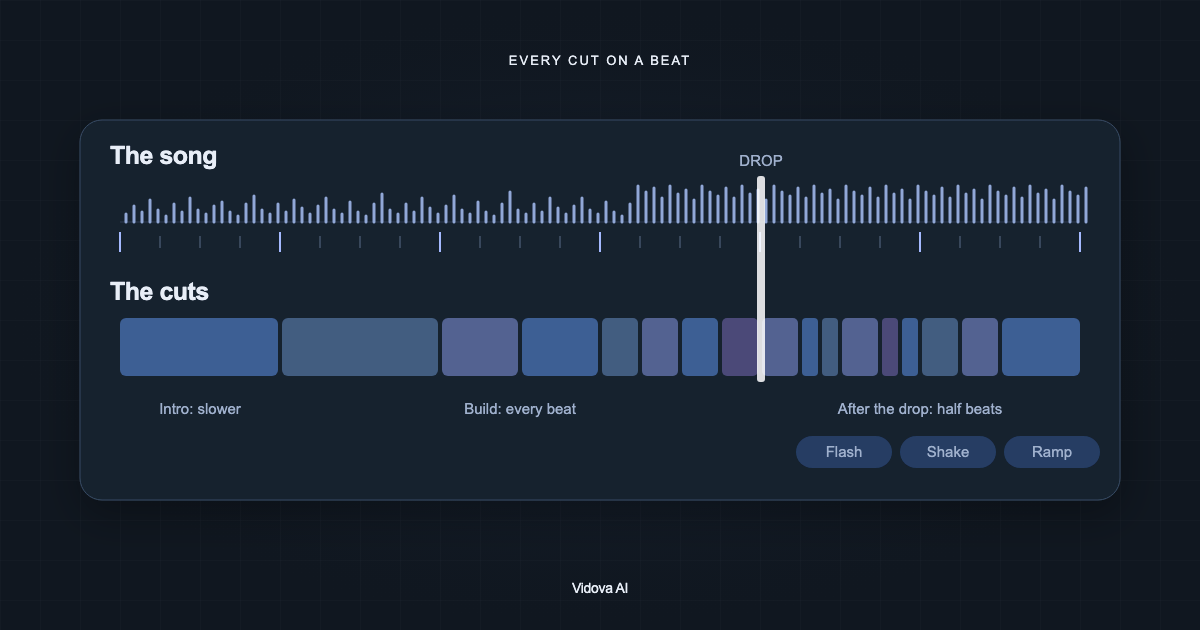
| Build | Short shots that raise a question: a quiet look, hands at work, a reaction to someone off screen | One or two beats each, rushed at 1.5 to 2 times speed as the song climbs |
| Drop | The one moment the edit exists for: the hit, the transformation or the reveal | The clip rushes in, brakes, and the moment lands on the drop at about quarter speed |
| Run | Shots with one clear action each | One or two beats each, with the action on a beat |
| Close | The character's face | The shot and the song fade out together, or the last downbeat cuts to black |
- Every shot shows the character, or what the character reacts to.
- Use each moment once. A viewer takes a repeat for a mistake.
- Keep each shot inside one camera angle. A clip from a film often holds several cuts already, so split it first with the free scene splitter. Our guide on splitting a video into scenes shows how.
- Start each shot on the frame the action starts. Cut anything where the character is off screen and nothing happens.
Method 1: give your clips to an AI editor
This route fits you if you know the story and want the cuts done for you. These steps use Vidova.
- Collect 3 to 19 clips of the character, 2 to 40 seconds each. Mixed shapes are fine, because each clip is scaled to fill the vertical frame with no black bars.
- Add a song with a clear jump in level on a downbeat. Phonk, trap, drill, dark synth and heavy rock at 90 to 160 BPM suit this style. You can also ask for an original track, which uses credits.
- Write the brief: your story sentence, the moment for the drop, the length, the format and any word you want on screen.
- The agent measures the song's beats and finds each moment in your clips. It cuts on the beats, writes the speed curves and turns on AI smoothing for the slow parts.
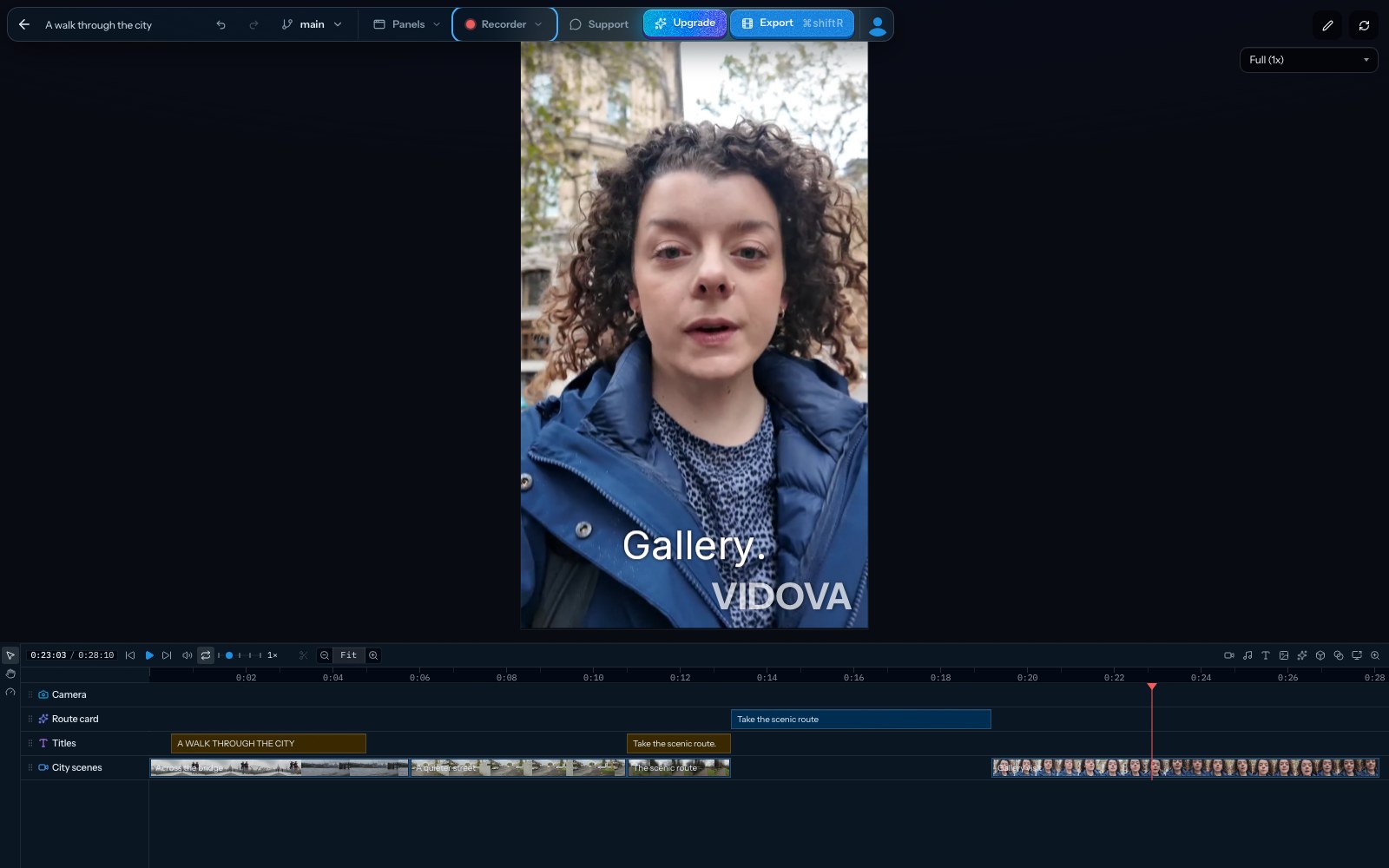
- It previews frames of the cut before it reports back. Ask for changes in plain words, or move a clip on the timeline yourself. Editing on the timeline uses no credits.
- Export an MP4. Paid plans export up to 4K at 60 fps.
Make a 15-second vertical character edit of Mara, the pilot in my short film, from these 9 clips and this song. The story: she loses her crew, then she flies out alone. Open on her looking at the empty hangar. Put the take-off in clip 4 on the drop at quarter speed with AI smoothing, and slow one more moment near the end. Cut on the beat after the drop. One cold grade on every shot. Mute the clips. Put her name once, on the drop, clear of her face. End on her face.
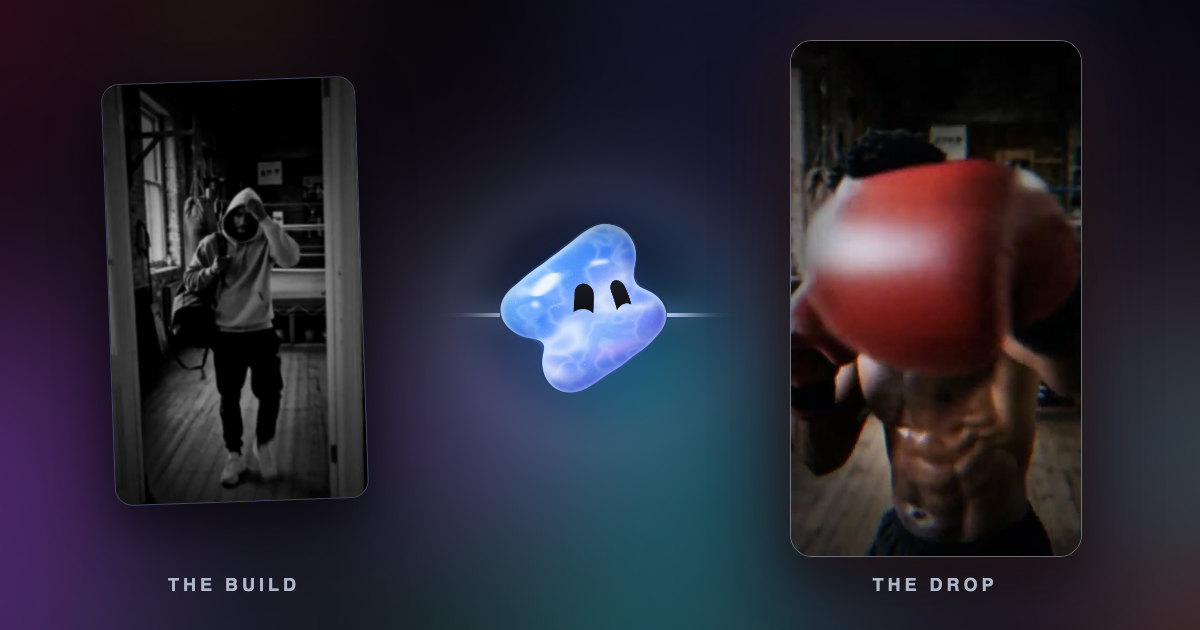
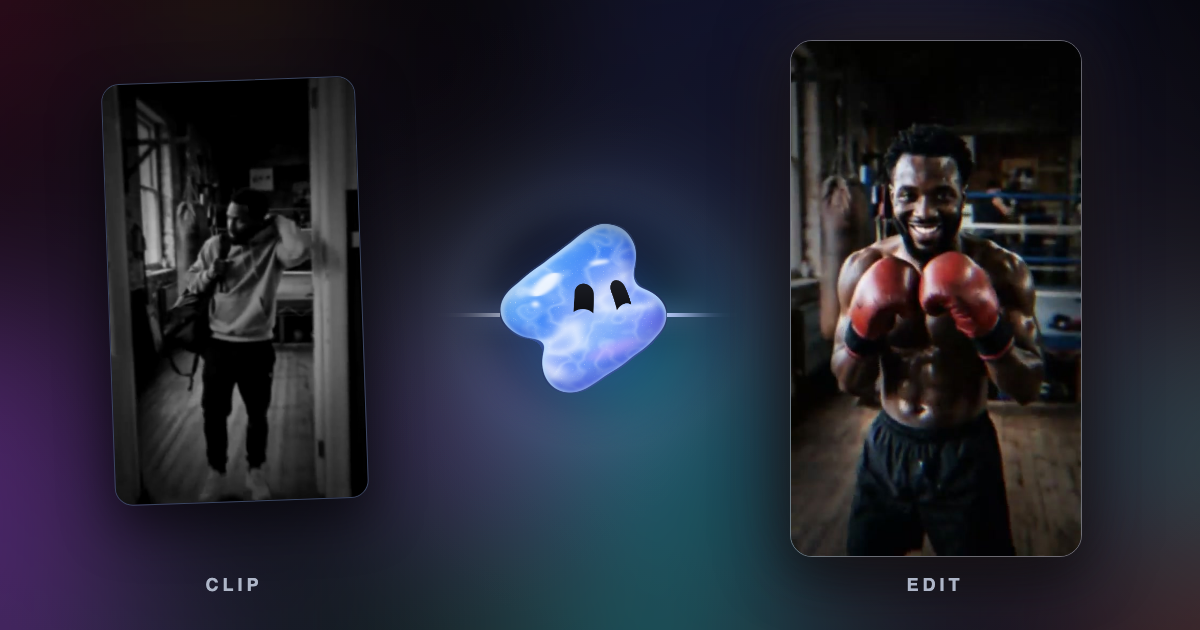
This is an example brief with an invented character. The agent uses the names you write, spelled the way you wrote them. The demo of Vidova's velocity fan edit template has this structure, with one made-up boxer built from nine generated clips.
Make the shots feel like one film
- One grade on every shot. Clips from different scenes do not match until they share one look. Use a cold grade for anime, game and night footage, and a warm one for sport and golden hour. Lift dark shots, because a heavy grade can turn them black.
- Fill the frame. Keep the character near the middle of the vertical frame, with no black bars. A 720p clip starts to look soft above about 130% scale, so do not punch in further than that.
- Slow one to three moments. Rush at 1.5 to 3 times speed, brake in 0.2 to 0.3 seconds, and play the moment at about quarter speed. Speeds such as 0.5x or 0.7x read as a stutter. Our velocity edit guide has the beat math.
- Few words. Use one word or the character's name, once, on the drop, clear of the face.
- Effects on real hits only. A shake that follows a hit works. The same shake on every clip looks like a preset.
- The song carries the sound. Mute the clips, because dialogue and score from the source fight the song. If one line of dialogue is your hook, ask to keep it and lower the song under it.
Who owns the clips
Clips from films, shows and anime belong to their rights holders, so a platform can claim, block or remove an edit made from them. YouTube's fair use page says that credit alone does not turn a copy into fair use, and Vidova's terms say you are responsible for having the rights to what you upload.
Your own short film, a cosplay shoot, open films from Blender Studio and clips you licensed raise fewer questions. For game footage, read the publisher's rules, such as Microsoft's Game Content Usage Rules. The song has rights too: upload a track you have the rights to, or ask for an original one. Our phonk edit guide covers this.
Method 2: edit it by hand
This route fits you if you want to place every cut yourself.
- CapCut: on desktop, open Speed, then Curve, and draw a curve between 0.1x and 10x. Put the speed points on the song's beats, and tick Smooth slow mo for the slow part. On mobile, auto velocity presets detect the music.
- Adobe After Effects: it has presets and animation tools for every move. It suits people who already know keyframes.
- Alight Motion: on a phone, it has keyframes on all settings, custom timing curves and velocity-based motion blur.
What goes wrong, and how to fix it
| Problem | Cause | Fix |
|---|---|---|
| It looks like a random montage | The brief names a style but no story | Add your one-sentence story, and ask for each shot to lead to the next |
| The cuts miss the beat | A preset was applied and not matched to this song | Ask the agent to detect this song's beats and place every cut on them |
| The slow part stutters | The clip has too few frames for that speed | Ask for AI smoothing, or read [how to make slow motion smooth](/blog/how-to-make-slow-motion-smooth) |
| The shots look soft | A low-resolution clip was pushed in too far | Ask for less punch-in on that clip. Exporting at a larger size does not add detail |
| The character leaves the frame | A wide clip was cropped to vertical | Ask the agent to track the face and keep it in frame |
| A shot goes nearly black | The source is dark and the grade crushed it | Ask for a lift on that shot, or pick a lit moment |
| The edit is blocked after you post it | A rights holder claimed the clips or the song | Use clips and music you have the right to use |
Questions about character edits
How long should a character edit be? Vidova's velocity fan edit template runs 10 to 25 seconds, with 15 as the ideal. A longer edit needs more story.
Can I edit several characters together? Yes. Vidova's anime opening template freezes each hero on a name card, in a film of 15 to 45 seconds. A one-character edit is easier to follow, because the viewer has one story to track.
Will AI change the character's face? Not when you cut existing clips and write “use only my clips”. A generated shot is new footage, so compare it with your reference before you keep it.
Can I keep a line of dialogue? Yes. Ask to keep the line and lower the music under it. Put any caption under the chin or beside the head, and keep it off the face.
Can ChatGPT make a character edit? ChatGPT can write the brief. To cut the video, paste the brief into Vidova's chat, or run Vidova from ChatGPT. See ChatGPT wrote a video editing prompt. Which app can run it?
Is there a phone app? Vidova has no iPhone or Android app yet. On a phone, you can send clips to the @vidovabot bot in Telegram, and the finished video comes back in the chat.
Make your first character edit
Plans start at $49 a month, with no watermark.