 Vidova
Start from a finished edit
A template is a finished edit that Vidova makes again with your own footage, music and words. Each template has a demo video with sound and the request that asks for it.
The library has ads, TikTok formats, montages, vlogs, podcast clips, sports edits, cinematic films, memes, event recaps, explainers and music videos. It also has single moves that fit any video, such as captions, titles, zoom punches and follow buttons. Each template is vertical 9:16, wide 16:9, square 1:1 or portrait 4:5.
Browse the templates on the public template library, or open Explore in the app’s sidebar.
Use a template from the library
On the public template library:
- Pick a style, or keep All.
- Select a template to watch it with sound. What to ask shows the request that makes it.
- Choose Use this template. Sign in or sign up if Vidova asks you to.
- A new project opens with the template attached and a request ready to send. Attach your clips, photos or music, then choose Start.
In the app, Explore shows featured edits, the Hooks library and every template by category. Search by a word, such as “podcast” or “birthday.” Open a template to see The prompt. Choose Copy prompt to use it elsewhere, or Use this prompt to put it into a new project. Change the details to fit your video, attach your own clips and choose Start.
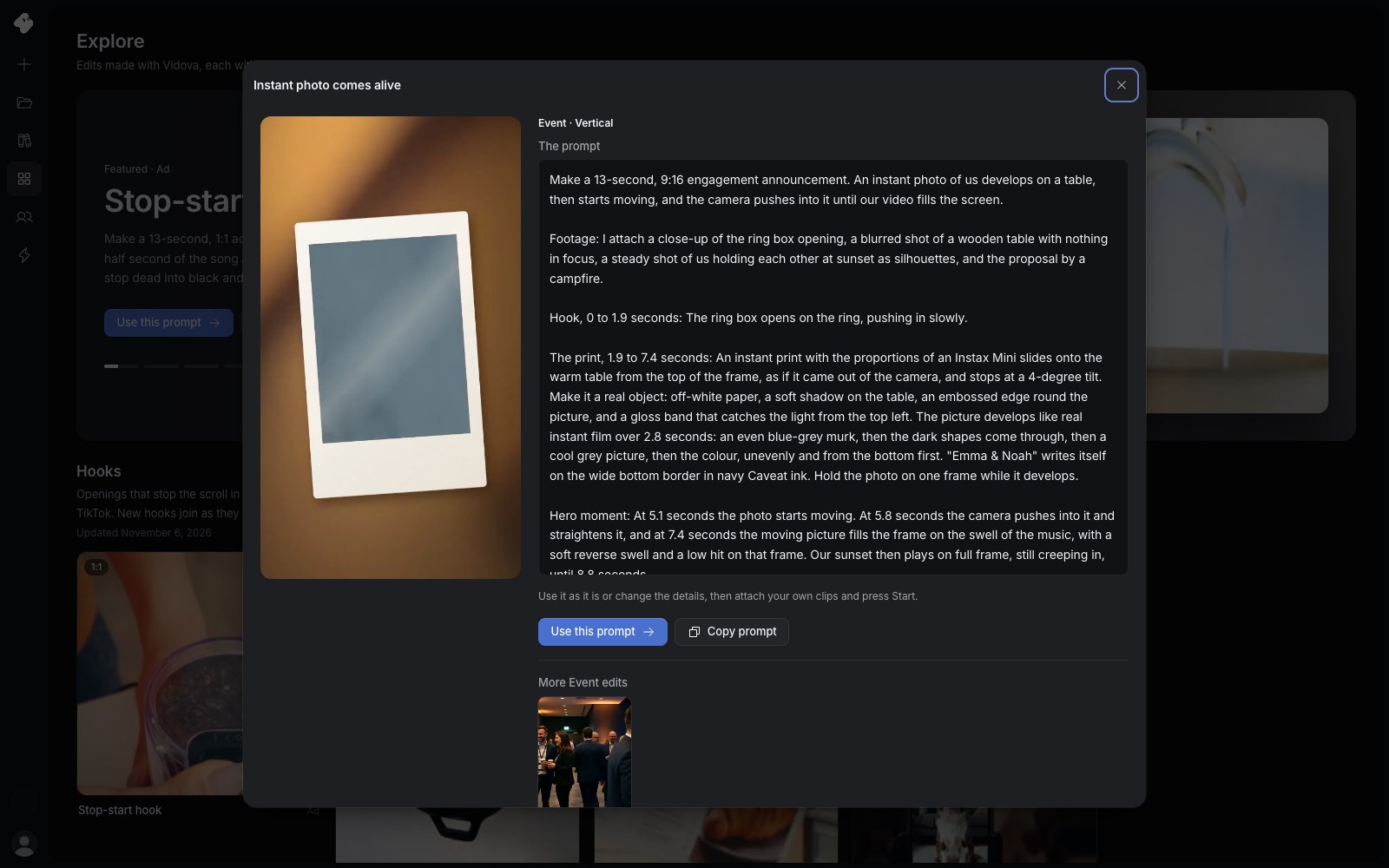
Watch the template, read the prompt that makes it, then choose Use this prompt to start a project from it.
Select the image to open the original full view.
You do not need footage for every part. The request that Use this template prepares asks the agent to use files from your Your Library that fit and to generate what is missing. See Generating media.
Ask for a template in chat
When you ask for a whole new edit, the agent looks through the templates first. When one fits, it builds the edit from that template with your clips, song and words, then changes it to match your request. You can also ask for a kind of template directly, for example “Make a podcast clip from this interview.”
A template builds the whole film. It replaces the edit in the version the agent works on. To keep the current edit, ask the agent to try the template in a new version, or undo the change after. See Versions and undo.
After the template is in place, you can change any part of it in chat or on the Timeline. A template’s work spends credits like any other chat edit. See Plans and credits.
The Hooks library
Hooks are openings that stop the scroll in the first seconds. Each one is rebuilt from a format that is working now on Reels and TikTok, and new hooks join as they appear. In Explore, the Hooks shelf shows the newest first and the date it last grew.
Anyone can watch the hooks. The Hooks library comes with every paid plan, and the agent builds a hook from your footage once your paid plan is active. Until then, the shelf shows Unlock with a paid plan, which opens the plans. When you ask chat for a hook before that, the agent tells you what the hook does and makes your edit without it. See Managing billing to choose a plan.
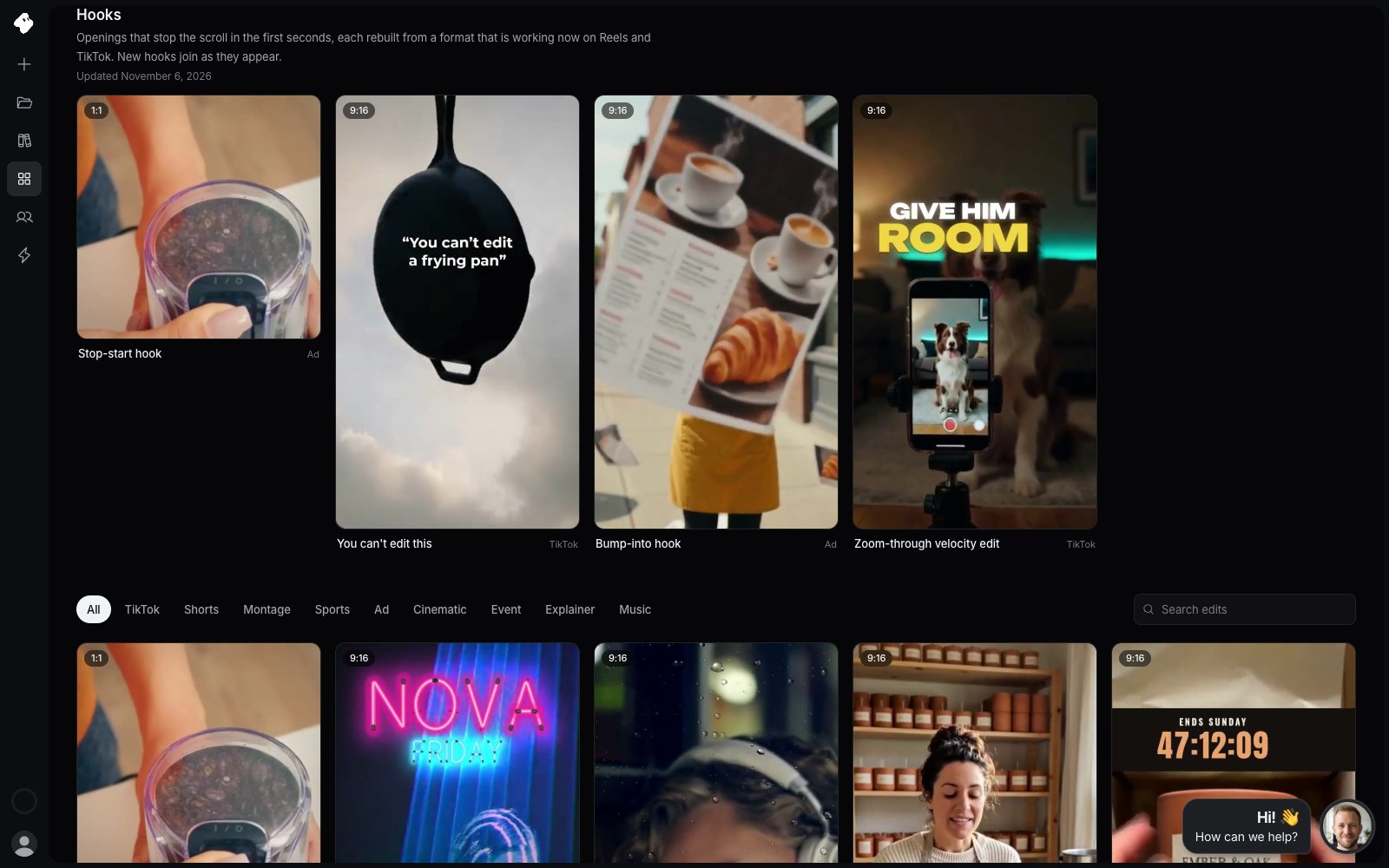
The Hooks library sits at the top of Explore. It comes with every paid plan.
Select the image to open the original full view.
Use templates from your own agent
An agent connected through the MCP server works with the same templates. It has three tools:
| Tool | What it does |
|---|---|
search_templates | Finds templates from a few words, such as “product ad” or “hook.” An empty search lists every template. |
read_template | Shows how a template works, the parts it needs, and an example of those parts filled in. |
apply_template | Builds the whole film from the template with the project’s own files. |
The Hooks library opens to an agent on a paid plan, the same as in the app.