
Command-line screen recorder
Record your screen from the terminal. Edit it with an agent.
The Vidova CLI is a free command-line screen recorder for macOS and Windows. It records a display or a window with the cursor, keys, camera and mic, then sends the take to a Vidova project.
npm install -g @vidova/cli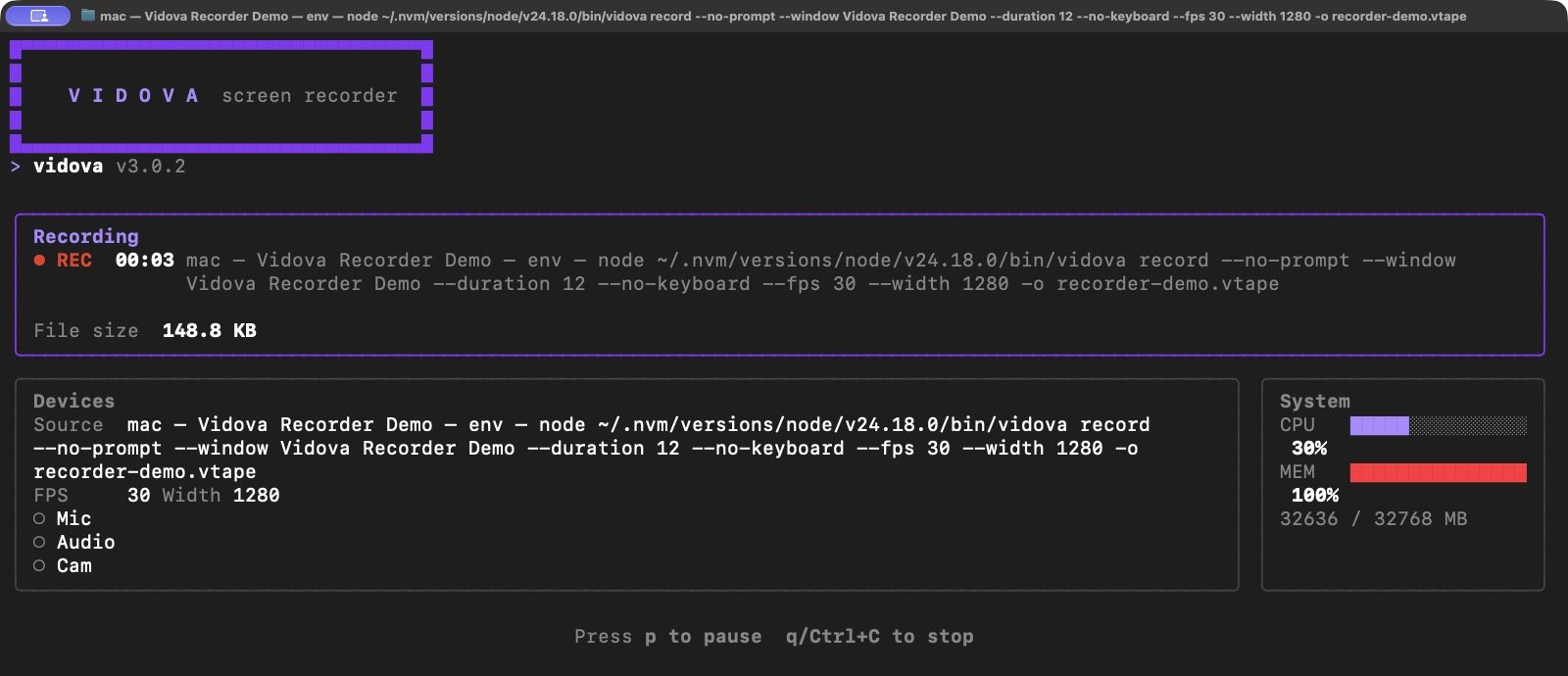
The short answer
The Vidova CLI (@vidova/cli on npm) is a command-line screen recorder. Install it with "npm install -g @vidova/cli" on Node.js 20 or later. It records a whole display or one window, with optional microphone, camera and system audio, and keeps the cursor movement, clicks and keys in a portable .vtape file. One flag sends the take to a Vidova project, where the agentic editor adds zooms, captions and cuts on a real timeline. Local recording needs no account.
- Package
- @vidova/cli
- Version
- 3.0.3
- Runs on
- macOS (Apple Silicon and Intel), Windows x64
- Needs
- Node.js 20 or later
- License
- MIT
- Price
- Free
Command-line recording features
- A display or one windowPick a display by number or a window by a word in its title.
- Mic, camera and system audioAdd each input with one flag, or leave it off.
- Cursor and clicks kept apartThe cursor path and every click stay as data, so zooms can follow them later.
- Keys on screenKey presses are saved with the take for shortcut overlays. Turn them off with --no-keyboard.
- One portable .vtapeScreen, camera, cursor and keys travel in one file you can inspect, pack and extract.
- Straight to a project--upload, --project or --new-project sends the take to Vidova when it is saved.
- Made for scripts--no-prompt, --duration and --json make a recording repeatable in CI or a demo script.
- Plain MP4 when you want it--raw keeps a normal .mp4 instead of a tape.
For AI coding agents
Give your coding agent a screen recorder
Agents that run shell commands can record the app they just built and upload the video, with no person at the keyboard. These two commands record a window for 20 seconds and send it to a project. --no-prompt and --duration end the take by themselves, and --json prints the result for the agent to read.
vidova record --no-prompt --window "Chrome" --duration 20 -o demo.vtape
vidova upload demo.vtape --project PROJECT_ID --wait --jsonConnect the Vidova MCP server at https://mcp.vidova.ai/mcp and the same agent can then cut, caption and export the take. Set up MCP
Record and edit a take in four steps
Install the CLI
You need Node.js 20 or later.
npm install -g @vidova/cli vidova --versionCheck your devices and permissions
List the displays, windows, microphones and cameras, and grant screen access.
vidova devices vidova permissionsRecord
Run vidova for the guided setup, or pass flags for a repeatable take. Press p to pause and q to stop.
vidova record --no-prompt --window "Safari" --mic "MacBook" --duration 60Send it to Vidova
Sign in once, then upload the tape. The recording lands on the project timeline with its cursor and keys.
vidova login
vidova upload take.vtape --new-project "Launch video" --wait
Commands
Add --help to any command for its options| Command | What it does |
|---|---|
vidova | Open the guided setup and record. The same as vidova record. |
vidova record --no-prompt | Record with flags only: --display, --window, --mic, --cam, --system-audio, --duration, --fps, --width. |
vidova devices | List displays, windows, microphones, audio devices and cameras. |
vidova permissions | Check and ask for screen, input, mic and camera access. |
vidova config | Show or set recording defaults such as fps, width, countdown and output-dir. |
vidova login / whoami / logout | Connect this terminal to a Vidova account, check it, or disconnect it. |
vidova projects | List and create projects, and set the default upload project. |
vidova upload <file> | Send a .vtape or a video (MP4, MOV, WebM, MKV) to a project. |
vidova info / extract / pack | Inspect a tape, unpack its files, or wrap a video in a tape. |
What people record with it
- Demos from coding agentsClaude Code, Codex or Cursor records the feature it just built and attaches the video.
- Test runs in CIRecord an end-to-end test with --duration and keep the tape when it fails.
- Bug reproductionsRecord the steps with cursor and keys, so the fix starts from what really happened.
- Scripted product demosRerun the same command for every release and get the same framing.
Frequently asked questions
Is the Vidova CLI free?
Yes. The CLI is free, under the MIT license. Recording to your own disk needs no account. Uploading to Vidova uses your Vidova plan. The free plan needs a card check that charges nothing.
How do I install the Vidova CLI?
Run "npm install -g @vidova/cli" with Node.js 20 or later, then "vidova --version" to check it. The package ships the native recorder for macOS on Apple Silicon and Intel and for Windows x64.
Does the Vidova CLI work on Linux?
Linux needs a build from source with the system packages for X11 or Wayland capture. The npm package does not include a Linux recorder yet. The Vidova desktop app has Linux installers.
Can I record one window instead of the whole screen?
Yes. Run "vidova devices" to see window titles, then "vidova record --no-prompt --window "<part of the title>"". Use --display 1 for the first display.
What is a .vtape file?
A .vtape is a recording bundle. It holds the screen video and, when they were captured, a camera video, the cursor path with clicks, and key presses. "vidova info" shows what a tape holds and "vidova extract" writes its files to a folder.
Can I use the CLI in a script or CI job?
Yes. --no-prompt records with flags only, --duration stops the take by itself, and --json prints machine-readable output for login, projects and upload. Set a default project so an upload never waits for a choice.
Can an AI coding agent record my screen with the Vidova CLI?
Yes. An agent that can run shell commands, such as Claude Code or Codex, can run "vidova record --no-prompt --window "<title>" --duration 20" and then "vidova upload <file> --json". The first time, you grant the terminal screen recording access on macOS.
How is the CLI different from the Vidova MCP server?
The CLI records and uploads. The MCP server at https://mcp.vidova.ai/mcp lets Claude, Cursor, Codex and other MCP clients edit a Vidova project. You can use both: record with the CLI, then ask your agent to edit the take.
Guides
All docsMore from Vidova
Vidova can also edit the video for you
Hand the take to an AI agent that edits on a real timeline, or record with the free desktop app.
Agentic AI video editor
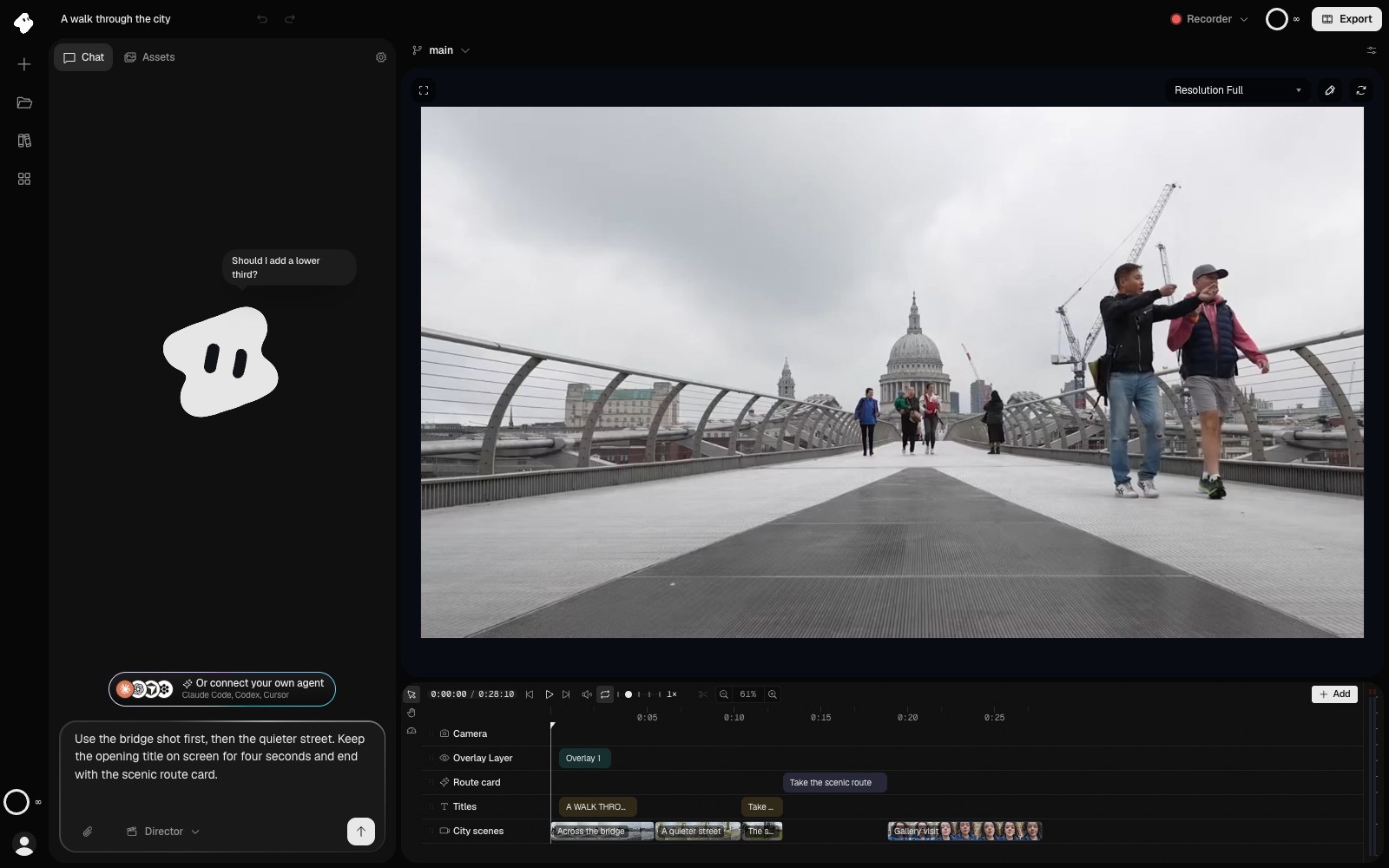
Tell an agent the edit. It cuts it on a real timeline.
Describe the video you want in one sentence. The Vidova agent cuts, captions, animates and previews it, and every edit stays on a timeline you can change or undo.
- Cuts, titles and transitions from one prompt
- Captions, music and sound effects added for you
- Works from Claude, Cursor and Codex over MCP
Vidova Recorder
Record your screen. The zooms and captions are done.
The free desktop app records your screen, camera and mic, then zooms in on clicks, cuts the pauses and writes captions.
- Automatic zoom and a cursor-following camera
- Silences and filler words cut from the transcript
- Free for Mac, Windows and Linux
No sign-in needed
Want a window instead of a terminal?
Vidova Recorder has the same recorder with a full editor, for Mac, Windows and Linux.