 Vidova
How to
How to add captions that keep viewers watching
Add captions that keep people watching: a few words at a time, timed to the speech, the key word bigger, placed in the safe zone. With real caption styles to copy.
Updated
Examples
The short answer
Captions keep viewers watching when they appear word by word in time with the speech and show only a few words at once. Make the key word bigger or a different colour, place the captions in the middle of a vertical frame away from the app buttons, and pick one style for the whole video. Check every word, because a wrong caption makes people stop trusting the video.
Step by step
Get an exact transcript
Start from a transcript of the speech and read it once against the audio. Fix names, brand words, prices and numbers. A spelling mistake in a caption is the first thing people comment on.
Show a few words at a time
Keep each caption to one to four words. Time each word to the moment it is spoken, so the eye and the ear stay together. Full sentences on screen make people read ahead and leave.
Make the key word stand out
Pick the one word in each line that carries the point, such as a number, a result or a place. Make it bigger, bolder or a different colour. Leave the other words plain.
Place captions in the safe zone
On a vertical video, keep captions in the middle third of the frame. The bottom holds the caption bar and the right side holds the like and share buttons. Keep text off the face where you can.
Pick one style and keep it
One font, one size system and one or two colours for the whole video. A clean, heavy sans serif reads best on a phone. Add a soft shadow or outline so the text reads on bright and dark footage.
Watch it on a phone with the sound off
Play the export on your phone in mute. If you can follow the whole video from the captions alone, it is ready to post.
Caption styles that work
- One word at a time, large and centred. Good for short, punchy lines and interviews.
- Two-tier: the key word big on top, the rest small below. Good for sales and service videos.
- Word highlight: the full line shows, and each word lights up as it is spoken. Good for longer talking-head clips.
- Boxed headline: a short headline in a solid box that stays while the speaker explains it.
- Captions with cutaways: each key phrase also gets a picture, a card or a graphic.
Common caption mistakes
- Captions that run a beat late or early. Even a small offset makes the video feel off.
- Whole sentences in two or three lines that cover the face.
- Every word in a different colour. When everything stands out, nothing does.
- Text under the app buttons, where nobody can read it.
- Filler words left in: "um", "like" and "you know" do not need a caption.
How Vidova makes one
Upload your clip and tell your AI video team the style you want. It adds word-by-word captions timed to the speech and makes the key words bigger. It builds the video on a real timeline and can add cutaways on the key phrases, such as titles, lower thirds, stock footage, stickers and GIFs, or generated pictures and clips. It checks the cut before it hands it to you.
You change any caption by asking in plain words: a different colour for the key word, a bigger size, a fixed spelling. It can also put the words behind the person, and make the 9:16 and 16:9 versions from the same project.
Vidova AI video editor
Want the whole video edited?
Describe it and Vidova does it. It opens in a new project in the editor, where you add your video.
Frequently asked questions
Do captions really help videos get more views?
Captions help people who watch with the sound off follow the video, so more of them stay to the end. They also make the key words easier to remember. Good timing and short lines matter more than the font.
How many words should a caption show at once?
One to four words for short vertical videos. For longer YouTube videos, one short line of up to about eight words is fine.
Where should captions go on a vertical video?
In the middle third of the frame, clear of the bottom caption bar and the buttons on the right. Move them up or down a little if they cover the speaker's face.
Should I use the auto captions in the app?
App captions are fine for a quick post, but they give you less control over style, timing and key words. Captions burned into the video look the same on every platform.
What font is best for captions?
A heavy, clean sans serif with a soft shadow or outline. It reads on a small screen and on any background. Keep one font for the whole video.
Can Vidova caption a video in another language?
Yes. Your AI video team can caption the speech word by word, and it can clone your voice and lip sync the clip so you say the lines in another language, with captions to match.
More guides
All guides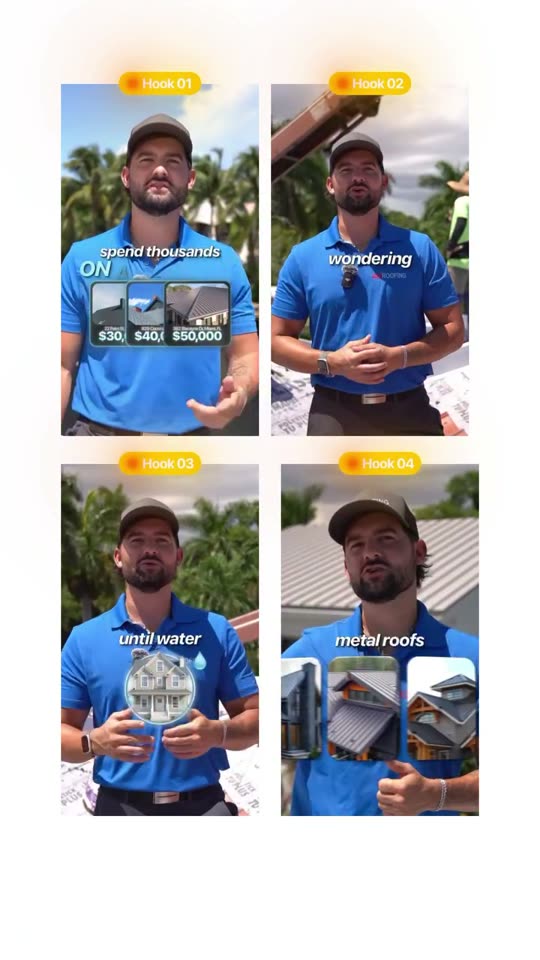
How to write video hooks that stop the scroll
Local businesses, creators, coaches and marketers
Read the guide
How to make talking head reels that keep people watching
Business owners, coaches, consultants and service pros
Read the guide
How to make podcast clips that go viral
Podcasters, interview shows, coaches and founders with a show
Read the guide