How to edit a YouTube video with AI, from raw footage to upload
Edit a talking-head or vlog video for YouTube with an AI editor: cut retakes and pauses, add B-roll, titles and captions, check the facts and export at 1920 × 1080.
Last updated
The short answer
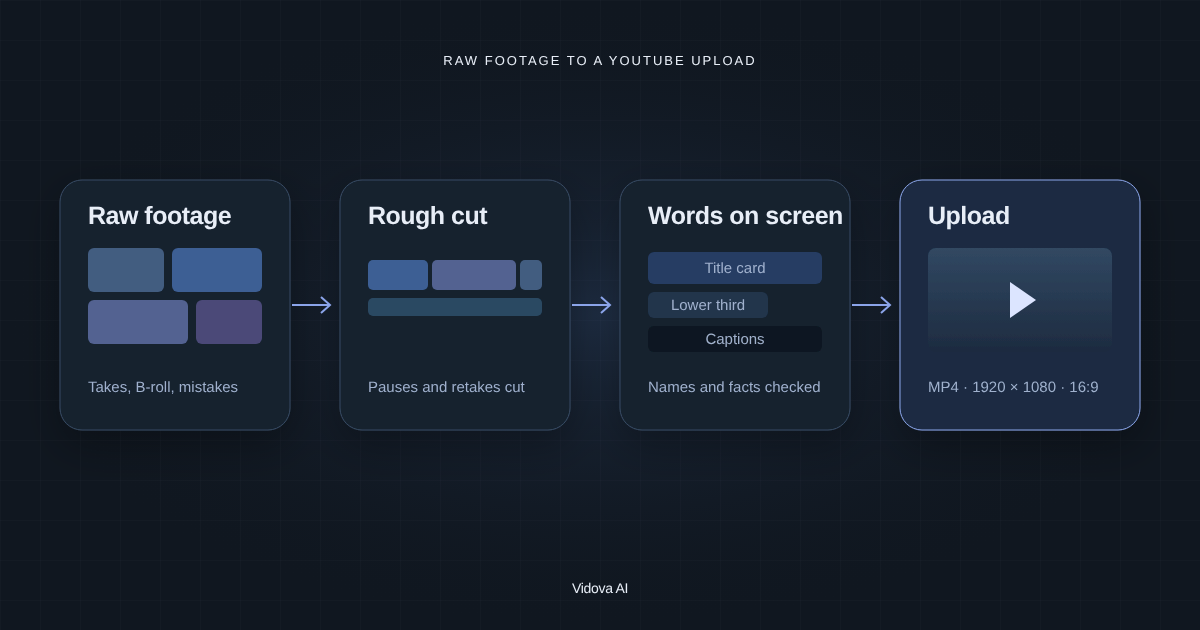
To edit a YouTube video with AI, upload all your takes, write a brief with the goal, the order and the length, and let the AI editor make a rough cut that removes retakes and long pauses. Then add titles, lower thirds, B-roll and captions, check every name and number, and export an MP4 at 1920 × 1080 or 4K. In Vidova the agent does these steps on a timeline, so you can change any cut by hand.
Key takeaways
- Write the brief first: who the video is for, the order of the parts and the target length.
- Let the AI make the rough cut, then review it on the timeline before you add titles and music.
- Export 16:9 at 1920 × 1080 or 3840 × 2160. Make the Shorts as separate vertical cuts.
Before you start: write the brief
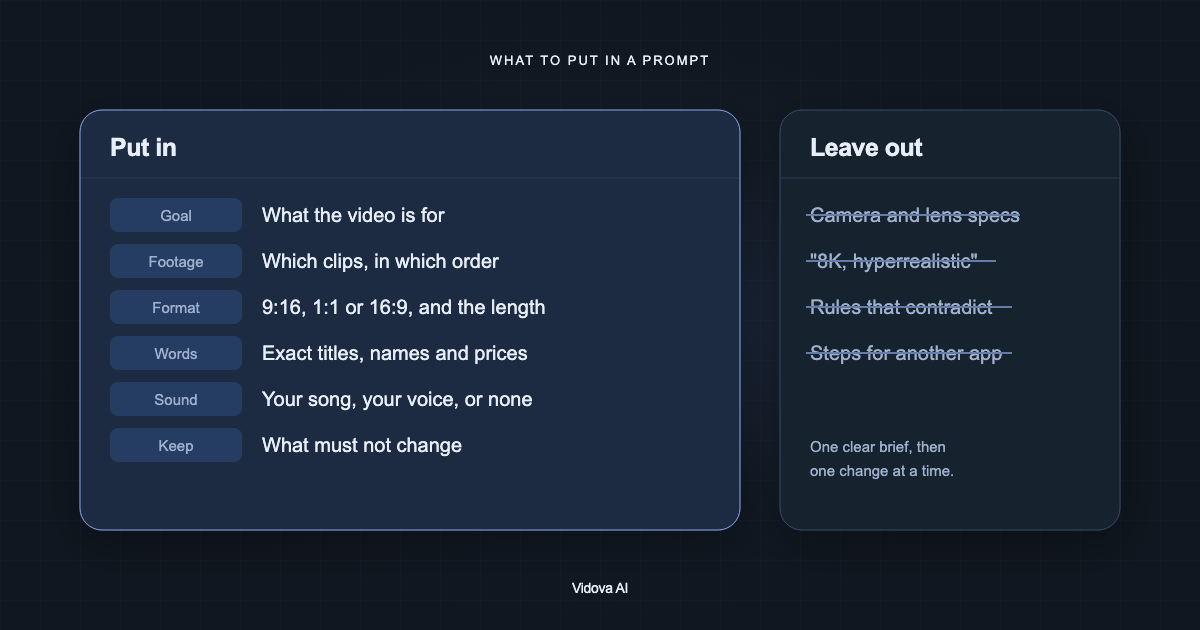
An AI editor works best with a short brief. It does not know which take you liked or what the video is for. Write three or four sentences before you upload anything.
- **Goal and viewer:** “A 10-minute review of the X100 camera for beginners.”
- **Structure:** intro, three parts, a verdict and the call to subscribe.
- **Takes:** “Use the last take of each part. I said ‘cut’ before each retake.”
- **Words on screen:** your channel name, product names, prices and dates, written exactly.
- **Sound:** music under the intro only, or none.
Our guide to [writing a prompt for an AI video editor](/blog/how-to-write-a-prompt-for-an-ai-video-editor) has more examples.
Make the rough cut
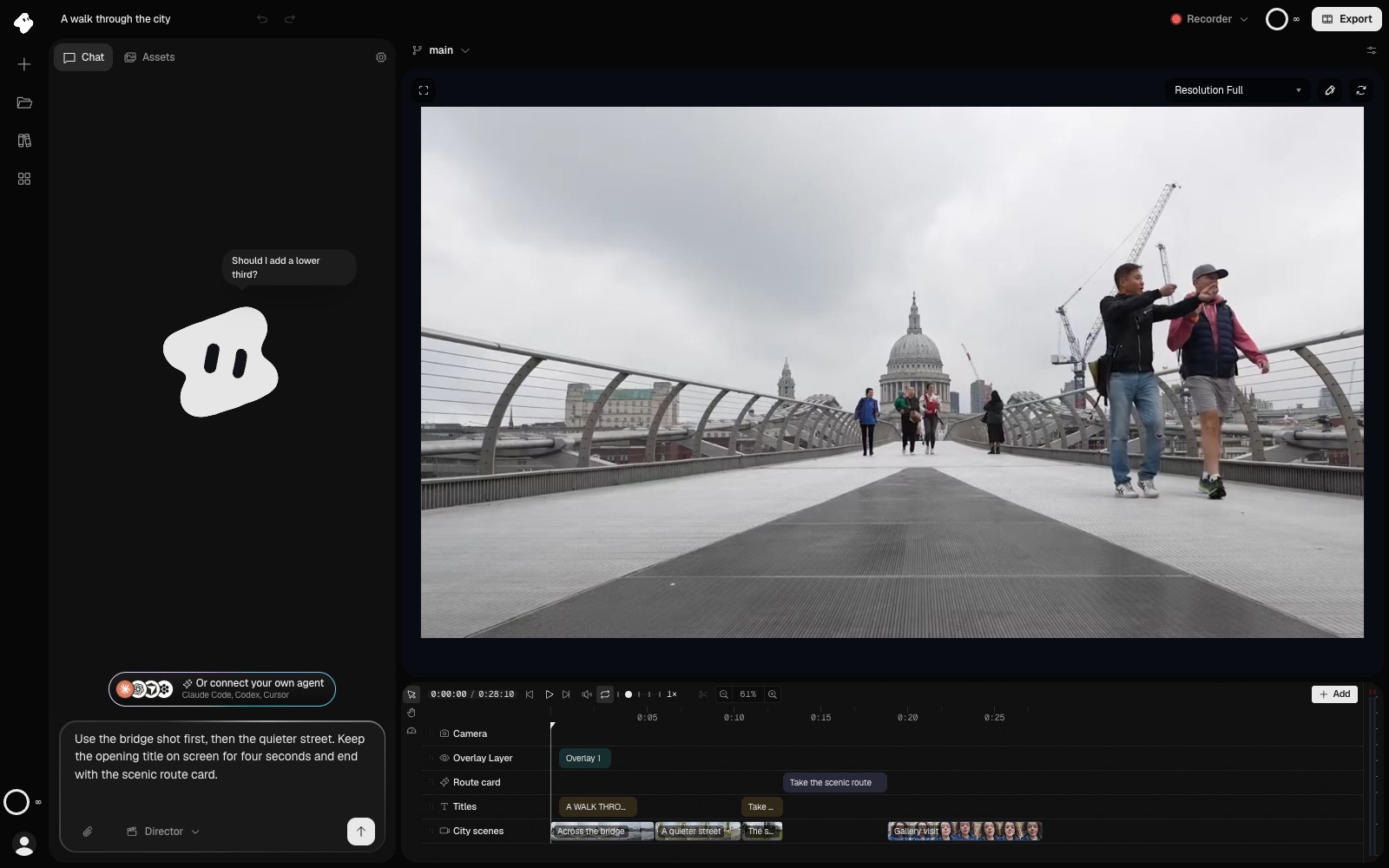
Upload the camera files and any screen recordings or B-roll to one project. Ask the agent for the rough cut first. Leave titles and music for later, so you review the story before you polish it.
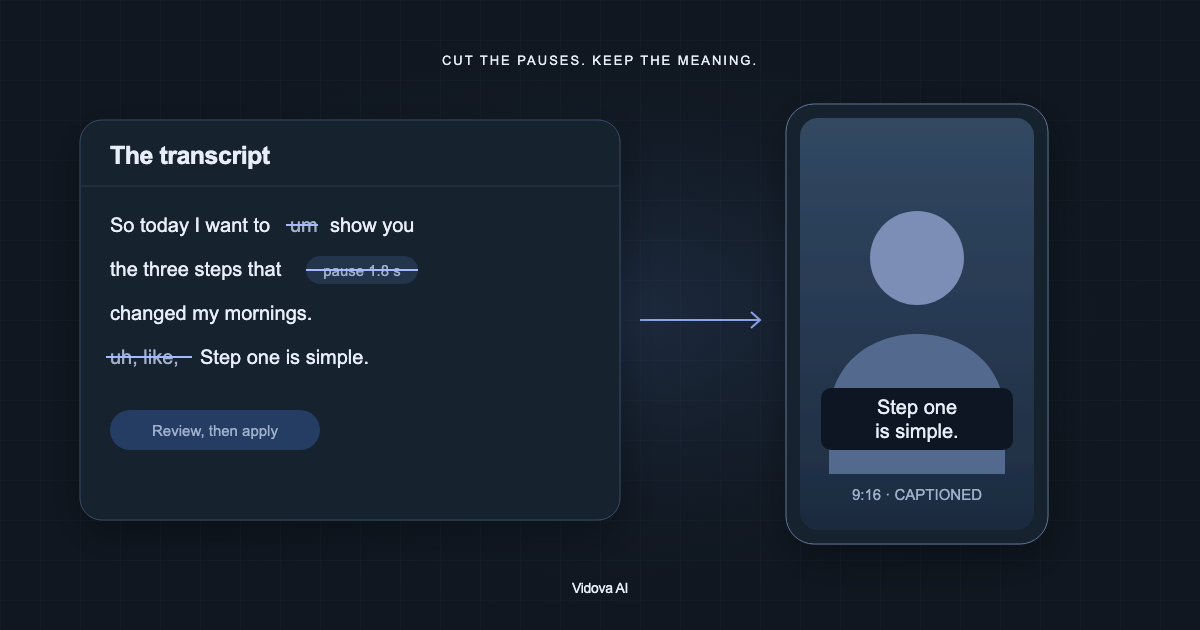
Make a rough cut of this camera review for YouTube, 16:9 at 1920 × 1080, about 10 minutes. Follow the order in my brief. Use the last take of each section and drop the earlier ones. Cut pauses longer than one second and filler words such as “um” and “uh”, but keep my pause before the verdict.
Vidova transcribes the speech and cuts by the words, so retakes and pauses come out where you said them. The cuts land on a timeline. Play it through once. Move a cut point by dragging it, or ask for a change in chat.
Add B-roll, titles and captions
- **B-roll:** ask the agent to cover jump cuts with your close-ups or screen recordings. Name the file and the moment: “Cover the cut at 02:14 with the close-up of the dial.”
- **Titles and lower thirds:** a title card for the intro and a lower third with your name the first time you appear.
- **Captions:** many YouTube viewers watch with captions. Burn them in only if they are part of your style. Otherwise upload a captions file to YouTube.
- **Music:** keep it under the voice. Ask for the music to duck under speech.
Vidova can also generate a voiceover, music or sound effects from chat when you do not have them. Generated media uses credits. Editing by hand does not.
Review before you export
- Watch the full cut at normal speed once, with sound.
- Check every name, product name, price and date on screen.
- Listen at each cut for a clipped word or a jump in the sound.
- Check that the first 30 seconds say what the video is about.
- Check the end screen area. YouTube end screens cover part of the last 5 to 20 seconds.
Vidova keeps versions of the project. You can try a shorter cut on a new version and keep the first one.
Export for YouTube
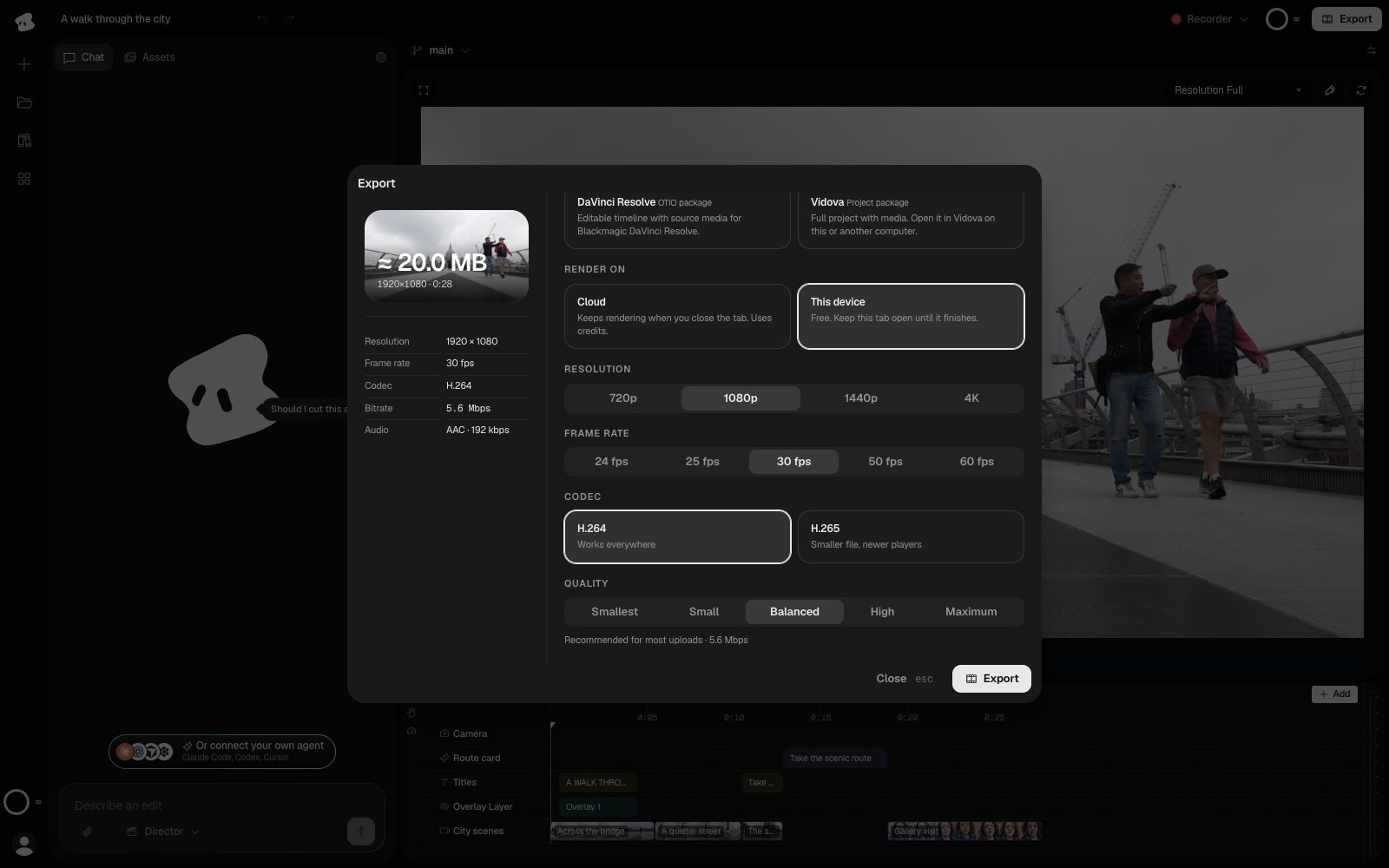
[YouTube's help page](https://support.google.com/youtube/answer/6375112) says the standard aspect ratio on a computer is 16:9 and lists 1920 × 1080 for 1080p and 3840 × 2160 for 4K. Export an MP4 in H.264 at the frame rate you filmed, usually 24, 25, 30 or 60 fps.
In Vidova, **This device** export is free and goes up to 4K at 60 fps on paid plans. If you want to finish the video in another editor, export a Premiere Pro (FCPXML) or DaVinci Resolve (OTIO) package with the source media.
Make Shorts from the same video
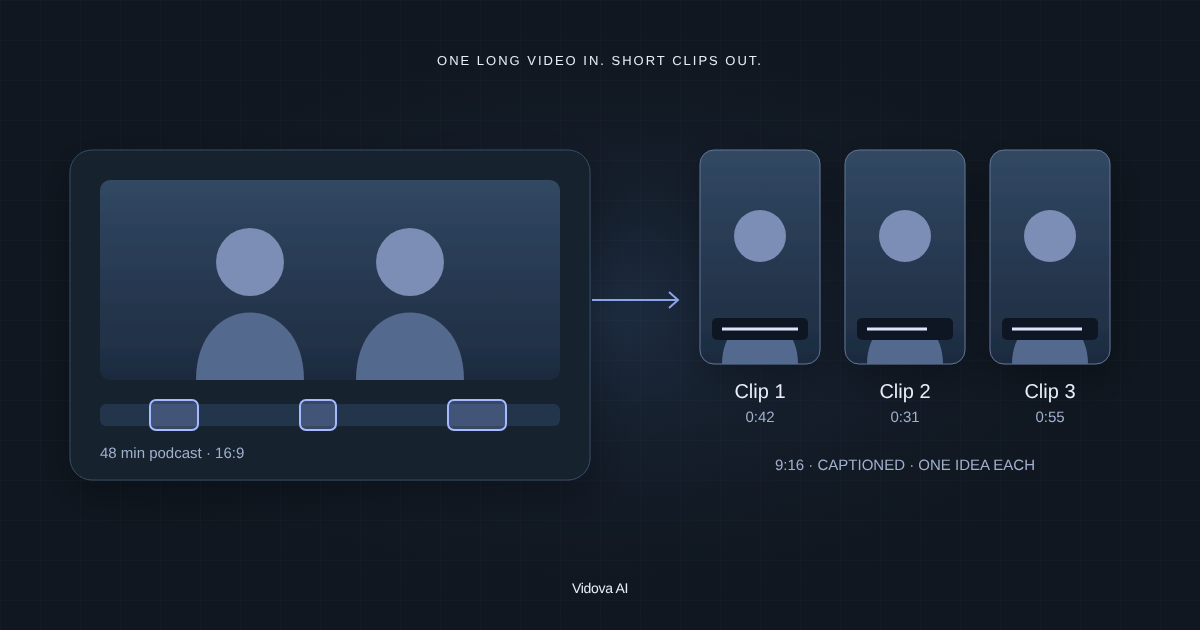
A long video can give you several Shorts. Make each one as its own vertical cut, with the speaker reframed and the captions moved, not as a crop of the finished 16:9 file. See [how to turn a long video into Shorts](/blog/turn-a-long-video-into-shorts-reels-and-tiktoks).
The free plan limits projects to 1 minute, so a full YouTube video needs a paid plan. You can try this on the free plan. It gives you 750 credits once, exports at 720p, takes projects up to 1 minute long and adds a Vidova watermark. Depending on your country, it can ask for a card check that charges nothing. Paid plans start at $19 a month, export up to 4K at 60 fps and remove the watermark and the length limit.