How to turn a long video into Shorts, Reels and TikToks with AI
Cut a podcast, webinar, interview or vlog into vertical clips: find the moments that stand alone, reframe to 9:16, add captions and check each clip before you post.
Last updated
The short answer
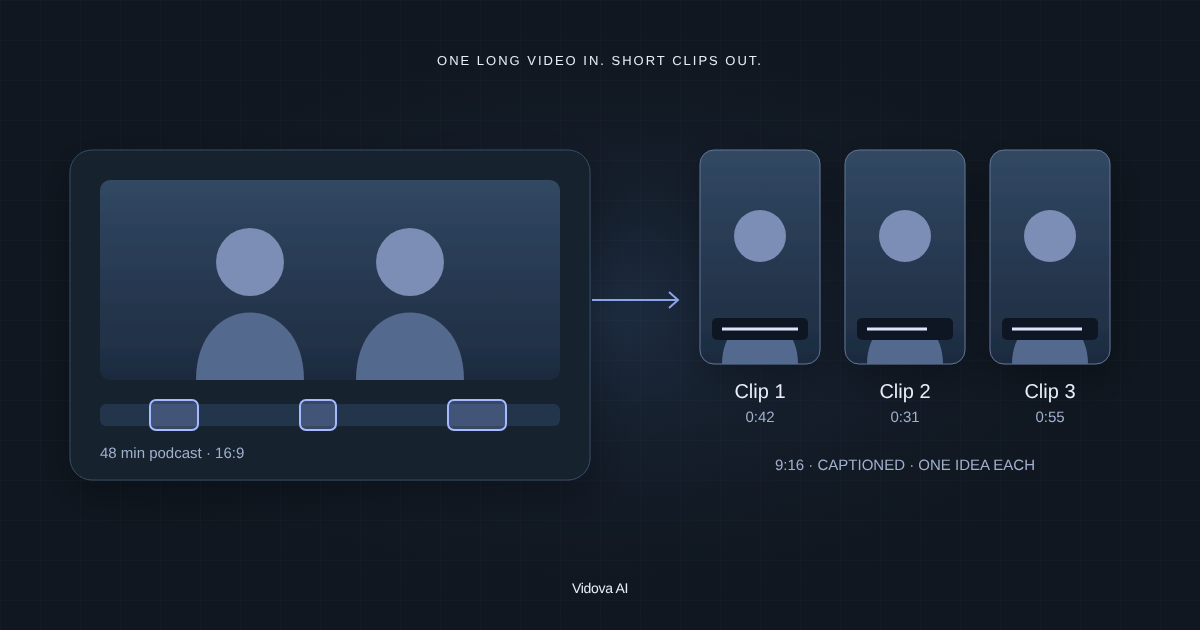
To turn a long video into short clips, transcribe it, pick moments of 20 to 60 seconds that make sense on their own, start each clip on its strongest line, reframe it to 9:16 and add captions. An AI editor can find candidate moments and do the cutting, reframing and captions. You still choose which clips to post and check that each one keeps its meaning.
Key takeaways
- A good short clip makes sense without the rest of the video and gets to the point in the first two seconds.
- Start with a transcript. It is faster to find moments by reading than by scrubbing.
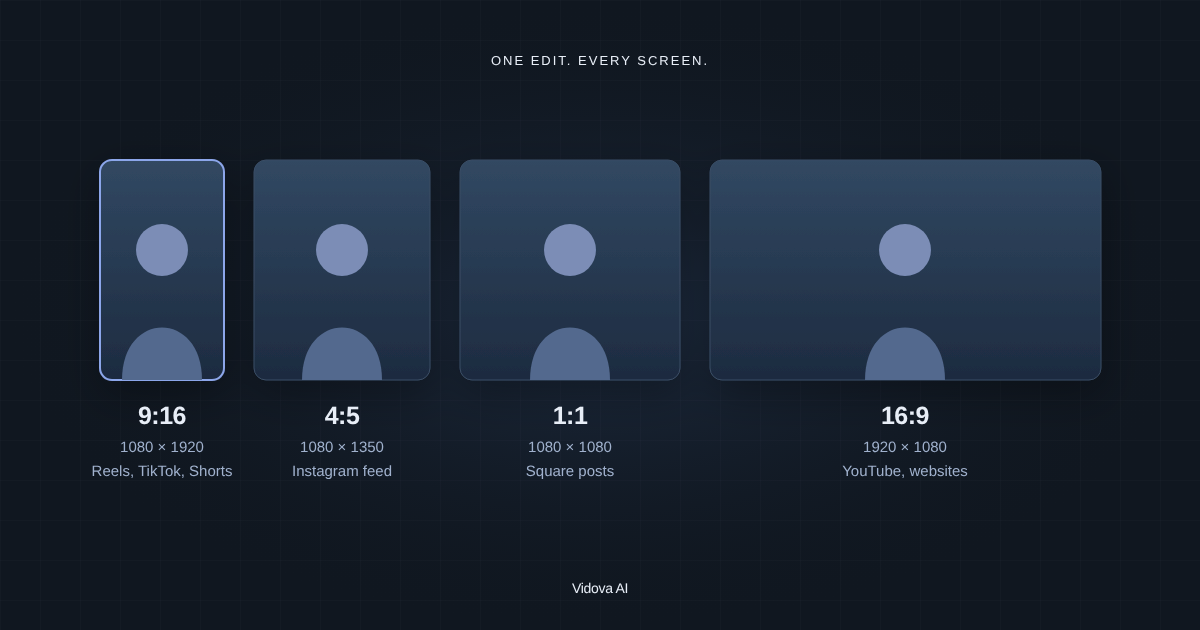
- Reframe each clip so the speaker stays in the vertical frame, then add captions inside the safe area.
What makes a good short clip
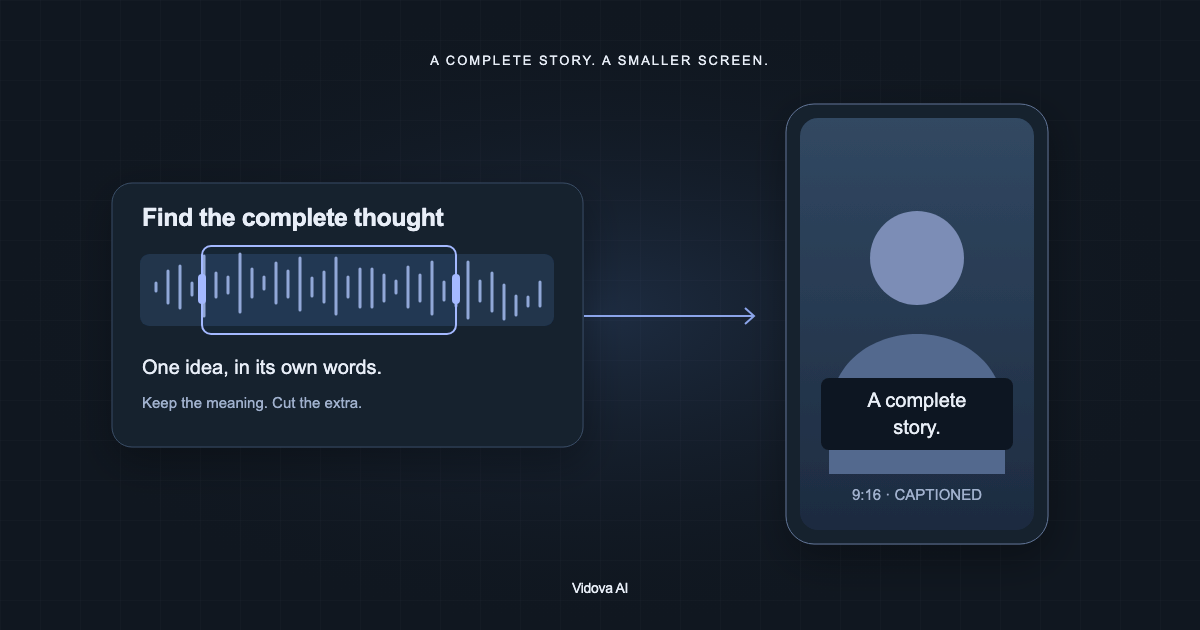
A clip from a long video has to work for someone who has not seen the rest. Look for a moment that has one idea and a clear end.
- **A complete thought:** a story, an answer, a tip or a strong opinion, with its ending.
- **A first line that works alone:** the clip starts on the claim or the question, not on “so, as I was saying”.
- **20 to 60 seconds:** long enough for one idea and short enough to watch twice. YouTube Shorts allows up to 3 minutes, but most clips do not need it.
- **One speaker in frame at a time,** or a clear back-and-forth that you can follow in a narrow frame.
Find the moments
Upload the full video and ask for a transcript. Then read it, or ask the agent to suggest moments that match what you want. Give it a goal so it does not pick at random.
This is a 48-minute podcast about opening a coffee shop. Transcribe it and list the five moments that work best as stand-alone vertical clips for people who want to open a café. For each one, give the start and end time, the first line and why it works on its own.
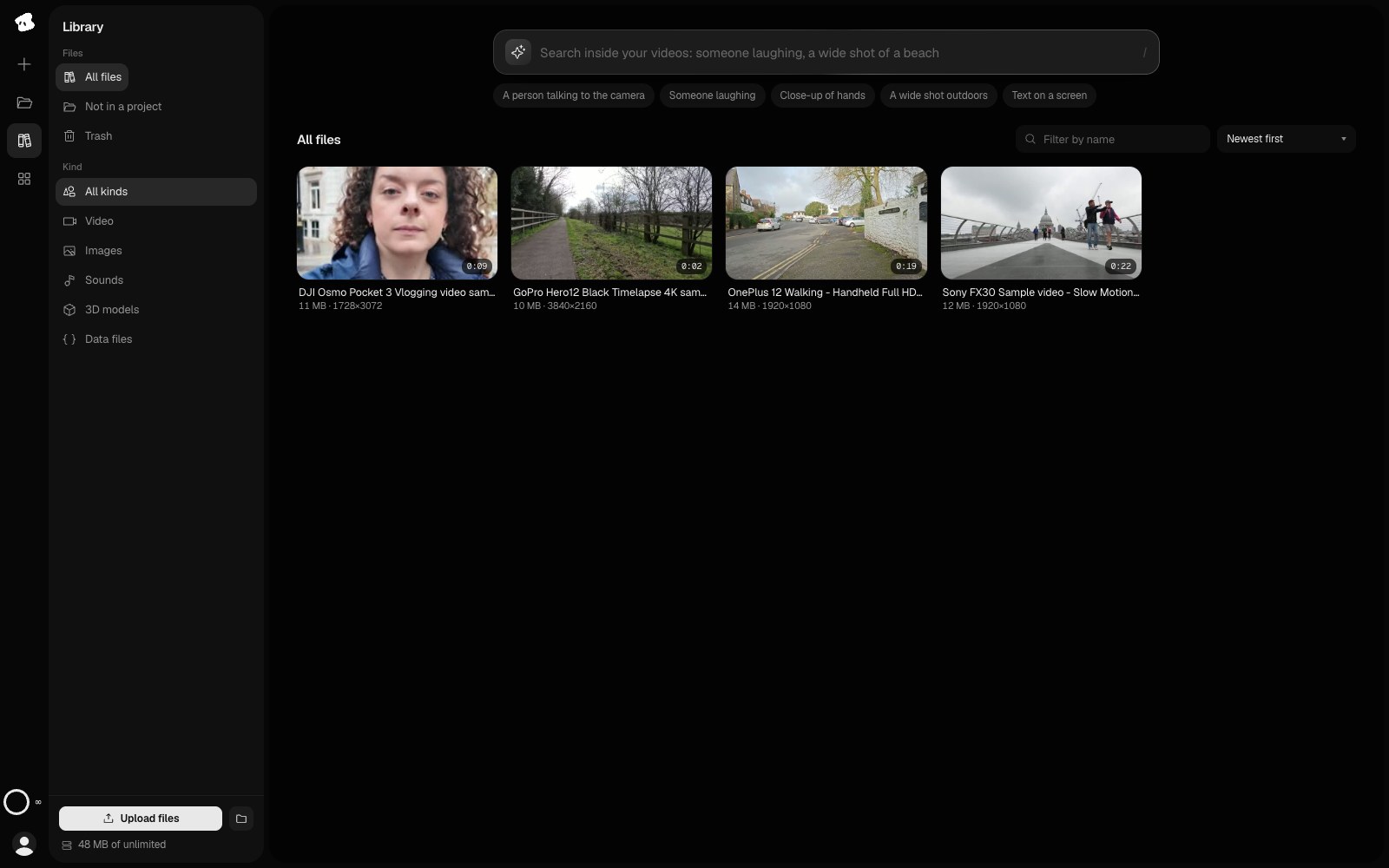
On eligible paid plans, Vidova's Video Intelligence can also search your Library by description, such as “a person laughing” or “someone holding a phone”. Results point to times in the source video. You can select moments and start a new project with them.
Cut, reframe and caption each clip
When you have picked the moments, describe the clips in one brief. Say the length, the format, the caption style and what to do with the speaker.
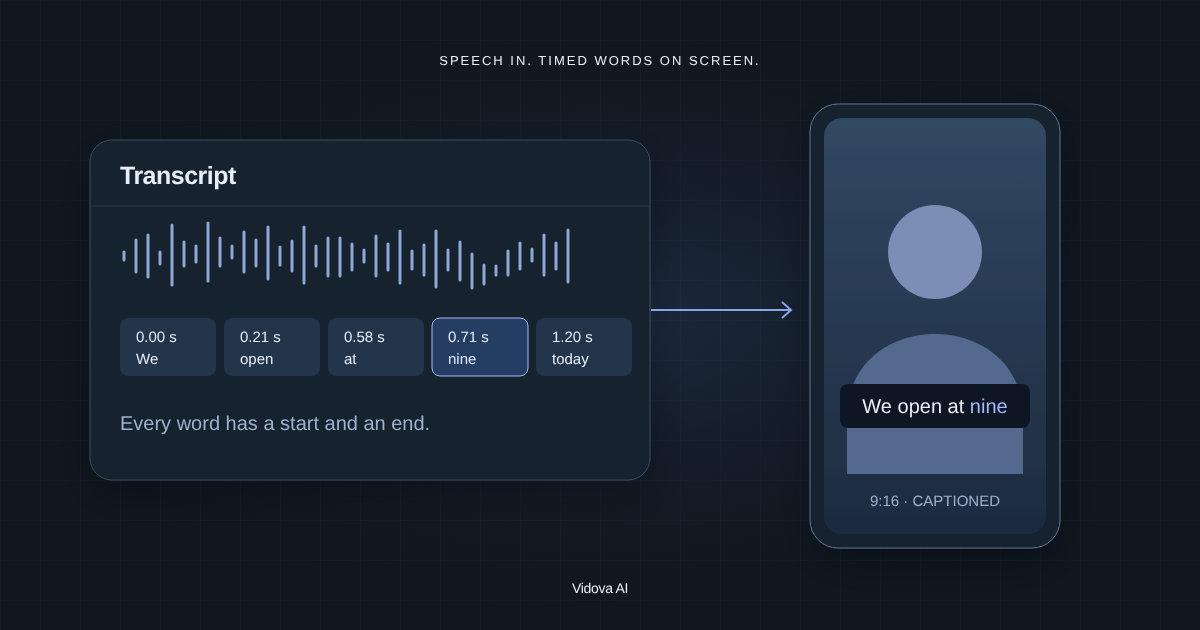
Make three 9:16 clips from the moments at 04:12, 18:40 and 33:05. Each clip is 30 to 60 seconds. Start each one on its first strong line and end it after the point is made. Track the speaker's face and keep it centered. Add word-by-word captions above the area TikTok and Reels cover. Cut long pauses and filler words.
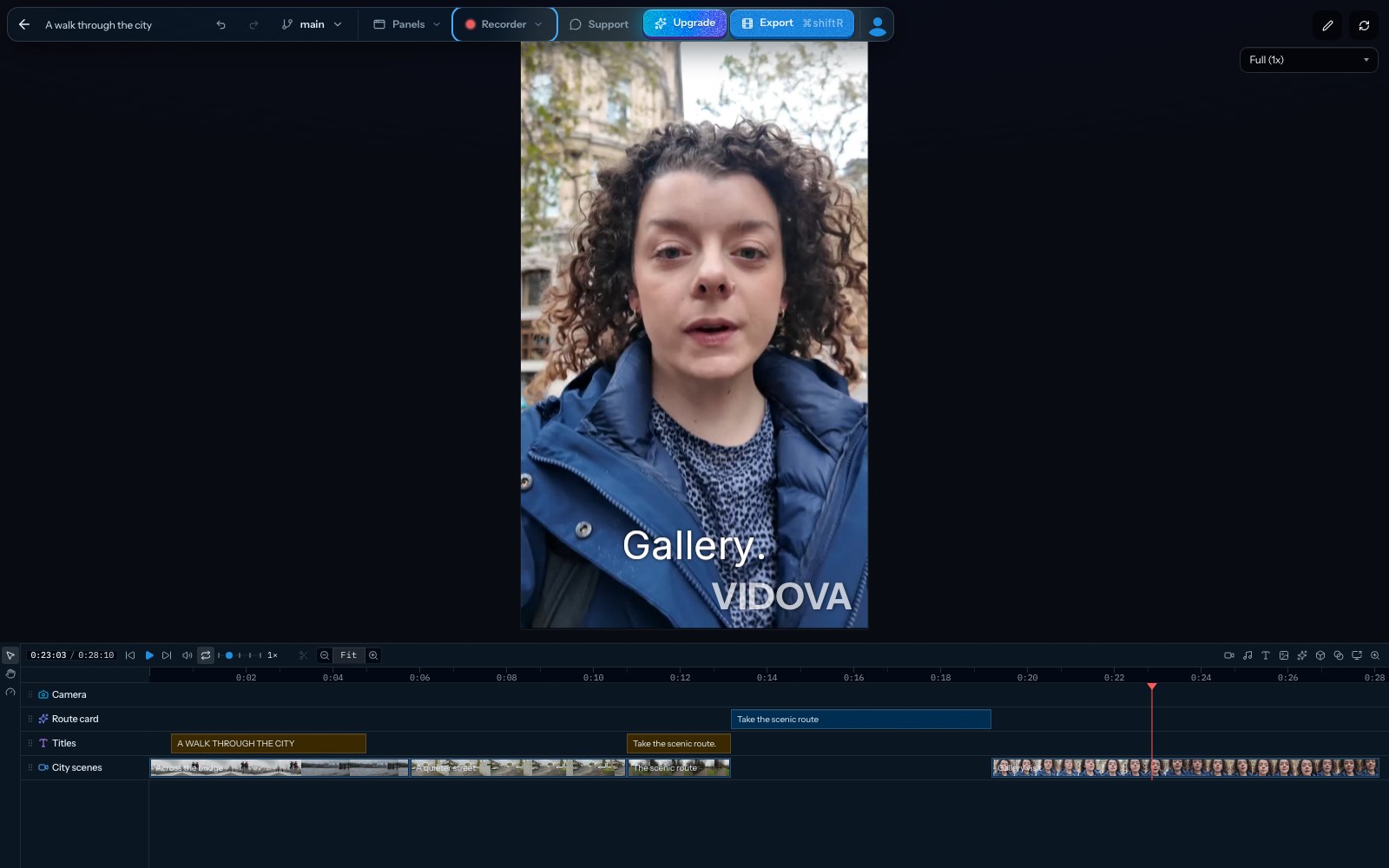
Vidova cuts the clips on a timeline that you can change. It can track a face through a shot to keep it in the vertical frame. It uses the transcript to cut pauses and filler words. Each change is visible on the timeline, so you can drag a cut point or undo a step.
Check each clip before you post
- Watch the clip without sound. Can you follow it from the captions alone?
- Read the first line. Does it make sense to someone who has not seen the full video?
- Check the end. The clip should stop after the point, not in the middle of the next sentence.
- Check that cuts in the middle did not change what the speaker meant.
- Check names and numbers in the captions.
- Check the speaker's face in every shot of the vertical frame.
If the long video has guests, make sure they agreed to clips being shared.
When to use a dedicated clipping tool
Tools such as OpusClip are built only for this job. They score many clips at once and post them for you. Vidova is an editor with an agent. It suits you when you want to choose the moments, change the edit on a timeline and keep each clip close to your brand. Our [Vidova vs OpusClip](/compare/vidova-vs-opusclip) page compares the two.
You can try this on the free plan. It gives you 750 credits once, exports at 720p, takes projects up to 1 minute long and adds a Vidova watermark. Depending on your country, it can ask for a card check that charges nothing. Paid plans start at $19 a month, export up to 4K at 60 fps and remove the watermark and the length limit.