Video size for Instagram Reels, TikTok, YouTube Shorts and YouTube (2026)
The aspect ratio and resolution for Reels, TikTok, Shorts, the Instagram feed and YouTube, with sources, and how to resize one video for each without cutting off the subject.
Last updated
The short answer
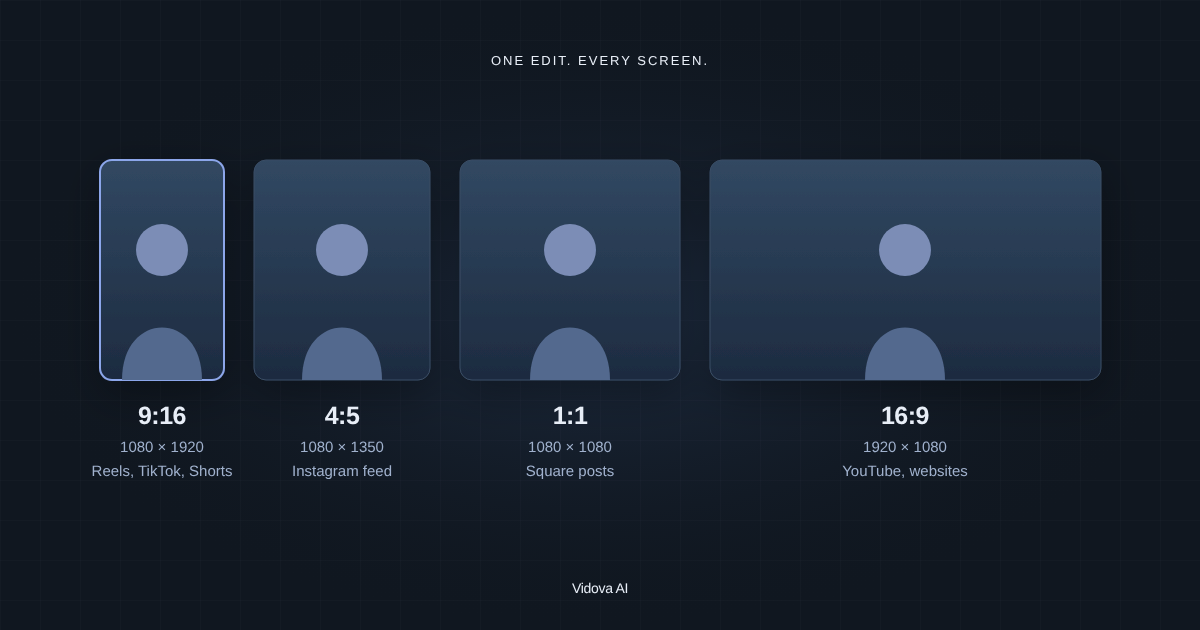
Export Instagram Reels, TikTok and YouTube Shorts at 1080 × 1920 pixels, a 9:16 vertical frame. Use 1920 × 1080 (16:9) for a normal YouTube video and 1080 × 1350 (4:5) or 1080 × 1080 (1:1) for a feed post. To resize one video for several apps, change the frame size and then reframe each shot so the subject and the text stay inside the new frame.
Key takeaways
- Reels, TikTok and Shorts: 1080 × 1920, 9:16. YouTube: 1920 × 1080, 16:9.
- YouTube Shorts can be up to 3 minutes long and must be square or vertical.
- Resizing is more than a crop. Move each shot so the subject stays in frame, then move the text.
Video sizes for each app
| Where it plays | Aspect ratio | Size in pixels | Source |
|---|---|---|---|
| Instagram Reels | 9:16 | 1080 × 1920 | Meta's Reels ad guide recommends 9:16 at 1440 × 2560 |
| TikTok | 9:16 | 1080 × 1920 | TikTok's ad specs ask for 9:16 at 540 × 960 or more |
| YouTube Shorts | 9:16 or 1:1 | 1080 × 1920 | YouTube Help: square or vertical, up to 3 minutes |
| YouTube video | 16:9 | 1920 × 1080 or 3840 × 2160 | YouTube Help: 16:9 is the standard on a computer |
| Instagram feed (portrait) | 4:5 | 1080 × 1350 | Vidova's Instagram preset |
| Square post | 1:1 | 1080 × 1080 | Works in most feeds |
1080 × 1920 is the common choice for vertical video because every app shows it at full quality and the file stays small. Meta's ad guide for Reels recommends 1440 × 2560 for ads. Both are 9:16, so the layout is the same.
Length and file size limits
- **YouTube Shorts:** up to 3 minutes, with a square or vertical aspect ratio, from [YouTube Help](https://support.google.com/youtube/answer/12779649).
- **Instagram Reels ads:** 0 seconds to 15 minutes, MP4 or MOV, up to 4 GB, from [Meta's ad guide](https://www.facebook.com/business/ads-guide/update/video/instagram-reels).
- **TikTok in-feed ads:** up to 10 minutes and up to 500 MB, from [TikTok's ad specifications](https://ads.tiktok.com/help/article/video-ads-specifications).
Limits for normal posts change more often and can differ between accounts. Check the upload screen of the app before you plan a long video. The safe choice for short-form is under 60 seconds.
Why a straight crop is not enough
A center crop keeps the middle of the frame and drops the sides. That works when the subject stands in the middle. It fails when two people sit at a table, when the product is on one side, or when a title runs across the full width.
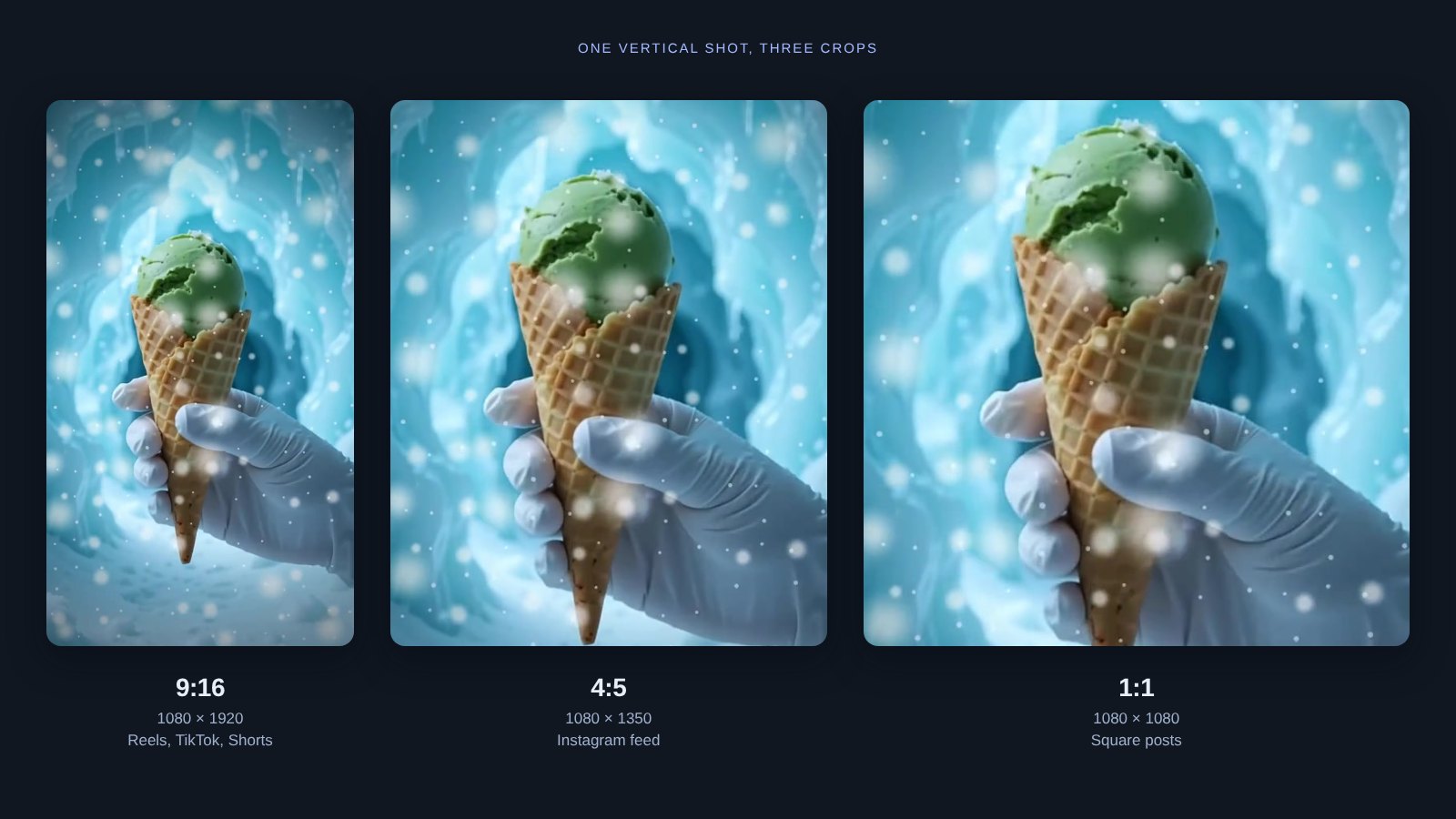
Going from 16:9 to 9:16 keeps less than a third of the width. The subject has to be in that third for the whole shot, or the crop has to move with it.
How to resize a video in Vidova
- Open the project and click an empty part of the timeline so no clip is selected. The Inspector shows the Scene settings.
- Under **Resolution**, pick a preset: YouTube (1920 × 1080), Shorts (1080 × 1920), Instagram (1080 × 1350), LinkedIn (1200 × 1200) or X (1600 × 900). You can also type a width and height.
- Play the video and look for shots where the subject leaves the frame or text runs off the edge.
- Ask the agent to reframe those shots and move the text.
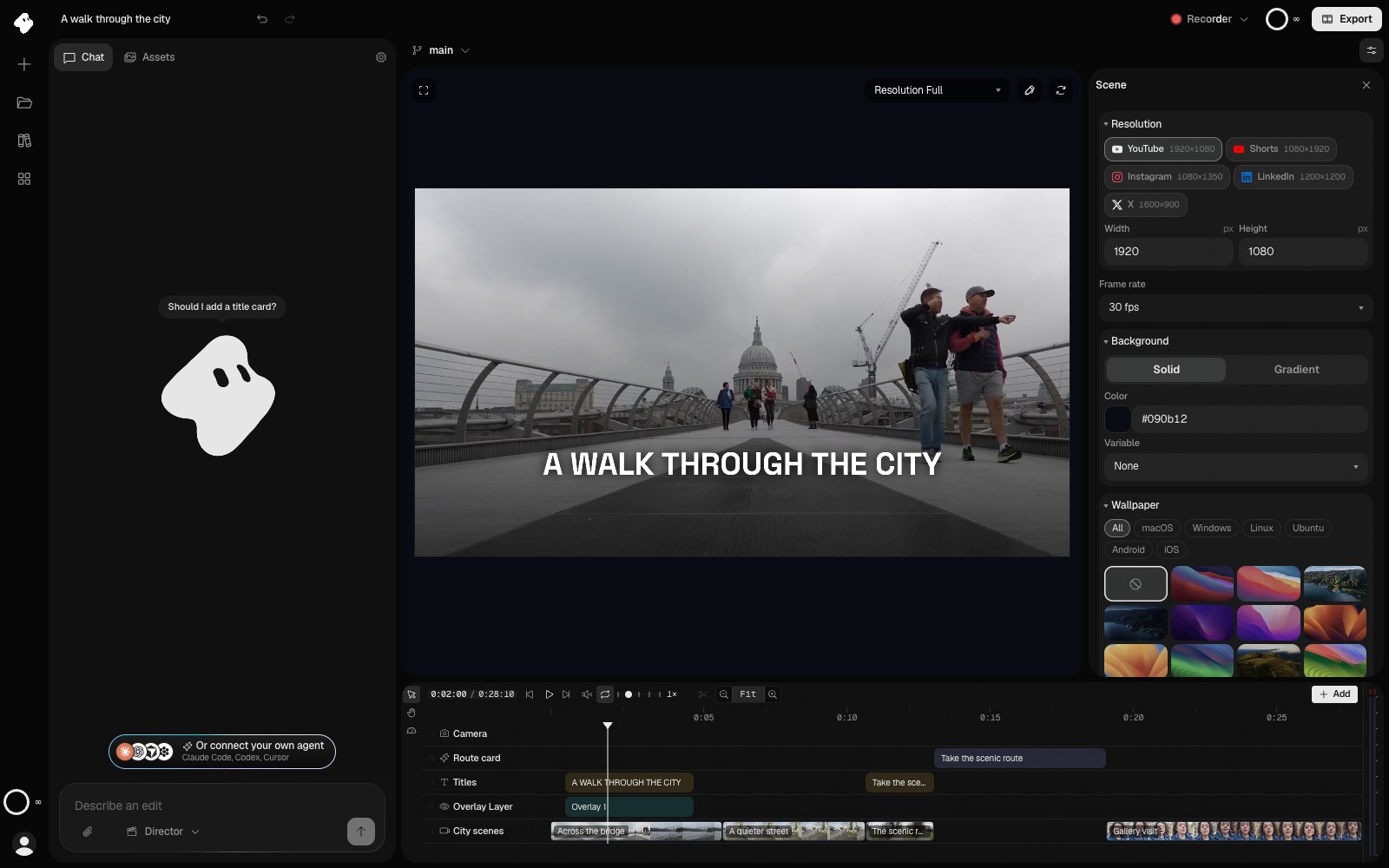
Vidova can track a face or an object through a shot and keep it centered in a vertical frame. The **Face reframe (16:9 to 9:16)** template does this for a talking-head video.
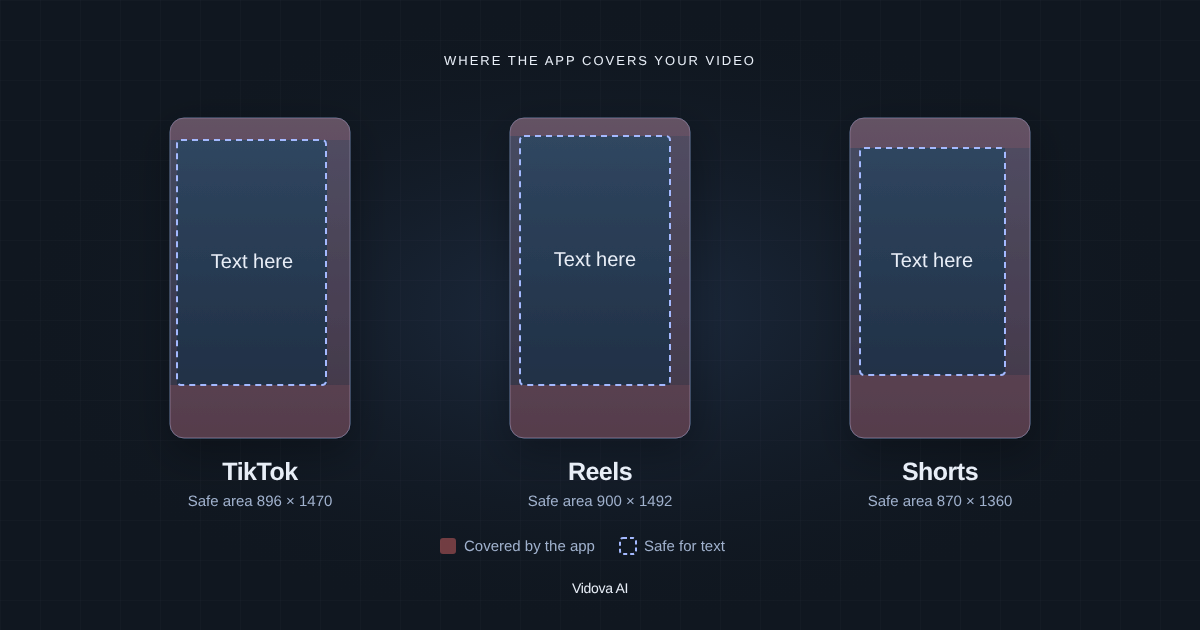
Make a 9:16 version of this video for Reels. Track the speaker's face and keep it centered in every shot. Move the titles so they stay inside the area Reels and TikTok leave clear.
A new aspect ratio is a good time to make a version. Vidova keeps versions of a project, so the 16:9 cut stays as it was while you work on the vertical one.
Export settings
For a finished upload, export an MP4 in H.264 at the same size as the frame. 30 fps suits most social video. Use 60 fps for gameplay or fast sport. **This device** export in Vidova is free and goes up to 4K at 60 fps on paid plans.
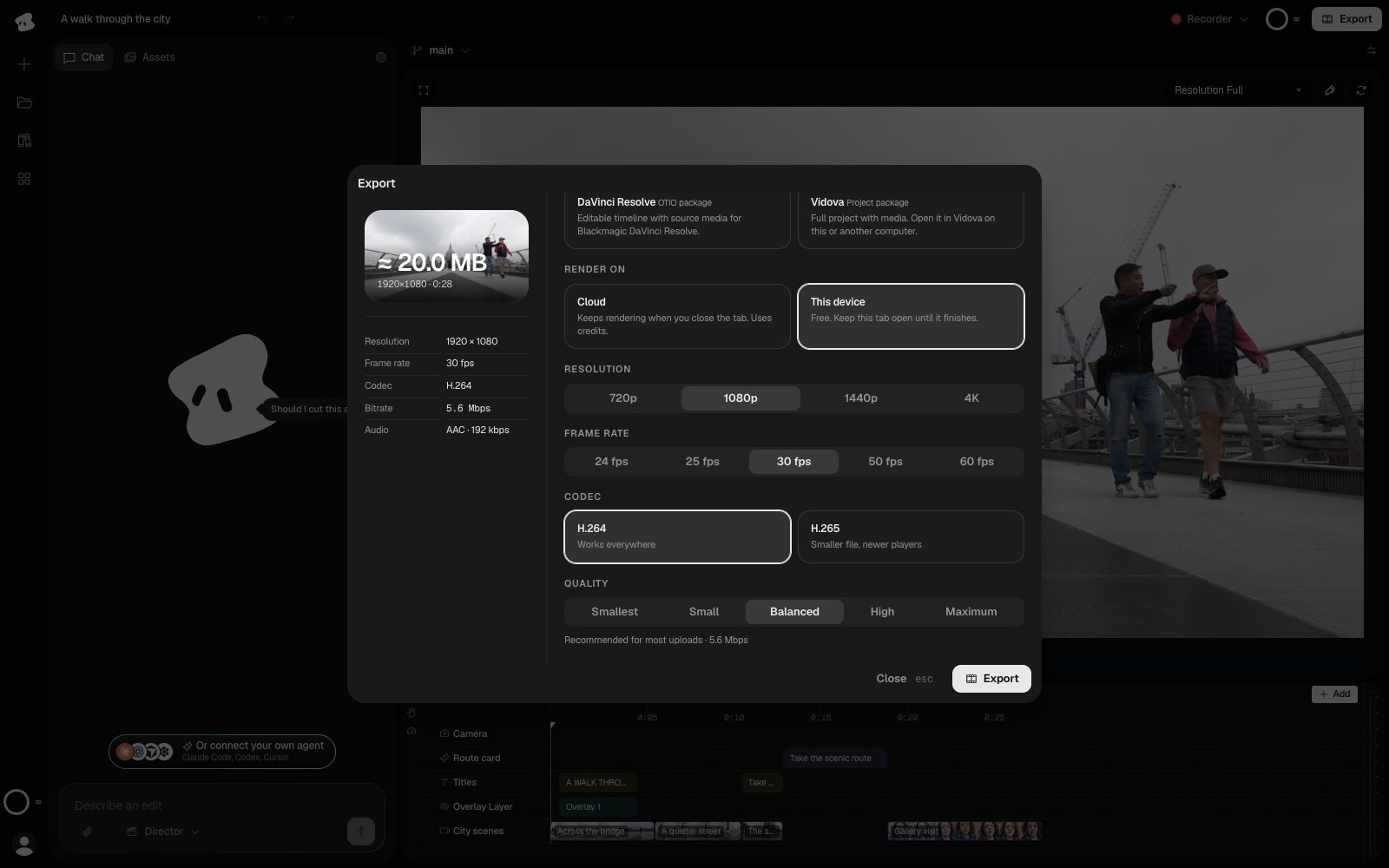
You can try this on the free plan. It gives you 750 credits once, exports at 720p, takes projects up to 1 minute long and adds a Vidova watermark. Depending on your country, it can ask for a card check that charges nothing. Paid plans start at $19 a month, export up to 4K at 60 fps and remove the watermark and the length limit.