Safe zones for Instagram Reels, TikTok and YouTube Shorts (2026)
Where TikTok, Reels and Shorts cover a 1080 × 1920 video, in pixels. Margins for each app, a real example, ad safe zones and a checklist for text.
Last updated
The short answer
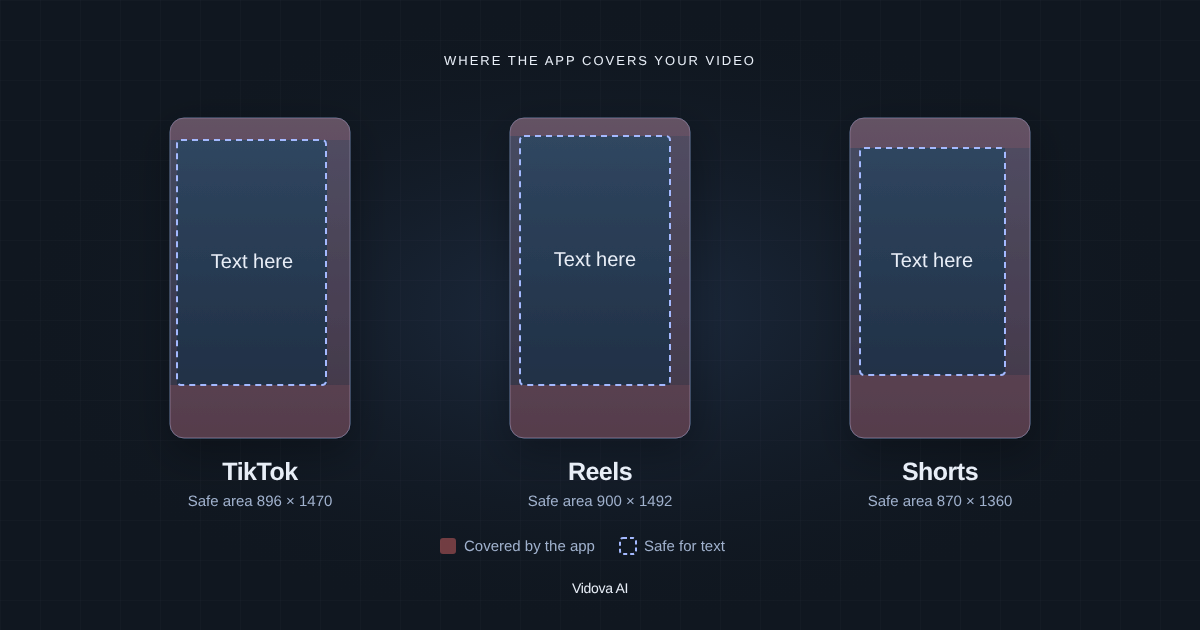
A safe zone is the part of a vertical video that the app does not cover. On a 1080 × 1920 frame, keep text out of the top 110 to 180 pixels, the bottom 320 to 380 pixels and the right 120 to 150 pixels. Those areas hold the app header, the post caption, the sound line and the like and share buttons. A box of 870 × 1360 pixels in the middle of the frame is clear on all three apps.
Key takeaways
- Put titles, prices and captions inside the middle 870 × 1360 pixels of a 1080 × 1920 frame. That box is clear on TikTok, Reels and Shorts.
- The bottom band is the largest: 320 to 380 pixels. Text at the very bottom sits under the post caption and the sound line.
- Ads need more room. Meta's Reels ad guide asks for 14% free at the top, 35% at the bottom and 6% on each side.
What is a safe zone?
TikTok, Instagram Reels and YouTube Shorts play your video full screen and draw their own interface on top of it. The app header, the account name, the post caption, the sound line and the like, comment and share buttons all sit over your picture. The safe zone is the area that stays clear. Text or a face outside it can be hidden or hard to read.
The apps do not publish an exact map for normal posts. The numbers below are the margins Vidova uses. We compared them with published overlay templates and checked them again in August 2026. The apps change their layout from time to time, so check each new post on a phone.
Safe zone sizes in pixels
| App | Top | Bottom | Left | Right | Safe area |
|---|---|---|---|---|---|
| TikTok | 130 px | 320 px | 44 px | 140 px | 896 × 1470 |
| Instagram Reels | 108 px | 320 px | 60 px | 120 px | 900 × 1492 |
| YouTube Shorts | 180 px | 380 px | 60 px | 150 px | 870 × 1360 |
| All three apps | 180 px | 380 px | 60 px | 150 px | 870 × 1360 |
If you post the same video to all three apps, use the last row. It is the Shorts safe area, because Shorts covers at least as much as the other two apps on every side. For a 720 × 1280 export, multiply each number by two thirds. For 1440 × 2560, multiply by four thirds.
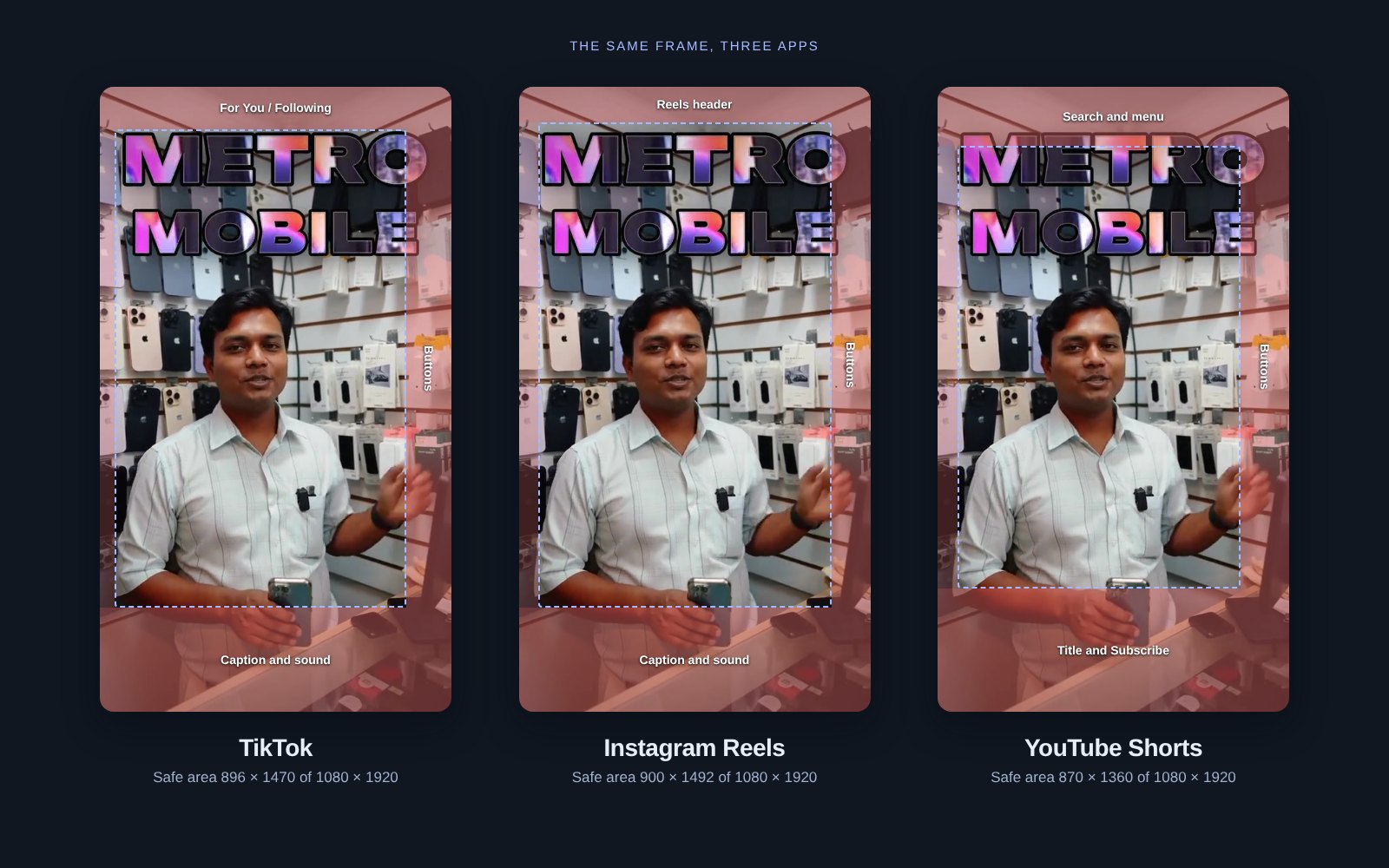
In this example the face and the phone are safe on every app. The shop name is too wide. Its last letters run under the buttons on the right. The fix is to make the title smaller or to break it into shorter lines, and to move it down about 50 pixels for Shorts.
What the app covers on each side
- **Top:** the app header. TikTok shows Following and For You. Shorts shows search and the menu. Reels shows its own header.
- **Bottom:** the account name, the post caption and the sound line. Shorts also puts the video title and the Subscribe button there. This is the deepest band on all three apps.
- **Right:** the like, comment, share and remix buttons, stacked in a column.
- **Left:** a thin margin. The apps draw little there, but text that touches the edge looks cut off.
A long post caption grows upward when someone opens it. Keep your on-screen text above the whole bottom band.
Safe zones for Reels and TikTok ads
Ads add a sponsored label and a call-to-action button, so the covered area at the bottom grows. [Meta's ad guide for Instagram Reels](https://www.facebook.com/business/ads-guide/update/video/instagram-reels) says to leave at least 14% of the top, 35% of the bottom and 6% on each side free of text, logos and other key elements. On a 1080 × 1920 frame, that is about 269 pixels at the top, 672 pixels at the bottom and 65 pixels on each side.
[TikTok's ad specifications](https://ads.tiktok.com/help/article/video-ads-specifications) do not give pixel numbers. The page says the safe zone depends on the video size, the caption length and other ad formats, and it links to safe zone files you can download and lay over your video.
Where to put captions
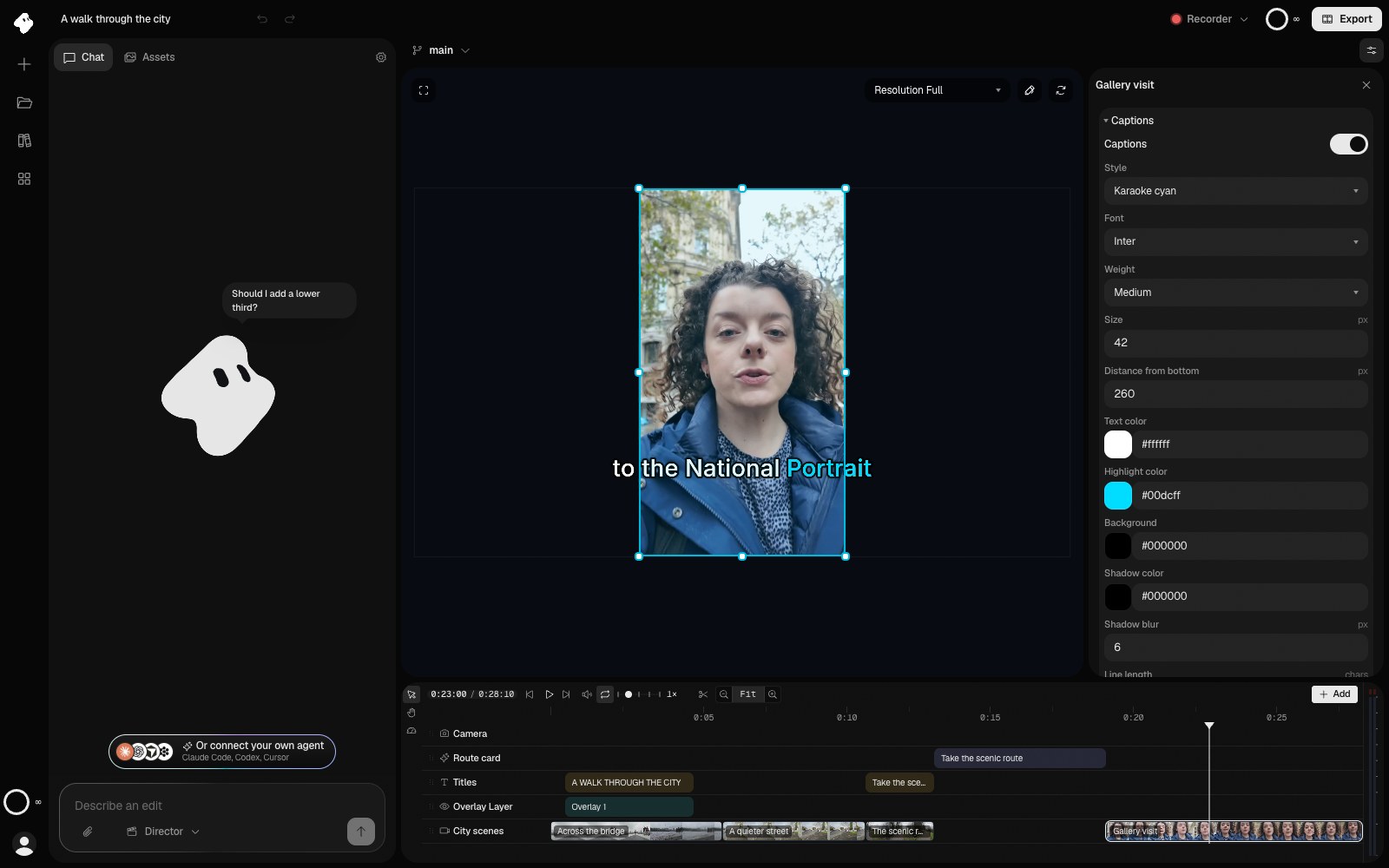
Spoken captions belong in the lower middle of the frame, above the bottom band. On a 1080 × 1920 frame, keep the last line of a caption at least 400 pixels above the bottom edge. Keep lines short so they end before the buttons on the right.
In Vidova, select the clip and open **Captions** in the Inspector. **Distance from bottom** moves captions up from the edge. **Line length** sets how many characters fit on one line.
How Vidova checks text placement
When the Vidova agent changes a vertical video, it gets a style check of the result. The check names any text that reaches into the bottom 12% of the frame, where TikTok and Reels put their caption and buttons and the free plan puts its watermark. It also names text in the top 7%, where the apps put their tabs and search. The agent then moves the text and previews the frame again.
You can also ask for the safe area in the brief:
Make this a 9:16 video for TikTok, Reels and Shorts. Keep every title and caption inside the area that all three apps leave clear. Put the price in the middle of the frame and hold it for 2 seconds.
Checklist before you post
- Post privately or save a draft, then watch the video in the app with its interface on screen.
- Read every line of text, including the longest caption line.
- Check that faces and the product are not under the buttons on the right.
- Check that the end card and its call to action sit in the middle of the frame.
- If you post to Shorts too, check the top 180 pixels. Shorts covers more there than the other two apps.