How to add subtitles to a video automatically
Add captions to a video with AI: transcribe the speech, fix names and numbers, style the words for Reels, TikTok or YouTube, and choose burned-in or editable captions.
Last updated
The short answer
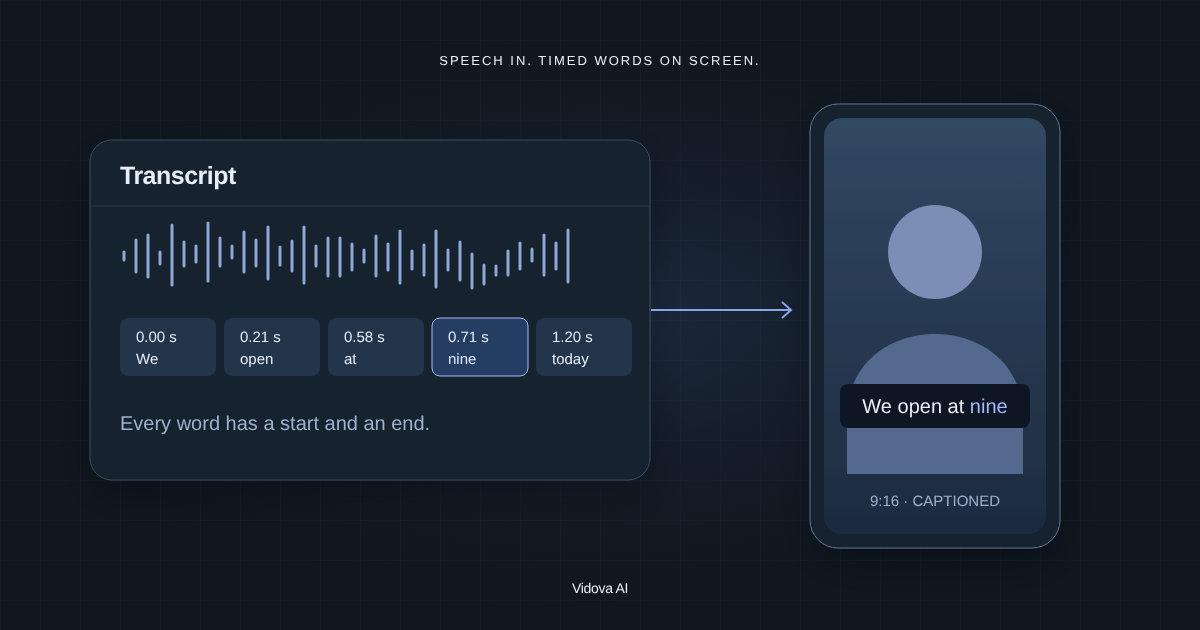
To add subtitles automatically, upload the video, let an AI tool transcribe the speech into timed words, correct the words it got wrong, then choose a caption style and position. In Vidova you ask the agent to transcribe the clip and add captions. Every word keeps its time, so you can fix a name without re-cutting the video, and the captions export burned into the MP4 or as part of a Premiere Pro or DaVinci Resolve timeline.
Key takeaways
- Automatic subtitles come from a transcript with a start and end time for each word.
- Always read the transcript once. Names, prices and product terms are where speech recognition fails.
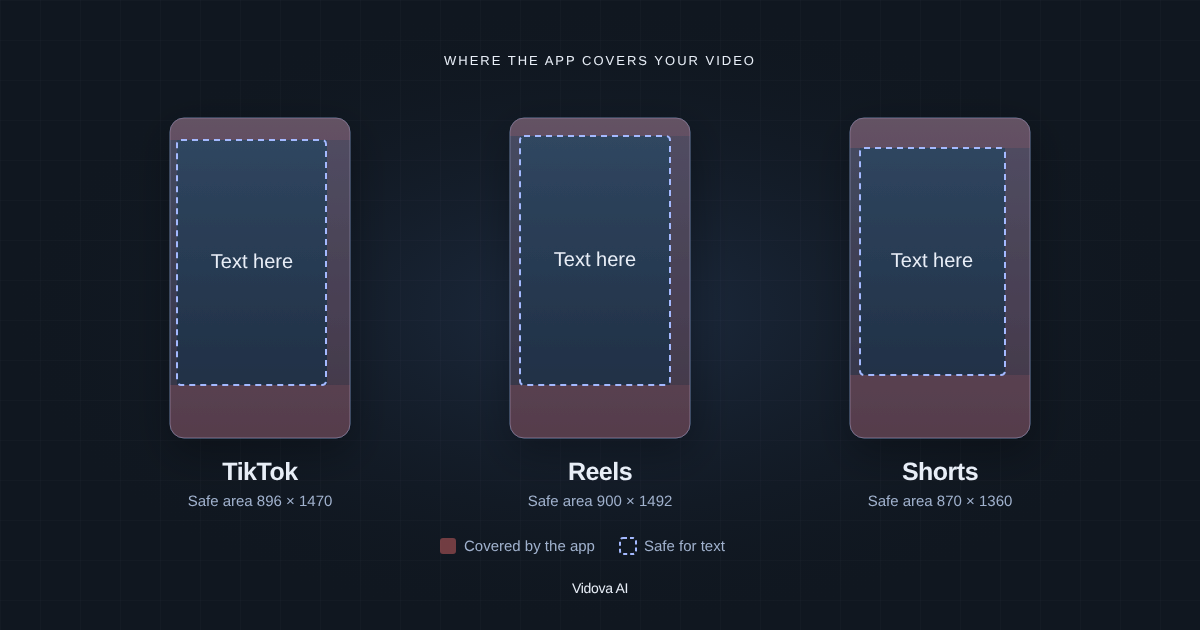
- For Reels and TikTok, burn captions into the video and keep them above the app's caption and buttons.
Why add subtitles
Many people watch short videos with the sound off. Captions let them follow what you say. They also help people who are deaf or hard of hearing, and people who watch in a second language. Meta's ad guide for Reels lists captions as optional but recommended.
Captions, subtitles, burned-in and separate files
| Type | What it is | Use it for |
|---|---|---|
| Burned-in (open) captions | The words are part of the picture | Reels, TikTok, Shorts, ads and any app without a captions upload |
| Separate captions (closed) | The words travel next to the video and the viewer can turn them off | YouTube uploads, video players on websites, edit handoff |
Short-form apps show burned-in captions to everyone, in your style. Most creators use them for vertical video. For a long YouTube video, separate captions are common because YouTube can show them in the viewer's player.
Add subtitles step by step
- Upload the video to Vidova and put it on the timeline. Wait until the upload and preparation finish.
- Ask the agent to transcribe the clip and add captions.
- Play the video while you read the transcript. Check names, numbers and special terms.
- Ask for corrections in plain words, such as: change “Vidoba” to “Vidova”.
- Select the clip and open **Captions** in the Inspector to pick a style and position.
- Export the MP4, or export a Premiere Pro or DaVinci Resolve timeline with **Include captions** on.
Transcribe this interview and add captions. Use a large, high-contrast style with the current word highlighted. Keep the captions near the bottom but above the area TikTok and Reels cover. The speaker's name is Amara Okafor and the shop is Northside Roasters.
Names in the brief help the agent spell them right on the first try. The corrected words keep their start and end times, and the recorded voice does not change.
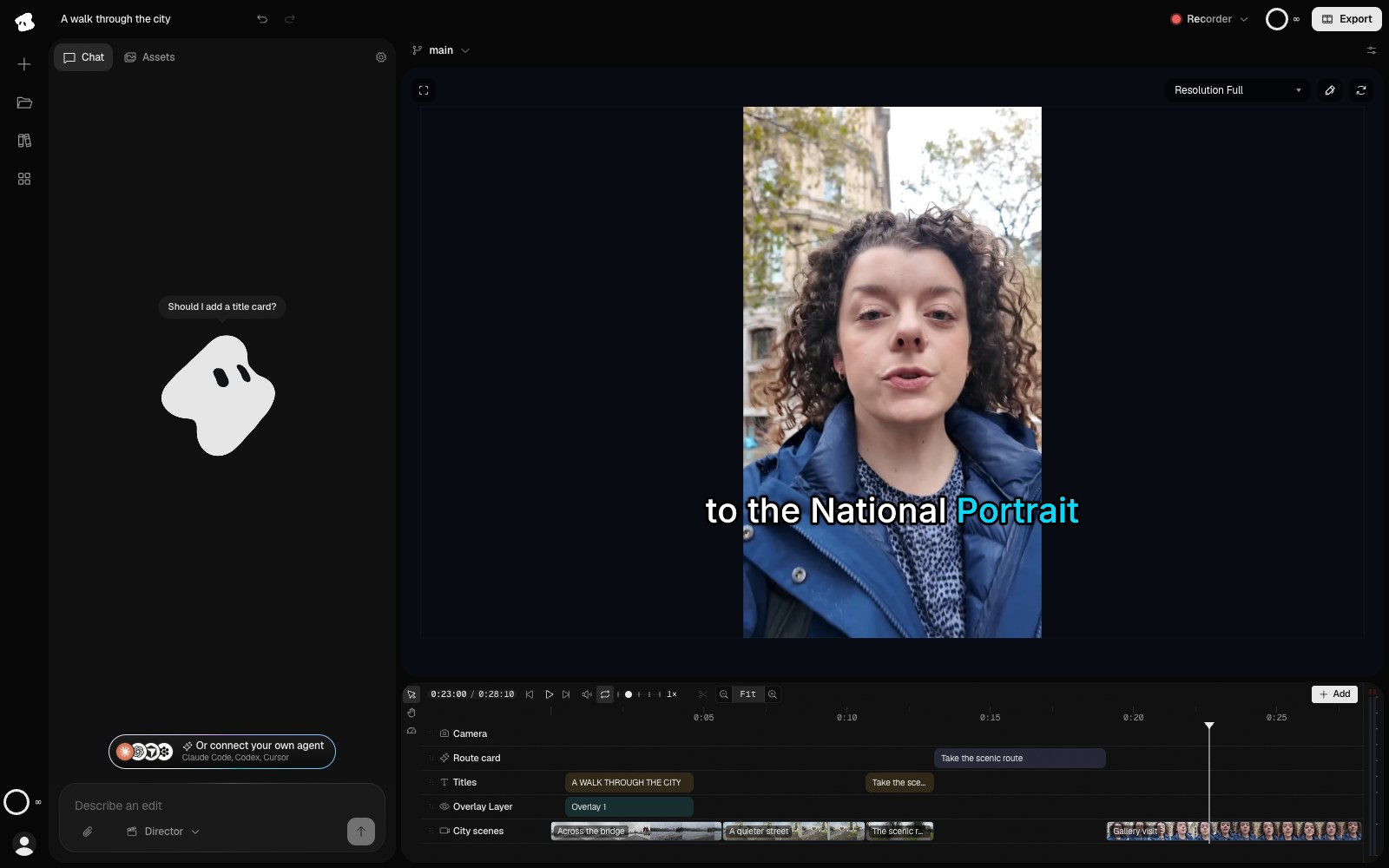
Choose a caption style
Vidova has caption styles such as Minimal, Outlined, Word highlight and several Karaoke styles. You can change the font, weight, size, text color, highlight color, background and shadow. **Distance from bottom** moves the captions up. **Line length** sets where lines wrap.
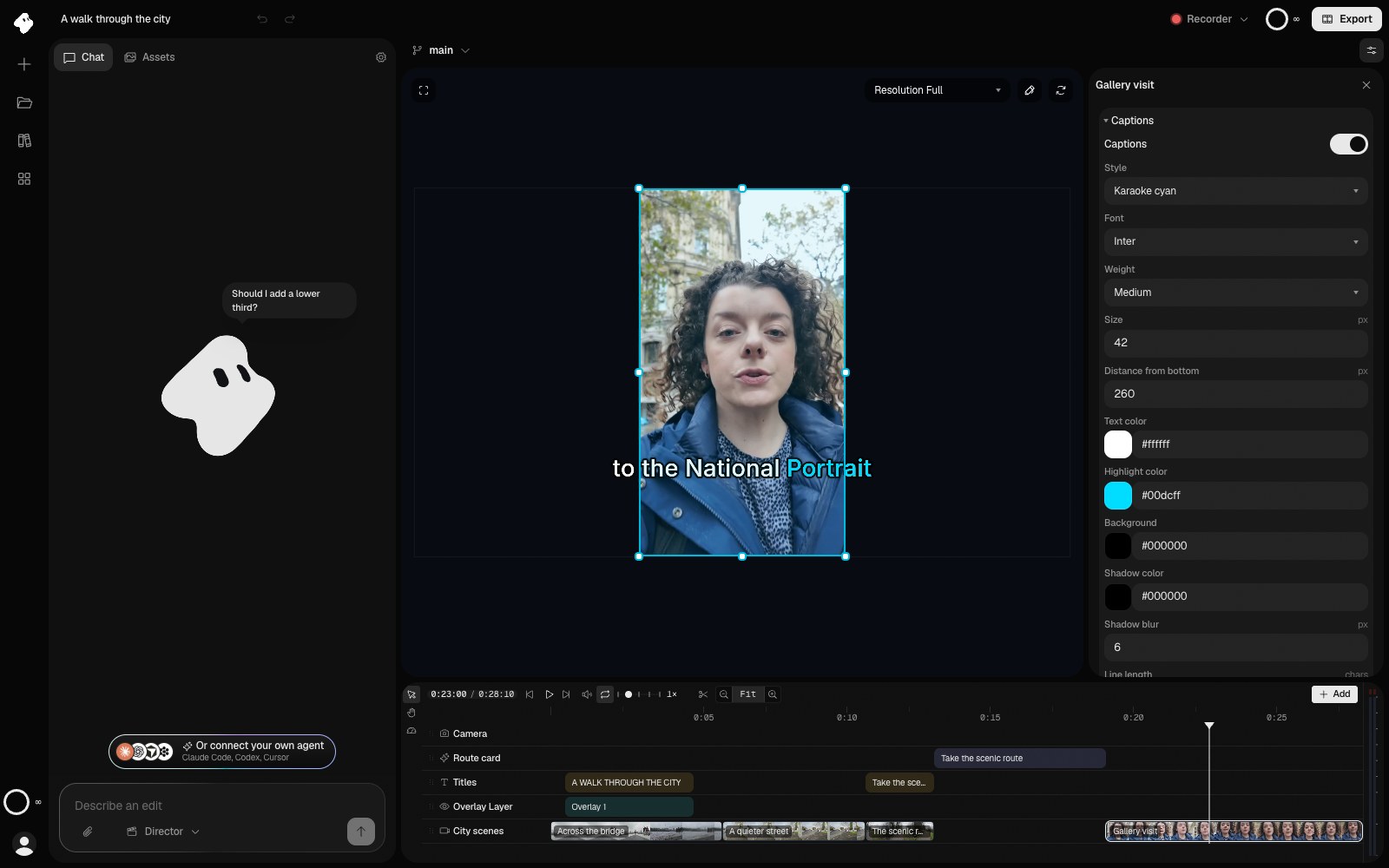
- Use a large size. On a 1080 × 1920 frame, text under about 43 pixels is hard to read on a phone. Vidova's style check flags text smaller than 4% of the short side of the frame.
- Use high contrast: white text with a dark outline, shadow or box works on most footage.
- Show one or two short lines at a time. Long lines run under the app buttons on the right.
- Keep captions off faces and off the product.
Fix the words the AI got wrong
Speech recognition makes the same kinds of errors in every tool. It mishears names, brand names and words from another language. It writes numbers in a different form from the one you want. It misses words when two people talk at once or when music is loud.
- Read the transcript once from start to end before you style it.
- Check every name, price, date and address against what you meant to say.
- Decide how to write numbers: “10%” or “ten percent”, “$5” or “five dollars”.
- Keep corrections close to what was said. Captions that differ from the voice are confusing.
Use the transcript to cut the video
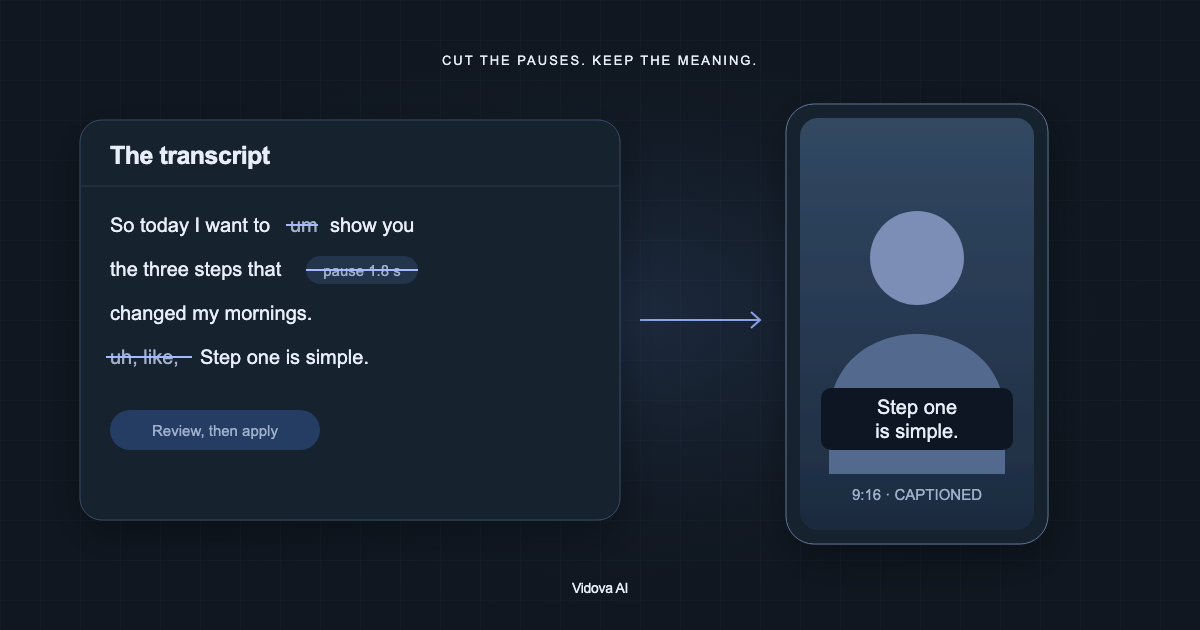
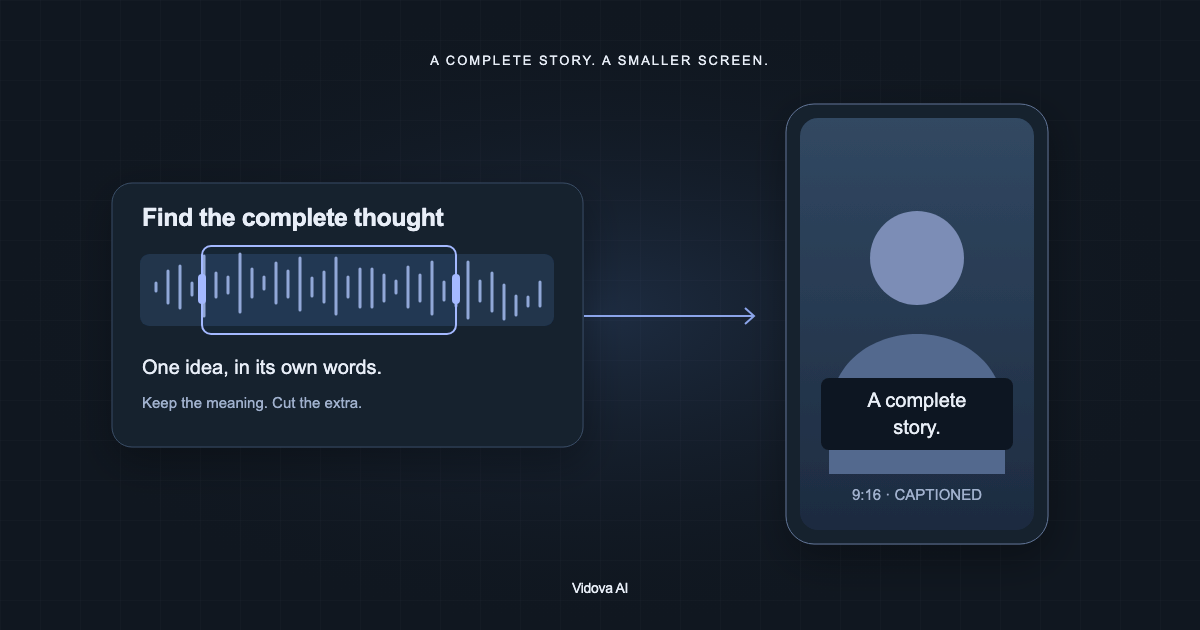
The transcript gives every word a time, so you can also edit the video by its words. Ask the agent to cut long pauses and filler words such as “um” and “uh”, or to keep only the sentences about one topic. Listen around each cut afterwards. Some pauses are part of the delivery you want to keep.
You can try this on the free plan. It gives you 750 credits once, exports at 720p, takes projects up to 1 minute long and adds a Vidova watermark. Depending on your country, it can ask for a card check that charges nothing. Paid plans start at $19 a month, export up to 4K at 60 fps and remove the watermark and the length limit.