How to cut pauses and filler words and add captions to a talking-head video with AI
Remove silences and filler words from a talking-head video, hide the jump cuts and add captions in the language you speak, by hand in the Script panel or with a brief to the agent.
Last updated
The short answer
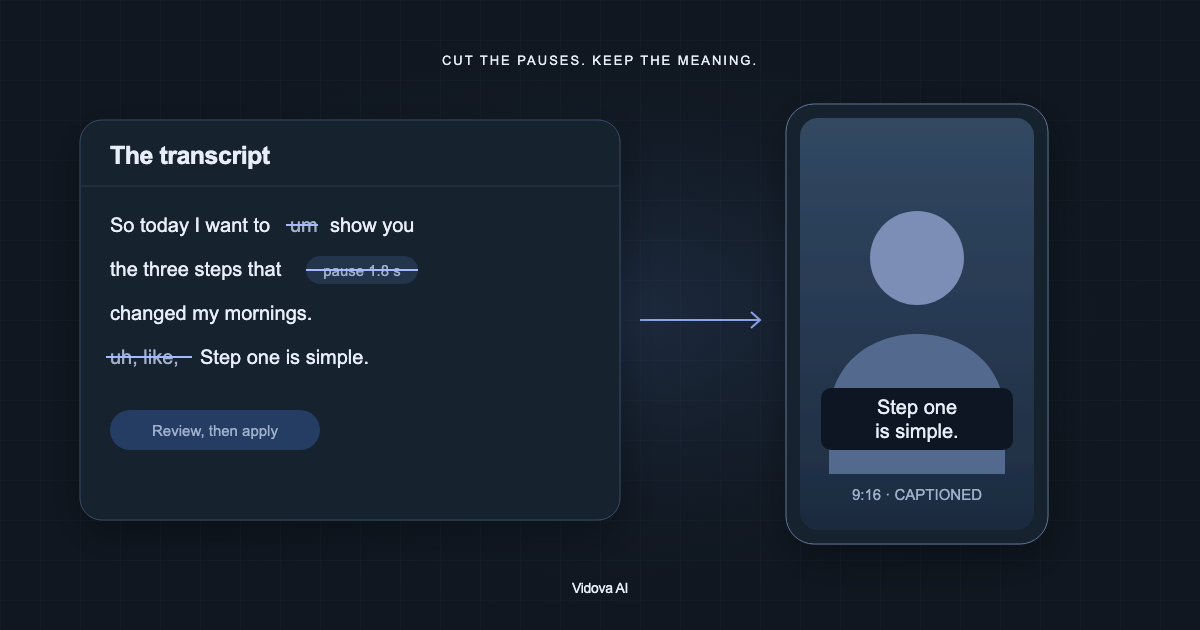
To clean up a talking-head video, transcribe it, remove the silences and filler words, cover the jump cuts with punch-ins, and add captions. In Vidova you can do this by hand in the Script panel or ask the agent. Transcription detects the language you speak, so the captions come out in that language.
Key takeaways
- Silences and filler words come out of the transcript, so review the marked cuts before you apply them.
- Hide jump cuts by switching between a wide and a closer frame, or by covering a cut with another shot.
- Captions follow the spoken language. Vidova does not translate them into another language.
What gets cut
- Silences: the gaps between words.
- Filler words: “um”, “uh” and similar sounds.
- False starts and repeated sentences, where you began a line again.
Not every pause is a mistake. A pause before a punchline or after a question can be part of how you speak. Review the marked cuts and keep the ones that help.
Do it by hand in the Script panel
- Add the video to your project and wait for the upload to finish.
- Open Script and choose Transcribe, or ask chat to transcribe the video.
- Choose Silences to mark every gap of half a second or more between words.
- Choose Fillers to mark English filler words such as “um”, “uh” and “like”.
- Select any other words you want gone and choose Cut.
- Review the marked passages, then choose Apply.
The Fillers button matches English filler words only. For a video in another language, select the filler words yourself or ask the agent. Use Ripple all when titles or music on other layers should close up with the cut.
Or ask the agent
The agent cuts with the word times from the transcript, so each cut falls in a pause between words and not inside one. You can write the brief in your own language. The agent replies in the language of your message.
I speak Spanish in this 3-minute video to the camera. Cut the long pauses, the filler words and the false starts, but keep the pause before each punchline. Hide the cuts by switching between a wide frame and a closer frame. Add large captions under my chin. No music.
This is an example brief. After the cut, play it once from start to end. Check that each sentence still says what you meant.
Hide the jump cuts
A cut inside one continuous shot makes the head jump. There are two common fixes, and the agent can use either one when you ask it to hide the cuts.
- Change the framing at each cut: the wide frame, then a punch-in of about 1.12 times on the face, then wide again. It reads as a second camera.
- Cover a cut with another shot while your voice continues: a close-up, a product shot or a screen recording of what you are talking about.
Hard cuts work better than transitions inside a sentence. A fade in the middle of a thought looks like a mistake.
Captions in the language you speak
Transcription detects the language that is spoken, so captions show your words in that language. Vidova does not translate captions into another language.
Check names, numbers and special terms against what you said. To fix a word, select it in Script, type the correct word and choose Replace captions. The caption keeps its timing, and your recorded voice does not change. In the Inspector, choose a caption style such as Minimal, Outlined, Word highlight or a Karaoke style, and set the distance from the bottom so the captions sit under the chin and above the app buttons.
Check before you export
- Every sentence still means what you meant.
- No word is clipped at the start or the end of a cut.
- Captions are spelled right and do not cover your mouth.
- Your voice has the same level from start to end.
Clean up your first video
You can try this on the free plan. It needs a card check that charges nothing, gives you 750 credits once, and adds a Vidova watermark to previews and exports. Paid plans start at $19 a month, billed monthly or yearly, and remove the watermark.