An AI video editor that edits your real footage instead of generating a new video
AI video generators make new clips. Vidova edits the clips you upload, so your face, your voice and your footage stay as you filmed them. How it works and how to ask for it.
Last updated
The short answer
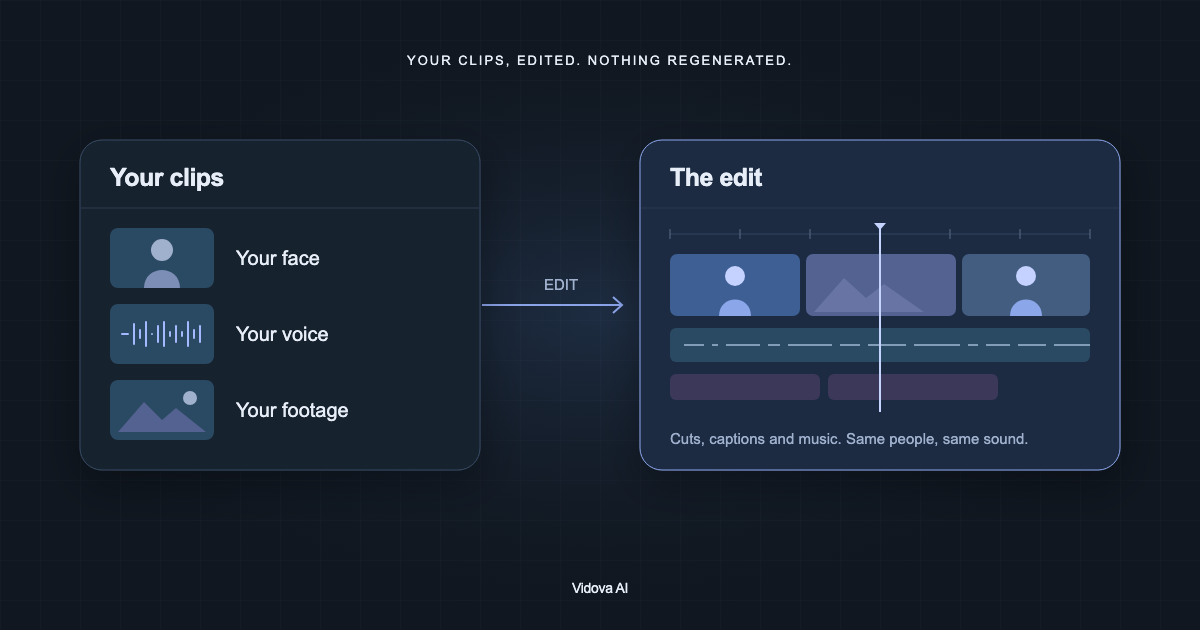
If you want AI to edit your own video, use an editor that cuts your clips on a timeline, not a generator that makes new footage from a prompt. In Vidova, an AI agent trims, orders, captions and times the clips you upload. The people and voices stay as you recorded them, and your brief decides whether anything new is generated.
Key takeaways
- A generator makes new frames. An editor arranges the frames and sound you recorded.
- Vidova's agent edits a timeline with your uploads: cuts, captions, titles, music and timing.
- Write “use only my clips” and “keep my voice” in the brief when you want nothing generated or muted.
Why a video generator changes your face and voice
A video generator makes new frames from a prompt. Some accept your clip or photo as a reference, but the result is still a new video made by a model. Faces, hands, text on signs and voices can come out different from what was filmed. That is fine for an imagined scene. It is a problem for a promo with you in it, a wedding, a match or a family video.
An editor works the other way. It keeps the frames and the sound you recorded, and it decides which parts play, in what order, for how long, and what goes on top.
| Question | Video generator | Editor with your footage |
|---|---|---|
| Where the picture comes from | New frames made by a model | The clips you recorded |
| Your face and voice | Made again by the model | As filmed and recorded |
| Changing one part later | Generate again | Change that cut, title or caption on the timeline |
| Good for | Shots you could not film | Promos, events, sports, talks and memories |
What Vidova changes and what it keeps
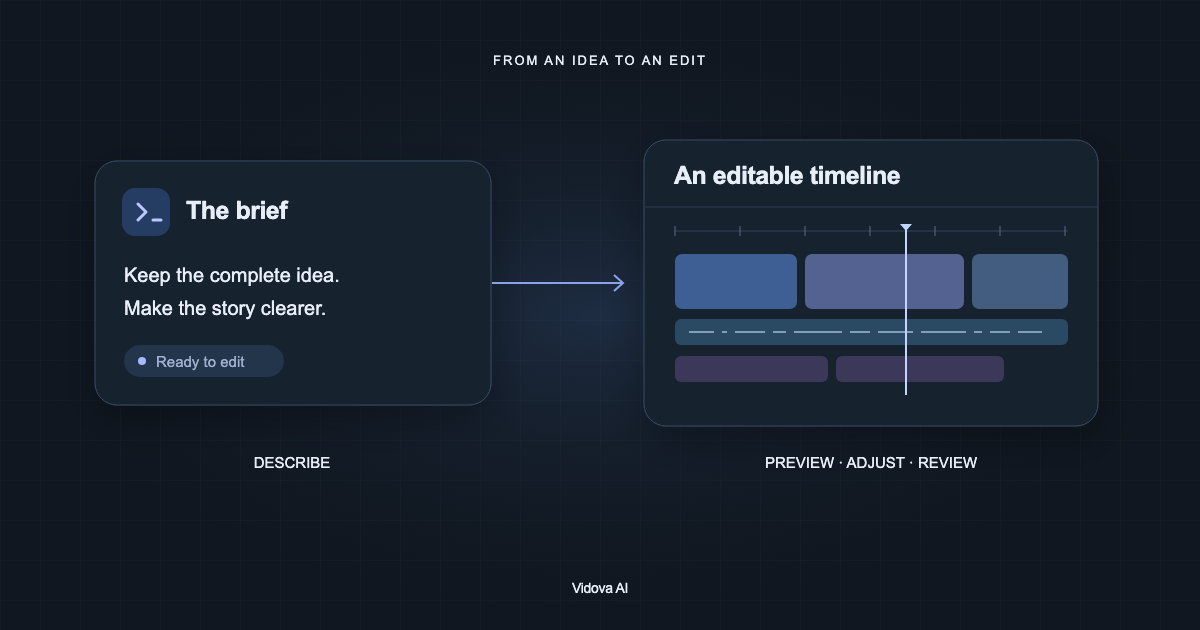
Vidova is a video editor with an AI agent. You upload clips, photos and audio, then describe the video you want. The agent edits a timeline with your files and previews frames of the result to check its work.
- Which seconds of each clip play, and in what order.
- Speed: slow motion, speed ramps and freeze frames.
- Framing: a crop for a vertical video, a punch-in on a face.
- Colour: one grade across all clips so they match.
- What sits on top: captions from your speech, titles, graphics, sound effects and music.
It does not regenerate your clips unless you ask it to. The people on screen are the people you filmed, and the voice is the voice you recorded. Every change stays on the timeline, so you can move a clip, fix a word or undo a step yourself.
Tell the agent to use only your footage
The agent can also generate images, video clips, voiceovers, music and sound effects. When a brief asks for a shot that is not in your uploads, it can generate that shot, which spends credits. If you want none of that, say so. Vidova's editing guides tell the agent to follow rules such as “only my footage” and “keep my voice” exactly.
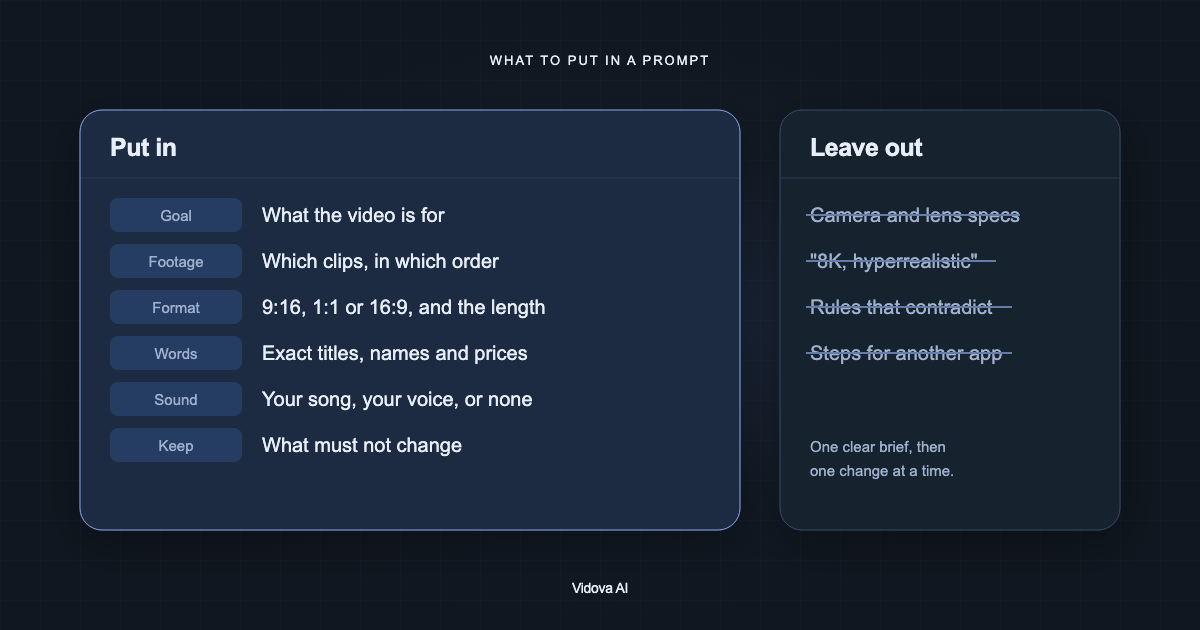
Use only my clips. Do not generate any new video or images. Keep my face and my voice as recorded. Make a 30-second vertical video from these 8 clips of my mountain climb, in the order I filmed them. Add captions where I speak at the summit. Use the song I attached.
This is an example brief. Some kinds of edit mute the clips' own sound by default because the song carries the edit, such as a beat edit. If your voice or the sound of a moment matters, write “keep the original audio” or name the clip.
What happens after you press Start
- Each upload is analyzed when it arrives. Vidova notes what happens in the clip and when, and transcribes any speech.
- The agent reads those notes and looks at frames, then writes a plan that follows your brief.
- It builds the edit on the timeline and checks frames of the result.
- You watch it. Ask for a change in chat, change a clip by hand, or undo.
You can write the brief in your own language. The agent replies in the language of your message, and captions follow the language that is spoken in the clip.
When generation is useful
Generation is a separate tool you can choose. It helps when a shot is missing: a background for a title, a wide shot of a city you did not film, a voiceover read from your script, or a music track when you have no song. A generated file becomes a new asset in the project next to your clips, and it spends credits. Your own clips stay as they are.
Try it with a few clips
You can try this on the free plan. It needs a card check that charges nothing, gives you 750 credits once, and adds a Vidova watermark to previews and exports. Paid plans start at $19 a month, billed monthly or yearly, and remove the watermark.