 Vidova
Make videos in Telegram
@vidovabot is the Vidova agent in Telegram. Send clips, photos and voice messages, say what you want, and the finished video comes back in the chat. It is the same agent as Editing with chat, and it works on the projects in your Vidova account.
The bot works in Telegram on iPhone, Android, Mac, Windows, Linux and the web. It answers in your private chat with it. It does not work in groups.
For a short tour, see the Telegram bot page.
Connect your Vidova account
You connect a chat once. After that, the bot works on your account until you disconnect it.
- Open t.me/vidovabot and tap Start.
- The bot sends a Connect Vidova button and a chat code. Tap the button.
- Sign in or sign up on vidova.ai. Check that the page shows the same chat code as Telegram, then choose Connect.
- Go back to Telegram and send your clips.
The button works once. If the page says the link no longer works, tap Start in the bot again to get a new one.
You can also start in Vidova: open Settings → Telegram and choose Connect Telegram. A Telegram account connects to one Vidova account at a time. Connecting Telegram is also one of the tasks under Earn credits on the Billing page.
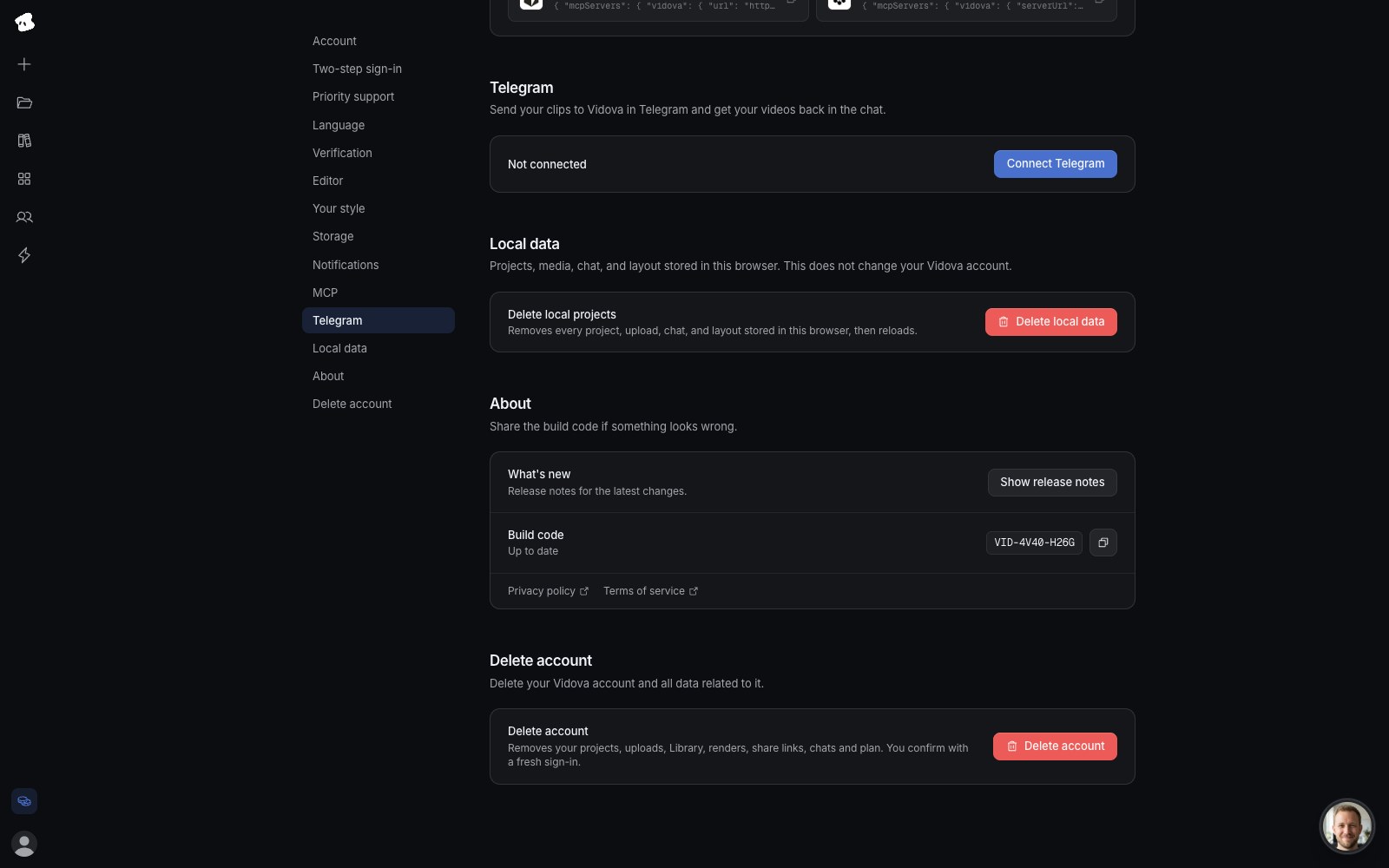
Connect Telegram opens the bot in Telegram. Once a chat is connected, this section shows its name and a Disconnect button.
Select the image to open the original full view.
Send clips, photos and voice messages
There are no commands to learn. The only command is /start. Type what you want the way you would tell a friend, for example “Make a 20-second Reel from these clips for our weekend sale.”
- Videos, photos, audio and files. Every file you send goes to your Your Library. The agent adds it to the project it works on.
- Albums. Photos and clips sent together as an album reach the agent as one message.
- Captions. Write your request as the caption of a file or album, or in its own message.
- Voice messages. Say what you want instead of typing it. The agent takes a voice message in which you talk to it as your request.
Telegram compresses photos and videos that you send the usual way. To keep the original quality, send them as files. If a file does not come through, the bot asks you to send it again.
How the agent picks the project
Your chat with the bot is one long conversation. It is not tied to one project. The first message starts in the project you opened last. After that, the agent decides from what you say: it starts a new project for new work, and opens an earlier project when you want to continue it.
To go back to earlier work, name it, for example “Shorten the bakery Reel from yesterday.” Every project stays in your account, so you can also open it in the editor. See Projects.
Follow the work and answer questions
While the agent works, a status line in the chat shows what it is doing. Its replies show frames of the edit, so you can see the video take shape.
When the agent needs a choice, it asks with buttons:
- Tap an answer. When a question takes more than one answer, tap each one, then tap Done.
- Tap Something else to type your own answer. You can also type an answer without tapping a button.
You can send a new message while the agent works. It starts on that message when the current work ends. To change a message that the agent has not started on yet, edit it in Telegram. To point at one of the agent’s earlier messages, reply to it: the agent sees the text you replied to.
Get the finished video
When the video is ready, it arrives in the chat as a video message. Play it, save it, post it or forward it.
To change the video, reply in the same chat, for example “Make the intro shorter” or “Bigger captions.” The agent edits the same project and sends the new version.
If a video does not finish, the bot tells you. Ask it to make the video again. For other formats and sizes, open the project in the editor and see Exporting and sharing.
Plans and credits
The bot uses your Vidova plan and credits, the same as chat in the editor. See Plans and credits for what each plan includes.
When a request needs more credits or a feature of another plan, the bot says so and shows See plans. When your account needs a check first, it shows Verify your account. When the agent stops for another reason, tap Continue to let it go on.
Languages
The bot’s own messages and buttons follow the language of your Telegram app: English, German, Spanish, French, Indonesian, Italian, Japanese, Brazilian Portuguese, Russian or Simplified Chinese. Other languages get English. The agent answers in the language you write in.
Disconnect the chat
Open Settings → Telegram in Vidova. It shows the connected Telegram account. Choose Disconnect to remove the link. The bot then tells the chat that it is no longer connected to your Vidova account.
Your projects and Library files stay in your account. To connect again, open the bot and tap Start.