ChatGPT plugin
Edit your video in ChatGPT. Attach your clips, get the finished video.
The Vidova plugin is in ChatGPT's plugin directory. Install it, attach your clips in a chat, say what you want, and get a finished MP4.
 ChatGPTwith the Vidova plugin



@Vidova short video for my bakery. people should get hungry
Here it is. It opens on the syrup pour and ends on the cheese pull. Open the finished video
The short answer
Vidova has its own plugin in ChatGPT's plugin directory, published by DeepShot, Inc. Install it and sign in with your Vidova account. Then attach your clips in a chat and say what you want in plain words. Vidova reads your footage and builds the edit on a real timeline, with cuts, captions from the speech, titles, music, voiceover, motion graphics, effects and transitions. It can also generate shots and music that your footage does not have. It checks the film for problems a viewer would notice, fixes them, and renders an MP4 in the cloud. Every project stays in your Vidova account, where you can keep changing it.
- Plugin
- Vidova, by DeepShot, Inc.
- Works in
- ChatGPT on the web, desktop and mobile, where your plan and region allow plugins
- You send
- Videos and photos up to 512 MB each, or a link to a file
- You get
- A finished MP4 and a Vidova project you can keep changing
- You need
- A Vidova account
- Price
- Your Vidova plan
What the plugin does
- Clips attached in the chatAttach videos and photos in the chat, up to 512 MB each. They go straight into a Vidova project.
- Just say what you wantAsk for the video in plain words. Type @Vidova, or let ChatGPT use the plugin when your request fits.
- A real editVidova reads what is on screen and what is said, finds the best moments and cuts them on a real timeline.
- Captions, titles and musicIt adds captions from the speech, titles, music, voiceover, motion graphics, effects and transitions.
- Generated shots and musicIt can generate shots and music that your footage does not have.
- Checked before it rendersIt checks the film for problems a viewer would notice, such as text too close to the edge or low contrast, and fixes them.
- A finished MP4ChatGPT gives you the link to the finished video, ready to post.
- Saved to your accountEvery project stays in your Vidova account. Open it in the Vidova editor to keep changing it.
Start in ChatGPT in four steps
Open the Vidova plugin
Open the plugin page in ChatGPT, or go to Plugins in the sidebar and search for Vidova.
Install it and sign in
Choose Install plugin, then sign in with your Vidova account when ChatGPT asks. You do this once.
Attach clips and say what you want
Start a chat, type @Vidova, attach your clips and write what the video is for.
Get the video
ChatGPT gives you the link to the finished MP4. Reply to change it.
What people make with it
- Reels, TikToks and ShortsAttach your clips and ask for a vertical edit with captions, or for cuts on the beat of a song.
- Ads for your businessTurn product clips into a short ad.
- Podcast clipsAttach an episode and ask for short captioned clips.
- Trips and eventsCut the day's clips into a recap.
Frequently asked questions
Is there a Vidova plugin for ChatGPT?
Yes. Vidova is in ChatGPT's plugin directory, published by DeepShot, Inc. Open it, choose Install plugin and sign in with your Vidova account.
Is this the CapCut plugin for ChatGPT?
No. Vidova and CapCut are separate products from separate companies. The Vidova plugin edits projects in your Vidova account and does not use CapCut.
Do I need developer mode?
No. You install the plugin from ChatGPT's plugin directory. If you added Vidova's server in developer mode before, that connection keeps working.
Can I attach a video in ChatGPT?
Yes. Attach videos and photos in the chat, up to 512 MB each, and they go into your Vidova project. For a larger file, Vidova gives you a link to upload it.
Do I need a Vidova account?
Yes. ChatGPT asks you to sign in the first time you use the plugin. Your footage stays in your account.
Can I change the video after it is done?
Yes. Reply in the same chat, for example "make the intro shorter" or "bigger captions". You can also open the project in the Vidova editor and change it there.
What does it cost?
The plugin uses your Vidova plan, the same as a chat in the editor.
Guides
All docsMore from Vidova
Prefer a big screen?
The same agent edits in your browser on a real timeline, and the free desktop app records your screen.
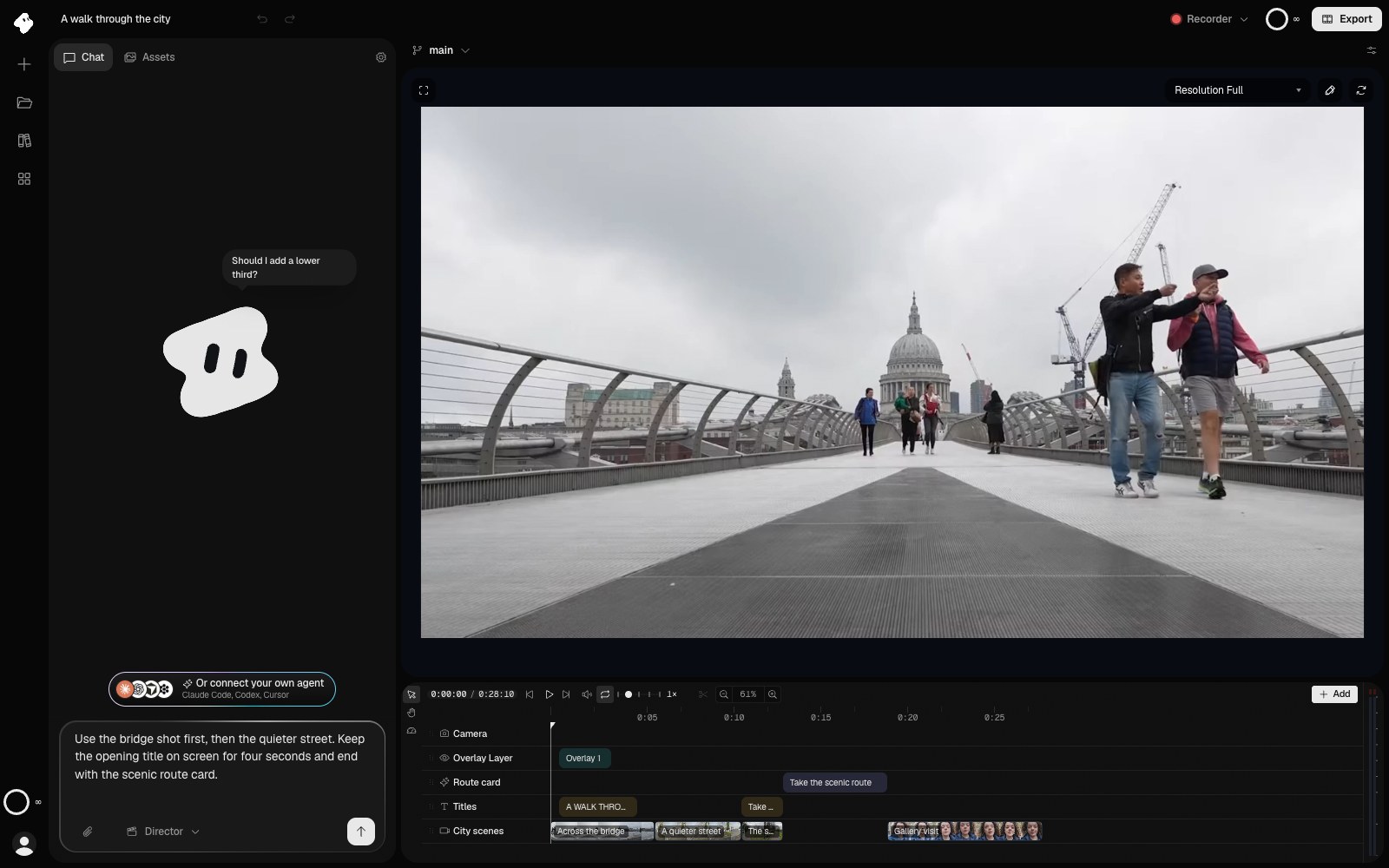
Agentic AI video editor
Tell an agent the edit. It cuts it on a real timeline.
Describe the video you want in one sentence. The Vidova agent cuts, captions, animates and previews it, and every edit stays on a timeline you can change or undo.
- Cuts, titles and transitions from one prompt
- Captions, music and sound effects added for you
- Works from Claude, Cursor and Codex over MCP
Vidova Recorder
Record your screen. The zooms and captions are done.
The free desktop app records your screen, camera and mic, then zooms in on clicks, cuts the pauses and writes captions.
- Automatic zoom and a cursor-following camera
- Silences and filler words cut from the transcript
- Free for Mac, Windows and Linux
In ChatGPT's plugin directory
Make your next video in ChatGPT.
Open the plugin, install it and attach your first clips.