 Vidova
How to make a velocity edit: speed curves, beat sync and smooth slow-mo
A velocity edit rushes each clip, brakes on a beat and plays the moment at quarter speed. The beat math, the speed curve, CapCut and Premiere steps, and the AI way.
 Vidova team
Last updated
The short answer
To make a velocity edit, pick a song with a clear drop and work out its beat length: 60 divided by the BPM. Give each key clip a speed curve: a rush at 1.5 to 3 times speed, a brake of 0.2 to 0.3 seconds, and the clip's best moment at about quarter speed exactly on a beat. Slowed parts need new in-between frames to stay smooth. In Vidova, you upload your clips and the song and ask for a velocity edit. The agent measures the beats and writes the speed curves.
Key takeaways
- Start from the song. The beat length is 60 divided by the BPM, and every cut, ramp and flash sits on that grid.
- Ramp only the one to three best moments: rush at 1.5 to 3 times, brake in 0.2 to 0.3 seconds, then about quarter speed for two beats.
- Slowed parts need new in-between frames. Film at 60 fps or more, or use frame interpolation.
What a velocity edit is
A velocity edit is a short music edit in which clips rush, brake hard and play their best moment in slow motion, with every moment on a beat of the song. It is a series of speed ramps placed on a beat grid. It suits clips with one clear moment each: a drift, a goal, a jump, a punch.
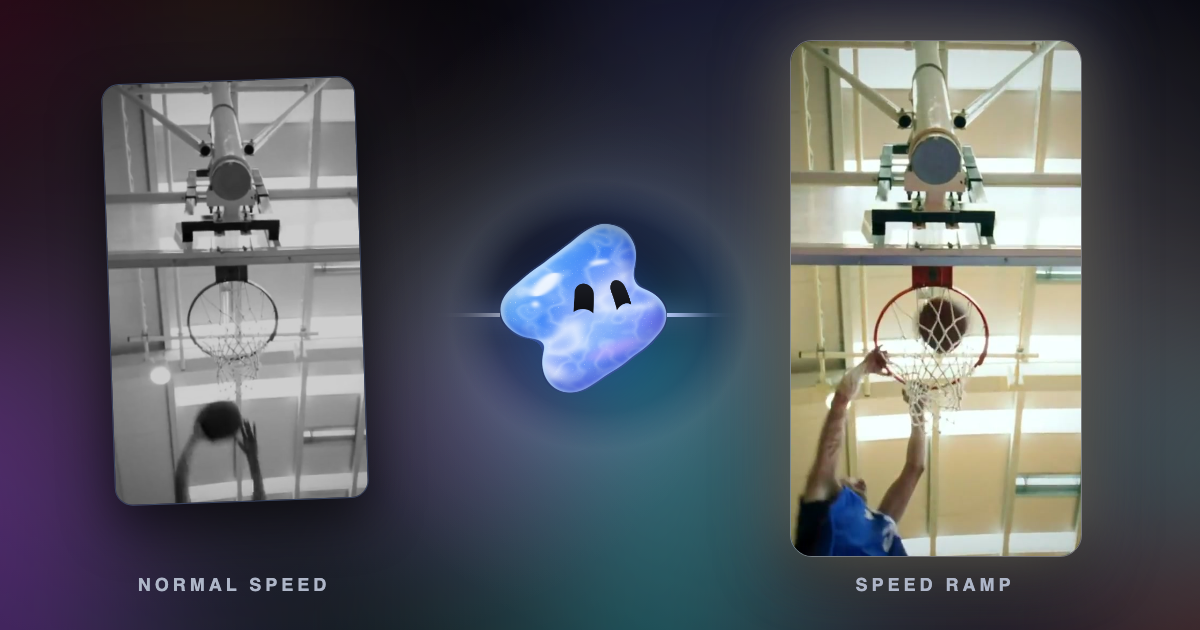
This guide covers the whole edit: the song, the beat math, the speed curve of each clip and where the hits go. For a single ramp shown frame by frame, read what a speed ramp is.
The four parts of a velocity edit
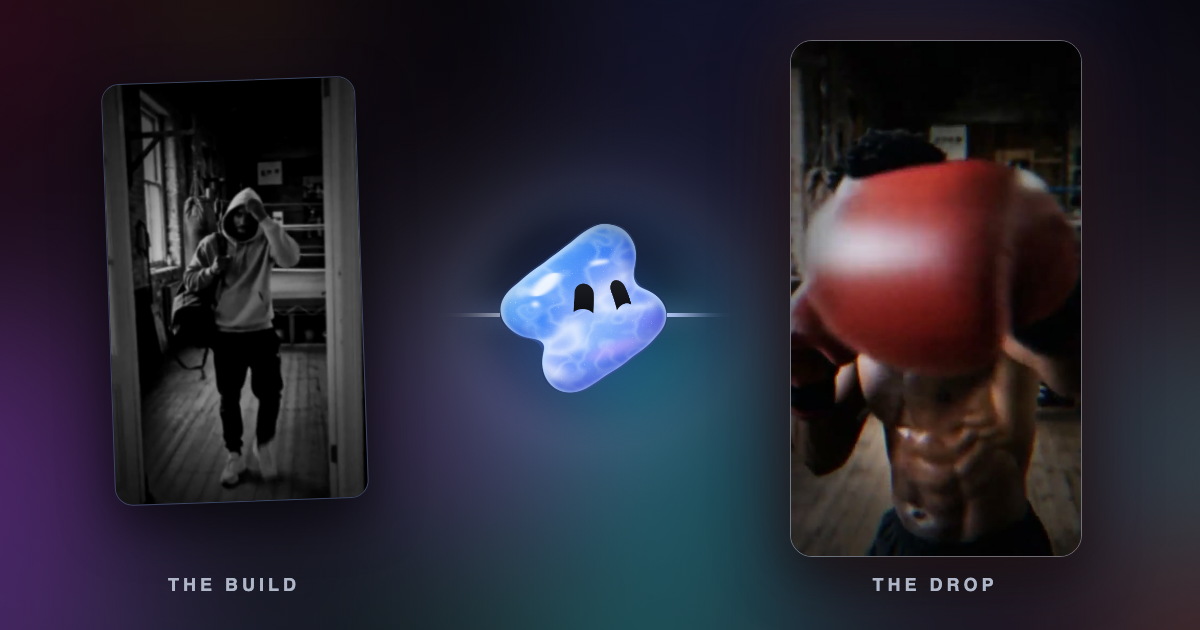
Vidova's velocity fan edit template splits an edit into four parts. Its preview is a 12.7-second boxing edit on a trap track at 136 BPM, where one beat lasts 0.441 seconds.
| Part | What happens | In the preview |
|---|---|---|
| Build | Short clips rush at real speed or faster under a riser that climbs into the drop | 7 beats: four clips at 1.6 to 1.8 times speed |
| Drop | The hero ramp: the clip rushes in, brakes, and its key moment lands on the drop with one white flash, a shake and an impact | 6 beats: 2.8 times speed for a beat, the glove at the lens on the drop, quarter speed for two beats, out at about 1.6 times |
| Run | Cuts on the beat grid, each shot's hit on a beat, one or two more ramps | Six shots of one or two beats each |
| Close | The last shot and the song fade out, or the last downbeat cuts to black on a sub hit | 4 beats, then 0.3 seconds of black |
The template is 10 to 25 seconds long and vertical. It opens on the subject, not on a title card.
Work out the beat length first
Every cut and every ramp peak in a velocity edit sits on a beat. Find the song's tempo in beats per minute (BPM), for example with the free BPM detector. Then divide 60 by the BPM to get the length of one beat in seconds. Most songs group beats in bars of four, and the first beat of a bar (the downbeat) is the strongest place for a cut.
| Tempo | One beat | One bar of 4 beats | Two beats of slow motion |
|---|---|---|---|
| 100 BPM | 0.60 s | 2.40 s | 1.20 s |
| 120 BPM | 0.50 s | 2.00 s | 1.00 s |
| 136 BPM | 0.44 s | 1.76 s | 0.88 s |
| 140 BPM | 0.43 s | 1.71 s | 0.86 s |
| 160 BPM | 0.38 s | 1.50 s | 0.75 s |
In the short edits Vidova measured for its template, most shots lasted one or two beats: about 0.4 to 1.0 seconds at 120 to 145 BPM. A ramp takes 4 to 8 beats, so a run mixes quick cuts with a few longer ramp shots.
Shape the speed curve of each ramp
A ramp has three speeds: the rush in, the slow moment and the rush out. The changes between them must ease. A jump from 2 times to quarter speed with no curve reads as a glitch.
- Rush: 1.5 to 3 times speed. It builds energy and saves screen time.
- Brake: 0.2 to 0.3 seconds from the rush to the slow speed. A long, soft brake reads as drift, not as a hit.
- Moment: about 0.25 times speed for about two beats, with the key frame exactly on a beat. A mild 0.5 to 0.7 times reads as a stutter.
- Exit: back to 1.5 times or faster, into the next cut.
To land the moment on a beat, work backwards from it. The rush speed is the footage before the moment divided by the screen time you give it. Say the punch is 2.0 seconds into the clip and you give it two beats at 140 BPM, which is 0.86 seconds. The rush must average about 2.3 times speed (2.0 / 0.86). If the result is above 3 times, start the clip later in the footage. If it is below 1.5 times, start it earlier or give it fewer beats.
Keep the curve going one way. The footage should never stop dead or play backwards inside a ramp, unless a rewind is the trick of that beat. And ramp only the one to three best moments. When every clip ramps, none of them stands out.
Keep the slow part smooth
At quarter speed, a clip filmed at 30 fps has only 7.5 real frames for each second on screen. Without new frames, each one shows four times and the motion jumps. Film the moments you plan to ramp at 60 fps or more, and let frame interpolation make the rest.
Vidova makes new in-between frames for every slowed clip by default. AI smoothing makes cleaner frames around moving edges such as hands, legs and wheels, and it uses credits. It works on clips of up to 30 seconds. For filming tips and the full frame math, read how to make slow motion smooth.
Put the hits on the beat, not everywhere
- Flash: a solid white frame for about 0.1 seconds, never more than 0.15. One on the drop and one on each ramp's moment. Plain cuts do not flash.
- Shake: a short kick on the drop and on hard hits. Never shake the slow part.
- Spin in: on a few downbeat cuts, the new shot turns in from about 20 degrees and settles in 0.3 seconds with motion blur.
- Push in: each shot moves in one direction. It attacks in a few frames and keeps creeping in to the cut. It never pulls back.
- Sound: a riser that climbs into the drop, and an impact and a sub hit on the drop frame.
- Text: one word or a name, once, on the drop, never across the face or the action.
- Look: one grade on every shot, cold or warm, so the clips read as one edit.
Make one by hand in CapCut or Premiere Pro
In CapCut, select a clip and open the speed curve. On mobile, the path is Edit > Speed > Curve > Custom. On desktop, open the Speed tab in the right panel and click Curve. Tap the line in the graph to add a speed point, and drag points up for faster or down for slower. The desktop app has a “Smooth slow mo” checkbox for the slowed part (CapCut).
In Premiere Pro, Adobe's guide gives these steps (Adobe):
- Right-click the clip and choose Show Clip Keyframes > Time Remapping > Speed.
- Press P for the Pen tool and click the line where the ramp starts and where it ends.
- Drag the line between the two keyframes up to speed up or down for slow motion.
- With the Selection tool, drag one side of a keyframe marker to smooth the change. The farther apart the halves, the more gradual the change.
In either app, mark the beats first, then line up each moment with a marker. Check the curve at full speed with sound, then frame by frame around each moment.
Make one with AI in Vidova
- Upload your clips and the song. Short clips with one clear moment each work best: a drift, a goal, a jump, a punch, a kill.
- Ask for a velocity edit. Say the length, the format and which moment goes on the drop, if you know it.
- The agent searches the template library and fills the velocity fan edit template with your clips, or builds the edit to your own structure.
- It detects the song's beats, bar starts, sections and drop. A song file of 8 seconds or more is measured from its sound and uses no credits.
- It finds the frame of each clip's moment, writes the speed curves as smooth time keys so each moment lands on its beat, and turns on AI smoothing for the slowed parts.
- It previews frames of the cut before it reports back. You ask for changes in plain words, such as “deeper slow-down on the drop” or “move the drift one bar later”.
Make a 15-second vertical velocity edit from my clips and this song. Put the jump in clip 2 on the drop at quarter speed with AI smoothing. Rush the build, cut on the beat after the drop, and ramp one more moment near the end. One flash on the drop, no text. Cold grade. End on a cut to black on the last downbeat.
This is an example brief. With a single clip, ask for a speed curve instead of cuts: the one clip reel template plays one clip once, rushes to the moment, stops on it exactly on the drop, rewinds a few frames under a flash and replays the moment at about quarter speed.
Use footage you filmed and music you have the rights to. YouTube and TikTok remove videos after valid copyright requests. You can also ask Vidova to generate a track for the edit, which uses credits.
Common velocity edit mistakes
- Ramps placed by eye. Measure the beats and put every moment on one.
- A timid slow part. Go to about quarter speed or do not slow it.
- Slow motion with repeated frames. Use high frame rate footage or interpolation.
- A ramp on every clip. Ramp the best one to three moments and cut the rest on the beat.
- Long flashes and constant shake. Keep a flash to about 0.1 seconds and shake only on hits.
- A different effect on every cut. One grade and a few repeated moves read as one edit.
- A title card at the start. Open on the subject.
Sources
Make your first velocity edit
You can start free. Plans and credit costs are on the plans page.