 Vidova
How to make slow motion smooth: frame rate, AI frames and the speed ramp
Choppy slow motion comes from too few frames. Film at 120 or 240 fps, let AI frame interpolation fill the gaps, and ramp the speed into the moment. Step by step.
 Vidova team
Last updated

The short answer
To make slow motion smooth, give the video more frames than it plays. Film the moment at 120 or 240 fps in bright light, and slow only the moment itself. When a clip was filmed at 30 or 60 fps, AI frame interpolation makes new frames between the real ones. In Vidova, ask for the moment at quarter speed with AI smoothing and a speed ramp into it.
Key takeaways
- Slow motion looks choppy when each real frame shows more than once. More frames at capture fix it at the source.
- AI frame interpolation makes new frames between the real ones, so a 30 or 60 fps clip can slow down without a stutter.
- Rush into the moment, ease down to about quarter speed through it, and keep it moving. A mild half speed reads as a stutter.
Why slow motion looks choppy
A video shows a fixed number of frames each second, usually 30 or 60 on a phone. When you slow a clip to quarter speed, one second of action fills four seconds of screen. A 30 fps clip has only 30 real frames for that second, but the screen needs 120. Without new frames, each real frame shows four times in a row, and the motion jumps. That jump is the choppy look.
Smooth slow motion needs one of two things: more real frames from the camera, or new frames made between the real ones. The best results use both.
| Filmed at | Slowest speed with no repeated frames | At quarter speed with no new frames |
|---|---|---|
| 30 fps | Normal speed only | Each real frame shows 4 times |
| 60 fps | Half speed | Each real frame shows 2 times |
| 120 fps | Quarter speed | Smooth |
| 240 fps | One eighth speed | Smooth, with room to slow it more |
Film for slow motion
The cleanest slow motion starts in the camera. Use your phone's slow-motion mode for the moment you want to slow down.
- iPhone: Slo-mo records 1080p HD at 240 fps from the back camera and 1080p HD at 120 fps from the front camera. You change it in Settings > Camera > Record Slo-mo, and some models also record 4K at 120 fps (Apple, checked October 2026). After you record, you can choose which part plays in slow motion (Apple).
- Pixel: Slow motion is in the Video mode of the Pixel Camera app. Google's tip: "To record very high speeds in slow motion, choose 1/8x" (Google, checked October 2026).
- Normal video at 60 fps: On iPhone, Auto FPS can drop the frame rate to 24 fps in low light. If you film at 60 fps to slow it later, set Auto FPS in Settings > Camera > Record Video so it does not apply to 60 fps video (Apple).
Then film so that every frame is sharp:
- Film in bright light. The camera then uses a short exposure, so a fast hand or ball does not smear. Blur inside a frame stays in every new frame made from it.
- Hold the phone still or move it slowly. The action should move, not the camera.
- Keep the whole action in the frame with room around it: the ball, the feet, the board.
- Start recording two seconds before the moment and stop two seconds after it. A speed ramp needs the run-up.
- Record the real sound anyway. You use it on the parts that play at normal speed.
How AI frame interpolation fills the gaps
Frame interpolation looks at two real frames, works out where each part of the picture moved, and draws the frames in between. The slowed clip then plays at a full frame rate: a 30 fps clip at quarter speed still shows a different frame every 30th of a second.
In Vidova, every slowed clip gets new in-between frames by default. AI smoothing makes cleaner frames around moving edges, such as hands and legs, and it uses credits for each second of footage. Smoothing works on clips up to 30 seconds long, which covers the slowed moment of almost any edit.
Interpolation is still a guess. Fast motion with heavy blur, and things that pass in front of each other, can show soft edges in the new frames. Real frames from a 120 or 240 fps recording are always cleaner, so film high when you can and let the AI frames fill the rest. For the full explanation, read what frame interpolation is.
Ramp the speed into the moment
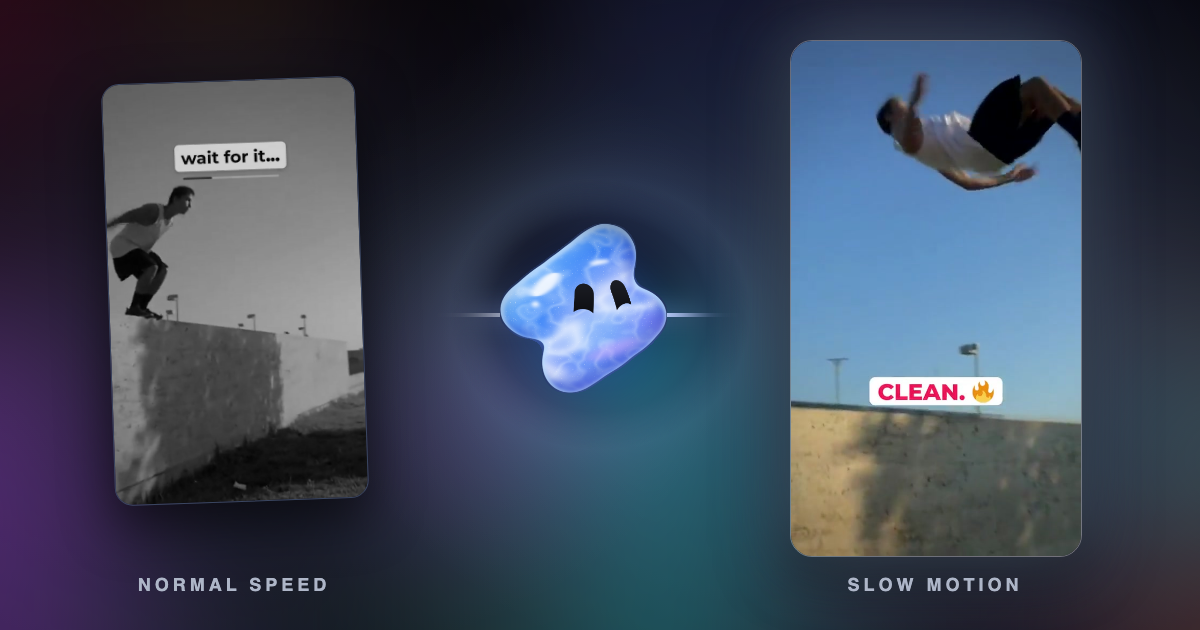
A whole clip in slow motion feels long. A speed ramp slows only the moment: the run-up plays fast, the speed eases down into the peak, the peak plays slowly, and the clip speeds out again. The speed never jumps from one value to another. It eases.
| Part | Speed | What it does |
|---|---|---|
| Run-up | 1.5x to 2x | Builds energy and saves time |
| Ease down | From fast to slow over a few tenths of a second of footage | Leads the eye into the moment |
| The moment | About 0.25x | The jump, the strike, the splash, the drift |
| Exit | Back to 1x or faster | Releases the tension and moves to the next cut |
Commit to the slow part. When we compared the same moment at a mild slow-down and at about quarter speed with AI smoothing, quarter speed won clearly. A timid 0.5x to 0.7x reads as a stutter, not as a choice.
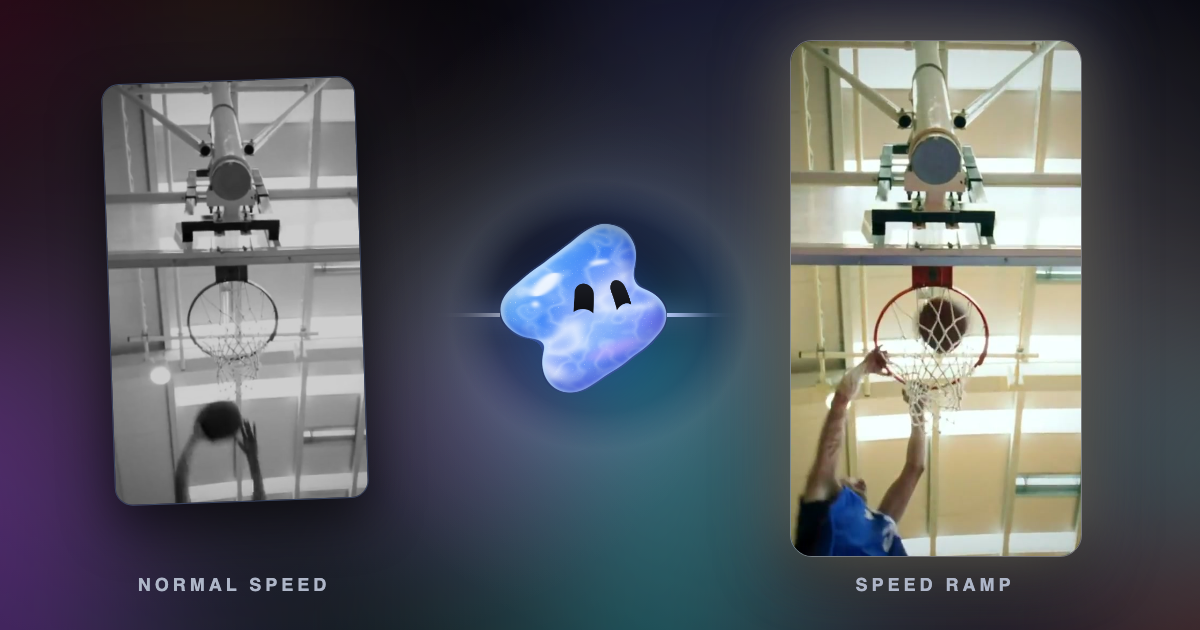
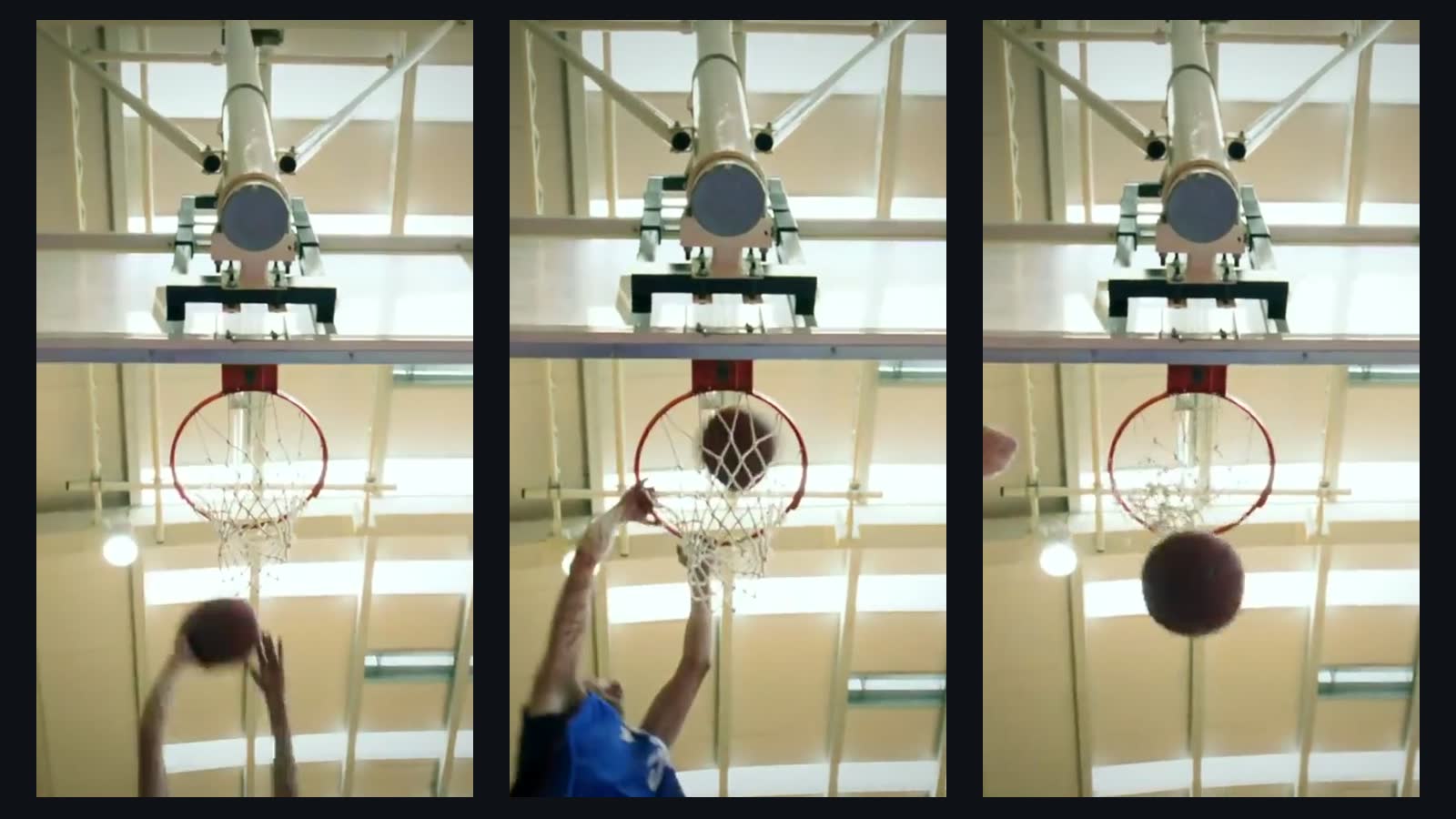
Vidova's speed-ramp template shows the shape. A dunk plays at normal speed for half a second. The 0.4 seconds of footage before the peak ease down until they last 1.2 seconds on screen, and the speed nearly stops with the hand on the rim. Then the clip leaves at 1.6 times speed. The peak lands on a beat of the music.
Two more rules keep it clean. Do not freeze on the peak: slow motion stays slow but keeps moving. And put the hit of the music, or a riser and an impact, on the frame of the peak, then let a beat of silence follow.
Make it in Vidova
- Upload the clip, filmed at the highest frame rate you have, and the song if you want one.
- Say which moment to slow, in words or by time: "the jump at 4 seconds".
- The agent finds the exact frame of the peak, builds the ramp with smooth speed changes, and turns on AI smoothing for the slowed part.
- It previews frames of the result and runs a quality check on the film before it hands it over.
- Watch it at full speed with sound, then ask for changes in plain words: "slower on the landing" or "start the ramp half a second earlier".
Slow down the dunk in this clip. Play the run-up fast, then ease into quarter speed with AI smoothing from the jump to the moment the ball drops through the net, then speed out. Put the slow part on a beat of my song. Keep the real sound of the net and the crowd on the parts at normal speed. Vertical 9:16, about 8 seconds.
To slow a whole video to half or quarter speed with nothing else, use the free AI slow motion tool. You pick the speed, drop the video and download an MP4. Open it in the editor when you want a ramp into one moment.
What the ramp looks like
Mistakes that make slow motion choppy
- Slowing a 30 fps clip a lot with no new frames. Each frame repeats and the motion jumps.
- Slowing the whole clip. Slow only the moment and rush the run-up.
- A mild slow-down on the hero moment. Go to about quarter speed or do not slow it at all.
- Freezing on the peak. A held frame looks like a glitch. Keep it moving, slowly.
- Filming in dim light. The blur in each frame stays in the slowed clip.
- Slowing speech. Slowed voices sound wrong. Slow the action and keep talk at normal speed.
- Effects on every cut. One slowed moment that lands on the music beats five that do not.
For more on capture settings, read 30 fps vs 60 fps for Reels and TikTok, and see the slow motion apps we compared.
Sources
Make your first smooth slow motion
You can start free. Paid plans start at $19 a month, remove the watermark and export up to 4K at 60 fps.