 Vidova
30fps vs 60fps for Reels and TikTok: which is better? (2026)
Instagram, TikTok and YouTube accept up to 60 fps. When 60 fps makes Reels and TikToks look smoother, when 30 fps is the better choice, and the bitrate each needs.
 Vidova team
Last updated
The short answer
Use 30 fps for most Reels and TikToks, and 60 fps when the picture moves fast: sport, cars, dance, gameplay or scrolling screen recordings. Instagram, TikTok and YouTube Shorts all accept up to 60 fps, and Instagram recommends 60 fps exports from its Edits app. A 60 fps file needs about 50% more bitrate to look as sharp, and it adds little to a talking head.
Key takeaways
- Instagram Reels: at least 30 fps, up to 60 fps. TikTok: 23 to 60 fps. YouTube: upload at the frame rate you filmed.
- 60 fps helps fast motion, gameplay recorded at 60 fps and footage you will slow down.
- 30 fps is enough for talking heads, products on a table and photo slideshows, and it is easier in low light.
- Never turn 30 fps footage into 60 fps by repeating frames. Export at the rate you filmed.
What Instagram, TikTok and YouTube accept
| Platform | Frame rates | What it says |
|---|---|---|
| Instagram Reels | 30 to 60 fps | Reels should have a minimum frame rate of 30 fps (Instagram Help). 23 to 60 fps for Reels posted through the API (Meta developer docs). Export at 2K, HDR and 60 fps from Edits for the best quality (Instagram for Creators) |
| TikTok | 23 to 60 fps | Minimum 23 fps and maximum 60 fps for videos posted through TikTok's API (TikTok for Developers) |
| YouTube and Shorts | 24 to 60 fps | Upload in the same frame rate you recorded. Common rates: 24, 25, 30, 48, 50 and 60 fps (YouTube Help) |
| Meta video ads | Fixed frame rate | Meta's ad quality page suggests a frame rate at or below 30 fps (Meta Business Help) |
TikTok's help pages do not give a frame rate for uploads in the app. Its developer documentation is the only TikTok number we found (checked October 2026).
Instagram's creator blog says Instagram will prioritize playback up to the settings you export from Edits, and that playback also depends on each viewer's device and connection.
When 60 fps helps
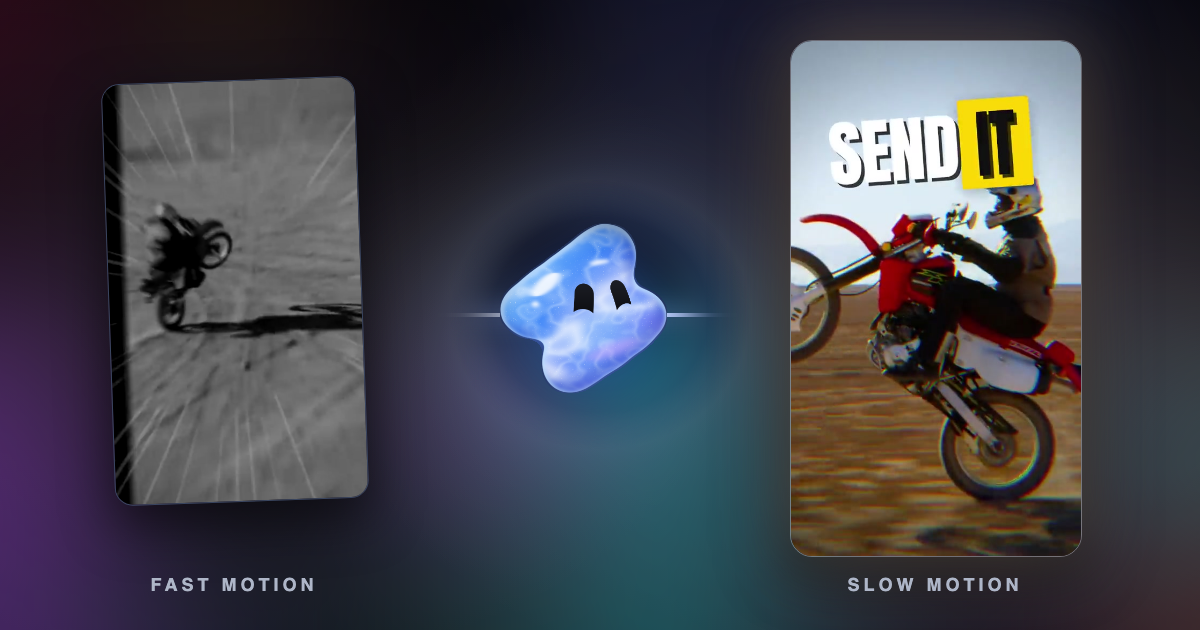
60 fps shows twice as many pictures each second. Fast motion looks smoother, because a moving object travels half as far between frames. A ball that crosses a 1080-pixel frame in one second jumps 36 pixels per frame at 30 fps and 18 pixels at 60 fps.
- Sport, cars and dance: quick movement and fast pans stay clear instead of stuttering.
- Gameplay recorded at 60 fps: export at 60 fps to keep every frame you recorded.
- Screen recordings with scrolling: text that scrolls is easier to follow at 60 fps.
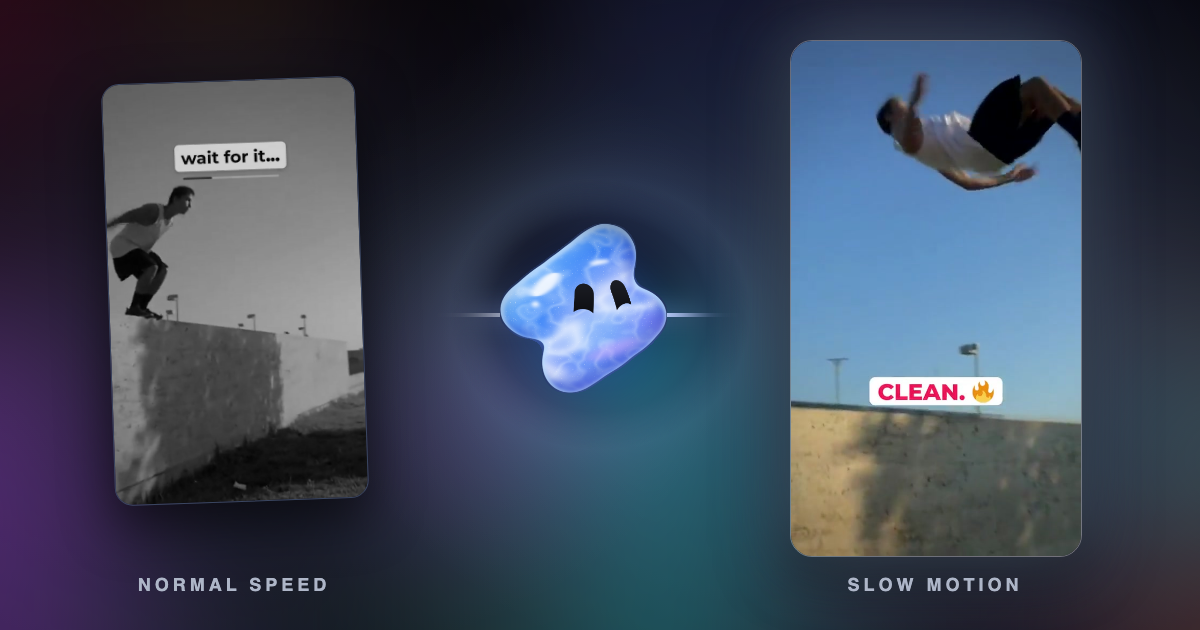
- Footage you will slow down: 60 fps footage plays at half speed in a 30 fps edit with only real frames. Slower than that needs new frames made between the real ones.
For slow motion past half speed, see what frame interpolation is and try the free AI slow motion tool.
When 30 fps is the better choice
- Talking heads and interviews: a face moves little, so 60 fps adds file size and little visible gain.
- Products on a table, food and slow B-roll: slow movement looks the same at 30 fps.
- Low light: at 60 fps each frame can collect light for at most 1/60 of a second, half the time of 1/30. Indoor phone footage gets darker or noisier.
- A cinematic look: 24 or 30 fps keeps natural motion blur.
- Mixed footage from many phones: if most clips are 30 fps, a 60 fps export only shows each of their frames twice.
Do not convert 30 fps footage to 60 fps by repeating frames. It doubles the frames and adds no new motion. YouTube Help gives the rule: content should be encoded and uploaded in the same frame rate it was recorded.
60 fps needs more bitrate
Twice the frames need more data to look as sharp. YouTube's recommended upload settings give 8 Mbps for 1080p at 24 to 30 fps and 12 Mbps at 48 to 60 fps, for standard dynamic range video. Meta's developer documentation caps Reels posted through the API at 25 Mbps.
| Source | 30 fps | 60 fps |
|---|---|---|
| YouTube Help, 1080p SDR upload | 8 Mbps | 12 Mbps |
| Vidova export, High quality, H.264, 1080 × 1920 | 8.1 Mbps | 16.2 Mbps |
| Meta developer docs, Reels maximum | 25 Mbps | 25 Mbps |
If you export 60 fps at the same bitrate as 30 fps, each frame gets half the data, and fine detail such as grass, water or hair turns soft. Raise the bitrate with the frame rate. The full list of Reel settings is in the best export settings for Instagram Reels.
Frame rate in Vidova
A Vidova project has a frame rate in its Scene settings, and the export window offers 24, 25, 30, 50 and 60 fps. Exports at 60 fps are on paid plans. The free plan exports at 720p and 30 fps.
When you slow a clip, Vidova can make new frames between the real ones with AI frame interpolation, so slow motion stays smooth even from 30 fps footage.
This gameplay was recorded at 60 fps. Keep the project at 60 fps. Cut the three best plays on the beat of the song and slow the last one to quarter speed with AI frame interpolation.
You can start free. Paid plans start at $19 a month, remove the watermark and export up to 4K at 60 fps.
Related guides
Sources
All pages checked in October 2026.
- Instagram Help: reel size and aspect ratios
- Meta for Developers: IG User Media, Reel specifications
- Instagram for Creators: best camera and export settings for Reels
- TikTok for Developers: media transfer guide, video restrictions
- YouTube Help: recommended upload encoding settings
- Meta Business Help: best practices to optimize video ad quality