How to turn gameplay recordings into a highlight montage with AI
Turn Valorant, Fortnite, Minecraft or Roblox recordings into a short montage with AI: choose the best plays, cut them to a beat and add a kill counter. Step by step.
Last updated
The short answer
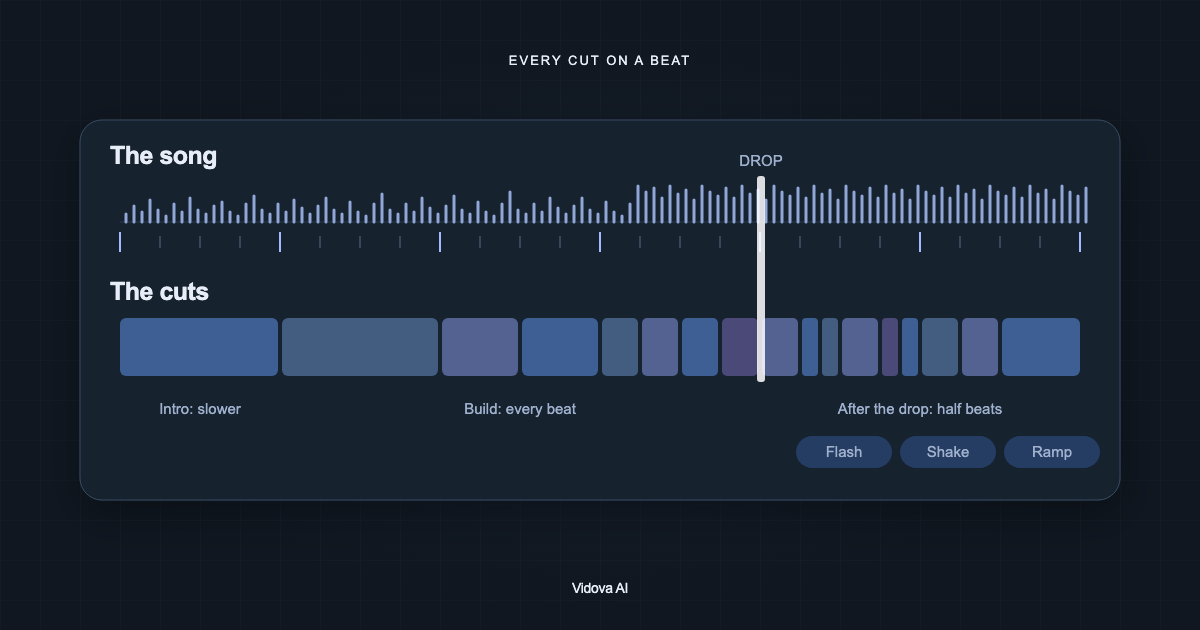
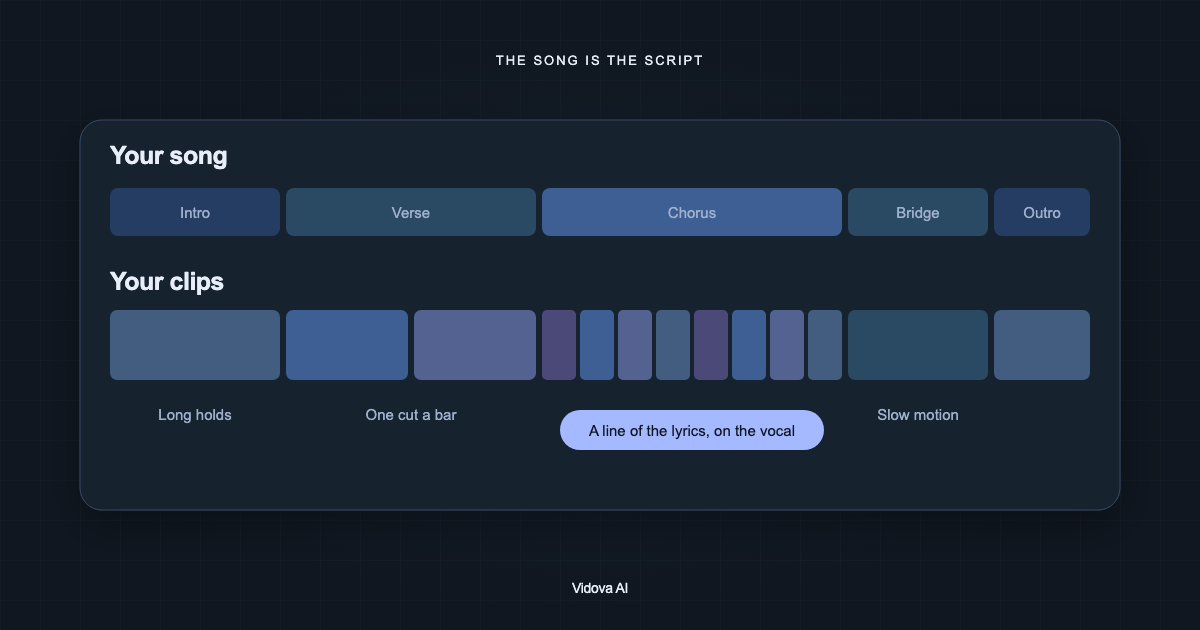
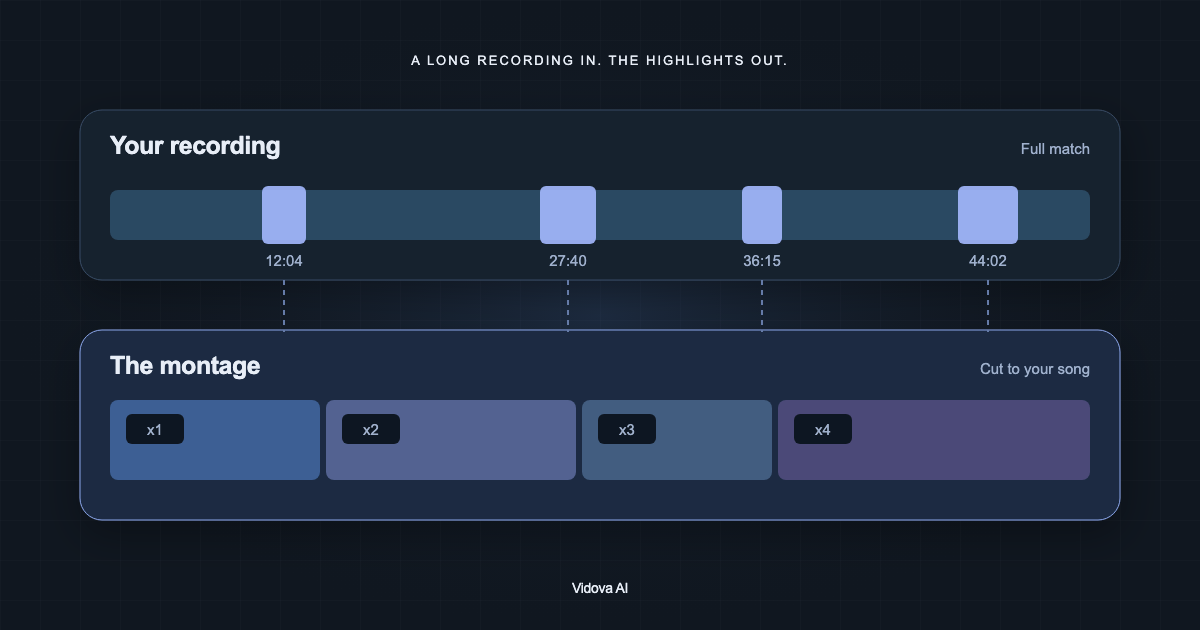
To turn gameplay into a montage with AI, trim your recording to the rounds you want, list the times of your best plays, and ask for a short edit cut to a song. Vidova cuts each play so its peak lands on a beat, adds slow motion where it helps, and places a counter or a title at the times you give.
Key takeaways
- Trim long sessions to the rounds you want before you upload.
- Give the times of your best plays. Exact times give exact cuts.
- Vidova has no kill feed reader: the counter goes up at the times you list.
Prepare the recording
A three-hour session is hard to search, for you and for an AI. Before you upload, trim the recording to the rounds or matches you want, or save short clips with your capture tool's replay feature. Record at 1080p or higher and at 60 frames per second if your setup allows it. Slow motion looks smoother with more frames.
On the free plan, each video can be up to 10 minutes long and up to 2 GB. Paid plans take longer files: up to 2 hours on Creator, and up to 4 hours on Pro and Studio.
Mark your best plays
Every upload is analyzed when it arrives, and the agent reads what happens in each clip and when. That works well for short clips. For a long round, write the times of your plays in the brief, clip by clip.
- Clip 2 at 0:41: a triple kill.
- Clip 4 at 1:12: a one against three clutch.
- Clip 6 at 0:08: the final round win.
These are examples of how to list moments. A list like this also tells the agent what each play is, so it can save the best one for the drop of the song.
Write the brief
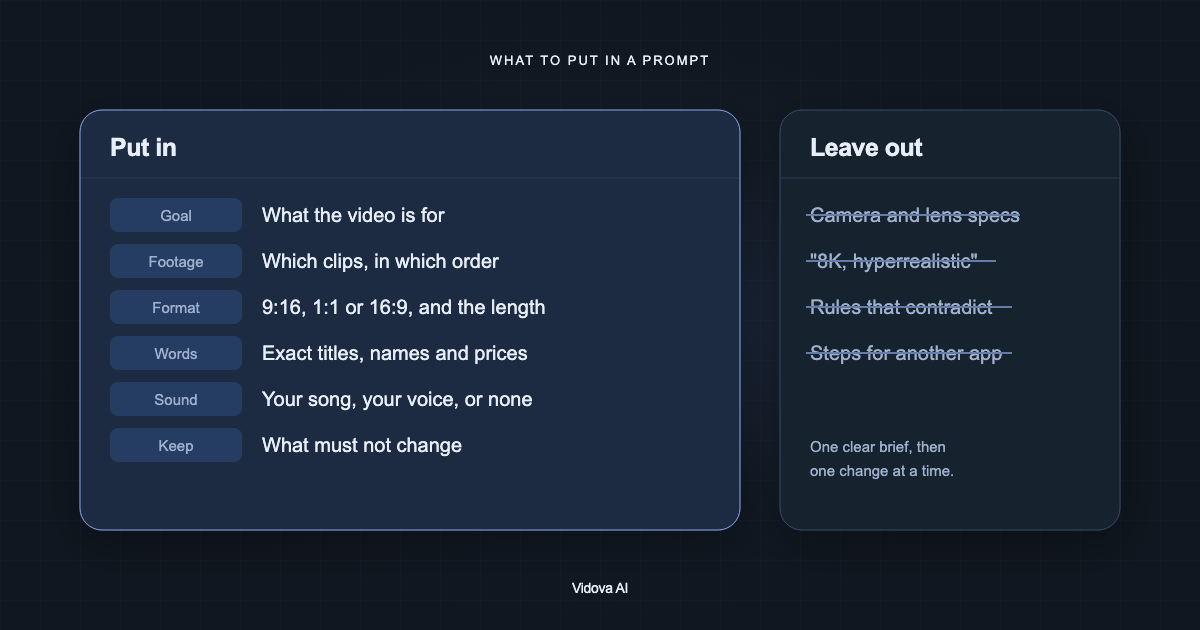
Make a 30-second 16:9 montage from these 6 clips and my song. Kills: clip 1 at 0:12, 0:13 and 0:15. Clip 3 at 1:02. Clip 5 at 0:40 and 0:44. Put each kill on a beat. Add a counter in the top right that goes up by one on each kill. Slow motion on the last kill, then freeze. Keep the sound of each kill under the music. Open with my name “NIGHTOWL”.
This is an example brief. The agent cuts each clip so the moment you named lands on a beat, uses speed ramps into the plays, and puts the best one on the drop. Game sound is muted under the music unless you ask to keep it, as in the example.
Add a kill counter or a title
There is no ready-made kill feed element. The agent builds the counter from text on the timeline, such as “x1”, “x2” and “x3”, or from the animated counter element, which rolls a number up like an odometer. Say the corner, the font style and the colour you want. The counter changes at the times you list, so check those times before you ask.
A title with your gamer tag at the start and an end card with your channel name are plain text clips. Ask for them in the brief or add them later.
Pick the format for where you post
| Where you post | Format | What to ask for |
|---|---|---|
| YouTube | 16:9 | The full game screen, cuts on the beat |
| Shorts, TikTok, Reels | 9:16 | Keep the crosshair or the action in the middle, or a split layout with your facecam on top |
| A Discord or community post | 16:9 or 1:1 | A short cut of 15 to 30 seconds |
A vertical crop keeps the middle of the screen. Parts of the HUD at the edges can be cut off. If the score or the minimap matters, ask for a split layout or a 16:9 version instead.
Check the montage
- Each play lands on a beat at full speed with sound.
- The counter changes on the right frame. Step through it with the arrow keys.
- In a vertical cut, the action stays in frame.
- Game sound you kept is not louder than the music.
- The first frame is a strong moment, not a loading screen.
Make your first montage
You can try this on the free plan. It needs a card check that charges nothing, gives you 750 credits once, and adds a Vidova watermark to previews and exports. Paid plans start at $19 a month, billed monthly or yearly, and remove the watermark.