 Vidova
Best export settings for Instagram Reels (2026): size, fps, bitrate
Export Reels as an H.264 MP4 at 1080 × 1920, 30 or 60 fps, under 25 Mbps, then turn on Upload at highest quality. What Instagram states and why quality still drops.
 Vidova team
Last updated
The short answer
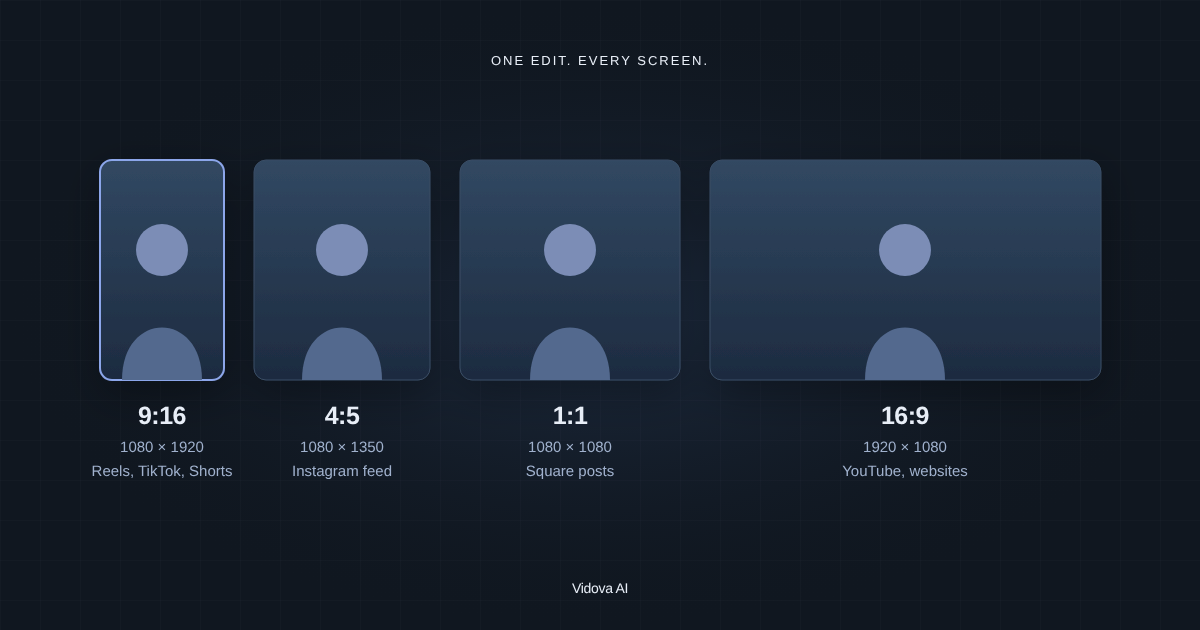
Export Reels as an H.264 MP4 at 1080 × 1920 pixels (9:16), at the frame rate you filmed, 30 or 60 fps, with AAC audio and a video bitrate of about 8 to 16 Mbps. Meta's published maximum for Reels sent through its API is 25 Mbps. In the app, turn on Upload at highest quality under Media quality. For its own Edits app, Instagram recommends 2K, HDR and 60 fps.
Key takeaways
- Size: 1080 × 1920 works everywhere. 1440 × 2560 follows Meta's ad specs and Instagram's 2K advice. Meta's API caps the width at 1920 pixels.
- Frame rate: at least 30 fps, at most 60 fps, constant, and the same as you filmed.
- Bitrate: about 8 Mbps at 30 fps and 16 Mbps at 60 fps for 1080 × 1920, under Meta's 25 Mbps API maximum.
- In the app: Profile, Menu, Media quality, then turn on Upload at highest quality.
Instagram Reels export settings
| Setting | Use | What Instagram or Meta states |
|---|---|---|
| File | MP4 | MOV or MP4, no edit lists, moov atom at the front (Meta developer docs) |
| Video codec | H.264 | HEVC or H.264, progressive scan, closed GOP, 4:2:0 chroma (Meta developer docs) |
| Frame size | 1080 × 1920, or 1440 × 2560 | At least 720 pixels (Instagram Help). 1440 × 2560 for Reels ads (Meta Ads Guide). At most 1920 pixels wide (Meta developer docs) |
| Aspect ratio | 9:16 | 1.91:1 to 9:16 (Instagram Help). 9:16 recommended to avoid cropping or blank space (Meta developer docs) |
| Frame rate | 30 fps, or 60 fps for fast motion, constant | At least 30 fps (Instagram Help). 23 to 60 fps (Meta developer docs). Fixed frame rate (Meta Ads Guide) |
| Video bitrate | About 8 Mbps at 30 fps, 16 Mbps at 60 fps | Variable bitrate, 25 Mbps maximum (Meta developer docs) |
| Audio | AAC, stereo, 48 kHz, 128 kbps or more | AAC, 48 kHz maximum, mono or stereo, 128 kbps (Meta developer docs). Stereo AAC at 128 kbps or more (Meta Ads Guide) |
| Length | Up to 3 minutes for reach | Up to 20 minutes, over 3 minutes not recommended to new audiences (Instagram Help) |
| Color | SDR, or HDR if you filmed in HDR | Edits exports SDR or HDR and recommends HDR (Instagram for Creators) |
Meta's developer documentation lists these rules for Reels that apps post through Instagram's API, with a 300 MB file limit. Instagram does not publish a separate list for uploads in the app, so we use the API rules as the safe target. Instagram Help adds the 30 fps and 720-pixel minimums.
Frame size and bitrate
Every app plays vertical video well at 1080 × 1920. Instagram's guide to export settings for its Edits app says: For the best quality, export at 2K, HDR, and 60 fps. Meta's Reels ad specs ask for 1440 × 2560. Both point to 1440 × 2560 as an upgrade. We would not send 4K: a vertical 4K frame is 2160 pixels wide, more than the 1920-pixel width Meta's developer documentation allows for Reels posted through the API.
Instagram does not publish a bitrate for uploads from the app. A higher bitrate than needed adds upload time and little quality, because Instagram encodes every upload again (Engineering at Meta).
| Frame size and rate | Balanced | High | Maximum |
|---|---|---|---|
| 1080 × 1920, 30 fps | 5.6 Mbps | 8.1 Mbps | 11.2 Mbps |
| 1080 × 1920, 60 fps | 11.2 Mbps | 16.2 Mbps | 22.4 Mbps |
| 1440 × 2560, 30 fps | 10.0 Mbps | 14.4 Mbps | 19.9 Mbps |
| 1440 × 2560, 60 fps | 19.9 Mbps | 28.8 Mbps | 39.8 Mbps |
High stays under 25 Mbps for every size except 1440 × 2560 at 60 fps. For that one, use Balanced. Vidova sets H.265 about 35% lower for the same quality step, but H.264 is the safe choice for an upload.
Turn on Upload at highest quality
Instagram has a setting for this in the app. Its help page on Reel size says you can choose to always upload Reels at the highest quality, and that higher quality uploads may take longer.
- Tap Profile or your profile picture in the bottom right.
- Tap Menu in the top right.
- Below Your app and media, tap Media quality.
- Turn on Upload at highest quality.
Upload over a good Wi-Fi connection. A higher quality file is larger and takes longer to send.
Why Instagram keeps lowering video quality
- Instagram encodes every upload again. Instagram's creator blog says a video is uploaded, processed and delivered, and at every step a little quality can get chipped away. Meta's engineers wrote in 2022 that every upload gets basic encodings, and that the higher-quality advanced encodings covered only 15 percent of watch time before they changed the system.
- Views change the encoding. In October 2024, Instagram head Adam Mosseri said Instagram moves videos that are not watched for a long time to a lower-quality version and biases higher quality toward creators who drive more views (TechCrunch). He added that the quality shift is small.
- Playback follows the viewer. Instagram says it optimizes playback for each device and connection, so a viewer on a weak network sees a lighter stream.
- The upload setting is off. Without Upload at highest quality, the app does not always send the highest quality version.
- The file does not match the specs. Phones often record at a variable frame rate, and Meta's ad specs ask for a fixed one. A frame that is not 9:16 gets cropped or gets blank space, as Meta's developer documentation warns. Export a constant frame rate at 9:16.
- The video was compressed twice. A clip saved from TikTok or a messaging app has already lost detail. Export from the original files.
Export settings in Vidova
Vidova's export window has the settings above in one place. Choose This device to render in the browser for free, then pick the resolution, frame rate, codec and quality.
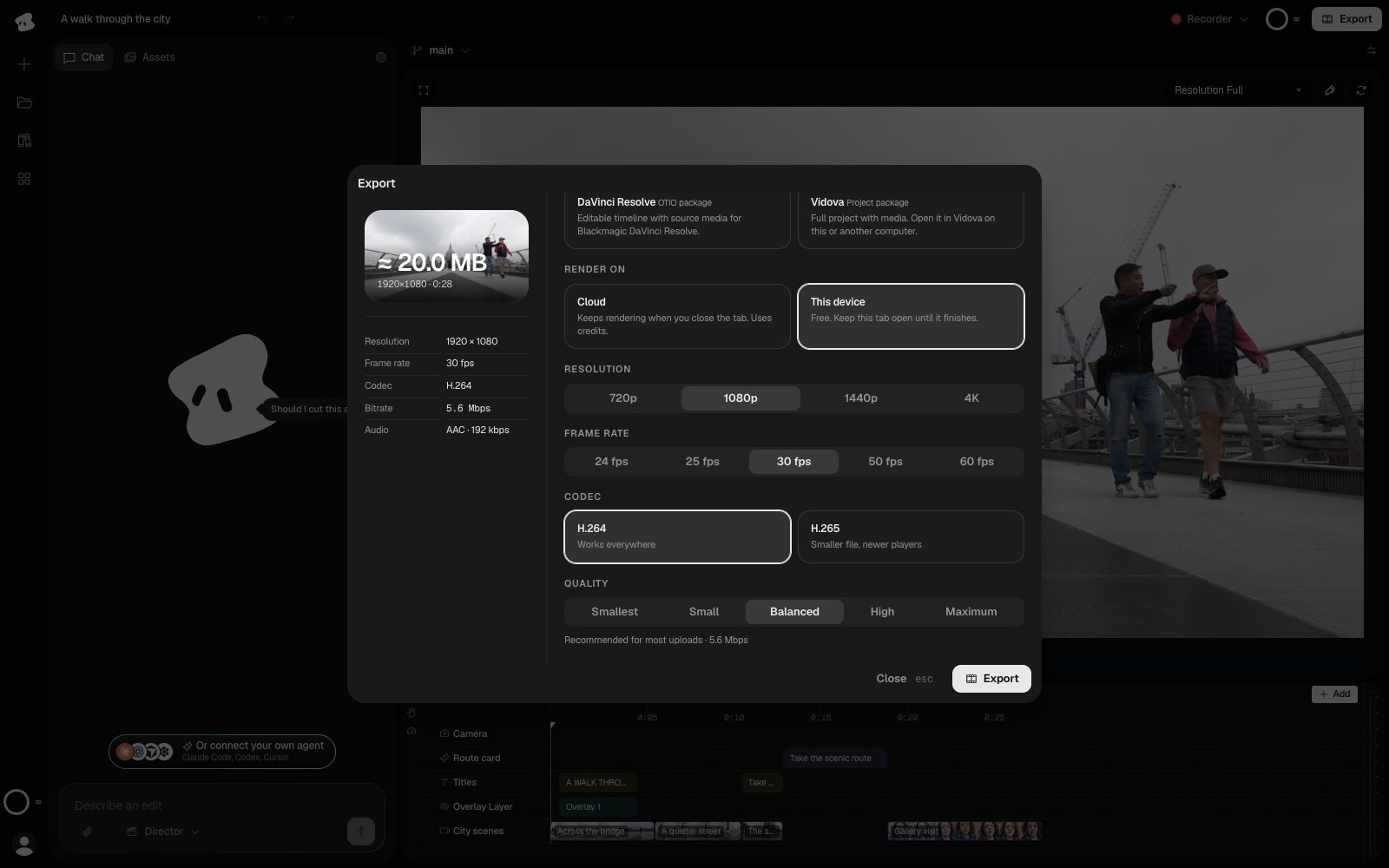
- Set Resolution to 1080p, or 1440p. The choice names the short side, so a vertical project exports 1080 × 1920 or 1440 × 2560.
- Set Frame rate to the rate you filmed: 30 fps for most Reels, 60 fps for fast motion.
- Pick H.264 as the codec.
- Pick High quality, or Balanced for 1440p at 60 fps.
- Click Export, then upload the MP4 with Upload at highest quality turned on.
Vidova exports AAC audio at 192 kbps and 48 kHz, with a keyframe every 2 seconds. Before you export, the agent can fit the edit to the vertical frame:
Make this a 9:16 Reel at 1080 × 1920. Reframe each shot so the product stays in frame, and keep all text inside the area Reels leaves clear.
The free plan exports at 720p and 30 fps with a watermark. You can start free. Paid plans start at $19 a month, remove the watermark and export up to 4K at 60 fps.
Related guides
Sources
All pages checked in October 2026.
- Instagram Help: reel size and aspect ratios
- Meta for Developers: IG User Media, Reel specifications
- Meta Ads Guide: Instagram Reels video ads
- Instagram for Creators: best camera and export settings for Reels
- Engineering at Meta: Instagram video processing, 2022
- TechCrunch: Instagram lowers quality for less-watched videos, 2024