 Vidova
How to post the same video on TikTok and Instagram in high quality
Post one video on TikTok and Instagram without a watermark or blur: export a clean master, upload it to each app, and make per-app versions with text in the safe zone.
 Vidova team
Last updated
The short answer
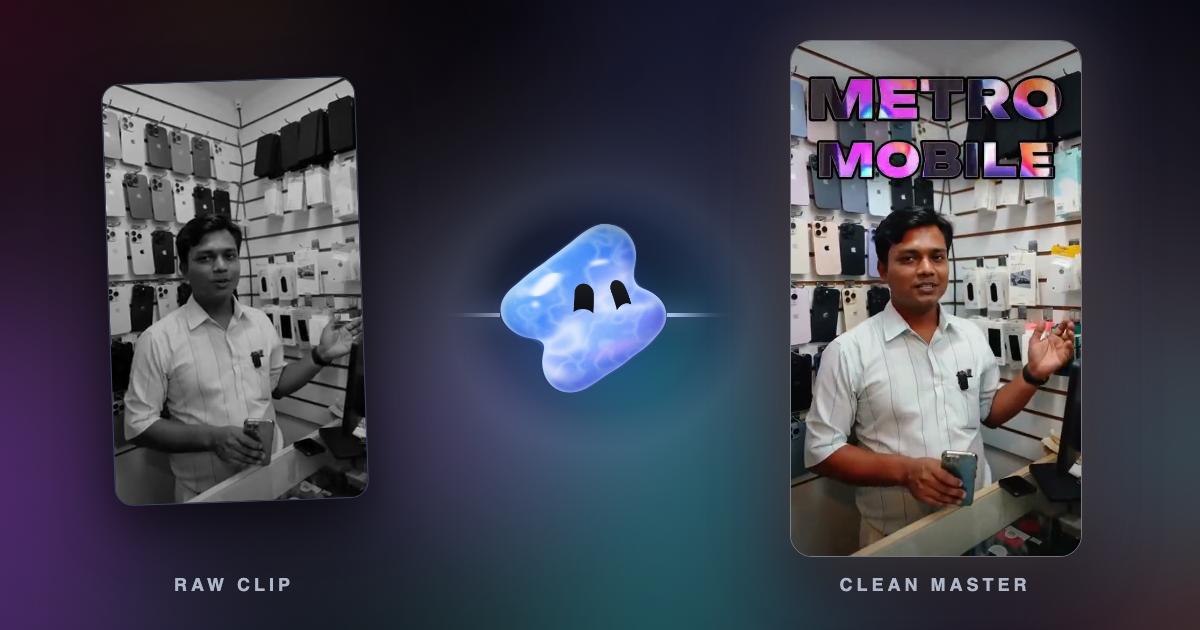
Edit the video once outside both apps, export one clean 1080 × 1920 MP4 with no watermark, and upload that file to TikTok and to Instagram separately. Do not save your TikTok and post that copy to Instagram: Instagram says reels with third-party watermarks may not be recommended to new audiences. Write the caption and add any app sounds inside each app, and keep on-screen text in the area both apps leave clear.
Key takeaways
- Never post a file saved from TikTok to Instagram. Upload your own clean master to each app.
- Export 1080 × 1920, MP4 in H.264, at the frame rate you filmed, and keep it under 3 minutes for Instagram's recommendations.
- Keep on-screen text inside the area both apps leave clear, and add the caption and app sounds inside each app.
Why you should not post your TikTok file on Instagram
Instagram's creators page lists what hurts a reel's reach. One line is about watermarks: “Having third-party watermarks on your reels may prevent them from being recommended to new audiences.” A video saved from another app can carry that app's logo. Posted to Instagram, that copy starts at a disadvantage.
Instagram's April 2024 update on originality describes content that can be recommended as original, within its guidelines and with no visible watermarks. When Instagram finds two identical pieces of content, it recommends only the original. In April 2026, Instagram extended these rules to photos and carousels, and said that re-uploading someone else's work with only “a border, watermark, subtitles, or a credit” added does not make it original.
TikTok has a similar rule. Its Community Guidelines make content ineligible for the For You feed if it “includes unoriginal or reused material without anything new.”
These rules target copies of other people's work and visible watermarks. None of the rules above forbids posting your own video on both apps. The clean way to do it is one master file, uploaded to each app by you.
Step 1: export one clean master
Do the edit once, outside both apps, and export one master file. Leave out anything that belongs to one app, such as its logo, its stickers or a line that only makes sense there.
| Setting | Use | Why |
|---|---|---|
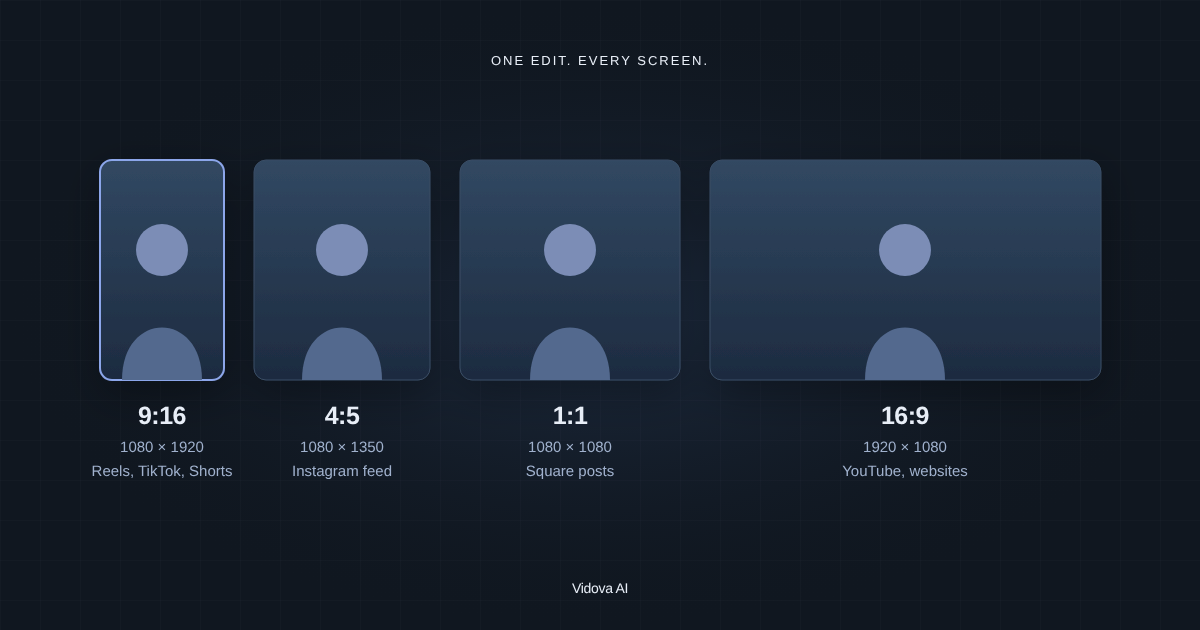
| Frame size | 1080 × 1920 (9:16) | Fills the screen on both apps |
| File | MP4, H.264 | The standard upload format for both apps |
| Resolution | 1080p or more | Instagram asks for at least 720p |
| Frame rate | The rate you filmed, usually 30 fps, or 60 fps for fast motion | Instagram asks for at least 30 fps |
| Length | Under 3 minutes | Instagram does not recommend longer reels to new audiences |
| Watermark | None | Third-party watermarks may keep a reel from new audiences |
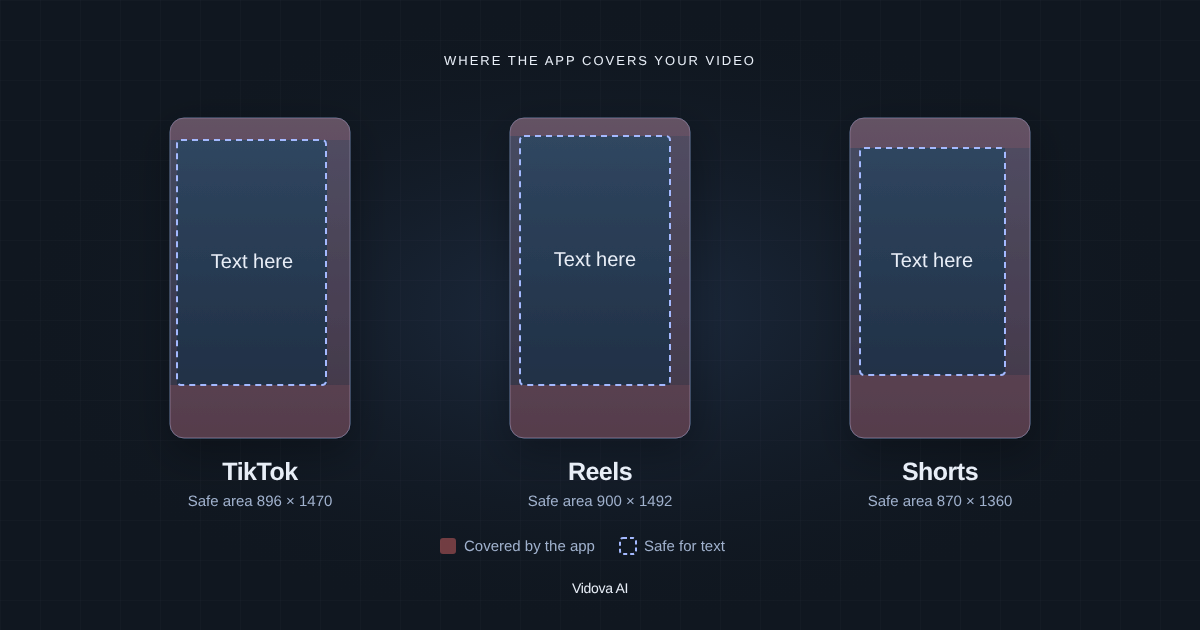
| On-screen text | Inside the middle 870 × 1360 pixels | That area stays clear on TikTok, Reels and Shorts |
Vidova exports MP4 in H.264 or H.265 and has a Shorts preset at 1080 × 1920. Paid plans export up to 4K at 60 fps without a watermark. The free plan exports at 720p and 30 fps with a Vidova watermark. For a master you post on two apps, that watermark counts as a third-party watermark too, so export it from a paid plan.
Step 2: upload settings in each app
Instagram. Open Settings and privacy, then Data usage and media quality, and turn on Upload at highest quality. PetaPixel reported that the switch is off by default. When it is off, Instagram adjusts the upload quality to your network. When it is on, Instagram uploads the highest quality even if the upload takes longer.
TikTok. Upload the master from your phone's gallery, or from TikTok Studio in a web browser. TikTok's help page says a video uploaded in a browser is uploaded whole, and that you trim it in the app.
- Upload over Wi-Fi, not a weak mobile signal.
- Upload the master file itself, not a screen recording or a copy sent through a chat app.
- Skip each app's filters if you want the video to look the same on both apps.
If you add text or stickers inside TikTok, the master stays clean. TikTok can also save the posted version to your phone: on the Post screen, tap More options and turn on Save to device. That copy has TikTok's text on it, so keep it out of Instagram.
Step 3: make a version for each app
The two apps cover slightly different parts of the frame with their buttons and captions. If your text fits the area both apps leave clear, one master works for both. If you want text closer to the edges, make one version per app.
| Area | TikTok | Instagram Reels |
|---|---|---|
| Top | 130 px | 108 px |
| Bottom | 320 px | 320 px |
| Right, under the buttons | 140 px | 120 px |
| Safe area | 896 × 1470 px | 900 × 1492 px |
| Caption and hashtags | Written on TikTok's post screen | Written on Instagram's share screen |
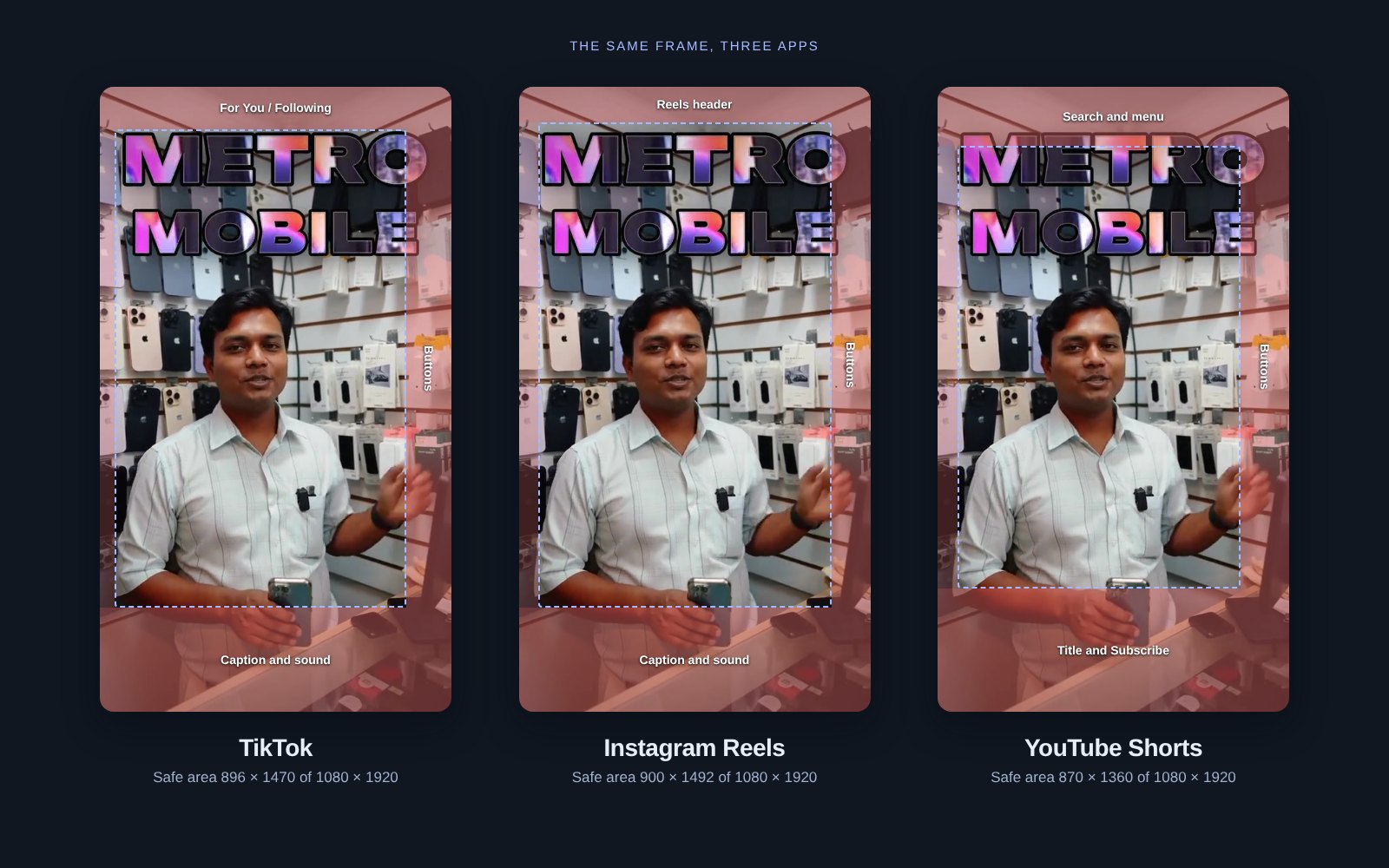
In Vidova, ask for both versions in one request. The agent keeps the cut and moves the text, and Vidova's quality check names any text that sits under the app buttons. You can also check a finished file with the free safe zone checker.
Make two versions of this edit, one for TikTok and one for Instagram Reels. Keep the cut the same. Move every caption and title inside the area each app leaves clear. Keep the shop's own sound. Make both 1080 × 1920 at 30 fps, MP4 in H.264.
Step 4: post and check
- Upload the TikTok version in TikTok and the Reels version in Instagram.
- Write the caption and hashtags in each app. Add an app sound there if you want one.
- Pick a cover frame in each app that shows the product or a face.
- Watch the post on a phone with the app's buttons on screen.
- Read every line of text. If a word sits under a button, fix that version before you post the next one.
You can start free. Paid plans start at $19 a month, remove the watermark and export up to 4K at 60 fps.
Sources
- Instagram for Creators: What helps and hurts your reach
- Instagram for Creators: Recommendations and originality (April 2024)
- Instagram for Creators: Rewarding original creators (April 2026)
- Instagram Help Center: Recommendation guidelines
- Instagram Help Center: Record a reel
- TikTok Community Guidelines: Integrity and authenticity
- TikTok Help Center: Making a post
- TikTok Help Center: Download content
- PetaPixel: The Instagram setting that lowers upload quality (September 2023)