 Vidova
ChatGPT wrote a video editing prompt. Which app can run it?
ChatGPT cannot open or edit a video file. Here is which apps can run its editing prompt on your own footage, what to cut from the prompt, and how to paste it.
 Vidova team
Last updated
The short answer
ChatGPT can write a video editing prompt, but it cannot run it. OpenAI's help page lists no video format among the files ChatGPT accepts, and OpenAI closed the Sora app on April 26, 2026. To run the prompt on your own footage, paste it into an AI video editor that edits uploaded clips, such as Vidova, or connect ChatGPT, Claude or Gemini to an editor through MCP. Before you paste, cut the lines that ChatGPT wrote without seeing your footage.
Key takeaways
- ChatGPT does not accept video files, so timestamps and shot details in its prompt are guesses unless you typed them.
- An editor that works on your uploaded clips can run the prompt. A video generator makes new footage instead.
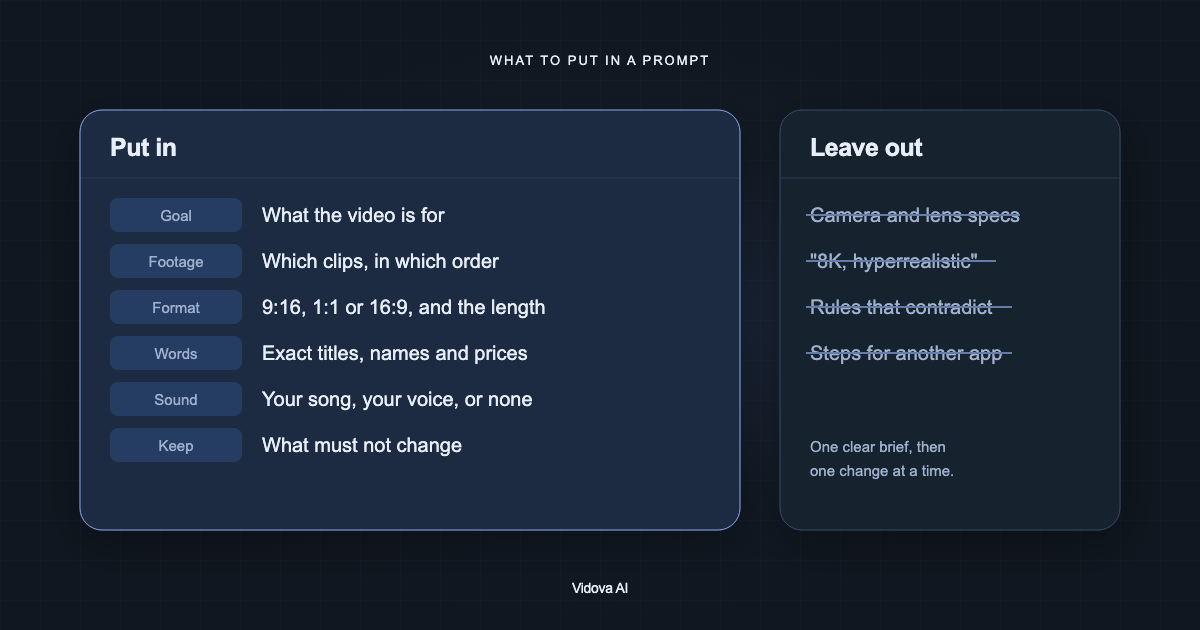
- Keep the goal, the exact words, the order, the length and the sound. Cut lines written to a tool, app steps and placeholders.
- In Vidova, attach your clips, paste the prompt and press Start. Then ask for one change per message.
What ChatGPT can and cannot do with your video
ChatGPT is good at planning an edit and writing it down. It does not cut the video. These limits come from OpenAI's own help pages, checked on November 1, 2026.
| Task | ChatGPT today | OpenAI page |
|---|---|---|
| Upload a video file | Not supported. The upload page lists documents, spreadsheets, presentations, images and audio. It says MP4 and WebM files identified as video are not accepted as audio uploads. | Uploading files and audio to ChatGPT |
| Hear the sound of a clip | Audio files up to 512 MB, on paid plans only. Export the sound of your clip as an audio file first. | Uploading files and audio to ChatGPT |
| See a frame | It analyzes uploaded images, so a screenshot of a frame works. | ChatGPT capabilities overview |
| Make or change video with Sora | Closed. The Sora web and app experiences ended on April 26, 2026, and the Sora API on September 24, 2026. | What to know about the Sora discontinuation |
| Edit a project in another app through MCP | Full MCP, with write actions, is for Business, Enterprise and Edu workspaces on the web. Pro users can connect custom MCP servers with read and fetch permissions only. | Connecting custom MCP servers in ChatGPT |
So ChatGPT wrote your prompt without watching your footage. A line such as "at 0:04, cut to the close-up" is a guess, unless you gave it that time yourself.
Gemini is different. Its app accepts video files: up to 2 GB each and 5 minutes of video in total, or 1 hour on Google AI Pro and Ultra (Google). It can describe your clip, but it still does not hand you an edited timeline. See Can Gemini edit videos?
Which apps can run the prompt on your own footage
A prompt for an edit needs an app that opens your clips and changes them. Here is how the common kinds of app compare.
| Kind of app | Uses your clips | Runs the prompt for you | What happens |
|---|---|---|---|
| An AI video editor with a chat agent, such as Vidova | Yes | Yes | You upload the clips and paste the prompt. The agent cuts, adds text and sound, checks frames and renders the video. |
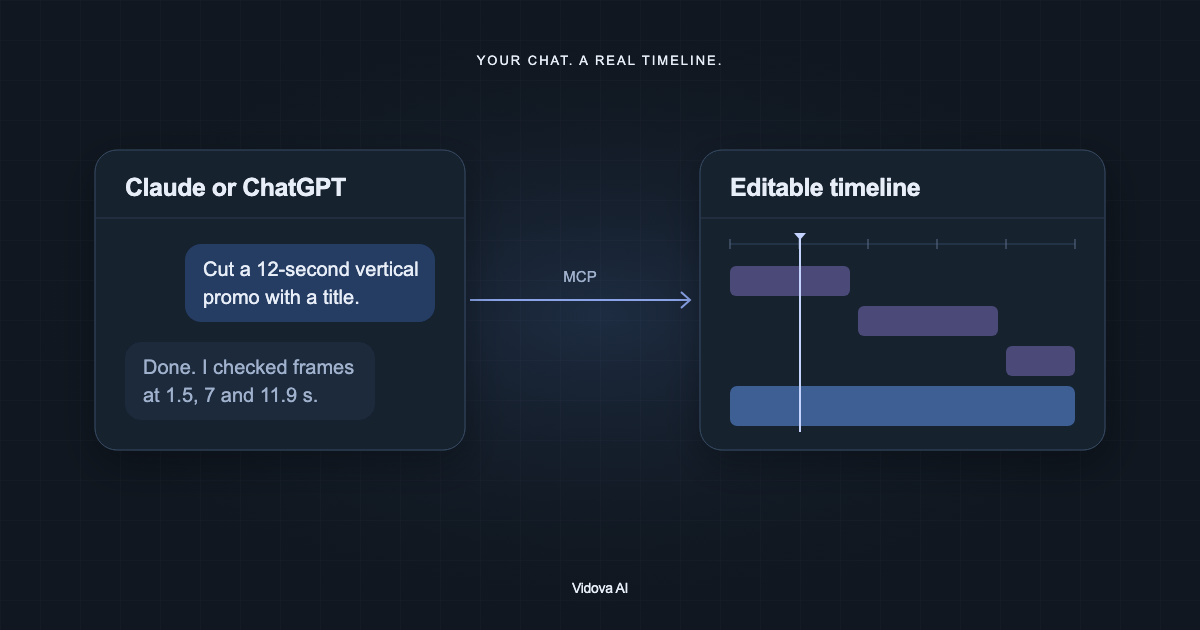
| ChatGPT, Claude or Gemini connected to an editor through MCP | Yes, in the editor | Yes | The assistant calls the editor's tools. In ChatGPT, write tools need a Business, Enterprise or Edu workspace. Claude adds custom connectors on Pro, Max, Team and Enterprise plans. |
| A timeline editor with no agent | Yes | No | The prompt is a to-do list. You make each cut and each title by hand. |
| A video generator | No | It makes new footage | It draws new video from text or a picture. It does not cut your clips into an edit. |
| ChatGPT on its own | No | No | It can plan the edit and rewrite the prompt. |
For the MCP route, read Can Claude and ChatGPT edit videos?. For ready-made requests, see 25 video editing prompts for ChatGPT, Claude and Gemini.
What to keep and what to cut before you paste
A prompt that ChatGPT writes for another editor mixes facts about your video with lines written for a tool. An agent follows the lines you paste, so sort them first.
| Kind of line | Example of the kind | What to do |
|---|---|---|
| Facts about the video | Names, prices, dates, an address, the order of sections, the length, the format | Keep them, word for word. |
| Lines written to a tool | "Paste this into your editor:", "You are an expert video editor" | Delete them. The editor already knows its job. |
| Placeholders | [YOUR BRAND], [PRICE], [CALL TO ACTION] | Put in the real words, or delete the line. |
| Guessed times and shots | "At 0:03, show the product close-up" | Keep a time only if you checked it in your clip. Otherwise name the moment: "when she opens the box". |
| Steps for another app | "Tap Effects, then Zoom, then set it to 120%" | Delete the steps and keep the result: "a fast zoom on the logo". |
| Words for a video generator | "8K, 35 mm lens, hyperrealistic" | Delete them. They describe new footage, and the editor works with yours. |
| Sound with no file | "Use a trending sound" | Upload the song you have the rights to, or ask for music from the editor's library. |
| Text for the post | A caption with hashtags | Keep it for when you post. It is not text for the video. |
For a full guide to the parts of a brief, read how to write a prompt for an AI video editor.
How to paste the prompt into Vidova
- Open Vidova and attach your clips, photos and song to the message box.
- Paste the prompt, with the lines above cut. Any language works: the agent replies in the language you write in.
- Press Start. Vidova may suggest a stronger version of your prompt and ask a few quick questions. Pick Send this prompt, or Send mine instead to keep your words.
- The agent looks through your footage first, then builds the edit and checks frames before it shows you the result.
- Ask for one change per message, such as "hold the last shot one second longer".
Here is an example of a prompt after the cuts. Every line is something an editor can act on with your clips:
Make a 20-second vertical video for Instagram Reels from my 7 clips of the bike shop. Open on the wheel spinning after the repair. Text on screen, exactly: "Flat tyre? Fixed today.", then "Walk-ins until 6 pm". End on the shop front for 2 seconds. Keep the sound of the tools. Use my song, low under the tools.
To run the same prompt from ChatGPT, Claude or Gemini instead, connect Vidova's MCP server at https://mcp.vidova.ai/mcp, then paste the prompt with the name of the project. The MCP setup page has the steps for each app.
When the first cut comes back
- Watch it with sound. A frame does not show whether the music and the voice work together.
- Check every name, price and date on screen against what you meant.
- Look for rules you did not mean. A length or a format that ChatGPT added still counts.
- To try another direction without losing this cut, make a new version first.
Changes in the editor do not need ChatGPT. Type them in Vidova's chat in your own words.
Sources
- OpenAI help: Uploading files and audio to ChatGPT
- OpenAI help: ChatGPT capabilities overview
- OpenAI help: What to know about the Sora discontinuation
- OpenAI help: Connecting custom MCP servers in ChatGPT
- Claude help: Get started with custom connectors using remote MCP
- Google help: Upload and analyze files in Gemini Apps
- Vidova MCP server setup
Run your prompt
You can start free. Paid plans start at $19 a month, remove the watermark and export up to 4K at 60 fps.