 Vidova
How to edit a video to match a reference video
Copy a reference video's cuts, beat, speed ramps, text style, colour and song onto your own clips. What to upload, how to ask, and which music rules apply.
 Vidova team
Last updated
The short answer
To edit a video like a reference, give the editor the reference itself and your own clips, then say which parts to copy: the cut rhythm, the beat, the speed ramps, the text style, the colour or the song. In Vidova, upload the reference with your clips and say which file it is. The agent measures the reference's cuts and beats and builds your edit to match. Using the reference's song in a post needs the rights to it.
Key takeaways
- Upload the reference as a file with your clips, and say which file is the reference.
- Name the parts to copy. "Make it like this" leaves the agent to guess what you liked.
- Cuts, beats, speed ramps, text style and colour carry over. The footage stays yours.
- Reusing the reference's song is a rights question. TikTok business accounts see only Commercial Music Library sounds when they add sound.
What you can copy from a reference
A reference video carries many decisions at once. Vidova's agent can measure most of them and apply them to your clips. Pick the ones you want.
| Part | How Vidova matches it | What to give |
|---|---|---|
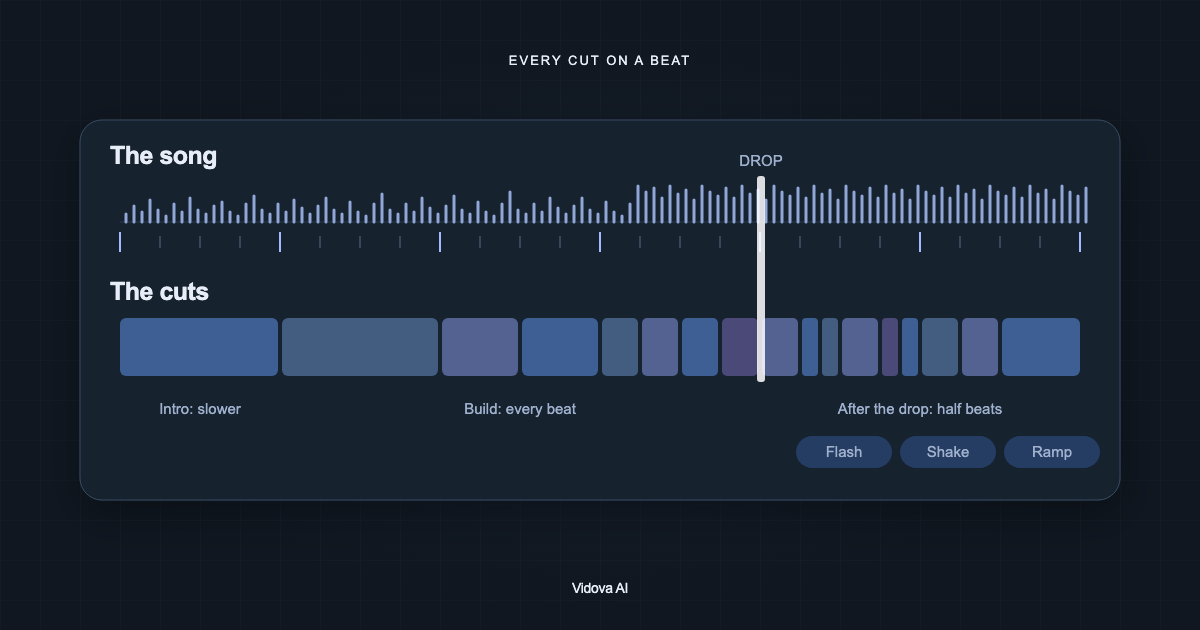
| Cut rhythm | Finds every cut and fade in the reference with its time, then cuts your clips at the same points or on the same beats. | The reference video file |
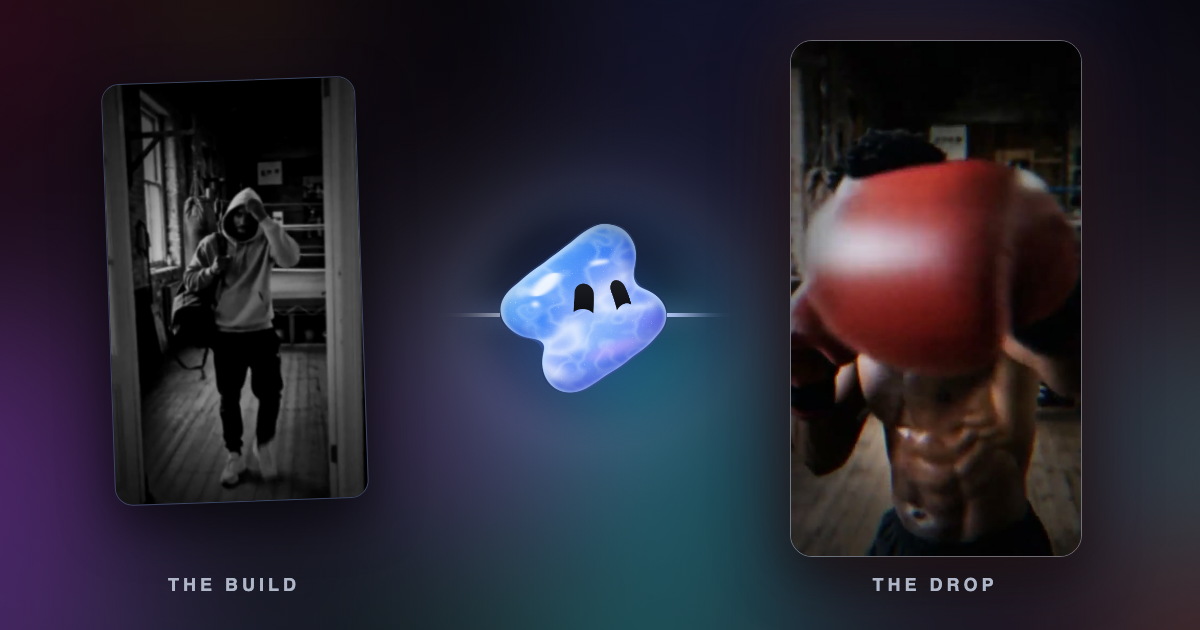
| Beat and song shape | Measures the beats, the bar starts and the sections of the music, such as the build and the drop. | The song, or the reference with its sound |
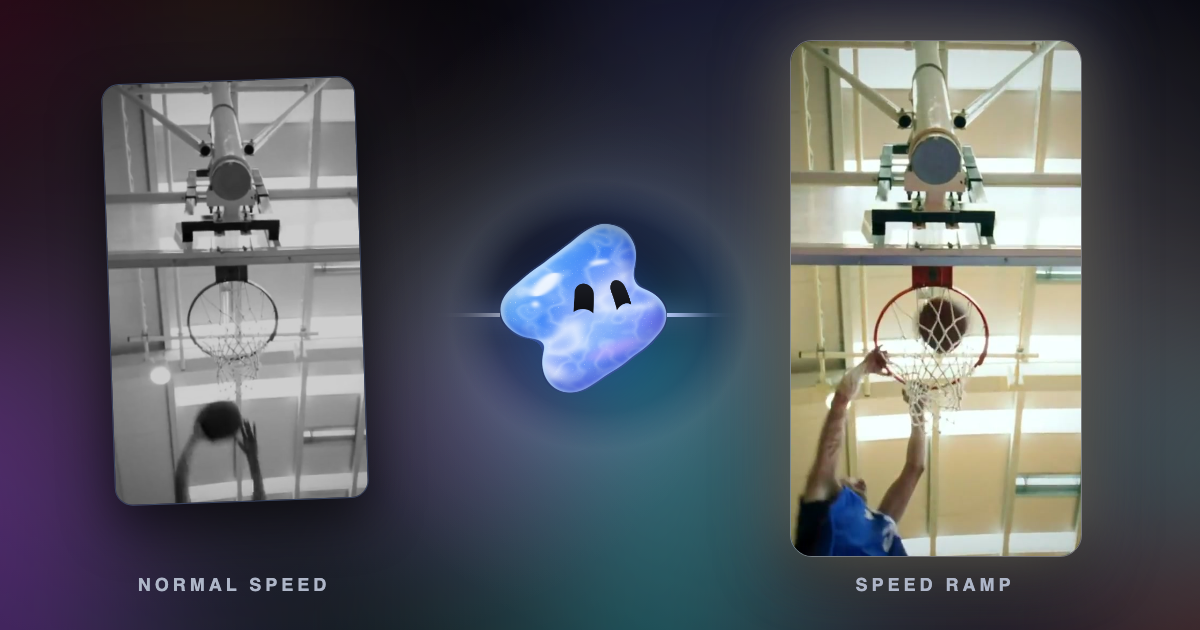
| Speed ramps | Speeds a clip up into the moment and slows it down through it, with AI frames that keep the slow part smooth. | The moment that is the peak |
| Text style | Matches the size, weight, colour, position and how the words enter and leave. Uses a close font from Vidova's fonts, or a font file you upload (TTF, OTF, WOFF or WOFF2). | A font file, if you have a licence for it |
| Colour | Grades your clips toward the reference with curves, colour wheels and colour bands. For a bigger change of look, an AI video edit redraws 3 to 10 seconds of a clip from a picture. | A frame or a still image of the look |
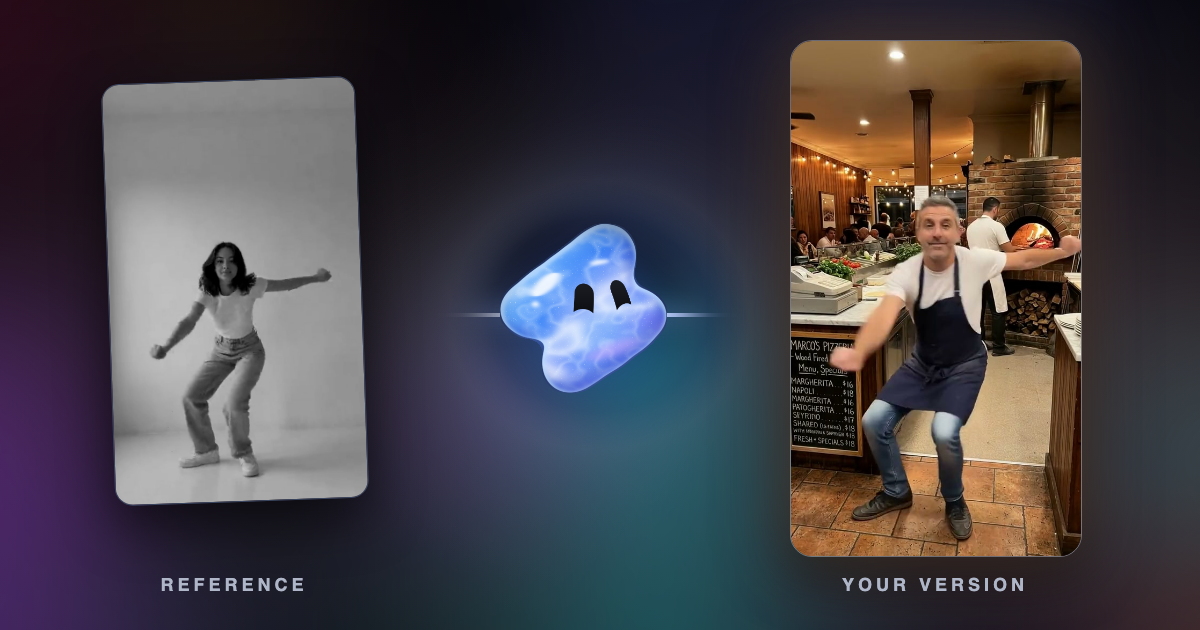
| A dance or a gesture | Copy motion makes the person in your photo do the moves of the person in the reference. | A photo of the person, and a reference of 3 to 30 seconds with one person in view |
The footage does not carry over. The edit uses your clips, photos and sound. Vidova's agent is told to watch a reference at its full frame rate and match the timing, fonts, weights, colours and how things enter and leave, so name the parts you want copied and it knows which ones matter most.
What to upload
- Your own clips and photos.
- The reference as a video file. Give it a clear name such as reference.mp4 and say in the brief that it is only a reference.
- The song as its own file, when you have it.
- A still image when the colour is what you liked.
You can also start from one of Vidova's own edits. In the template library, Use this template opens a new project with that edit attached as the reference and a prompt ready to send.
How to ask
Name the file, the parts to copy and the parts to leave. These are example prompts. Swap in your own files and words.
Edit my 9 clips like reference.mp4. Copy its cut rhythm and its text style: one word at a time, big and centred. Use my song, not the sound of the reference. Keep my clips in the order I uploaded them. Vertical 9:16.
Grade all my clips like look.jpg: warm highlights, green shadows, low saturation. Keep skin tones natural.
Make the person in my photo do the dance from the reference clip. Keep the setting of my photo.
The second file is the reference. Copy how it opens and where it cuts. Use only my footage and my song.
Say how long your edit should be. A rhythm from a 15-second reference does not tell the agent what to do for 40 seconds. Say if it repeats, or builds to one peak.
Using the same audio
When you upload the reference as a file, its sound is like any other sound in the project. The agent can lay it under your clips and cut your shots to its beats. To check the tempo of a song first, use the free BPM detector.
If the reference has a voice over its music, Vidova can split the sound into voices, drums, bass and everything else, and keep only the parts you want. Sung vocals count as voices, so a song with singing loses its singing too. The split uses no credits.
Editing a song into your video is one question. Posting it is another, and the platform rules apply:
- YouTube says copyright holders decide how their music is used. A song in your video can bring a Content ID claim, and the owner can run ads on your video, or block it worldwide or in some countries. YouTube also says you generally need permission to use copyright-protected material and that YouTube cannot grant it (YouTube Help).
- TikTok says a business account that adds sound sees only Commercial Music Library sounds. TikTok describes the library as 1 million songs, free for businesses, for organic and paid posts (TikTok).
When you do not have the rights to the reference's song, ask for a track from Vidova's licensed music library at a similar tempo, or a generated track, and keep the cut points. The library tracks cost no credits. A generated track spends credits.
What to check in the result
- Play the reference and your edit one after the other, with sound. The cuts should land at the same kind of moment.
- Text over faces or under the app buttons. See the safe zones for Reels, TikTok and Shorts.
- Slow parts that stutter. Ask for AI frames on any slowed clip. How to make slow motion smooth explains why.
- Credits. Copy motion uses about 27 credits a second at standard quality, so a 15-second dance uses 399 credits. Finding cuts and beats in a video uses credits for each second it reads.
Ask for changes one at a time, such as "cut half a beat earlier into the chorus" or "make the title heavier, like the reference".
Sources
Make your edit
You can start free. Paid plans start at $19 a month, remove the watermark and export up to 4K at 60 fps.