 Vidova
How to make a before and after transformation video with AI
Make a before and after video with AI: film both states from one spot, keep one moment of the work and land the change on a beat. For barbers, builders and gyms.
 Vidova team
Last updated
The short answer
Vidova is an AI video editor: you upload your before, work and after clips, say what changed, and its agent cuts a transformation video on a timeline you can change. To make one, film both states from the same spot in the same light, keep one moment of the work, and land the change on a beat. CapCut, Kapwing and iMovie build a side-by-side by hand. Use only real footage of the result.
Key takeaways
- Film the before and the after from the same spot, at the same height and zoom, in the same light.
- Keep one moment of the work where the change shows, such as a clean stripe or a cape coming off.
- Before you pay to run one as an ad, check the rules. Meta's ad standards list side-by-side weight loss comparisons as prohibited.
Tools for a before and after video, compared
| Tool | How it works | Runs on | Price and limits | Fits |
|---|---|---|---|---|
| Vidova | You upload the clips and say what changed. The agent cuts the video, with music and sound, on a timeline | Browser, or the Telegram bot on a phone. No iPhone or Android app yet | Plans from $49 a month, with no watermark | A finished cut that you change by asking |
| CapCut | Dual-screen templates that you fill with your clips | Mac, Windows, browser and phone | Free plan. The Pro price differs by country | Split-screen layouts you arrange by hand |
| Kapwing | A video collage maker with side-by-side and comparison templates | Browser | Free: 10 credits, exports up to 4 minutes, 720p, watermark. Pro from $16 a month | A quick side-by-side in a browser |
| iMovie | A split-screen effect on your own clips | iPhone and iPad, iOS or iPadOS 27+ | Free | A simple split screen on an iPhone |
| Instagram Edits | A phone editor with automatic captions and beat-synced effects | iPhone and Android | Free, with in-app purchases. Exports in 4K with no watermark | Reels you edit by hand on a phone |
Prices and limits change. Each row comes from the vendor's site, linked under Sources.
Film the before so the after can match
An editor can hide a small mismatch. It cannot fix a different angle. You have to get this right on the day, before the work starts.
- Mark the spot. Use a tripod, or put tape on the floor. Take a photo of the framing, and hold it up when you film the after.
- Keep the same height and zoom. CapCut's split-screen guide says to keep subjects similar in scale so the viewer can compare them without effort.
- Keep the same light. Colour director Tom Smith tells Good Salon Guide that he uses the same lighting in the before and the after, so the comparison is honest. For a room or an outside job, film at the same time of day.
- Film the before moving. A person walks through it, or a hand points at the stain. A still photo reads as a slide.
- Film the one moment of work where the change shows. Keep rolling for about a second after the result first appears. Film it at 60 fps if you can, so it can slow down cleanly.
- Keep the real sound. The hiss of steam, the buzz of clippers and the scrape of a roller are part of what makes these videos satisfying to watch.
What to film for each kind of work
| Work | The before | The work | The after |
|---|---|---|---|
| Barber or salon | The client in the chair, hair as it is, facing one way | Two or three close clips: clippers on the fade, the razor on the line-up | The cape comes off, the face is clear, and the client reacts |
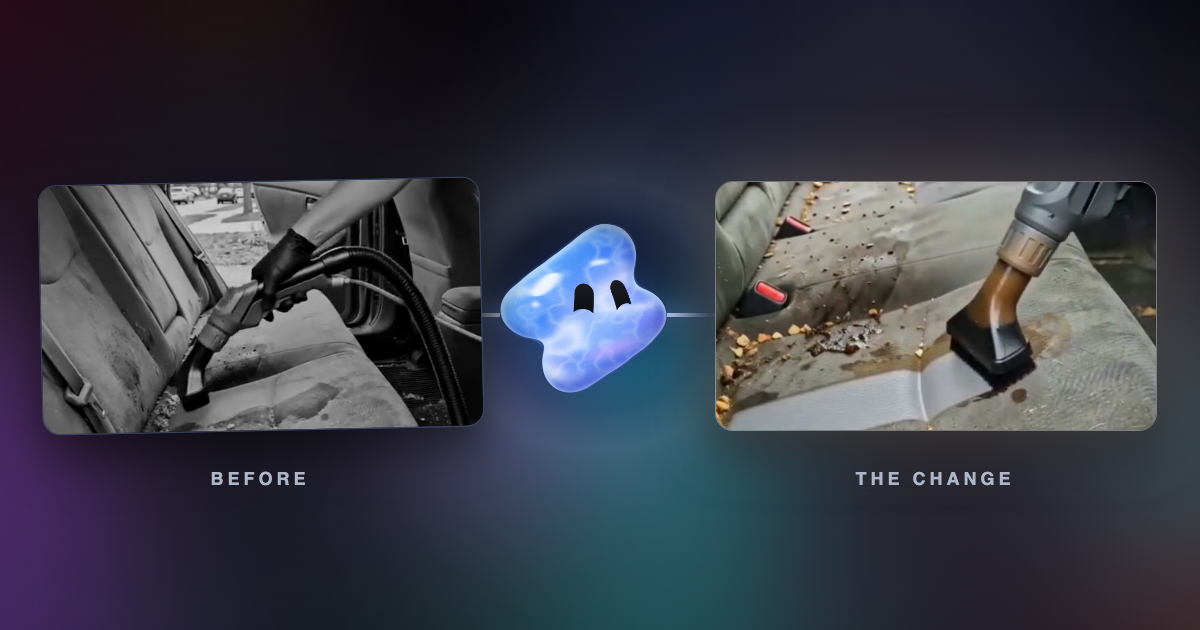
| Cleaning or detailing | The stain, close enough to see it, with a hand moving through the shot | One pass where a clean stripe appears next to the dirt | The same angle, clean, then the worker or the van |
| Renovation or building | The room from the doorway, with someone walking through it | Fast shots of the job: demolition, a roller, a floor going in | The same doorway, then the owners walking in |
| Gym or body change | The same pose, in the same place and light, with the date | A few hard sets from the months between | The same pose, the same place and the real timeframe on screen |
For hooks, length and post ideas for a business, see our guides on before and after videos that get views, reels for barbers and reels for builders.
Pick how the change lands
| Format | What happens | Use it when | In Vidova |
|---|---|---|---|
| The reveal | The work plays fast and close. One moment drops to quarter speed as the result appears, and the music comes up on that frame | One moment shows the result, such as a cape coming off | Barbershop fresh cut template, vertical, 9 to 15 seconds |
| Stroke and slide | One stroke slows as the clean stripe appears. A photo of the before then slides aside to show the after under it | The clean part shows next to the dirty part | Before and after reveal template, square, 8 to 18 seconds |
| Side by side | Both states play at once. Left is always before, and right is always after | The viewer needs to compare details | Ask for it in chat |
| Wipe | A wipe moves across the frame and uncovers the after | Both shots match closely | Ask for it in chat |
| Time series | The same spot appears at several dates | The change takes weeks or months | Ask for it in chat |
Whichever you pick, use one kind of move for the whole video. CapCut's guide says consistent movement is easier to follow, and that the first 1 to 2 seconds should make the purpose obvious. Start with the problem in words a customer would use, such as “six months of kids and coffee” over a stained car seat.
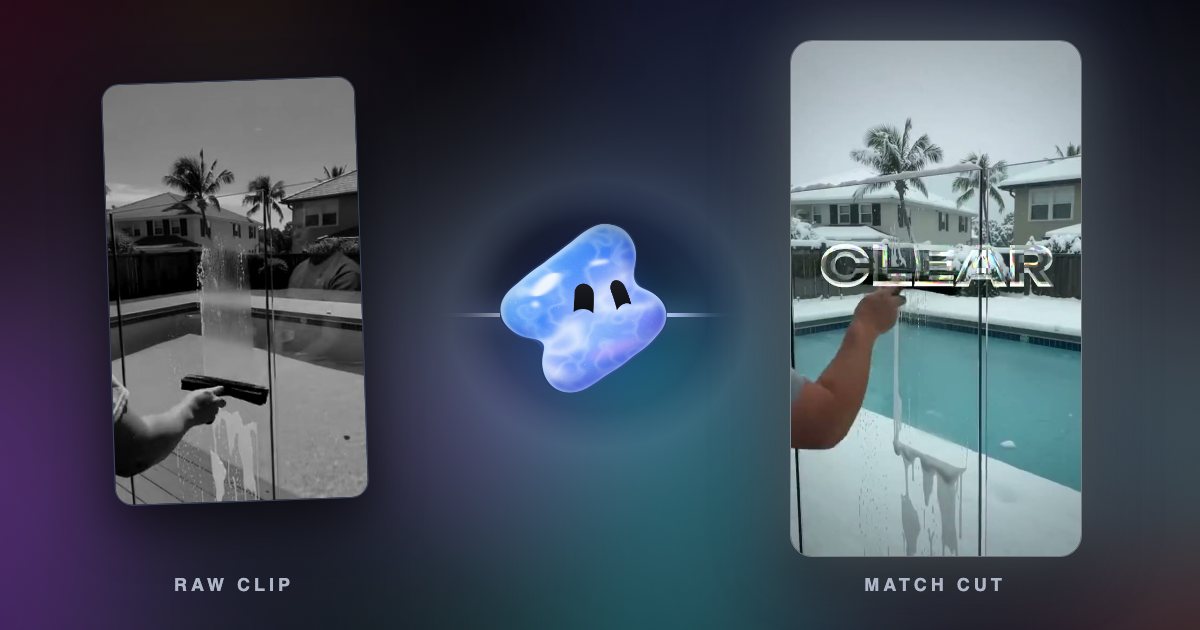
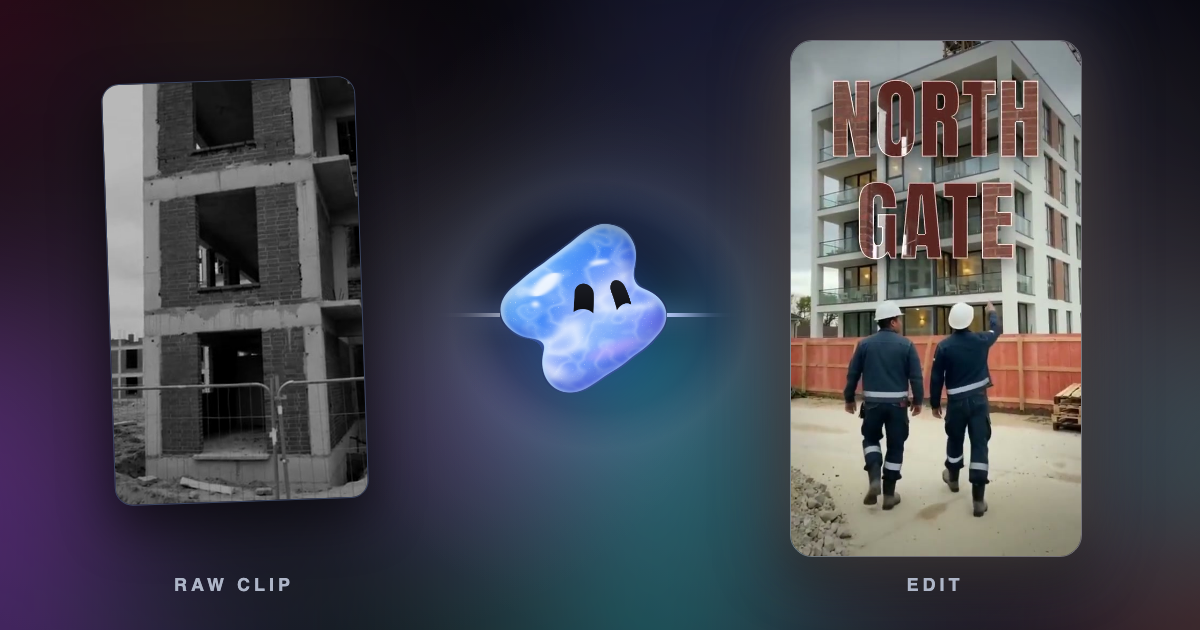
Save the full result for the end. Tom Smith's advice is to “keep the full reveal to the very last second”. He adds that not showing the after for too long encourages people to watch twice. Give it enough time to read, then end the video. If the two shots match in shape, a match cut joins them well.
Make it with an AI editor
These steps use Vidova.
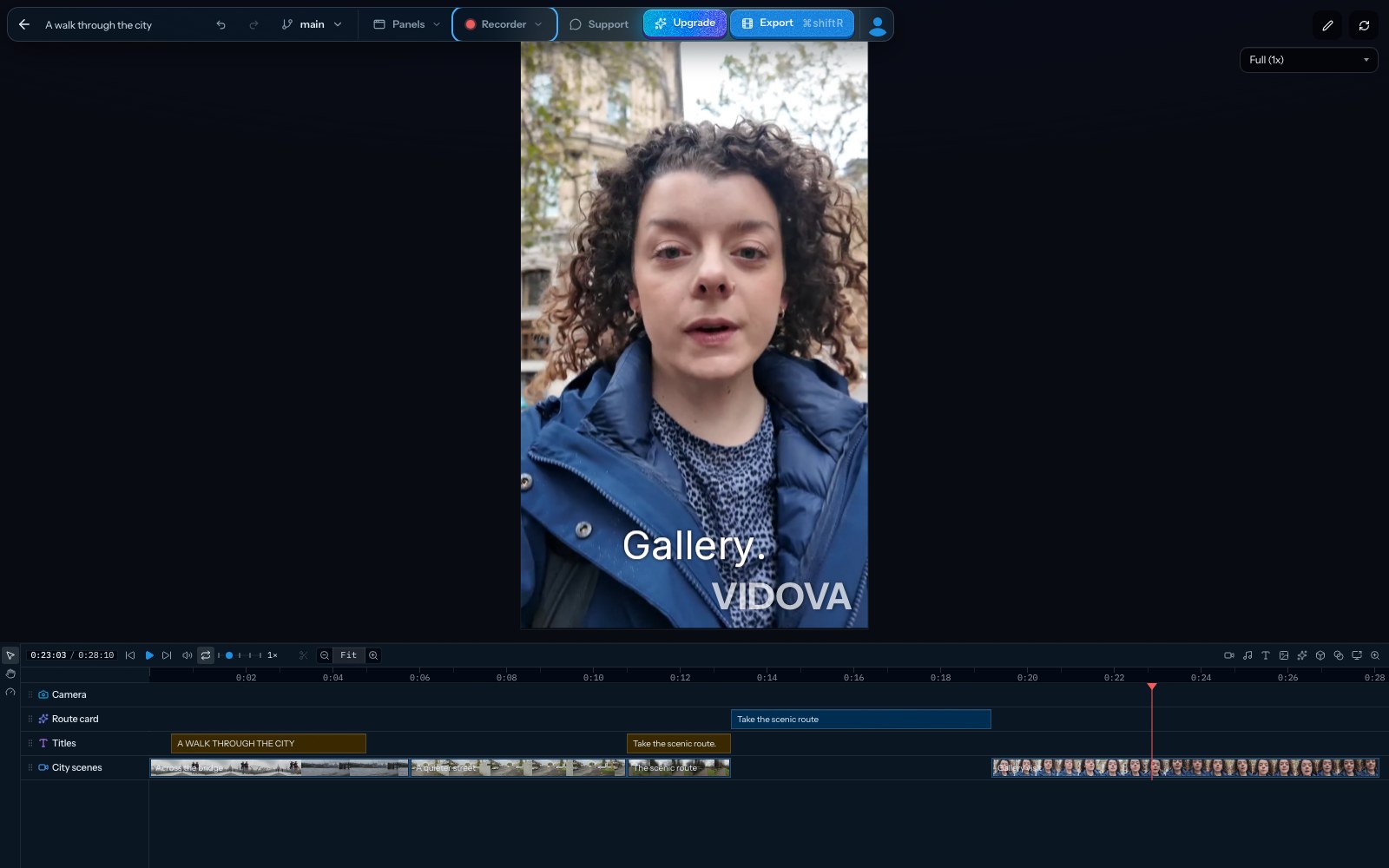
- Upload the before, the work and the after. Name them, or say in the brief which clip is which.
- Say what changed, how long the video runs and the format: 9:16 for Reels and TikTok, or 1:1 for a feed post.
- Choose how the change lands, or open a template and choose Use this template.
- The agent reads the clips and finds the moment of the change. It cuts on the beat, slows that moment with AI smoothing and sets your words clear of the result.
- Check that the two shots line up. Ask the agent to crop and move a clip when they are slightly off.
- Export an MP4, or make a second version with another hook.
Make a 12-second vertical reel from these clips. Clips 1 and 2 are the fade and the line-up, up close. Clip 3 is the cape coming off. Play the work fast with the clippers' own sound. Slow the cape to quarter speed with AI smoothing as the face first shows, and bring the music up to full on that frame. End on the client's grin, with my shop name beside him. Use only my clips, and do not change his face.
Make a 20-second vertical before and after of this kitchen. Open on the old kitchen from the doorway with the words “Two weeks ago”. Speed up the demolition and the tiling to the beat, with the real tool sounds low in the mix. Cut to the same doorway on a downbeat, then move slowly into the finished room. Use one honest grade on every shot, so the change comes from the work. End on the owners in the room.
These are example briefs. Write your own names and numbers, because the agent uses what you give it.
Keep the change real
- Use real footage of the result. A generated after shows work you did not do, and a customer may hold you to it.
- Use one grade on both states. If the after is brighter and warmer than the before, viewers credit the colour and doubt the work.
- Ask the client before you post their face, home or car. Vidova can blur faces and plates, and there are free tools to blur faces and blur licence plates.
- Keep your words inside the safe zone, and off the result.
Check the rules before you run it as an ad
| Source | What it says |
|---|---|
| [Meta Ad Standards: health and wellness](https://transparency.meta.com/policies/ad-standards/restricted-goods-services/health-wellness/) | Lists “Side-by-side comparison after the use of a product or transformation for weight loss” as prohibited. Lists “General cosmetic products, procedures, surgeries depicting before and after transformation” among ads allowed when they target people 18 or older |
| [Meta Ad Standards: eating disorders](https://transparency.meta.com/policies/ad-standards/objectionable-content/suicide-selfinjury-eating-disorders) | Bars ads with “side by side imagery depicting before and after weight loss/gain not related to the use of a product or service” |
| [TikTok ad policy: weight management](https://ads.tiktok.com/help/article/tiktok-ads-policy-weight-management) | Bars “References to unrealistic muscle gain or weight loss” and suggestions that a change is easy or guaranteed. Weight loss or muscle gain claims must target people aged 18 or older |
| [US Federal Trade Commission: endorsement guidance](https://www.ftc.gov/business-guidance/resources/ftcs-endorsement-guides-what-people-are-asking) | An ad with an endorser who claims exceptional results must make clear what results people generally get, when the advertiser cannot show the claimed results are typical |
These pages cover weight, cosmetic and health claims in ads. Read the current policy for your own category before you pay to run a before and after. This section is general information and is not legal advice.
Make it by hand
- CapCut: its dual-screen templates are made for layouts such as a before and after. You drop in your clips and adjust them.
- Kapwing: its video collage maker places videos side by side, and it has a comparison collage template.
- iMovie: the iPhone and iPad app has a split-screen effect.
- Instagram Edits: the phone app generates captions and has beat-synced effects for a Reel you cut yourself.
What goes wrong, and how to fix it
| Problem | Cause | Fix |
|---|---|---|
| The change looks fake | The angle or the light differs between shots | Film again from your marked spot. For a small offset, ask the agent to crop and move the clip |
| The change is hard to see | A small change is shown in a wide shot | Film close, and show the same close frame in both states |
| People leave before the result | The work section runs too long | Cut the work to a few fast shots, or to one stroke |
| It looks like a slideshow | The before and the after are two still photos | Use moving clips, or ask for a slow push on each photo |
| The result is covered | Text sits on top of it | Ask for the words beside the result, or on the before only |
| The switch feels flat | Nothing in the sound changes with the picture | Ask for the music to come up on the frame the result appears |
| An ad is rejected | A weight or body comparison breaks the platform's policy | Read the policy, then show the training and the person with no side-by-side |
Questions about before and after videos
How long should a before and after video be? Vidova's templates for this run 8 to 18 seconds. Add length only when the work itself is worth watching.
Can I make one from two photos? Yes. Ask for a slow push on each photo, or ask the agent to animate your own photo into a short clip, which uses credits. Moving clips show the change better, so film them next time.
Can AI show a client what a room could look like? Yes, as a concept. Vidova can generate that shot, which uses credits. Say on screen that it is a concept, so nobody takes it for finished work.
Do I need to talk in the video? No. Real sound and music carry most of these. If you talk, ask for captions, and keep them off the face and off the result.
Can I post the same video on TikTok and Instagram? Yes. Make one vertical master, and read how to post the same video in high quality.
Is there a phone app? Vidova has no iPhone or Android app yet. On a phone, you can send clips to the @vidovabot bot in Telegram, and the finished video comes back in the chat.
Make your first before and after
Plans start at $49 a month, with no watermark.
Sources
- CapCut: dual-screen templates
- CapCut: split-screen effects guide
- CapCut pricing
- Kapwing: how to make side-by-side videos
- Kapwing pricing
- iMovie on the App Store
- Edits on the App Store
- Edits on Google Play
- Good Salon Guide: tips for hair transformations
- Meta Ad Standards: health and wellness
- Meta Ad Standards: suicide, self-injury and eating disorders
- TikTok ad policy: weight management
- FTC: endorsement guides, what people are asking