 Vidova
Two editors in chat
Vidova’s chat has two editors. The Fast editor makes the exact change you ask for. The Creative Director plans and designs a whole video. Both work on the project you see in the timeline, and both follow the same rules for social video.
| Fast editor | Creative Director | |
|---|---|---|
| Use it for | Captions, cuts, silences, titles, timing, volume and export | A new video, a new idea, or a look made for your footage |
| Choices of look | Asks you, with ready-made previews | Makes them for you |
| Titles and graphics | Picks them from Vidova’s library with you | Designs them for this video |
| New media | Adds music and sounds from Vidova’s library | Makes new shots, pictures, music, voiceovers and sound effects |
| Effects on a person | No | Yes, such as text behind a person |
Pick an editor
- In the chat box, open the editor menu. It shows Fast or Creative.
- Choose Fast editor or Creative Director. Each one says what it does and what it uses on your account.
- Send your message.
Your pick stays for your next messages in this browser. If your account cannot use the Creative Director yet, it shows a lock. Choose it to start your free trial or your plan.
In Quick edits, each edit is marked Fast or Creative and runs on that editor.
The Fast editor
The Fast editor does the work you describe and leaves every choice of look to you. It cuts where you say, removes the silences and filler words you ask it to remove, fixes a word in the captions, moves, resizes and times clips, changes the volume, and exports.
When a change needs a choice of look, it asks before it builds. It shows two to four options as the real thing, so you see each one before you pick:
- Caption styles, text looks and transitions: previews from Vidova’s library that play at once.
- A kind of edit: templates, each shown with the creator video it comes from.
- Music and sounds: tracks from Vidova’s library that you can play.
Then it builds exactly what you picked. If you do not answer, it waits and goes on as soon as you pick.
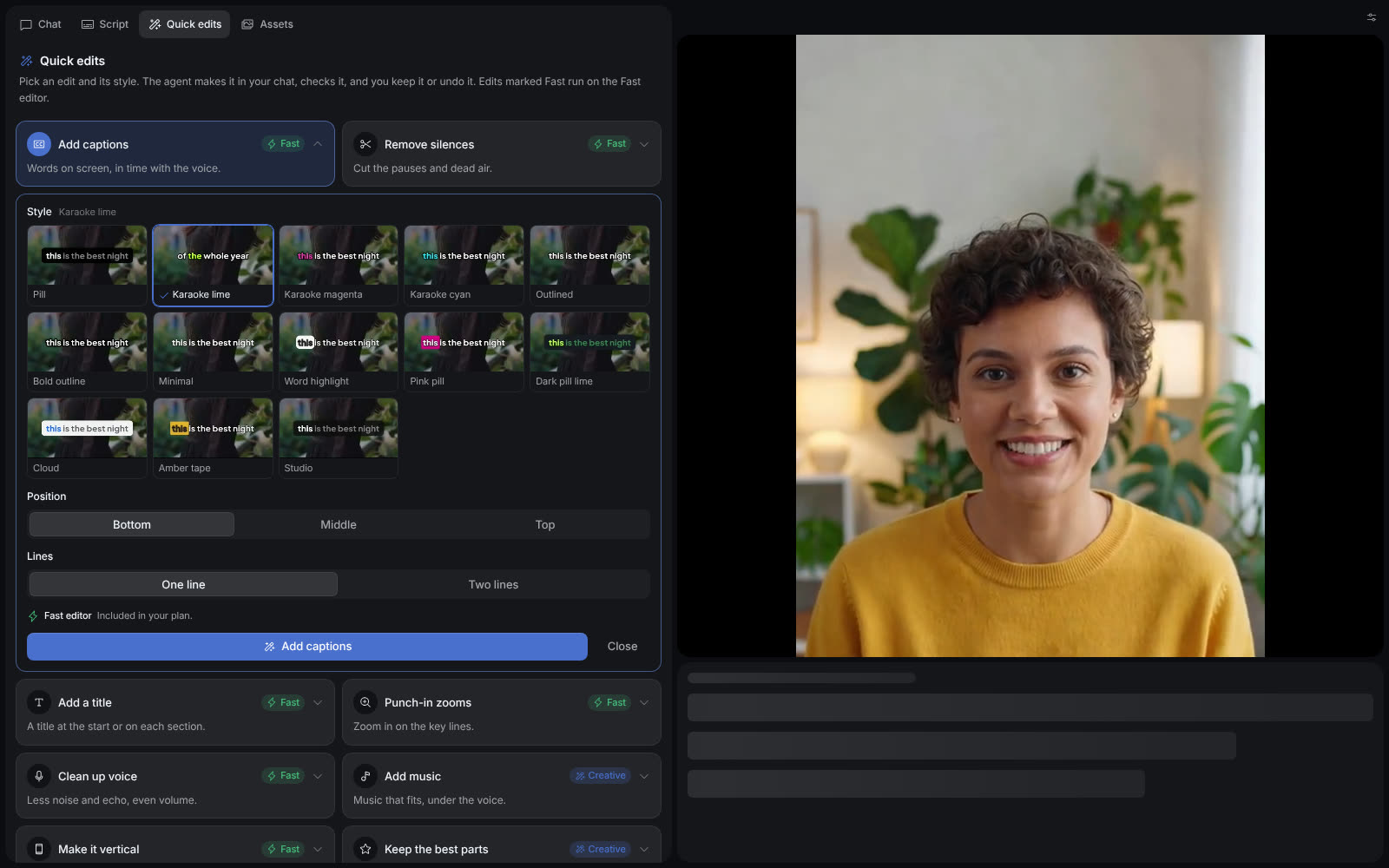
Open an edit to pick its style and choices, then run it with the button under them.
Select the image to open the original full view.
The Creative Director
The Creative Director directs the whole video. It plans the edit, then makes the creative calls: the idea, the story, the look, the type, the sound and the order of the shots.
It also makes what your footage does not have:
- Titles and graphics designed for this video.
- New shots, pictures, music, voiceovers and sound effects. See Generating media.
- Effects on a person, such as text behind them or a glow outline. See Analysis and effects.
- Changes to what a clip shows, such as a new background or a new color for a product.
On a big edit, the Creative Director can split the work across helpers that work at the same time. Each helper does one exact task, such as reading a clip, cleaning the speech in one part or placing captions. The Creative Director keeps every creative decision itself.
When the Fast editor hands over
Some requests need a creative call that you did not make, such as “make it pop” or “come up with an idea”. Others need something only the Creative Director makes, such as a new shot or a title designed for this video. The Fast editor does the part it can. Then it shows a card, This one is for the Creative Director, with the reason in a few words.
- Send to the Creative Director sends the same request to the Creative Director and switches your chat to it.
- Keep it fast keeps the Fast editor on.
If your account cannot use the Creative Director yet, the same button starts your free trial or your plan.
Built for social video
Both editors follow the layout of TikTok, Instagram Reels and YouTube Shorts. After every change and every preview, Vidova checks the video and tells the editor what to fix.
- Titles in the safe zone. On a vertical video, titles, logos and your product stay in the part of the frame that all three apps leave clear: below the tabs at the top, above the post text at the bottom, and left of the like, comment and share buttons.
- Captions where people read them. Spoken captions sit low in the frame and stay clear of the buttons on the right. Vidova checks that they are big enough to read on a phone.
- Nothing on the edges. Text keeps clear space from every edge of the frame, so a rounded screen or a crop does not cut a word.
- Cuts between words. A cut in speech falls in a pause, never inside a word, and the video ends on a complete sentence.
- Cuts on the beat. Vidova finds the beats in your music and checks where each cut lands against them.
- Every word clear. Vidova measures the mix, so the music stays under the voice.
To choose the caption style and position yourself, see Captions and transcripts.