 Vidova
Open the graph
The Film graph lets you plan a whole film as nodes. Each node makes one part: a picture, a shot, a voice or music. Wires carry what one node makes into the next one. The Film node puts the parts together as the project’s film.
In the editor, choose Graph above the preview to open the graph, and Edit to go back to the timeline. The editor remembers which of the two each project was left on. On a phone, open the graph from the editor’s menu.
To start a new film as a graph, open Create → Film graph and pick a starter film or Blank graph. Vidova makes a new project and opens it on its graph. The same page lists your projects, so you can open any of them on its graph.
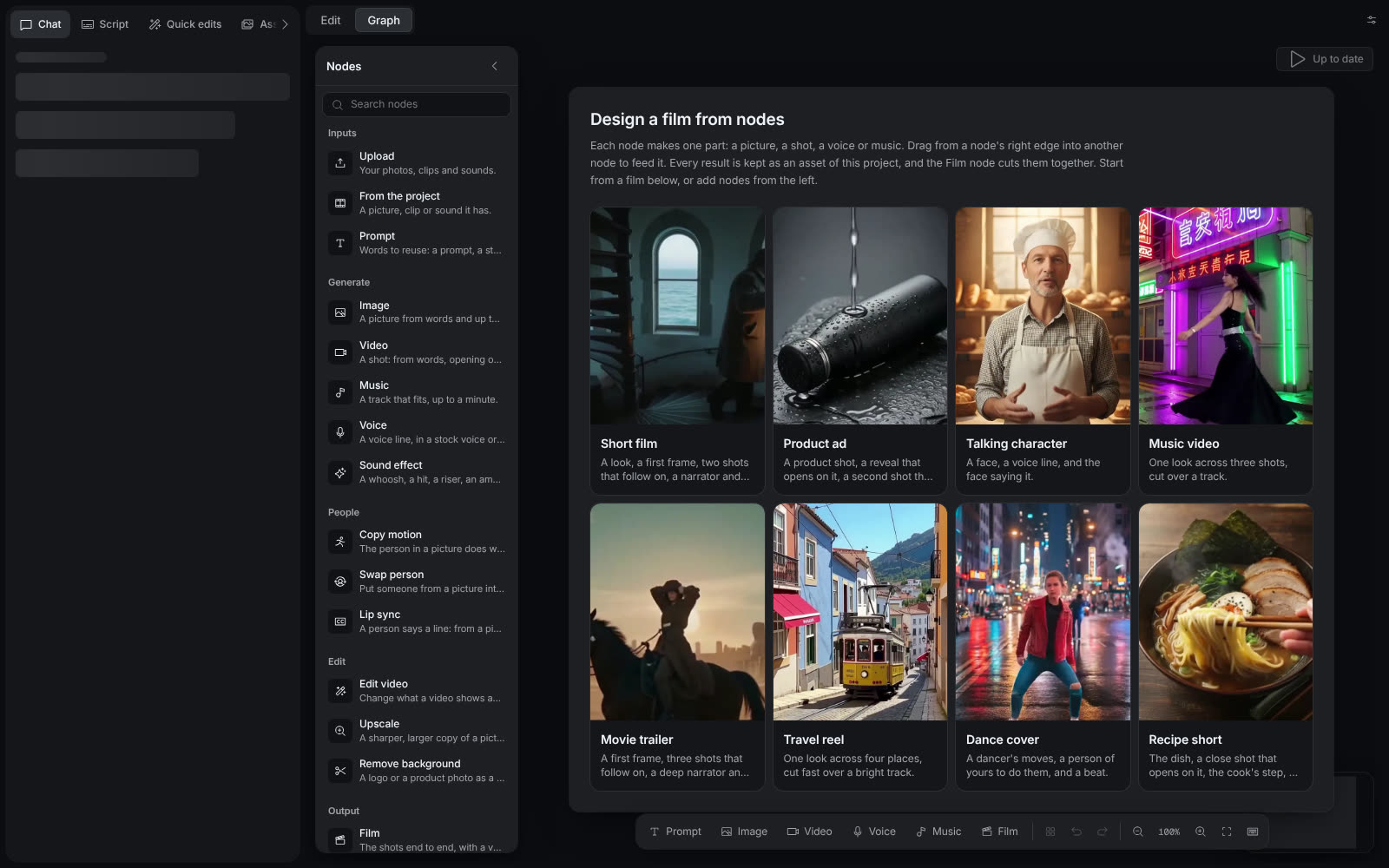
An empty graph offers starter films. The Nodes panel on the left lists every node.
Select the image to open the original full view.
Nodes
The Nodes panel on the left lists every node by group and has a search box. Drag a node onto the board, or click it to add it. Drop photos, clips or sounds on the board to add them to the project as nodes.
| Node | What it makes or does |
|---|---|
| Upload, From the project | Your photos, clips and sounds, or a picture, clip or sound that the project already has. |
| Prompt | Words to reuse, such as a look that you wire into several shots. |
| Image | A picture from words and up to three pictures. |
| Video | A shot from words. It can open on a picture or on the last frame of another shot, end on a picture, or keep a character. |
| Voice | A voice line, in a stock voice or in someone’s own voice. |
| Music | A track that fits, up to a minute. |
| Sound effect | A whoosh, a hit, a riser or an ambience. |
| Copy motion | The person in a picture does what the person in a video does, for 3 to 30 seconds of moves. |
| Swap person | Puts someone from a picture into a video of 3 to 10 seconds. |
| Lip sync | A person says a line, from a picture or from their own footage with only the mouth changed. Up to 60 seconds. |
| Edit video | Changes what a video shows and keeps its motion and sound, for 3 to 10 seconds. |
| Upscale | A sharper, larger copy of a picture or a video. |
| Remove background | A logo or a product photo as a PNG with no background. |
| Film | The shots end to end, with a voice and music, written as the project’s film. |
| Note, Scene | For planning. A note holds the story, a beat or a thing to fix. A scene is a frame around a group of nodes, and moving it moves what is inside. |
Wire nodes together
- Drag from the dot on the right edge of a node to a socket on another node. A socket takes only what fits it, such as words, a picture or a shot.
- Let a wire go on an empty part of the board to open a menu of the nodes that take it. The node you pick is added and wired.
- Drag the end of a wire to another socket to move it. Drag it off a socket and let go to take it off.
- Double-click the board, or press Space, to add a node where the pointer is. The bar at the bottom adds a Prompt, Image, Video, Voice, Music or Film node.
Start from a film
An empty graph offers starter films. Each one is a few nodes that are already wired, with prompts written. Nothing in a starter is made until you run it. Each starter card plays a clip from a film that the starter made.
- Short film: a look, a first frame, two shots that follow on, a narrator and music.
- Product ad: a product shot, a reveal that opens on it, a second shot that keeps it, and a beat.
- Talking character: a face, a voice line, and the face saying it.
- Music video: one look across three shots, cut over a track.
- Movie trailer: a first frame, three shots that follow on, a deep narrator and a score that builds.
- Travel reel: one look across four places, cut fast over a bright track.
- Dance cover: the moves of a dancer, a person of yours to do them, and a beat.
- Recipe short: the dish, a close shot that opens on it, a step by the cook, a friendly voice and a beat.
Change the prompts to your own story, then run the graph.
Run the graph
Each node has Run in its header, with the credits that the run uses. The button at the top right runs every node whose result is missing or out of date, in order, and shows the total credits. Nodes that do not need each other run at the same time. If a node fails, the nodes that need its result do not run.
A node shows Making and how much is done while it runs. It shows Changed when its settings or inputs changed after it ran, and Failed when the run did not work. When every node is current, the button says Up to date.
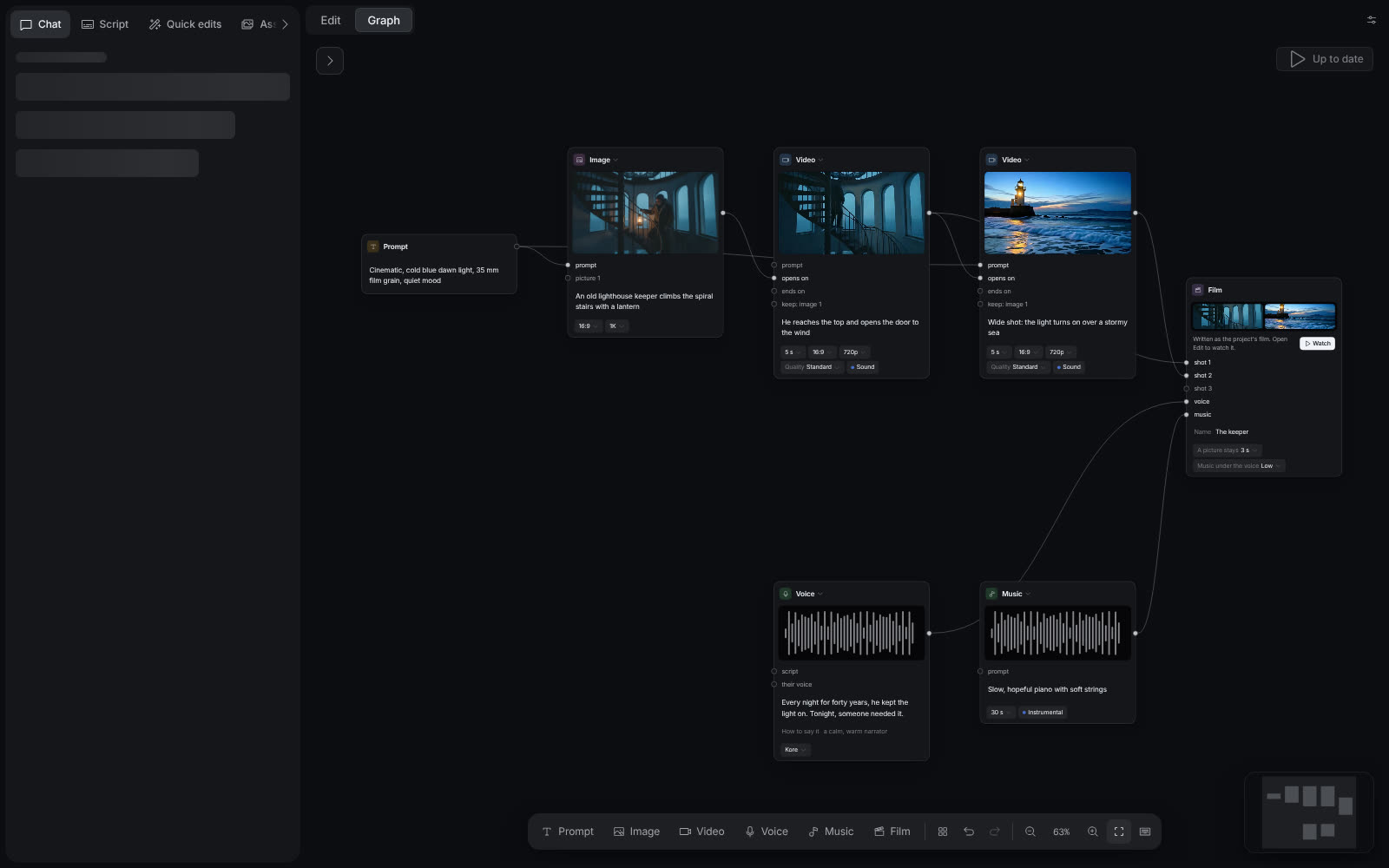
Every node of the Short film starter has made its part, and the Film node has written the film. The button at the top right says Up to date.
Select the image to open the original full view.
Where results go
Everything a node makes is saved as an asset of the project. It stays when you close the graph, and it shows in Assets. A run that is still going continues in the cloud.
The Film node puts the shots end to end with the voice and the music, and writes them as the project’s film. If the film already has work in it, the Film node writes a new version instead, so your edit stays. Choose Watch on the Film node to see the film in the Edit view. See Versions and undo for how versions work.
Credits
Nodes that generate media use credits from your balance, as a generation in chat does. Running a node again makes a new result and uses credits again. The Film node, notes and scenes use no credits. See Plans and credits for what each action costs.
Work on the board
| Key or gesture | Action |
|---|---|
| Double-click or Space | Add a node |
| P, I, V, S, M, F, N | Add a prompt, image, video, voice, music, film or note node |
| Shift + click | Pick several nodes |
| Cmd/Ctrl + C, X, V | Copy, cut or paste nodes. A copy also pastes into the graph of another project. |
| Cmd/Ctrl + D | Duplicate |
| Delete | Delete the picked nodes and their wires |
| Cmd/Ctrl + Z, Cmd/Ctrl + Shift + Z | Undo, redo |
| ? | Show the keys |
With two or more nodes picked, one bar runs, duplicates, tidies, puts in a scene or deletes them. Tidy up in the bottom bar puts the nodes in columns in the order that they feed each other. Undo never takes back what a run made.