 Vidova
Open Create
Create is a set of tools that make media from a few words or a picture. It is in preview, and the page says Preview at the top. Open it at vidova.ai/app/create. After you open it once, Create also shows in the app’s sidebar in that browser.
The tabs at the top are Explore, Video, Image, Characters, Motion, Effects, Lip sync and Film graph. Explore shows each tool and ideas to start from. Type in the bar at the bottom of Explore to start a video or a picture at once.
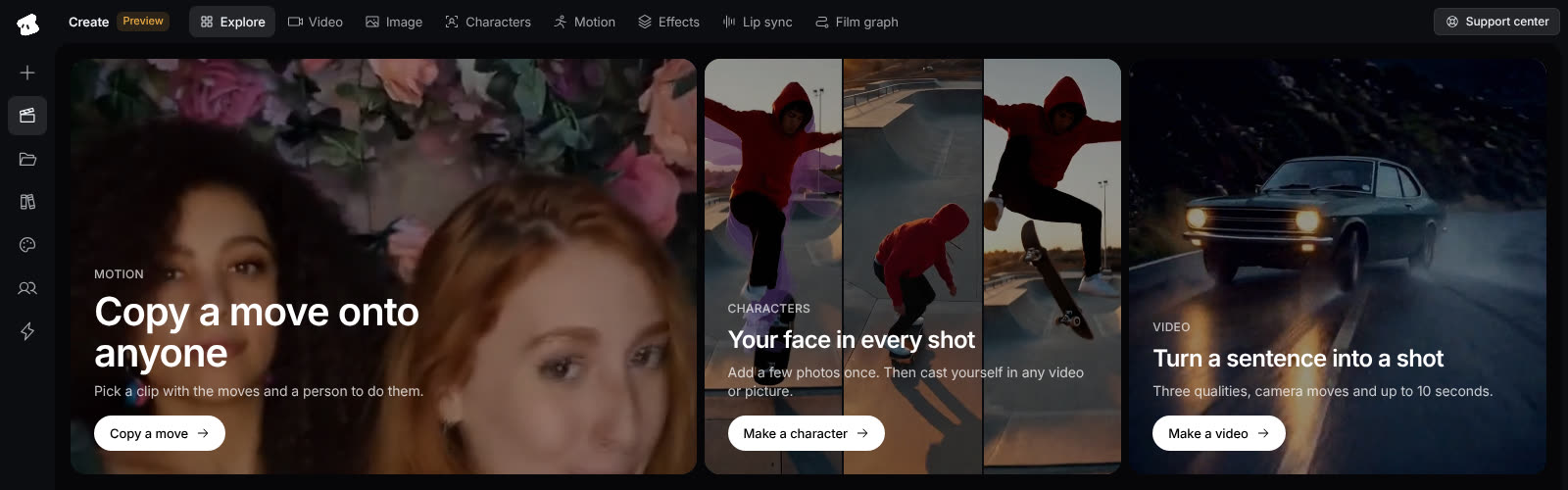
Explore shows each tool. The tabs at the top open Video, Image, Characters, Motion, Effects, Lip sync and Film graph.
Select the image to open the original full view.
Where your results go
Each result is an asset of a project named Create. Vidova makes this project the first time you generate something. Opening the pages makes no project.
Results show under Your creations while they are made. Choose This tool or Everything to filter them. A generation keeps running when you close the page, and it shows again when you open Create on any device. Choose Open in the editor to work with a result in the Create project.
Make a video
- Open Video and describe what happens and how the camera moves under Prompt. Or choose Try an idea.
- To open or end the shot on a picture, add a Start frame or an End frame. Both are optional.
- Choose a Camera move, such as Dolly in, Orbit or Crane up. Show all 15 shows every move.
- Under Cast, pick a character to keep them in the shot. A start frame already shows who is in the shot, so it takes the place of the cast.
- Choose the Model, the Length (5 or 10 seconds), the Shape (16:9, 9:16 or 1:1), the Quality, How many to make, and Sound.
- Choose Generate. The button shows the credits before you start.
Standard is fast and light, for drafts. High has sharper motion, always has sound, and keeps a cast person. Highest has the most detail and the best motion.
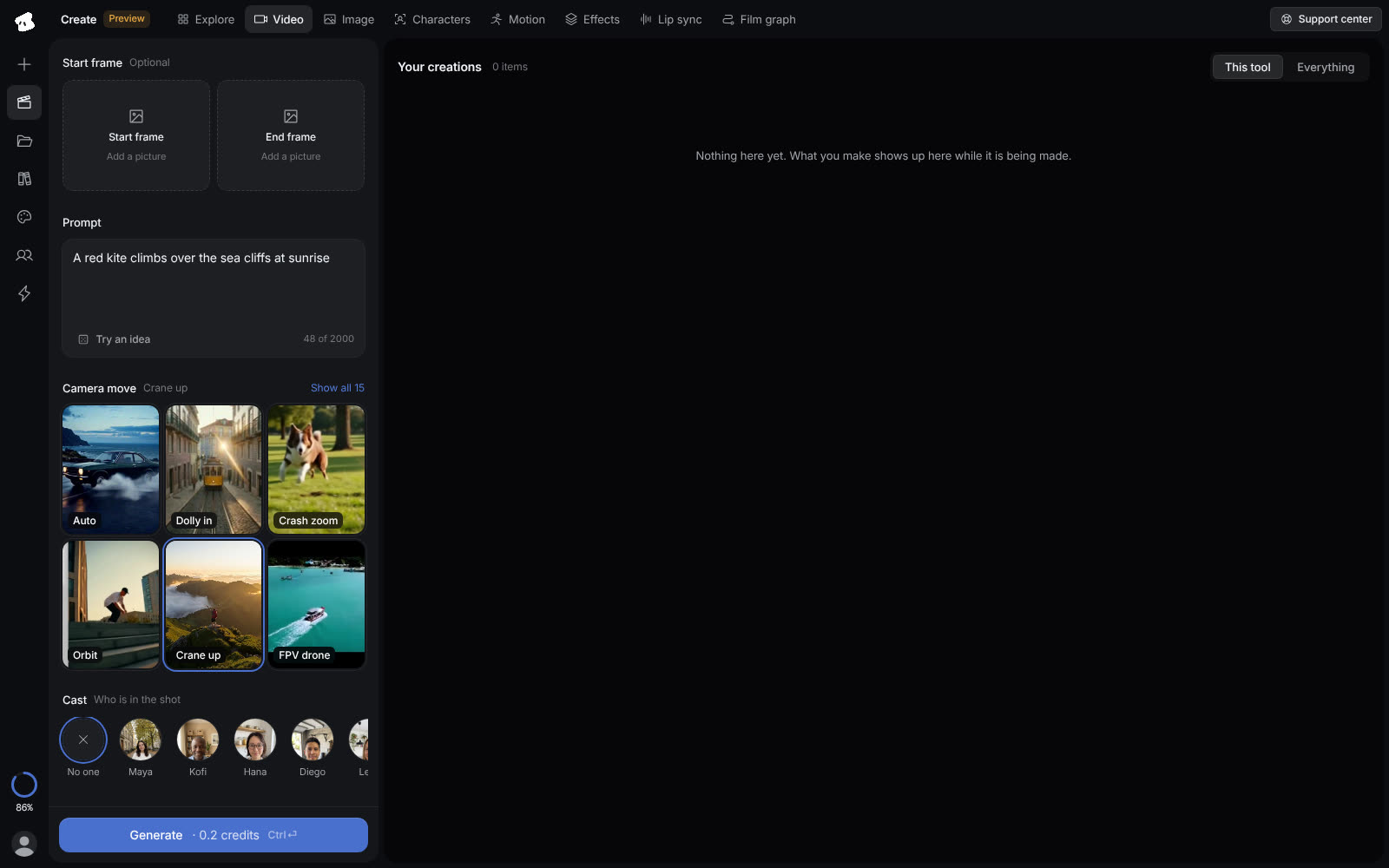
Write the shot, pick a camera move and a cast, then Generate. The button shows the credits before you start.
Select the image to open the original full view.
Make a picture
Open Image and describe the subject, the light and the place. Add up to 3 References: pictures of a person, a product or a look. A cast character uses one of the 3. Pick a Style, such as Cinematic, Product shot or Food, and a Size (1K, 2K or 4K), then choose Generate.
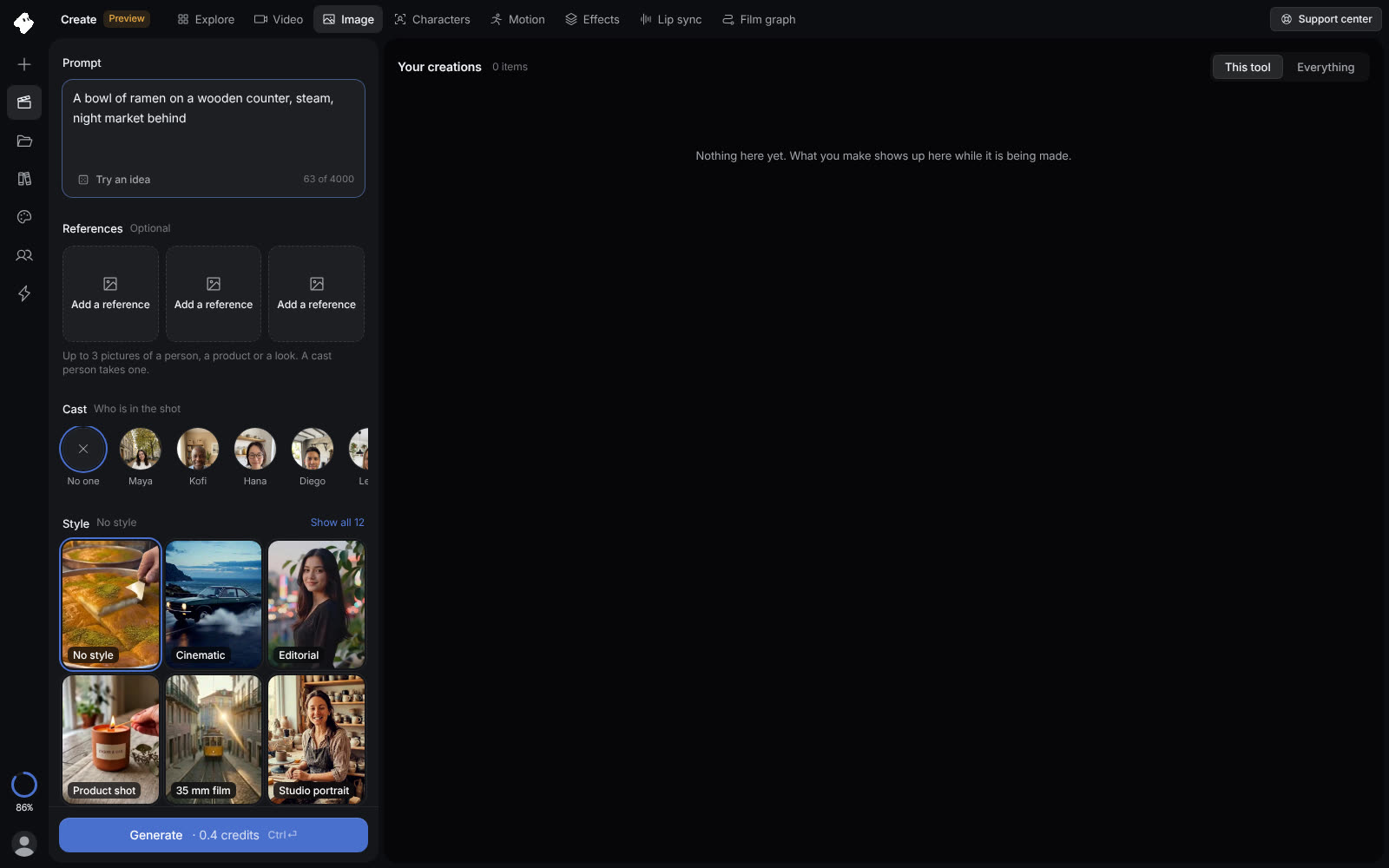
Add up to 3 references and pick a style. A cast character uses one of the references.
Select the image to open the original full view.
Make a character
- Open Characters and type a Name.
- Add 1 to 3 photos of one person. Show the face clearly, in good light.
- Tick the box to confirm that you have the right to use this person's face.
- Choose Make character. Vidova makes a clear, front-facing portrait of the person.
When the character is ready, cast them in a video, a picture, a move or a lip sync. Ready to cast lists made-up people that you can cast with no photos.
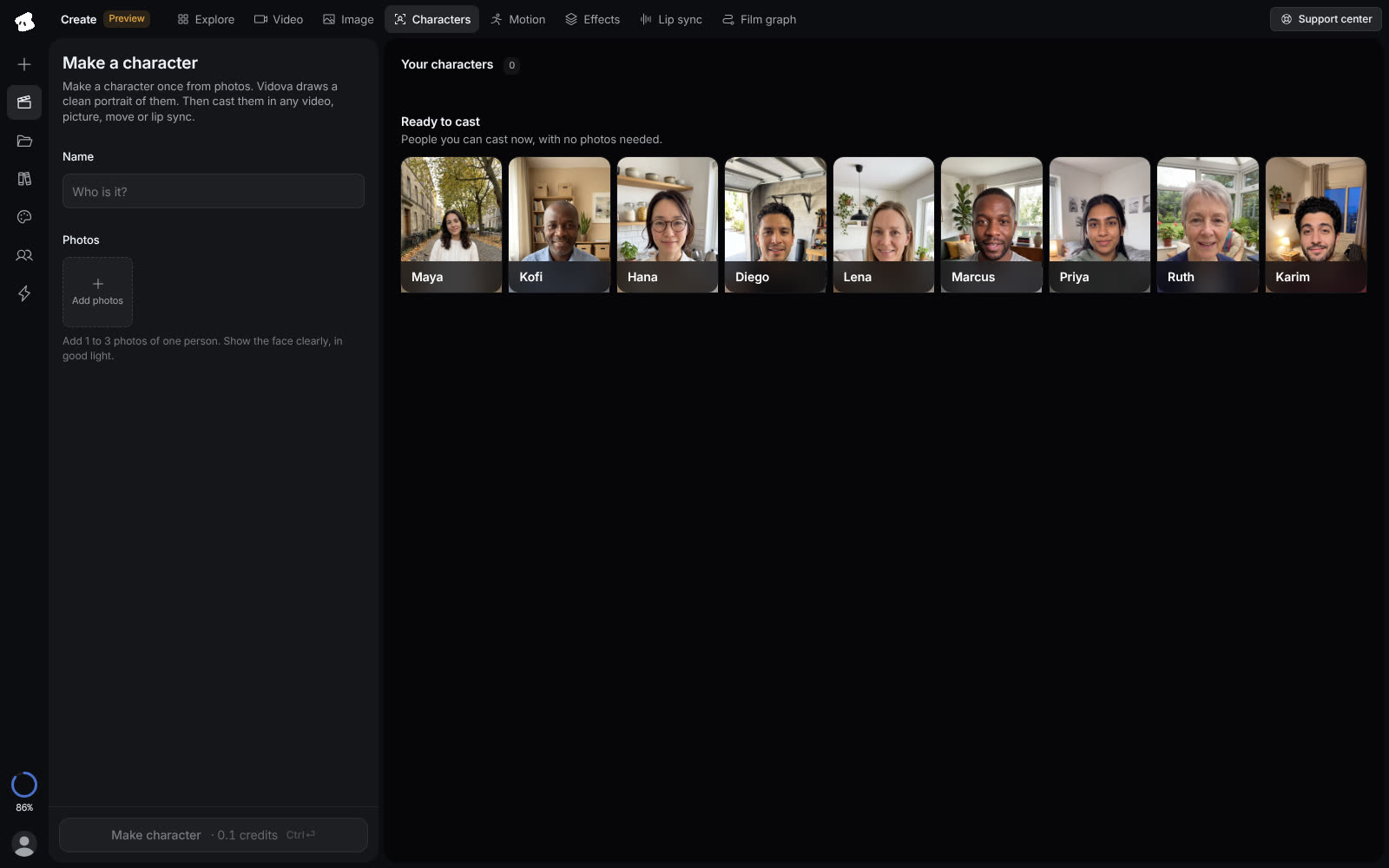
Make a character from 1 to 3 photos, or cast one of the ready-made people.
Select the image to open the original full view.
Copy a move
Motion needs two things: a clip with the moves and a person to do them. The clip must show one person moving, for 3 to 30 seconds.
- Open Motion. Under Moves from, pick a clip, or choose Upload a clip.
- Under Who moves, pick a character or a picture of one person.
- Under What to do, choose Copy moves to put your person in a new scene, or Swap the person to keep the clip and put your person in the place of the one in it.
- For Copy moves, describe the scene under Where it happens. It is optional.
- Choose Standard or Pro quality, then Generate.
Vidova reads the length of your clip to price it. A clip that is too long for the tool is cut to the length it takes.
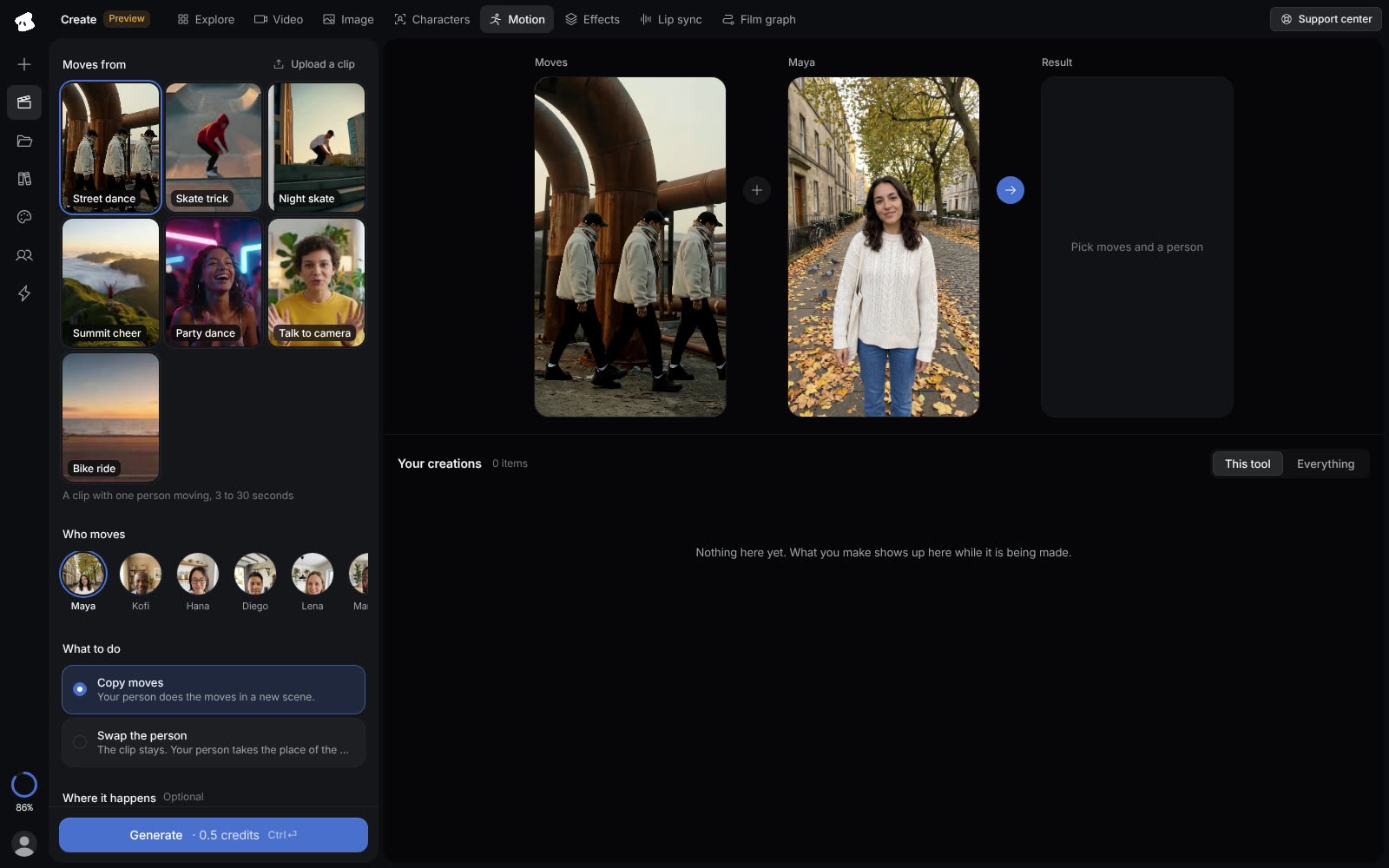
Pick the moves and the person. Copy moves puts your person in a new scene. Swap the person keeps the clip.
Select the image to open the original full view.
Make a face talk
- Open Lip sync. Under Face, pick a character, or upload a picture of one person facing the camera.
- Type what they say under Script.
- Pick a Voice and a Quality, then choose Generate.
Vidova speaks the line in the voice you picked, then moves the lips of the face to match. Both steps run on Vidova’s servers, so you can close the page while they run. The button shows the credits for both steps.
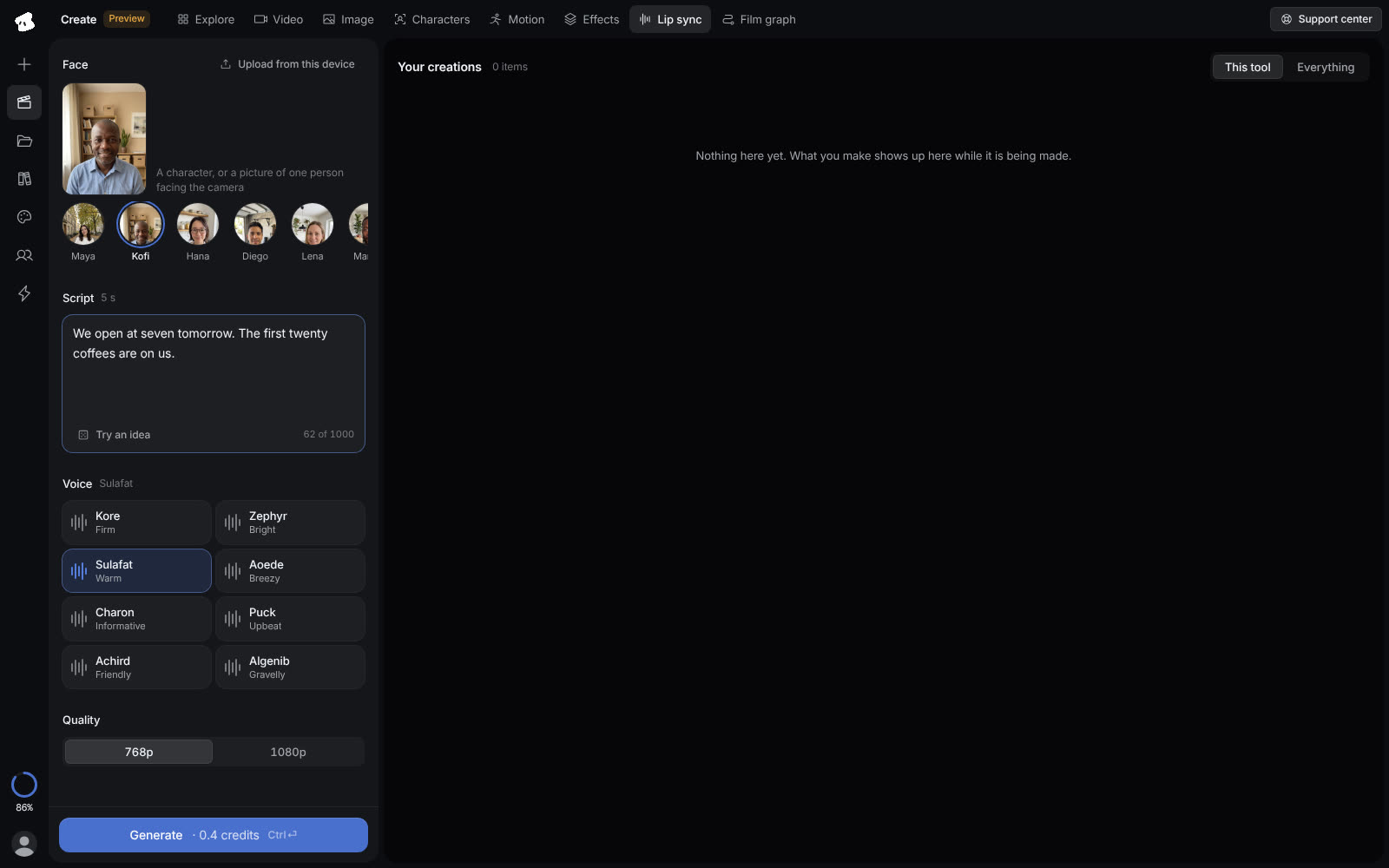
Pick a face, type the line and pick a voice. The button shows the credits for the voice and the lip sync.
Select the image to open the original full view.
Put an effect on a photo or a clip
- Open Effects and pick an effect. Search by name, or filter by People, Hits, Looks, Intros, Layouts, Comic and meme, or Party and mood.
- Under Put it on, add a photo or a clip with a person in it. You can also use a sample clip.
- Choose Apply effect.
The effect goes on your photo or clip in a new project named after the effect, and the project opens in the editor. Effects run on Vidova’s own engine, and the button shows what the effect costs. A picture made in Create cannot go into an effect yet: download it, then add it under Put it on.
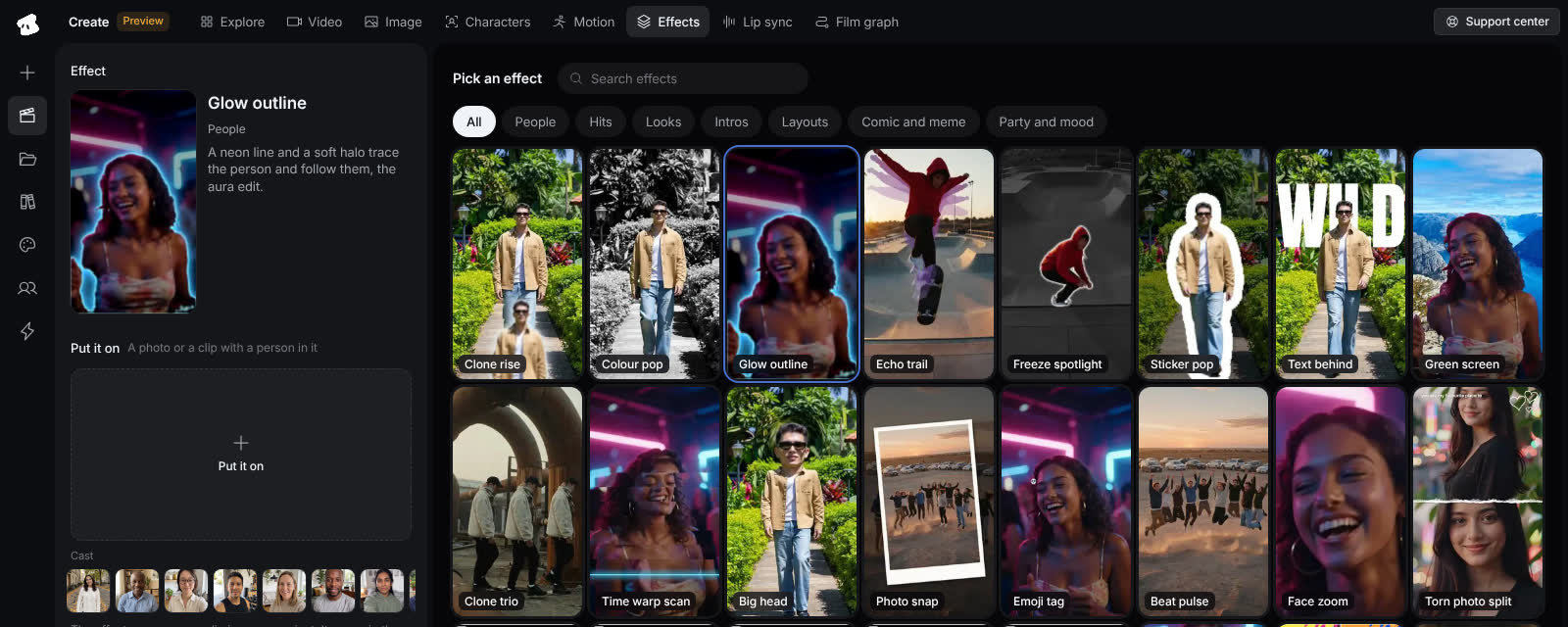
Pick an effect, then add a photo or a clip with a person in it. The effect opens in a new project in the editor.
Select the image to open the original full view.
Credits
Each generation uses credits from your balance, as a generation in chat does. The Generate button shows the credits before you start. If a generation fails because the model was busy, your credits come back. See Plans and credits for what each action costs.
To plan a whole film from these parts, use the Film graph. To ask for media in a chat instead, see Generating media.