 Vidova
Open Quick edits
Quick edits is a tab beside Chat and Script on the left of the editor. Press Cmd/Ctrl + E to open it. On a phone, open it from the editor’s menu.
Each edit sends a short brief to the agent as your chat message, with the choices you made. The agent makes the edit, checks it at the start, the middle and the end, and tells you in a few lines what it changed.
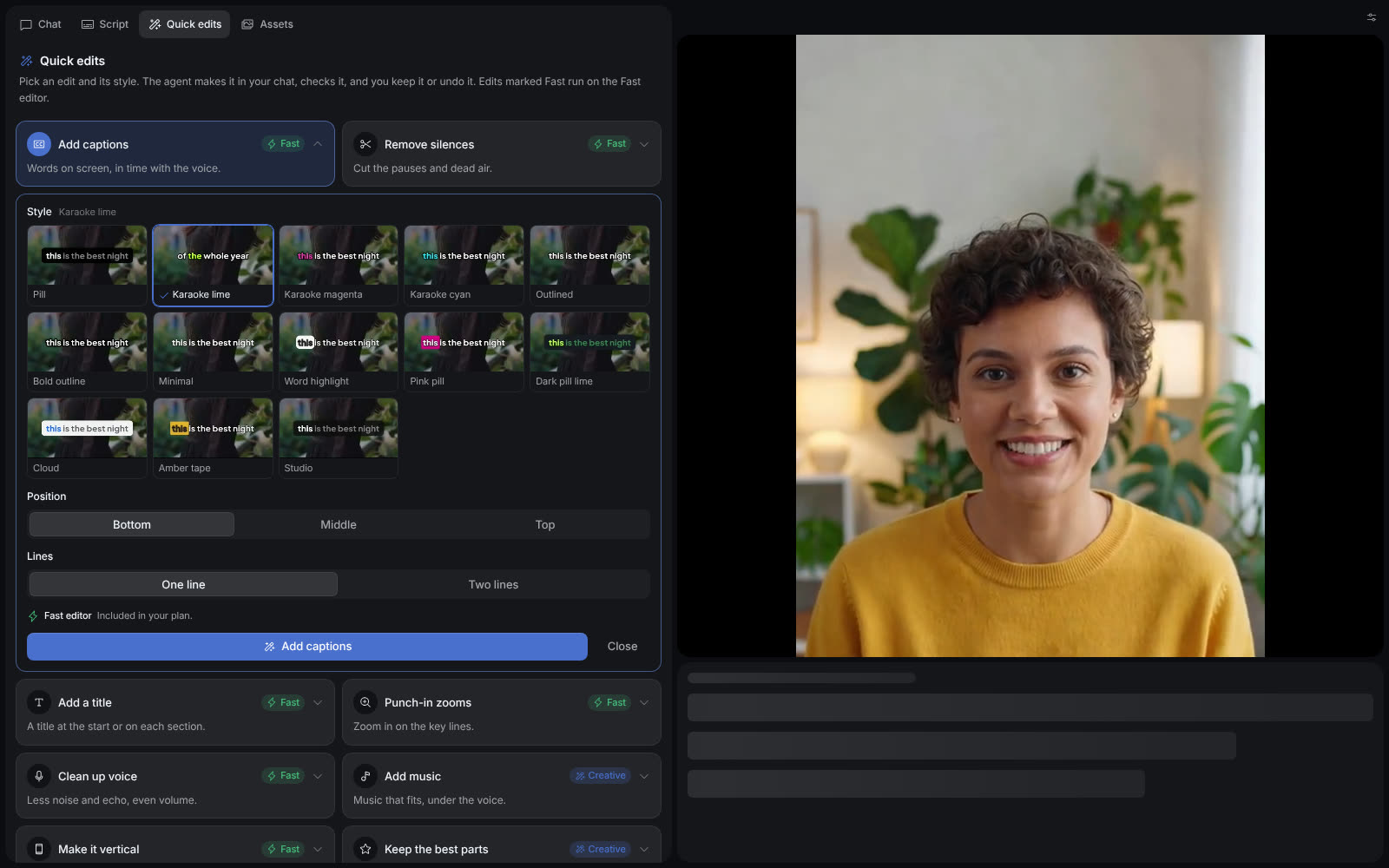
Open an edit to pick its style and choices, then run it with the button under them.
Select the image to open the original full view.
The edits
| Edit | What it does | Choices |
|---|---|---|
| Add captions | Words on screen, in time with the voice. | One of 13 styles, such as Karaoke lime or Pink pill. Bottom, middle or top. One or two lines. |
| Remove silences | Cuts the pauses and dead air, but never inside a word. | Gentle cuts pauses over 1 second, Natural over 0.6 seconds and Tight over 0.3 seconds. You can also cut filler words, such as “um” and “uh”. |
| Add a title | A title at the start or on each section. | Your own words, or leave it empty and the agent writes one. A look, such as Neon or Chrome, and a motion, such as Word pop or Typewriter. |
| Punch-in zooms | Zooms in on the key lines. | Subtle or punchy. |
| Clean up voice | Less noise and echo, and an even volume. | None. |
| Add music | Music that fits, under the voice. | Upbeat, calm, cinematic or playful. |
| Make it vertical | A 9:16 version for Reels, TikTok and Shorts. | None. |
| Keep the best parts | A shorter cut of the best moments. | 15, 30 or 60 seconds. |
Run an edit
- Choose an edit to open its choices.
- Pick a style and the other choices. A caption style or a title motion shows how it moves in its preview.
- Choose the button under the choices to run the edit.
A card shows the steps of the agent while it works. If the agent is busy with another edit, the new edit starts when that one is done.
Keep, undo, or ask for changes
When the agent is done, the card shows its note. Choose Keep to keep the edit, or Undo to put the film back as it was before the edit. Undo opens the same confirmation as Restore checkpoint in chat. Choose Ask for changes to say what should change, and the agent makes a second round.
The chat shows each Quick edit as a message, so you can also follow the work there. See Versions and undo for how restore points work.
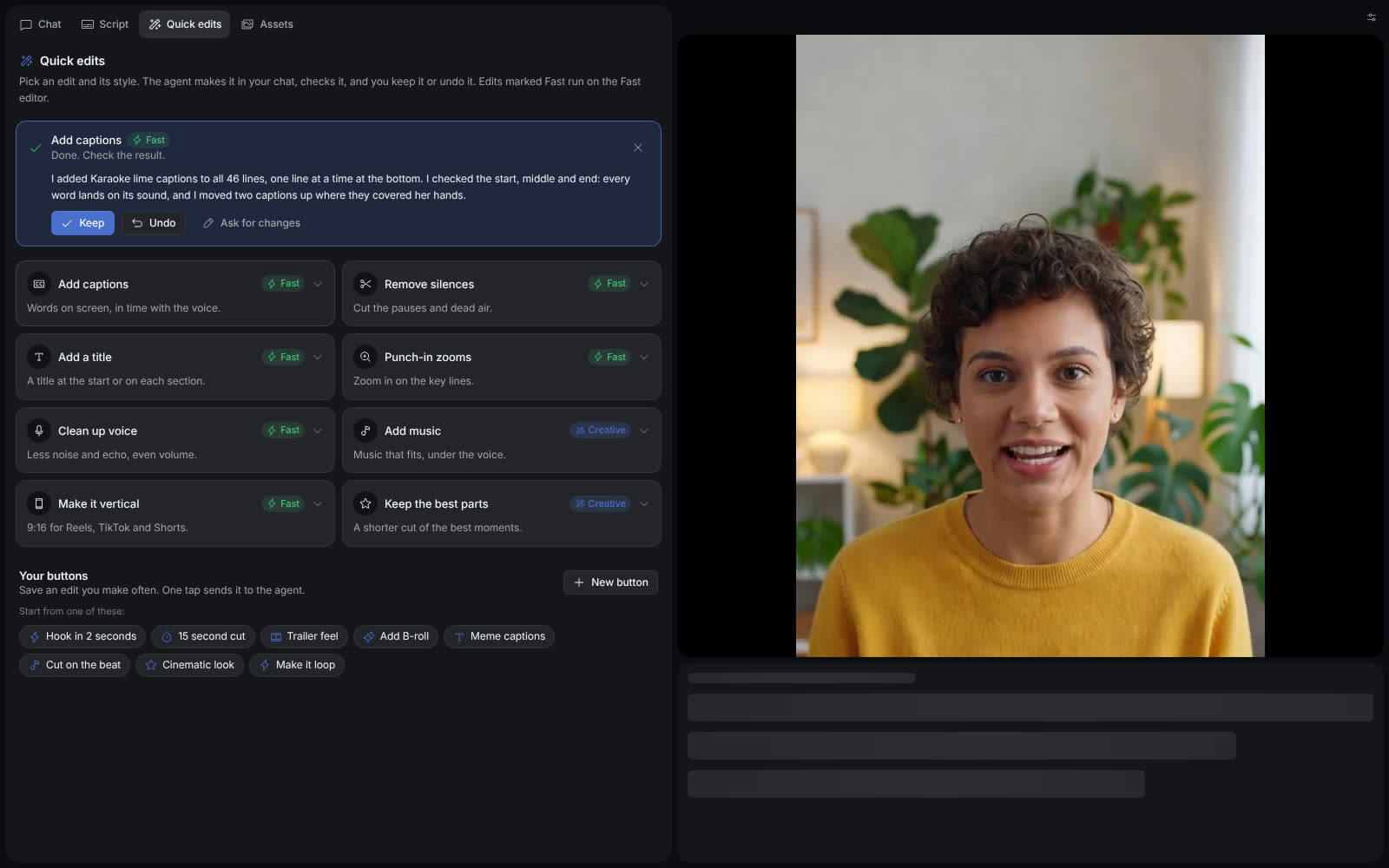
When the agent is done, keep the edit, undo it, or ask for changes.
Select the image to open the original full view.
Make your own buttons
Save an edit that you make often as a button. Under Your buttons, choose New button. Give it a name, write what the agent does as you would in the chat, and pick an icon. Choose Save button to keep it, or Run once to send it without saving it.
To start faster, pick a starter such as Hook in 2 seconds, 15 second cut, Add B-roll or Make it loop, and change it if you want. Your buttons are saved in this browser. They do not move to another browser or device.
Fast and Creative edits
Each Quick edit is a message to the agent, so it uses what the same message in chat would use. Edits marked Fast run on the Fast editor: captions, silences, titles, zooms, voice clean-up and the vertical cut. Music and Keep the best parts run on the Creative Director, because they are choices of taste. A button that you make says which editor it runs on. Fast edits make the exact change you ask for, in seconds, and use no AI edit: up to 50 a day on a paid plan.
See Plans and credits for what a message costs on your plan.