 Vidova
How to make phone footage look cinematic: camera settings and the edit
Cinematic phone video starts in the camera: 24 fps, a steady phone, locked white balance and soft light. Then give every shot one grade, slow one moment and build the sound.
 Vidova team
Last updated
The short answer
To make phone footage look cinematic, film normal-speed shots at 24 fps and the moment you will slow down at 120 fps or more. Keep the phone steady, lock the white balance and film in soft light. In the edit, give every shot the same colour grade, slow only the key moment with new frames made between the real ones, and build the sound from the real sound of the place plus music. In Vidova you upload the clips and describe the look in chat.
Key takeaways
- Film normal-speed shots at 24 fps and the moment you will slow down at 120 or 240 fps. Soft light keeps a little motion blur in each frame.
- One grade on every shot does more than any filter. Shots with matched colour read as one film.
- Slow only the key moment, fill the gaps with AI frames, and build the sound from the real place plus music.
What makes video look cinematic
When people ask for a cinematic edit, they mean footage that looks like a film and not like a phone video. Five things make that difference, and a phone can do all of them.
- Motion: 24 frames a second with a little blur in each frame, so movement looks soft and continuous.
- A steady camera: slow, planned moves, or no move at all. No shake from walking.
- Light and depth: soft light from the side, and a subject that stands out from the background.
- Colour: one grade across every shot, so the clips look like they belong together.
- Sound: the real sound of the place, a clean voice and music that rises to one moment.
The first three happen when you film. The last two happen in the edit. A strong edit cannot fully fix shaky, flat footage, so start in the camera.
Frame rate and shutter speed
Films are shot at 24 frames a second, with a shutter speed near 1/48 of a second. RED, a cinema camera maker, calls this 180° shutter "by far the most common setting for cinema". With a faster shutter, each frame is sharper and motion looks stuttered. With a slower shutter, motion looks more smeared (RED).
Depending on the model, an iPhone records at 24, 25, 30, 60 or 120 fps. You change it with the resolution and frame rate values at the top of the camera screen, or in Settings > Camera > Record Video (Apple). Pixel phones choose the frame rate in Video Settings, under Frames/sec (Google).
| Shot | Frame rate | Why |
|---|---|---|
| People, places, calm movement | 24 fps (25 fps where the TV standard is PAL) | The motion blur is closest to film |
| Fast action that plays at normal speed | 30 or 60 fps | Less judder on fast pans, cars and sport |
| The moment you will slow down | 120 or 240 fps in Slo-mo or Slow motion mode | Real frames for the slow part |
Most phone camera apps choose the shutter speed for you. Apple lists manual shutter speed only in Cinematic mode on iPhone 18 Pro models (Apple). On those models, set it close to 1/48 of a second at 24 fps, or 1/50 at 25 fps. On other phones, film in softer light, such as shade, an overcast day, golden hour or a room lit by a window. In very bright sun the camera uses a very short exposure, and motion turns crisp and choppy.
Keep the edit at the frame rate you filmed. YouTube asks for video to be uploaded at the frame rate it was recorded at (YouTube Help). Vidova exports at 24, 25, 30, 50 or 60 fps. For more on 30 and 60 fps, read 30 fps vs 60 fps for Reels and TikTok.
Keep the camera steady and move it slowly
Shake is the clearest sign of phone video. Use the stabilization your phone already has:
- iPhone Action mode gives stronger stabilization in Video mode. Apple says it works best in bright light and records at up to 2.8K. For lower light, turn on Action Mode Lower Light in Settings > Camera > Record Video (Apple).
- iPhone Enhanced Stabilization zooms in slightly to steady the picture in Video and Cinematic mode. It is on by default (Apple).
- iPhone Lock Camera stops the phone from switching between its cameras while you record, so the look does not jump in the middle of a shot. It is off by default and is in Settings > Camera > Record Video (Apple).
- Pixel stabilization is in Video Settings > Stabilization: Standard for light movement, Locked for still shots and Active for heavy movement. Cinematic Pan mode is for a pan in one direction (Google).
Give each shot one move: a slow push toward the subject, a slow pan, or no move. Hold still for a second before and after the move, so the editor has clean frames to cut on. Walk with bent knees and hold the phone with both hands close to your body.
Light, depth and colour on the day
- Light from the side. Turn the subject so the window or the low sun is to one side. Light from behind the camera makes faces flat.
- Space behind the subject. Move the person away from the wall. More distance makes the background softer.
- Cinematic mode for depth. On iPhone, Cinematic mode keeps the subject sharp and blurs the foreground and background. You can change the focus point later in the Photos app (Apple). Pixel 7 and later have Cinematic Blur, where you tap the subject to set the focus (Google).
- Lock the white balance. Otherwise the colour can drift in the middle of a shot as the light changes. On iPhone, turn on Lock White Balance in Settings > Camera > Record Video (Apple).
- Clean the lens. A fingerprint turns every light into a haze.
Grade every shot to one look
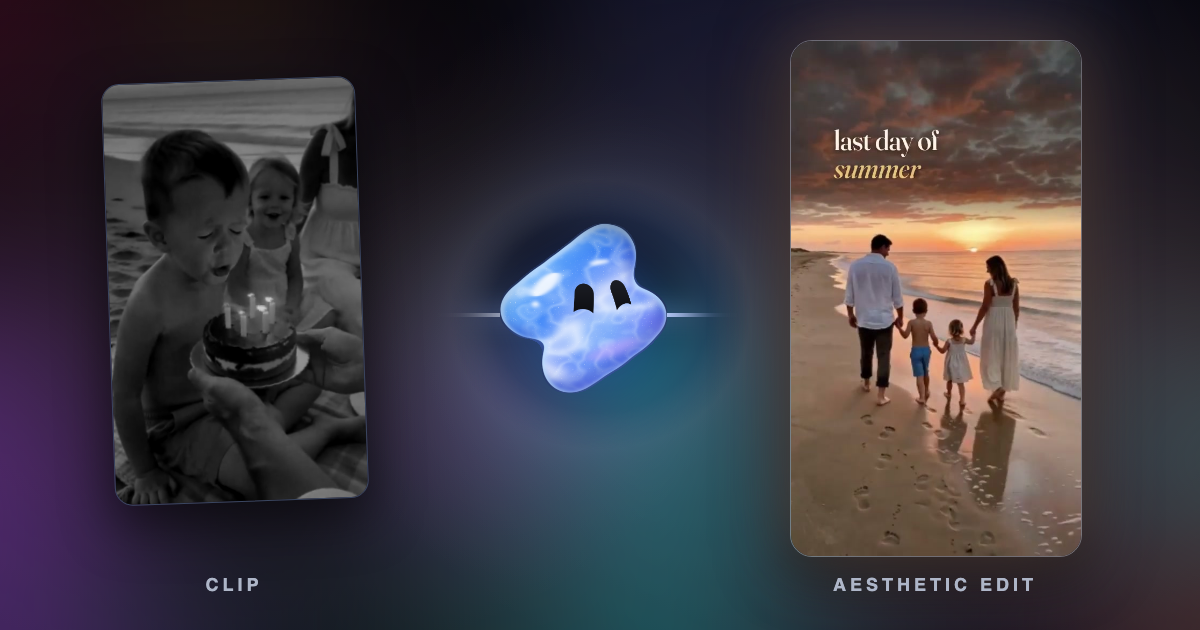
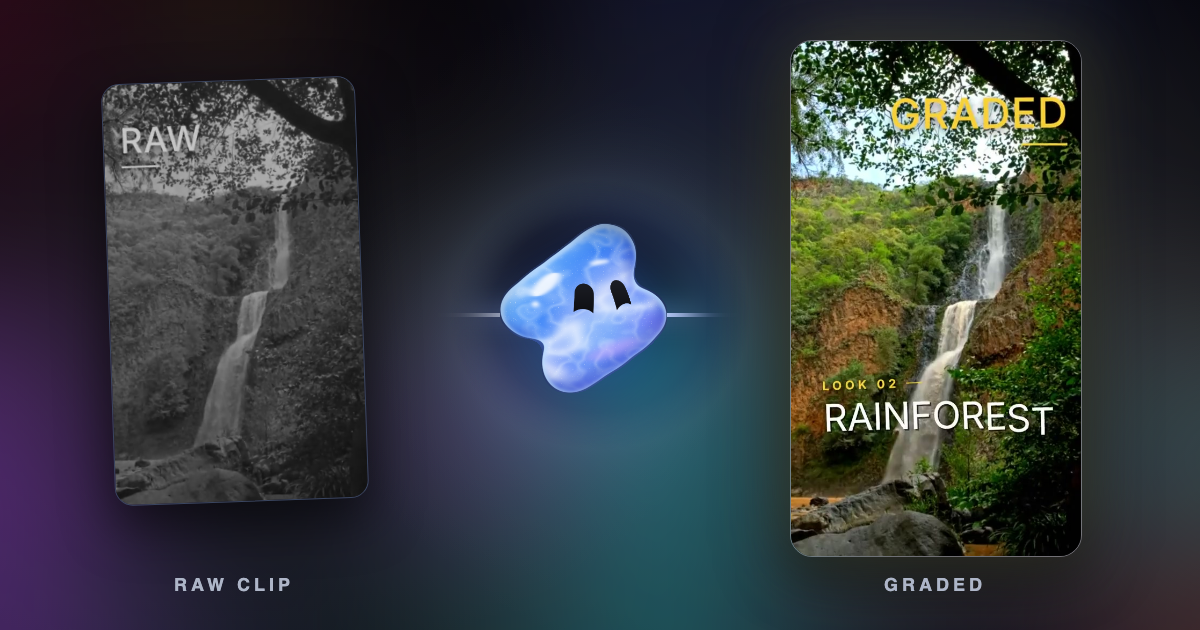
A colour grade is where most of the cinematic look comes from. Work in this order:
- Match the shots. Fix exposure and white balance so every clip has the same brightness and the same white.
- Set the contrast. Bring the highlights down so the sky keeps its detail, and set how deep the shadows go.
- Add the look. Push one colour into the shadows and another into the highlights, and lower the saturation a little.
- Finish. A light vignette pulls the eye to the centre. A fine grain makes digital footage less clean.
| Look | What changes |
|---|---|
| Warm golden | Temperature up, warm highlights, soft contrast |
| Teal and orange | Shadows toward teal, skin and highlights toward orange |
| Cool night | Temperature down, darker midtones, lights kept bright |
| Muted film | Saturation down, blacks lifted to a dark grey, fine grain |
Vidova's grade has exposure, contrast, saturation, vibrance, temperature, tint, highlights, shadows, whites, blacks and a vignette. It also has curves, colour wheels for the shadows, midtones and highlights, and hue, saturation and brightness for each colour range. The agent sets these for each clip so that the shots match, and you can change any value in the editor's Color panel. Read Color and perspective for the controls.
Aspect ratio and framing
Black bars at the top and bottom are a cinema habit, and they work in a 16:9 video for YouTube. Vidova's Cinematic travel film template uses 2.39:1 bars in a 16:9 frame. In a 9:16 Reel they do not work: a 2.39:1 band across a 1080-pixel-wide vertical frame is 452 pixels tall, so about three quarters of the screen is black.
For Reels, TikTok and Shorts, fill the 9:16 frame. Film vertically when you can. When a clip is horizontal, either crop it to vertical with the frame following the person's face, or show it whole across the middle over a blurred copy of itself. Keep titles inside the safe zones, and check the video sizes for each platform.
Slow motion and sound
Slow one moment, not the whole video: the wave hitting the rocks, the turn of a head, the jump. Rush the build-up, ease down to about quarter speed through the moment, and speed out again. That shape is a speed ramp. In Vidova every slowed clip gets AI smoothing, which makes new frames between the real ones so that the slow part does not stutter. The full method is in how to make slow motion smooth.
Sound decides more of the film feeling than most people expect. Keep the real sound of the place: waves, wind, steps, a door. Clean the voices with a voice isolation tool such as the free background noise remover. Pick music that builds, put its hit on the frame of your best moment, and lower it under speech. A beat of quiet before the moment makes the hit land harder.
Make it in Vidova
- Upload your clips as you filmed them, at the highest frame rate you have, and a song if you want one.
- Describe the look, the platform, the length and the moment that matters most. Words like "warm golden" or "cool night" are enough.
- The agent grades every shot to one look, cuts on the music, slows the key moment with AI smoothing and mixes the real sound under the music. It previews frames of the result before it hands it over.
- Watch it with sound, then ask for changes in plain words: "less orange on the skin", "hold the last shot longer" or "no grain".
Make a 20-second cinematic Instagram Reel from these clips of a weekend at the coast. Warm golden grade, the same look on every shot, with a light grain. Slow the wave hitting the rocks to quarter speed with AI smoothing. Keep the sound of the waves and add calm music that builds to that moment. 9:16, no text until the last two seconds.
For tips on writing the request, read how to write a prompt for an AI video editor.
Mistakes that make footage look like a phone video
- Walking shots with no stabilization.
- Filming at noon in hard sun, which gives harsh shadows and choppy motion.
- A different white balance in every clip, so one shot is blue and the next is yellow.
- A heavy filter on top instead of a grade. Skin turns orange and the sky loses its detail.
- Slow motion on the whole video. Save it for one moment.
- Black bars inside a vertical Reel.
- Music only, with the real sound muted. The place stops feeling real.
Sources
All sources checked November 2026.
- RED: Shutter angles and creative control
- Apple: Record a video with your iPhone camera (formats, Action mode, Slo-mo)
- Apple: Change video recording settings on iPhone (Lock Camera, Enhanced Stabilization, Lock White Balance)
- Apple: Record video in Cinematic mode with your iPhone camera
- Google: Pixel Camera help (stabilization, Cinematic Blur, Cinematic Pan, frame rate)
- YouTube Help: Recommended upload encoding settings (frame rate)
Make your first cinematic Reel
Paid plans start at $19 a month, remove the watermark and export up to 4K at 60 fps.