 Vidova
Best AI video editors for PC and Mac in 2026
Ten AI video editors for Windows and Mac compared on platform, price and free limits: Vidova, Descript, CapCut, Premiere, DaVinci Resolve, Filmora and more.
 Vidova team
Last updated
The short answer
Vidova is an AI video editor that runs in a browser on a PC or a Mac: you upload clips, describe the video, and its agent cuts them on a real timeline, with plans from $49 a month. The best pick depends on who makes the cut. Descript fits talking videos you edit as text. CapCut fits hand editing with templates. DaVinci Resolve is free on Mac, Windows and Linux. Final Cut Pro and iMovie run only on Apple devices.
Key takeaways
- Vidova runs in a browser, so one account works on a PC and a Mac. Its editor has no installed app yet.
- On free plans, Clipchamp exports 1080p with no watermark. Descript and Kapwing export 720p with a watermark.
- Final Cut Pro and iMovie are for Apple devices only. Every other editor here runs on both Windows and Mac, in an app or in a browser.
The short answer: which editor for which person
- You want to describe the edit and get a cut: Vidova. An AI agent edits your own clips on a timeline in the browser. Kapwing's Kai also takes requests in plain words.
- You mostly talk to the camera: Descript. You edit the video by editing its transcript, and Underlord turns a recording into an edit from a text instruction.
- You want to edit by hand with templates and effects: CapCut, on Windows, Mac and online.
- You want a free editor to install: DaVinci Resolve. The free version handles Ultra HD up to 60 fps, and Studio adds the AI tools of its Neural Engine.
- You work only on a Mac: Final Cut Pro for a full editor, or iMovie for a free and simple one.
- You work on Windows and want no cost: Clipchamp. Its free plan exports 1080p with no watermark.
- You already pay for Adobe: Premiere.
The ten editors compared
| Editor | Runs on | Price | Free version | Who makes the cut |
|---|---|---|---|---|
| Vidova | A browser on a PC or a Mac. No installed editor app yet | Creator $49 a month, with no watermark | Paid plans only, with no watermark | An AI agent, from your brief. You can change any clip |
| Descript | Mac with macOS 14 or later, Windows 11, and a web version | Hobbyist $24 a month, or $16 billed yearly | 60 media minutes a month, 100 AI credits once, 720p, watermark | You, by editing text. Underlord works from an instruction |
| CapCut | Windows 7 or later, macOS 10.14 or later, and online | US App Store: Standard $9.99 a month, Pro $19.99 a month. Differs by country | Free templates and basic tools. Some templates and stock add a watermark | You, with AI tools |
| Adobe Premiere | Windows 11 24H2 and macOS 14 or later | US$22.99 a month on an annual plan billed monthly, with 25 generative credits | 7-day trial | You, with AI tools |
| DaVinci Resolve | Mac, Windows and Linux | Free. Studio is listed at $236, down from $295 | 8-bit video up to Ultra HD at 60 fps. The Neural Engine is in Studio | You, with AI tools in Studio |
| Filmora | Windows and macOS | Basic US$49.99 a year. Advanced US$59.99 a year, with 1,000 AI credits a month | Watermark on exports, AI Mate 15 times a day | You, with AI tools |
| Final Cut Pro | Mac with macOS 15.6 or later, and iPad | $299.99 once, or Apple Creator Studio, where new subscribers pay $12.99 a month or $129 a year | 30-day trial of Apple Creator Studio for new subscribers | You, with AI tools |
| iMovie | Mac, with separate iPhone and iPad versions | Free | The whole app is free | You. Its Mac listing names no AI features |
| Clipchamp | Edge or Chrome on Windows, Mac, Linux and Chromebook. A desktop app on Windows 10 or 11 | Free. Premium comes with Microsoft 365 Personal and Family | 1080p with no watermark, free stock only | You, with AI tools such as silence removal |
| Kapwing | A browser | Pro $24 a month, or $16 billed yearly, with 1,000 credits | 10 credits, 4-minute exports, 720p, watermark | You, or Kai from plain requests |
Prices change and many vendors show local prices. Each row links to its source at the end of this guide.
How we compared them
We read each vendor's pricing, download and help pages on 9 November 2026. We have not tested these editors against each other, and we made no speed or quality measurements. Vidova is our own product, so check its row against the others. We compared four things: where the editor runs, what the plan with its AI tools costs, what the free version limits, and who makes the cut.
Vidova: for people who want the edit made for them
Vidova is an AI video editor that runs in the browser. You upload clips, photos or audio and describe the video in a chat. An AI agent reads the footage, cuts it on a multitrack timeline, and adds captions, titles and music. It previews frames of its own work before it hands the cut over. You can then ask for changes in chat or move any clip yourself.
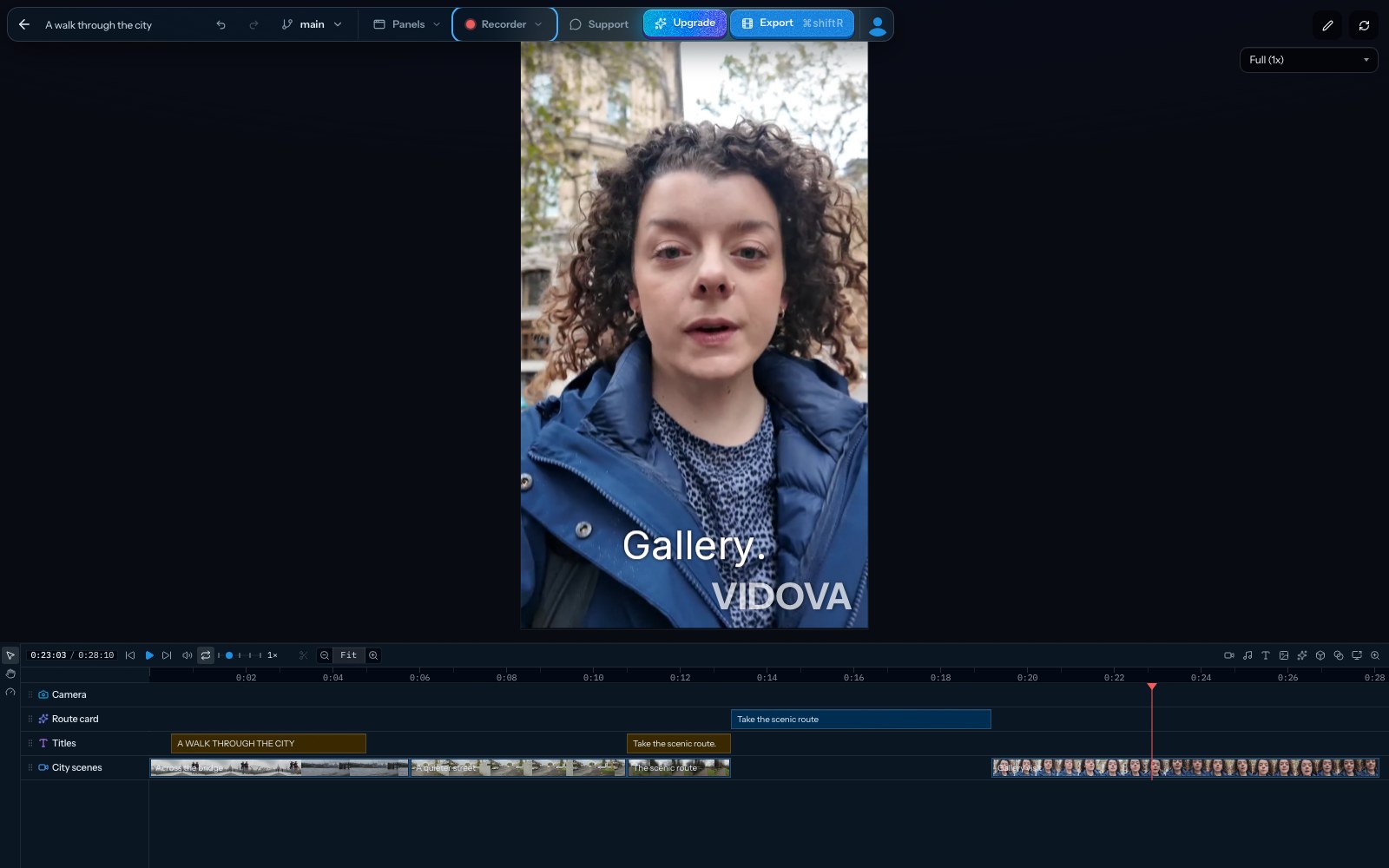
A brief can be short. This is an example:
Make a 30-second vertical video from these clips. Open on the shot of the product coming out of the box. Add captions to what I say and keep my voice. Use only my clips.
Paid plans export up to 4K at 60 fps, and a cloud export keeps going after you close the tab. You can hand the timeline to Premiere Pro as FCPXML or to DaVinci Resolve as OTIO, with the source media. You can also run Vidova from ChatGPT, Claude, Cursor and Codex. For screen recordings, Vidova Recorder is a free app for Mac, Windows and Linux.
Downsides: the editor has no installed Windows or Mac app yet. You can install it as a web app where your browser supports that, and it needs a connection for chat, analysis and exports. It has no team seats or shared live editing. People who want to place every cut by hand have more mature manual editors. Plans start with Creator at $49 a month, or $490 a year.
Descript: for talking videos you edit as text
Descript has a desktop app for macOS 14 or later and Windows 11, and a web version. You edit the video by editing its transcript. Underlord is its AI co-editor, and it turns a raw recording into an edited video from a text instruction. Remove Filler Words deletes ums, uhs and long pauses across a project, and Studio Sound cleans the voice. Hobbyist costs $24 a month, or $16 billed yearly, with 10 media hours and 400 AI credits. See Vidova vs Descript.
Downside: the free plan gives 60 media minutes a month and 100 AI credits once, and it exports 720p with a watermark. The transcript is the main control, so footage with no speech gains less from it.
CapCut: for hand editing with templates
CapCut Desktop runs on Windows 7 or later and macOS 10.14 or later, and there is an online version. You make the cuts, and it adds tools such as auto captions, a background noise remover and a split scene tool. The US App Store lists Standard at $9.99 a month and Pro at $19.99 a month. CapCut's site says its displayed prices are for reference only, and they differ by country: see CapCut Pro price by country and Vidova vs CapCut.
Downside: CapCut's help page describes Standard as mainly for mobile and lists auto captions under Pro. CapCut also says a watermark may appear when a template includes an ending clip or a stock asset requires attribution.
Adobe Premiere: for people who already use Adobe
Premiere runs on Windows 11 version 24H2 and macOS 14 or later. It costs US$22.99 a month on an annual plan billed monthly, with 25 generative credits a month. Its AI tools include Generative Extend, Media Intelligence search, Object Mask, Text-Based Editing and Enhance Speech.
Downside: you still make the edit yourself, and the trial lasts 7 days. Adobe's minimum is 8 GB of memory. It recommends 16 GB for HD and 32 GB or more for 4K.
DaVinci Resolve: for a free editor to install
DaVinci Resolve runs on Mac, Windows and Linux. The free version works with 8-bit video up to 60 fps and up to Ultra HD. Studio adds the DaVinci Neural Engine, with AI voice isolation, scene cut detection and Magic Mask, plus 10-bit video up to 120 fps. Blackmagic lists Studio at $236, down from $295, and its page shows no subscription.
Downside: you make every cut yourself, and the Neural Engine tools are in Studio.
Filmora: for a low yearly price with AI credits
Filmora has desktop apps for Windows and macOS. It names AI tools such as AI Mate, AI Text-Based Editing, AI Audio Denoise and Auto Caption. Basic costs US$49.99 a year. Advanced costs US$59.99 a year with 1,000 AI credits a month, and Premium costs US$99.99 a year with 2,000. See Vidova vs Filmora.
Downside: free exports carry a watermark, and AI Mate is limited to 15 uses a day on the free version.
Final Cut Pro: for a full editor on a Mac
Final Cut Pro runs on a Mac with macOS 15.6 or later, and there is an iPad version. A one-time purchase costs $299.99. Apple Creator Studio includes it, and new subscribers pay $12.99 a month or $129 a year, with a 30-day trial. Its AI tools include Magnetic Mask, Transcript Search, Visual Search, Enhance Light and Color, and Beat Detection.
Downside: there is no Windows version. Transcript Search and Visual Search need a Mac with Apple silicon.
iMovie: for a free and simple edit on a Mac
The Mac App Store lists iMovie as free and only for Mac. Its listing names one-click Enhance and stabilizing for shaky video. The iPhone version has Magic Movie, which our vlog guide covers.
Downside: its Mac listing names no AI features, so you make the edit yourself. There is no Windows version.
Clipchamp: for a free editor on Windows
Clipchamp runs in Edge or Chrome on Windows, Mac, Linux and Chromebook. On Windows 10 or 11 there is also a desktop app where it is offered. The free plan exports up to 1080p with no watermark and includes AI features such as subtitles, voiceovers and silence removal. Premium comes with Microsoft 365 Personal and Family and adds 4K. See Vidova vs Clipchamp.
Downside: Microsoft says Safari and Firefox may show an unsupported browser message, so on a Mac use Edge or Chrome. The free plan has only the free set of stock and filters.
Kapwing: for edits by chat with a team in a browser
Kapwing works in your browser. Its assistant, Kai, takes plain requests to trim clips, generate subtitles, adjust visuals and reorganize scenes. Pro costs $24 a month, or $16 billed yearly, with 1,000 credits, 4K and exports up to 2 hours, and it has a shared workspace. Business costs $64 a month, or $50 billed yearly, with 4,000 credits. See Vidova vs Kapwing.
Downside: the free plan has 10 credits, a 4-minute export limit, 30 minutes of exports a month, 720p and a watermark.
Browser editor or installed app
A browser editor needs no install and works the same way on a PC and a Mac. An installed app does more of the work on your own computer, so memory and the graphics card matter. These are the numbers the vendors publish:
- Premiere: a minimum of 8 GB of memory and 4 GB of graphics memory on Windows. Adobe recommends 16 GB of memory for HD and 32 GB or more for 4K.
- Descript: a minimum of 8 GB of memory. It recommends 16 GB for HD and 32 GB or more for 4K.
- Clipchamp: at least 8 GB of memory and 16 GB preferred, on a 64-bit computer and browser.
- Vidova: the agent works in the cloud and cloud exports run on Vidova's servers, so your computer does less.
How to choose
- If you would rather say what you want than cut it yourself, try Vidova in your browser.
- If you mostly talk to the camera, compare Descript with Vidova on one of your recordings.
- If you want each cut in your own hands and no cost, install DaVinci Resolve, or open Clipchamp if you want to skip the install.
- If you live in templates and effects, use CapCut.
- If you only use a Mac and want one purchase, look at Final Cut Pro.
- If you already pay for Adobe, start with Premiere.
Questions about AI video editors on a computer
Is there a Vidova app for Windows or Mac? The editor runs in your browser, and a Mac app is not out yet. You can install the web app from Settings, then About, where your browser supports it. Vidova Recorder is a separate free desktop app for Mac, Windows and Linux that records your screen.
Can I start on a PC and finish on a Mac in Vidova? Yes. Let your uploads and sync finish, then sign in with the same account on the other computer and open the project.
Which free AI video editor has no watermark? Clipchamp's free plan exports up to 1080p with no watermark. CapCut says most exports have none, though some templates add one. The free plans of Descript, Kapwing and Filmora add a watermark.
Which editors run on Linux? DaVinci Resolve has a Linux version, and Microsoft lists Linux for Clipchamp in Edge or Chrome. Vidova Recorder also has a Linux version.
Can I move an edit from Vidova to Premiere or Resolve? Yes. Export an FCPXML package for Premiere Pro or an OTIO package for DaVinci Resolve, with the source media.
Can ChatGPT or Claude edit video on my computer? They cannot cut a video on their own. They can connect to Vidova over MCP and edit your project there. Read Can Claude and ChatGPT edit videos?
Try it on your own footage
Plans start at $49 a month, with no watermark.
Sources
- Descript download
- Descript system requirements
- Descript for web
- Descript features
- Descript pricing
- CapCut desktop video editor
- CapCut on the App Store
- CapCut pricing
- CapCut Standard vs Pro
- CapCut: export without a watermark
- Adobe Premiere
- Adobe Premiere plans
- Adobe Premiere system requirements
- DaVinci Resolve
- DaVinci Resolve Studio
- Filmora
- Filmora plans
- Final Cut Pro
- iMovie on the Mac App Store
- Clipchamp pricing
- Microsoft: which web browsers Clipchamp supports
- Microsoft: make sure Clipchamp works well for you
- Kapwing AI assistant
- Kapwing pricing