 Vidova
How do I turn my clips into a vlog with AI?
Four ways to make a vlog from your clips with AI: Vidova, iMovie, Google Photos, CapCut, Kapwing, Descript, Merra, Medeo, FlexClip and Pippit compared on price and limits.
 Vidova team
Last updated
The short answer
Upload your clips to an AI editor, say what happens, then check the first cut. Vidova is an AI video editor: you describe the vlog, and its agent cuts your clips and adds captions and music on a timeline you can change. Kapwing's Kai, Merra and Medeo also edit uploads into a story. iMovie and Google Photos build a quick video on a phone. CapCut fits editing by hand. FlexClip and Pippit start from photos or prompts.
Key takeaways
- Decide first whether you want an edit of your clips or generated scenes. A generated scene does not show your real day.
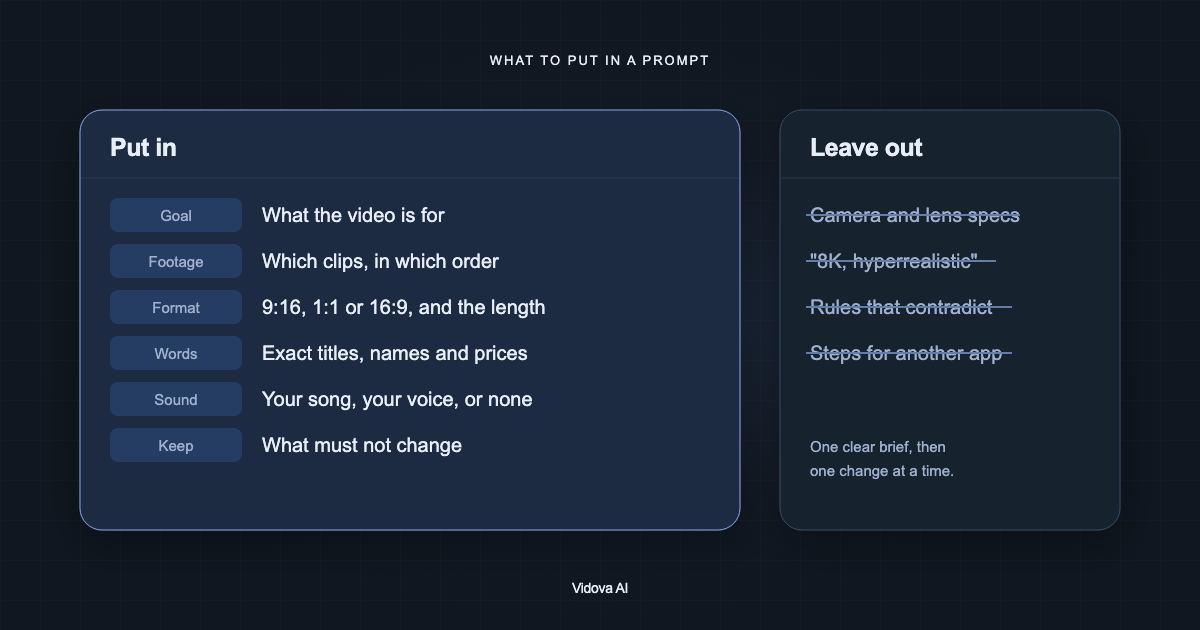
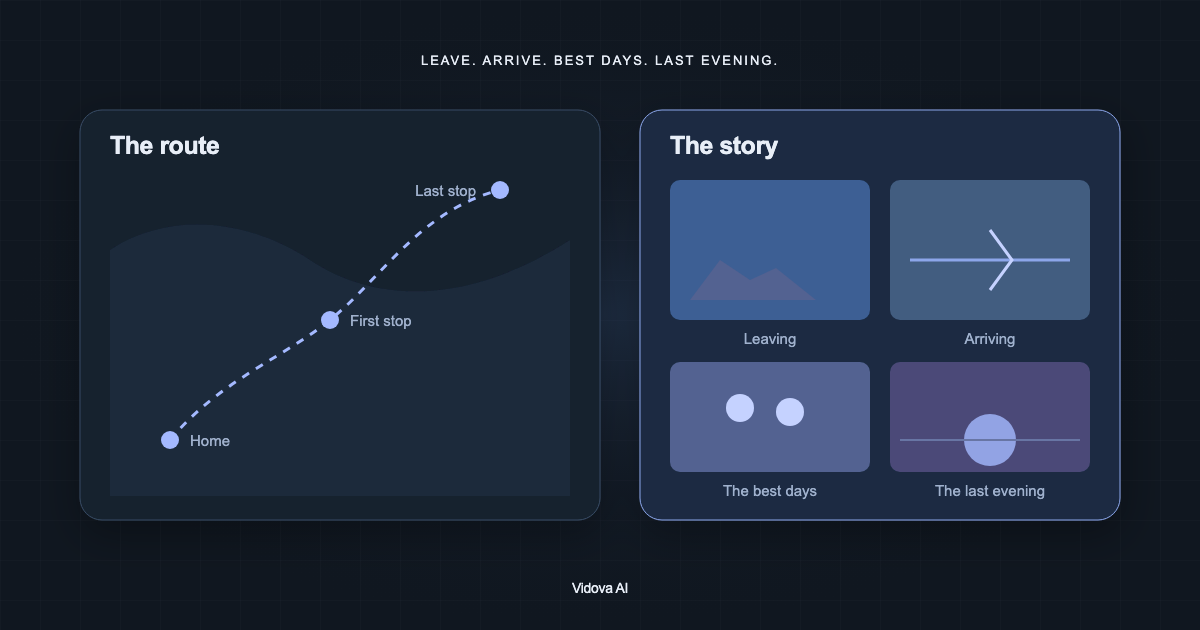
- Write the brief as the story: where you are, what happens, what to keep, and how long the vlog runs.
- If you talk in the clips, write “keep my voice”. Some edits mute the clips' own sound by default.
Tools for a vlog, compared
| Tool | Starts from | Runs on | Price and limits | Fits |
|---|---|---|---|---|
| Vidova | Your clips, photos and audio | Browser, or the Telegram bot on a phone. No iPhone or Android app yet | 7-day free trial with 3,000 credits, no watermark and a 1-minute project limit. Plans from $19 a month | A vlog with speech and captions that you want to change after the first cut |
| iMovie Magic Movie | An album or clips you select | iPhone and iPad, iOS or iPadOS 27+ | Free | iPhone users who want a first cut in a few taps |
| Google Photos | Your library, with Help me select | Android, iPhone and web | In the Google Photos app | A quick recap from clips already on your phone |
| CapCut | Your clips and its templates | Desktop, online, tablet and mobile | Free plan. The Pro price differs by country | People who want to edit by hand with AI tools |
| Kapwing Kai | A raw upload | Browser | Free: 10 credits, exports up to 4 minutes, 720p, watermark. Pro from $16 a month | Edits by chat in a browser |
| Descript | A recording with speech | Web app, with a download | Free: 60 media minutes a month, 720p, watermark. Hobbyist from $16 a month billed yearly, or $24 | Talking vlogs that you edit by transcript |
| Merra | A batch of raw phone clips | Online, no download | Free plan listed at 3 videos a month. Creator $25 a month for 20 videos | Short social vlogs with a voiceover |
| Medeo | Photos and short clips | Not stated on its site | Free with 1 GB of storage and a watermark. Pro $28 a month billed yearly | Vlogs built from photos |
| FlexClip | Photos, text prompts and templates | Online | Free: 720p, up to 10 minutes an export, watermark | A vlog with little footage |
| Pippit | Prompts, with reference photos and files | Online | Free daily credits. Paid plans on its pricing page | A generated vlog from an idea |
Prices and limits change. Each row comes from the vendor's site, linked under Sources.
Method 1: give your clips to an AI editor
This route fits you if you filmed the day and want it to stay your real day. These steps use Vidova.
- Pick the clips. Keep the ones where something happens, and leave out the rest. The Library takes up to 200 files at once.
- Write the brief. Say where you are, what happens, how long the vlog runs and what format you need, such as 9:16 for Reels and TikTok or 16:9 for YouTube.
- The agent reads your clips, finds the moments and cuts them on a timeline. It previews frames of the result to check its work.
- Watch it. Ask for a change in chat, or move a clip yourself.
- Export an MP4, or export the timeline for Premiere Pro or DaVinci Resolve. Paid plans export up to 4K at 60 fps.
Make a 45-second vertical vlog of my Saturday at the market from these 12 clips, in the order I filmed them. Keep my voice where I talk to the camera and add captions. Use only my clips. Make an original music track and keep it low under my voice. End on the clip where I eat the last pastry.
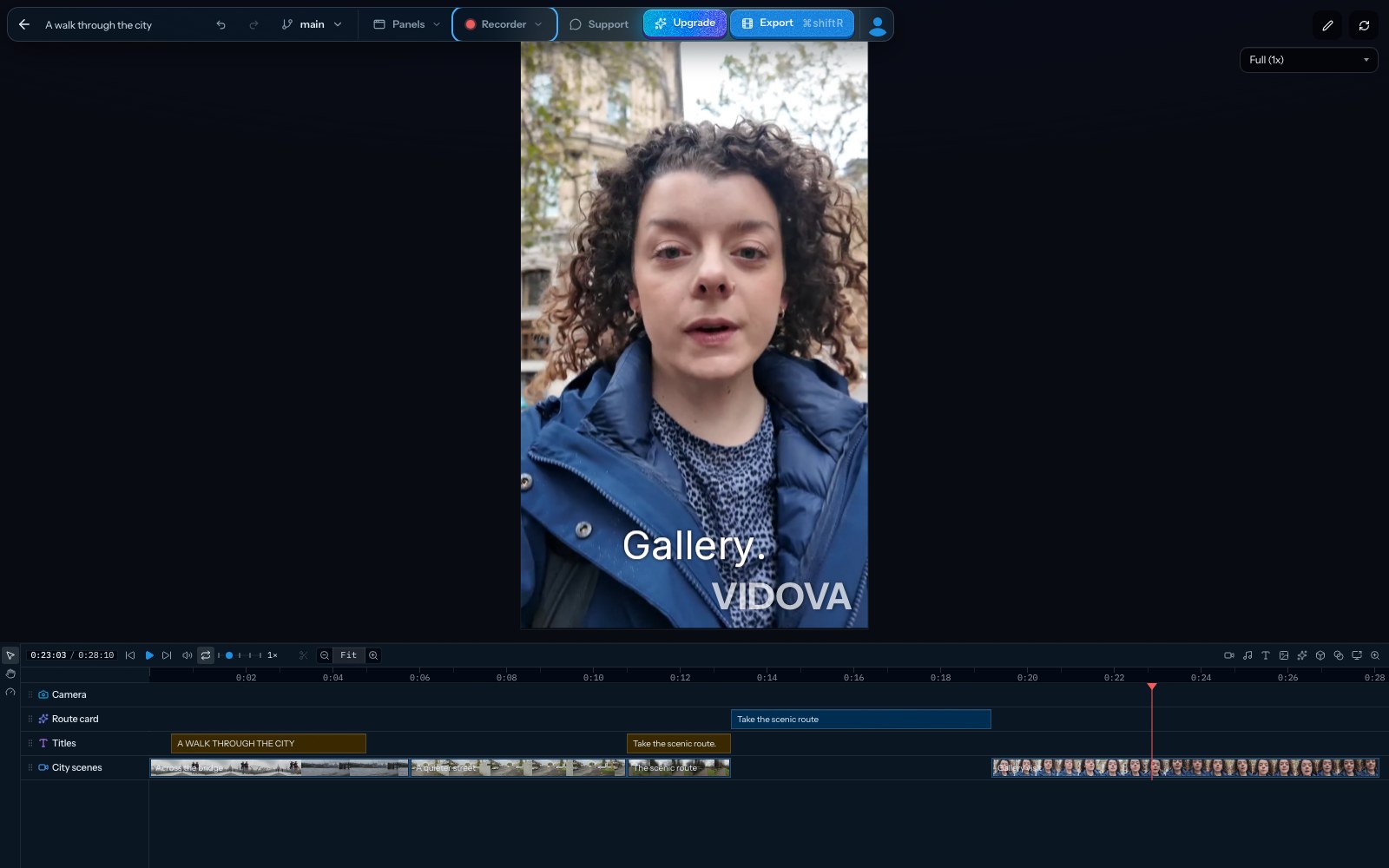
This is an example brief. The other tools in this route work in a similar way:
- Kapwing's Kai can review footage, find relevant moments and arrange the clips into a story. It can also generate B-roll and voiceovers as new assets.
- Merra takes a batch of raw phone clips and a sentence of context. It adds captions and music, and it has voice cloning for narration.
- Medeo edits photos and short clips into a vlog, and it can animate photos with movement and zoom.
- Descript fits a vlog where you talk, because you edit the video by editing its transcript.
Method 2: use an app on your phone
This route fits a short recap for family or friends. You give up most of the control over the story.
- iMovie Magic Movie: select an album or a group of clips, and iMovie builds the video with titles, transitions and music. You can then edit the clips. It is free on iPhone and iPad.
- Google Photos: tap Create, then Highlight video. Pick a template, or tap Help me select and type a place or a date. You can change the clips, music and text.
Method 3: edit by hand in CapCut
This route fits you if you want to make each cut yourself. CapCut lets you edit your own clips, and it has one-click tools such as AI colour correction and stabilising for shaky footage. Its AI audio separator splits music, voice and sound effects. It runs on desktop, online, tablet and mobile.
Method 4: generate a vlog from an idea
This route fits a channel with little footage. FlexClip turns photos and text prompts into a vlog, and its templates have an AI-Recreate button that swaps in your media. Pippit takes an idea or a script in a prompt box, with modes such as Sora 2 and Veo 3.1, and you can add reference photos and files.
The result is generated scenes, so it will not show your real day. Use the first method if the point of the vlog is what you filmed.
Make it feel like a vlog
- Open on your most striking clip. The first second is what people see while they scroll.
- Keep one place together. Finish the market before you move to the beach.
- Keep a few real sounds, such as a street, a laugh or waves. Name them in the brief.
- Caption what you say. On a 1080-wide frame, make every word that carries meaning at least 48 pixels.
- Keep text inside the safe zone, because TikTok, Reels and Shorts draw buttons over a vertical video.
- End on a person, not on a building or a shelf.
What goes wrong, and how to fix it
| Problem | Cause | Fix |
|---|---|---|
| It looks like a slideshow | Clips play in a row with no reason between them | Say what happens in the brief, and ask for each shot to lead to the next |
| The clips are in the wrong order | The brief does not state the order | Write “in the order I filmed them”, or list the clips by name |
| Your voice is muted | Some edits mute the clips' own sound so the song carries the edit | Write “keep my voice” or “keep the original audio” |
| A line stops in the middle of a sentence | A cut landed inside the line | Ask for the cut at the end of the sentence, or drag the cut point |
| The music hides your voice | The music is too loud under speech | Ask for the music to drop under your voice |
| Your head is cut off in a vertical crop | A horizontal clip was cropped to 9:16 | Ask the agent to track your face and keep it in frame |
| A scene appears that did not happen | A generator made it, or the brief left room for it | Write “use only my clips” |
| An upload is refused | The clip is longer or larger than the plan allows | Import a time range from the clip, or pick a plan with a higher limit |
Questions about making a vlog with AI
Do I need to talk in the vlog? No. You can upload a voiceover you recorded, ask for a generated voiceover from your script, or let music and real sound carry it. A generated voiceover uses credits.
Can I use my own song? Yes. Upload a song you have the rights to, or ask for an original track. An original track uses credits.
Will AI change my face? Not when you edit your own clips and write “use only my clips”. Our guide on what an AI editor changes explains this.
How long can the vlog be? A Vidova trial project is limited to 1 minute. Paid plans have no project length limit. Each clip can be up to 2 hours and 20 GB on Creator, and up to 4 hours and 30 GB on Pro and Studio.
Is there a phone app? Vidova has no iPhone or Android app yet. On a phone, you can send clips to the @vidovabot bot in Telegram, and the finished video comes back in the chat.
Can I write the brief in my own language? Yes. The agent replies in the language of your message, and captions follow the language spoken in the clip.
Make your first vlog
New Vidova accounts start on a 7-day free trial with 3,000 credits and no watermark. The trial has a 1-minute project limit, so start with a short vlog. Plans start at $19 a month.
Sources
- iMovie on the App Store
- Apple: create a Magic Movie
- Google Photos creations help
- CapCut vlog tools
- CapCut pricing
- Kapwing AI assistant
- Kapwing pricing
- Descript features
- Descript pricing
- Merra AI
- Merra: turn clips into a vlog
- Medeo vlog generator
- Medeo pricing
- FlexClip AI vlog
- FlexClip plan benefits
- Pippit AI vlog
- Pippit pricing