How to make an event or year recap video from photos and videos
Turn photos and clips from a club year, a party, a church event, a conference or a wedding into a recap video with AI. What to collect, what to write and what to check.
Last updated
The short answer
To make a recap video, collect the best photos and clips, write the title, the order of the sections and the names to show, and ask an AI editor for a cut to an upbeat song. A good recap names the event in the first second, shows faces, keeps your order and ends on everyone together.
Key takeaways
- Collect 20 to 40 of the best photos and clips, including one group photo for the ending.
- Write the title, the order of sections and every name exactly as it should appear.
- Say the mood: upbeat for a party or a club year, warm and steady for a service or an anniversary.
Collect the photos and clips
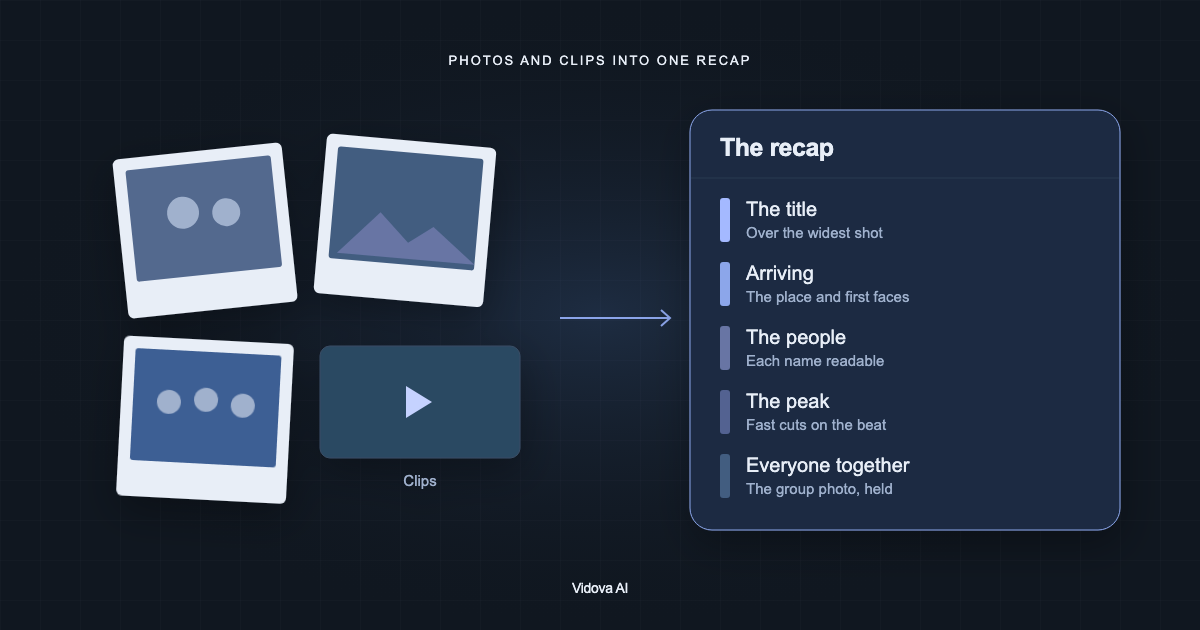
- The widest, brightest shot of the event, for the title.
- Arrivals and the place: the room, the stage, the field.
- The people, one by one or in small groups, with faces visible.
- The peak: the dance floor, the win, the cheer, the cake.
- The group photo, for the ending.
Leave out blurry and very dark files. Twenty good pictures make a better recap than a hundred average ones. Vidova takes PNG, JPEG and WebP photos and MP4, MOV, MKV and WebM video. Ask people before you post a video with their faces in it.
Decide the order and the mood
A recap needs a shape. Write the sections in the order they should play: for example, the first meeting, the build nights, the competition, the party and the group photo. Vidova's recap guidance tells the agent to keep a named order exactly, not to rearrange it.
Say the mood too. A party, a festival or a year with friends works best upbeat and fast. A church service, a memorial or the anniversary of an organisation works best warm and steady. A conference or a launch works best clean and confident. When the brief says nothing, the agent picks upbeat music.
Write the brief
Make a 60-second vertical recap of our robotics club's year from these photos and clips. Title: “Robotics Club 2025-26”. Order: the first meeting, the build nights, the regional competition, the end-of-year party, then the group photo. Show these names on their photos: Ana Ruiz (president) and Sam Lee (lead builder). Upbeat music. Mute the background chatter, but keep the cheer when we win.
This is an example brief with invented names. The agent uses only the names, dates, places and numbers you write, spelled the way you wrote them. If you have numbers worth showing, such as events held or members, add them and ask for an animated counter.
How photos and names are handled
- Each photo fills the frame with a slow push, framed so faces sit in the upper half.
- No photo is shrunk onto a blurred copy of itself.
- A name sits below the face, never on a face or on the edge of a photo.
- A person named on screen stays at least 1.5 seconds, long enough to read.
- Background chatter is muted unless a line matters, such as a speech or a cheer.
These are the rules Vidova's recap guidance gives the agent. Your brief can change any of them.
Weddings, church events and anniversaries
The same steps work for a wedding series, a devotional reel, an art show opening or an anniversary greeting. For a wedding, ask for slow motion, soft dissolves and the couple's names on the first shot of both of them. For a church or devotional reel, ask for a warm grade and, if you have it, the community's own singing as the sound.
For a series, make one project per video. To keep a 60-second cut and a 30-second cut of the same recap, use versions: each version keeps its own edit, and you can switch between them.
Check the recap
- The sections play in your order, and the title is exact.
- Every name is spelled right, readable and off faces.
- No photo is a small picture on a blurred background.
- There is no chatter you did not want.
- The music ends with the last picture.
Make your first recap
You can try this on the free plan. It needs a card check that charges nothing, gives you 750 credits once, and adds a Vidova watermark to previews and exports. Paid plans start at $19 a month, billed monthly or yearly, and remove the watermark.