 Vidova
Best video editors for Chromebook in 2026, free and no watermark
Video editors that work on a Chromebook, in the browser or as Android apps, compared on watermarks, export quality and price. Checked on each vendor's site in October 2026.
 Vidova team
Last updated
The short answer
The best video editors for a Chromebook run in Chrome. Microsoft Clipchamp exports up to 1080p with no watermark on its free plan. Canva's free plan exports 1080p with no watermark when you use free elements, and CapCut works at capcut.com or as an Android app. For a full Android editor, LumaFusion supports Chromebooks with 3 GB of RAM and Android 10 or later. Kapwing's free plan adds a watermark.
Key takeaways
- Browser editors need only Chrome. Android apps need a Chromebook with the Google Play Store, and school or work devices may block it.
- Clipchamp, Canva and CapCut export without a watermark on their free plans when you avoid paid elements.
- Kapwing's free plan adds a watermark and exports at 720p, up to 4 minutes per video.
The short answer
A Chromebook runs two kinds of video editors: web apps in Chrome, and Android apps from Google Play. Web apps need only Chrome, which every Chromebook has. Android apps work only on Chromebooks that have the Play Store, and Google's help center says some apps do not work with some Chromebooks. Work and school Chromebooks can also have the Play Store turned off by an administrator.
For most people, a browser editor is the safer choice. We checked each editor below on its own site and store listing on October 27, 2026.
Chromebook video editors compared
| Editor | How it runs | Free export | Watermark on free | Paid (US) |
|---|---|---|---|---|
| Microsoft Clipchamp | Browser | Up to 1080p | None | 4K export comes with Microsoft 365 Personal or Family |
| Canva | Browser | MP4 up to 1080p and 30 minutes | Only if you use Pro or paid elements | Pro: US$18 a month or US$144 a year |
| CapCut | Browser, installed web app, or Android app | Free. Some effects, templates and 4K on desktop need Pro | Only if you use Pro templates, effects or assets | Varies by region. Pro is $19.99 a month in the US App Store |
| Kapwing | Browser | 720p, up to 4 minutes a video and 30 minutes a month | Yes | Pro: $24 a month, or $16 billed yearly |
| WeVideo | Browser, iOS and Android | No free plan on its pricing page | Not applicable | Creator: $28 a month billed monthly, up to 4K |
| LumaFusion | Android app | Paid app | Not applicable | One purchase on Google Play |
| Vidova | Browser | 720p 30 fps, projects up to 1 minute | Yes | From $19 a month |
Browser editors
Microsoft Clipchamp is the strongest free choice for simple edits. You sign in with a personal Microsoft account, and the free plan includes AI video and audio tools, a screen, camera and voice recorder, animated text and watermark-free exports up to 1080p. Clipchamp lists Chrome OS among its supported systems. Premium features, including 4K export and premium stock, come with Microsoft 365 Personal or Family.
Canva suits Reels and TikToks with branded text. Its free plan exports MP4 up to 1080p and 30 minutes, and adds a watermark only if you use Pro or paid elements. Captions are free and unlimited, and Beat Sync is manual on Free and automatic on Pro. For how it compares with CapCut for short videos, read Canva vs CapCut for Reels.
CapCut has a page for Chromebook users. It says you can open capcut.com in Chrome, install it as a web app from the address bar, or install the CapCut Android app from Google Play. Free exports have no watermark unless you use Pro templates, effects or stock. CapCut's help center says 4K in the browser needs a modern browser with enough CPU, GPU and RAM, and the project must be set to 2K or 4K before you edit.
Kapwing has captions, transcript editing and a shared team workspace, but its free plan exports at 720p with a watermark, up to 4 minutes per video and 30 minutes a month. Pro removes the watermark and exports in 4K. WeVideo sells plans for schools. Its pricing page lists education plans and a Creator plan at $28 a month, with no free plan.
Android editors on a Chromebook
If your Chromebook has the Play Store, Android editors give you a touch-first timeline. These developers say their apps support Chromebooks or wide screens:
- LumaFusion runs on "Android and ChromeOS devices with a minimum of 3GB of RAM and running Android 10 or above". It has 6 video and audio tracks plus 6 audio-only tracks, a magnetic timeline, keying and effects. It is a paid app on Google Play.
- KineMaster lists "Tablet/Chromebook Support" with an editing layout for wide screens, and exports up to 4K at 60 fps. The free version contains ads, and Premium is an in-app subscription.
- CapCut for Android supports 4K at 60 fps exports, according to its Play listing.
Install the app, then open a short test project and export it before you rely on it. LumaFusion asks for at least 3 GB of RAM, and CapCut says 4K needs enough CPU, GPU and RAM, so a Chromebook with little memory may not handle 4K footage.
Which free Chromebook editors have no watermark?
- Clipchamp: no watermark on free exports, up to 1080p.
- Canva: no watermark if every element in the video is free, up to 1080p.
- CapCut: no watermark unless you use Pro templates, effects or stock. Delete the short CapCut ending clip that some templates add.
Kapwing and Vidova add a watermark on their free plans. WeVideo and LumaFusion have no free plan.
Tips for editing video on a low-power Chromebook
- Trim and compress your clips before you upload them. Our free video compressor runs in the browser.
- Edit at 1080p. Canva's help center suggests lowering the resolution to 1080p and keeping videos to 30 minutes or less when a download fails.
- Use an editor that renders in the cloud when your machine is slow. Vidova's cloud export keeps going after you leave the page, once your media has uploaded.
Vidova on a Chromebook
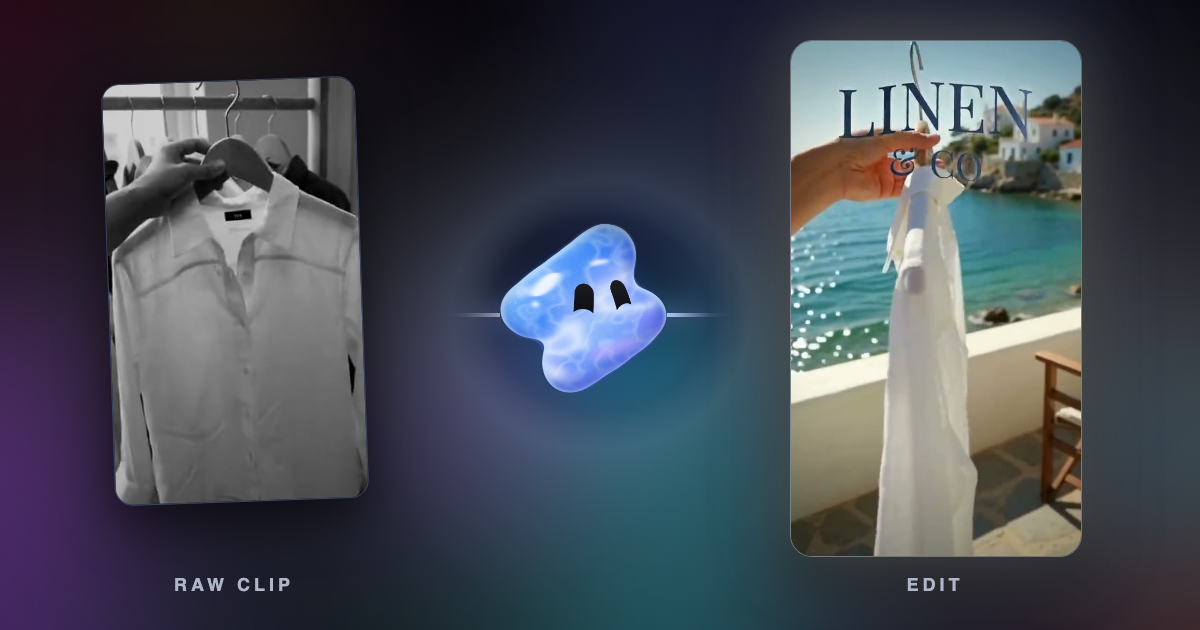
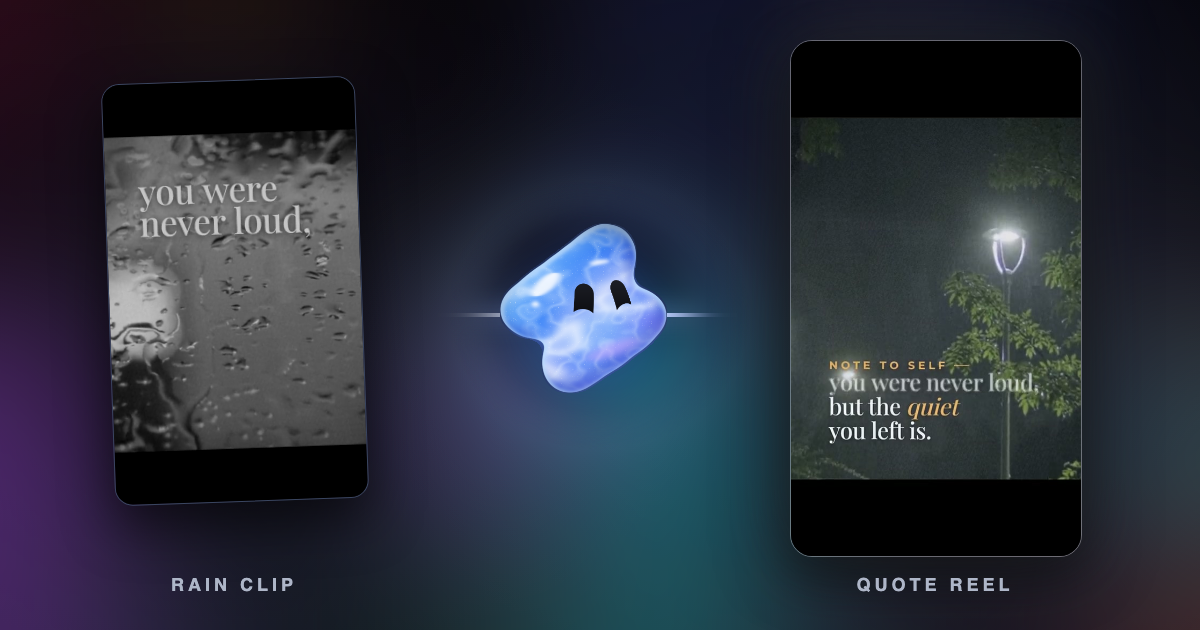
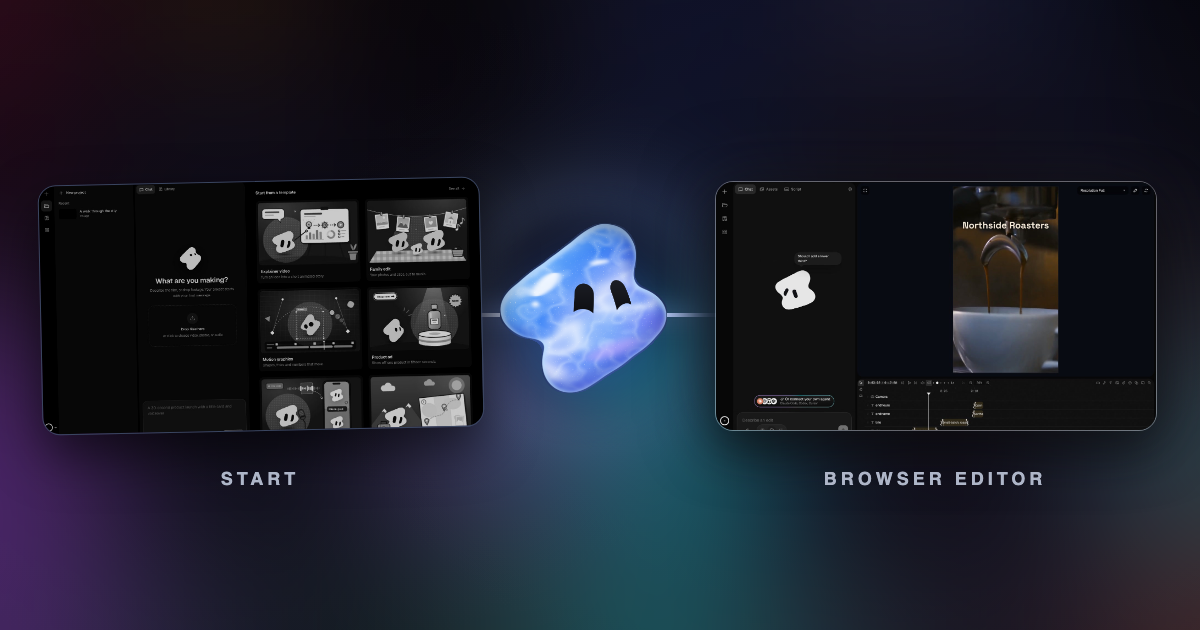
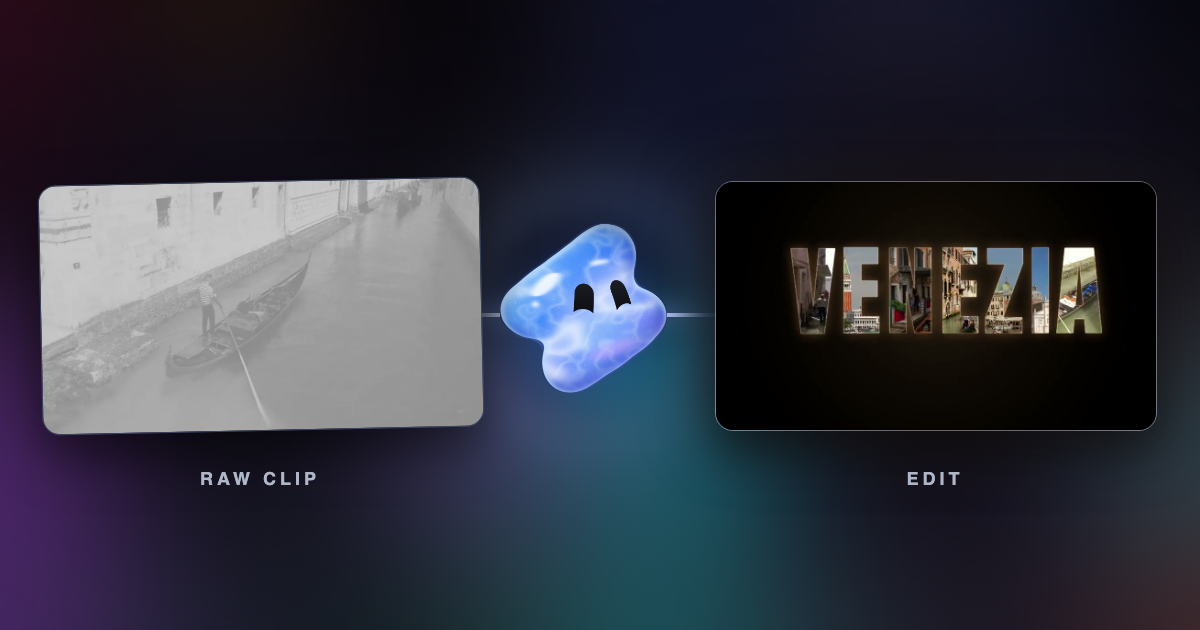
Vidova runs in the browser, so you open it in Chrome on a Chromebook. You upload your clips and describe the video, and an AI agent edits it on a multitrack timeline: it cuts on the beat, adds captions and titles, reframes landscape footage to vertical and checks frames of its own work. You can then change any clip by hand. Once your media has uploaded, a cloud export continues after you close the tab, so the Chromebook does not have to render the video.
Make a 10-second before-and-after Reel for my lawn care business. Start on the patchy brown lawn, cut to the mower, end on the fresh green stripes with "Green Stripe" in large type, and add upbeat music.
Vidova is not the free, watermark-free option: the free plan adds a watermark, exports at 720p and takes projects up to 1 minute long. You can start free. Paid plans start at $19 a month, remove the watermark and export up to 4K at 60 fps. It is built around the agent, so if you want to place every clip by hand, Clipchamp or CapCut is more direct. See also Vidova vs Kapwing, and, if you also edit on a laptop, the options for editing Reels on a PC or Mac.
Sources
- Google Chromebook Help: Install and use Android apps
- Microsoft Clipchamp pricing
- Canva Help: Downloading designs as video or GIF
- Canva video editor and FAQ
- Canva: Pro vs Business vs Enterprise (US prices)
- CapCut on Chromebook
- CapCut Help: Why is there no 2K or 4K export option?
- CapCut Help: Exporting without a watermark
- Kapwing pricing
- WeVideo pricing
- LumaFusion for Android and ChromeOS
- LumaFusion on Google Play
- KineMaster on Google Play
- CapCut on Google Play
- Vidova docs: Browsers and devices