 Vidova
Canva vs CapCut for Reels: which is better in 2026?
Canva vs CapCut for Instagram Reels: editing tools, captions, beat sync, watermarks, 1080p and 4K export and US prices, checked on each vendor's site in October 2026.
 Vidova team
Last updated
The short answer
For Reels, CapCut is the better video editor and Canva is the better design tool. CapCut has keyframes, speed curves, effects and templates, and runs on phone, desktop and web. Canva is easier for branded text and layouts, and its free plan exports 1080p with no watermark when you use free elements. For 4K, both need a paid plan on desktop. Canva Pro costs US$18 a month, and CapCut Pro's price depends on your region.
Key takeaways
- Canva Free exports MP4 up to 1080p and 30 minutes. Pro raises that to 2 hours and 4K, and 4K works on desktop only.
- CapCut has the deeper video tools: keyframes on every setting, speed curves, optical-flow slow motion and chroma key.
- Neither adds a watermark to free exports unless you use paid elements, checked October 2026.
The short answer
Choose CapCut when the Reel is mostly footage: cuts on the beat, speed changes, transitions, slow motion and trending effects. Choose Canva when the Reel is mostly design: brand fonts and colors, text layouts, product shots with graphics, and the same post resized for other channels. Many small businesses use both: they cut the footage in CapCut and build branded slides or covers in Canva.
We checked both products on their own sites, help centers and the US App Store on October 27, 2026.
Canva vs CapCut compared
| Detail | Canva | CapCut |
|---|---|---|
| Built for | Design of all kinds, with a video editor inside | Video editing first |
| Runs on | Web, Windows and Mac apps, iPhone, iPad and Android | Web, Windows and Mac apps, iPhone, iPad and Android |
| Free export quality | MP4 at 1080p, up to 30 minutes | 4K and 60 fps are locked on desktop without Pro |
| Watermark on free exports | Only if a free account uses Pro or paid elements | Only if the edit uses Pro templates, effects or assets |
| 4K export | Pro, desktop only, MP4 up to 2 hours | Pro on desktop. The help center says 4K at 60 fps is supported on most modern computers |
| Auto captions | Free and unlimited, with styles and animations | Yes, with caption templates |
| Beat sync | Manual on Free, automatic on Pro | Not documented on the pages we read |
| Video background remover | Pro | Yes |
| Keyframes and speed curves | Animations and Magic Animate, no speed curves documented | Keyframes for all settings and speed curves |
| Paid plan (US) | Pro: US$18 a month or US$144 a year | Pro: $19.99 a month in the US App Store. Price varies by region and device |
Editing the footage
CapCut gives you more control over the clips themselves. Its App Store listing lists keyframe animation for all settings, speed from 0.1x to 100x with speed curves, smooth slow motion with optical flow, chroma key, stabilization and a multitrack timeline. Those are the tools that make a Reel feel fast and finished.
Canva has a drag-and-drop timeline with layers, trimming and splitting, transitions and one-click animation. On Pro you also get Highlights, which picks the best moments from a long clip, automatic Beat Sync, voice enhancement and a video background remover. Canva is quicker to learn, but it has fewer controls for motion and speed.
Text, captions and brand
Canva is stronger when the Reel needs to look on brand. Its captions are free and unlimited, with colors, styles and animations, and Pro adds intensity, color and brand font controls. Canva also has Brand Kits, more than 1.6 million free templates, and Magic Resize on Pro to turn one Reel into other sizes.
CapCut's captions, text templates and effects follow trends more closely. You can import your own fonts, and the caption track sits on the timeline like any other clip. If you post the same Reel on TikTok, check the frame against the safe zones for Reels, TikTok and Shorts so captions do not sit under the buttons.
Exports and watermarks
Canva's help center says Canva Free downloads MP4 videos up to 30 minutes long "with a max resolution of 1920 * 1080px", and you cannot change the resolution on Free. Pro, Teams and Education accounts can download MP4 videos up to 2 hours long at up to 3840 × 2160, and 4K is "available on desktop only". Canva adds a watermark only when a free account uses Pro or paid elements.
CapCut's help center says that on desktop, 4K, 60 fps and "No Watermark" options are locked for users without Pro, and that the mobile app asks for Pro to export videos longer than 15 minutes, a limit that varies by region. Free exports have no watermark unless the project uses a premium element, and you can delete the short ending clip with the CapCut logo that some templates add.
Both free plans export a full-HD vertical frame of 1080 × 1920, which is enough for most Reels. Our guide to video sizes for Reels, TikTok and Shorts lists the sizes per platform.
Price
Canva lists US prices on its own site: Canva Pro is US$18 a month, or US$144 a year (US$12 a month), for one person. Canva Business is US$25 a month or US$250 a year per person. Canva shows the price for other countries on its pricing page.
CapCut does not publish one price. Its help center says the price of Pro "can vary depending on your region, device, and available promotions". In the US App Store, CapCut lists Standard at $9.99 a month and Pro at $19.99 a month. All prices were checked in October 2026.
Which one should you use for Reels?
- Footage-led Reels such as product demos, before-and-after clips, travel and sports: CapCut.
- Design-led Reels such as quotes, offers, menus, event announcements and carousels turned into video: Canva.
- A team that shares brand fonts and colors: Canva, because Brand Kits keep everyone on the same look.
- You edit only on a phone and post only to Instagram: also look at Meta's Edits app. Our Edits vs CapCut comparison covers it.
A third option: describe the Reel and let an agent edit it
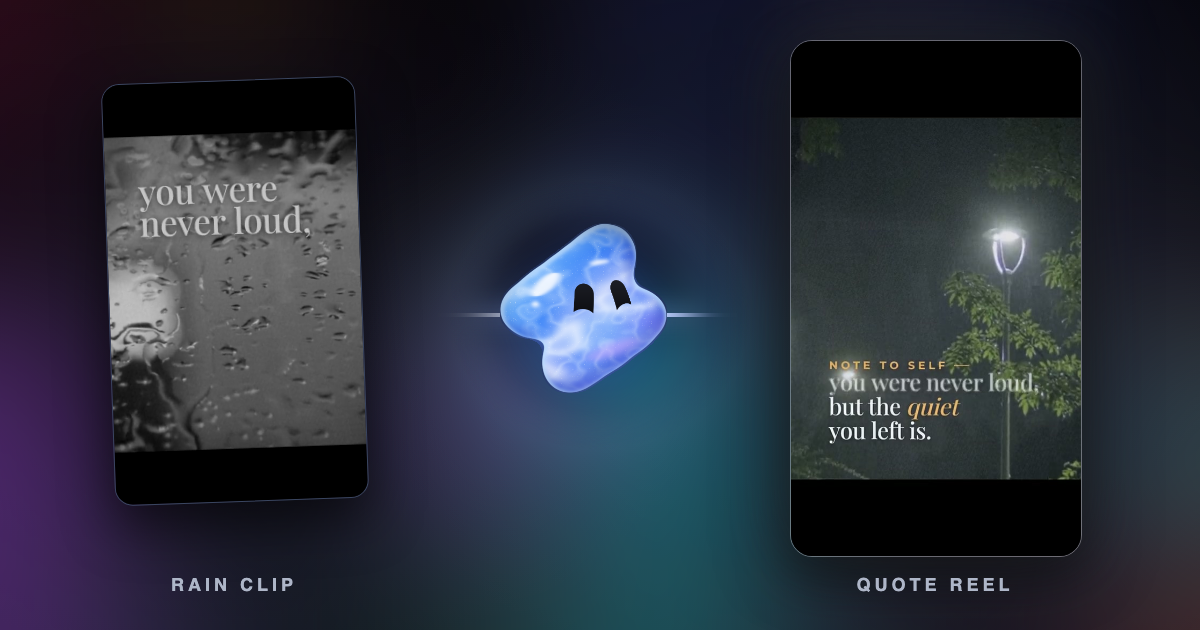
Canva and CapCut both expect you to place every clip and text layer. In Vidova, you upload your clips and describe the Reel. An AI agent cuts it on a timeline, syncs cuts to the beat of your song, adds captions and titles, checks frames of its own work and hands you a cut you can change by hand or by asking.
Use these five clips of our ice cream shop to make a 15-second Reel. Start on the spoon lifting the sorbet, cut on the beat of the song I uploaded, put our name in big type over the last shot, and export it at 1080 × 1920.
Vidova runs in the browser on desktop and phone, with no iPhone or Android app yet. The free plan adds a watermark, exports at 720p and takes projects up to 1 minute long. You can start free. Paid plans start at $19 a month, remove the watermark and export up to 4K at 60 fps. See Vidova vs CapCut for a side-by-side.
Sources
- Canva video editor and FAQ
- Canva Help: Downloading designs as video or GIF
- Canva pricing and plan comparison
- Canva: Pro vs Business vs Enterprise (US prices)
- CapCut Help: Why am I prompted to join CapCut Pro when exporting?
- CapCut Help: Why is there no 2K or 4K export option?
- CapCut Help: Exporting without a watermark
- CapCut Help: How much does CapCut Pro cost?
- CapCut in the App Store
- Canva in the App Store