 Vidova
Is there an Instagram Edits app for PC or Mac?
Edits has no Windows, Mac or web version as of October 2026. What Meta's own pages say, and the real options for editing Reels on a computer, with prices.
 Vidova team
Last updated
The short answer
No. As of October 27, 2026, Meta's Edits app runs only on iPhone and Android phones. The Edits website links only to the App Store and Google Play, the App Store lists Edits for iPhone only, and Meta's help pages cover only the phone apps. To edit Reels on a computer, use a desktop or browser editor such as CapCut, Canva or Clipchamp, then post the finished video to Instagram.
Key takeaways
- Edits has no Windows, Mac or web version. Meta describes it as an app for editing "right on your phone".
- The Edits iPhone app does not install on a Mac. Its App Store page lists iPhone only.
- CapCut, Canva and Clipchamp run on a computer and export without a watermark on their free plans when you avoid paid elements.
Does Edits have a desktop or web version?
No. We checked Meta's own pages about Edits on October 27, 2026:
- The Edits website has two download buttons, one for iOS and one for Android. It says Edits "helps creators make great videos on their phones".
- Every Edits article in the Instagram Help Center gives steps for the "Edits app for Android and iPhone". None covers a computer.
- The App Store page says "Only for iPhone" and lists compatibility with iPhone on iOS 16.3 or later. It lists no Mac or iPad support, so you cannot install it on an Apple silicon Mac.
- Meta's post for the app's first birthday, on April 22, 2026, calls Edits "an app for editing and creating videos right on your phone".
- Edits Plus, Meta's paid plan for more cloud storage and AI use, is "only available on the Edits mobile app", and its sync works between devices on the same platform.
We found no announcement of a desktop or web version on Meta's newsroom, the Edits site or the help center. Until Meta ships one, editing on a computer means using a different editor.
How to edit Reels on a computer
These editors run on Windows, Mac or in a browser and export vertical video you can post as a Reel. We checked each one on its own site in October 2026.
| Editor | Runs on | Free plan | Paid from (US) |
|---|---|---|---|
| CapCut | Windows, Mac and web | No watermark unless you use Pro templates, effects or assets. 4K and 60 fps on desktop need Pro | $9.99 a month for Standard or $19.99 for Pro in the US App Store. Varies by region |
| Canva | Web, Windows and Mac | MP4 up to 1080p and 30 minutes. A watermark appears only if you use Pro elements | Canva Pro: US$18 a month or US$144 a year |
| Microsoft Clipchamp | Browser and a Windows app | Watermark-free exports up to 1080p | 4K export comes with Microsoft 365 Personal or Family |
| InShot | Macs with an M1 chip or later, through the iPhone app (macOS 13 or later) | Free with ads | $4.99 a month, $19.99 a year or $49.99 once |
| Descript | Mac (macOS 14 or later), Windows 11 and web | 1 hour of media a month, 720p export | Hobbyist: $24 a month, or $16 billed yearly |
| Vidova | Browser on desktop and phone | 720p export with a watermark, projects up to 1 minute | $19 a month |
The closest to Edits is CapCut Desktop. It has a similar timeline with captions, text, music, effects and templates. Canva is easier if the Reel is mostly branded text and graphics. Clipchamp exports up to 1080p with no watermark on its free plan. For a longer comparison of the phone apps, read Instagram Edits vs CapCut.
Edit on a computer, finish in Edits
Some features exist only when you post from Edits. Link overlays to other reels work only when you export from Edits to Instagram, and Edits saves a draft to Instagram that stays linked to the project. You can still do the heavy editing on a computer and use Edits for the last step.
- Edit the Reel on your computer and export a vertical MP4.
- Move the file to your phone with AirDrop, a cloud drive or a cable.
- In Edits, tap Projects, then New project, and pick the file from your gallery.
- Add captions, a link overlay or music in Edits if you need them.
- Tap Next, then Instagram, and save the draft or share the reel.
Before you export, check that text stays clear of the Instagram buttons with our free safe zone checker. The guide to the best export settings for Instagram Reels covers size, frame rate and bitrate.
Let an agent make the edit on your computer
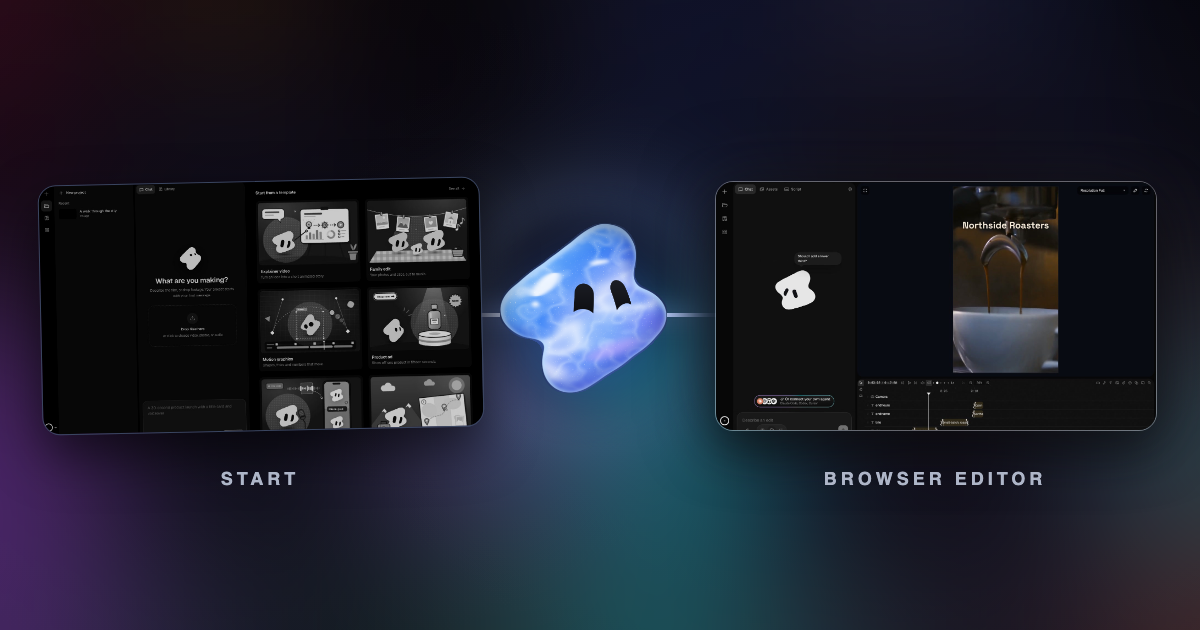
Vidova runs in the browser on a computer or a phone, and it works differently from the editors above. You upload your phone clips and describe the Reel. An AI agent cuts it on a multitrack timeline, adds captions, titles and music, previews frames to check its own work and runs a quality check. You can change any clip by hand afterwards, or ask for changes in plain words.
Make a 15-second Reel for our spa from these clips. Start with the hands placing the lemons, end on the oil pouring into the bowl, put "Salt & Citrus" in large serif type over the last shot, and use calm music. Export at 1080 × 1920.
There is no Vidova app for iPhone or Android yet. The free plan adds a watermark, exports at 720p and takes projects up to 1 minute long. You can start free. Paid plans start at $19 a month, remove the watermark and export up to 4K at 60 fps. If you work on a Chromebook, see the best video editors for Chromebook.
Sources
- Edits by Instagram
- Edits in the App Store
- Edits on Google Play
- Instagram Help: Record a video with Edits
- Instagram Help: Edit your video on Edits
- Instagram Help: Download and share your video from Edits
- Instagram Help: About Edits Plus
- Meta: One year of Edits (April 2026)
- CapCut Help: Why am I prompted to join CapCut Pro when exporting?
- Canva Help: Downloading designs as video or GIF
- Canva: Pro vs Business vs Enterprise (US prices)
- Microsoft Clipchamp pricing
- InShot in the App Store
- Descript pricing
- Descript system requirements