 Vidova
Riverside vs OpusClip for short-form clips, and where VEED fits
Riverside vs OpusClip vs VEED for turning podcasts and recordings into short-form clips: how each picks clips, free plans, limits and US prices, checked November 2026.
 Vidova team
Last updated
The short answer
Use Riverside if you record the podcast in Riverside: Magic Clips cuts short clips from the same recording and uses no AI credits. Use OpusClip if you already have long videos and want many clips each week: it charges 1 credit per minute of source video, with paid plans from $15 a month. VEED fits a team that wants clips and a full browser editor, with unlimited Clips on paid plans from $25 a month per seat. All three free plans add a watermark.
Key takeaways
- Riverside Magic Clips works on recordings you make or upload in Riverside. Its free plan includes Magic Clips at 720p with a watermark.
- OpusClip counts 1 credit per minute of the original video, whatever you keep, so a 60-minute episode uses 60 credits.
- VEED Clips needs 1 minute to 3 hours of speech in the video and cannot import a YouTube link (checked 7 November 2026).
The short answer
- You record the podcast or interview in Riverside: use Riverside. The recording, the transcript editor and Magic Clips are in one place.
- You already have long videos and want many clips every week: use OpusClip. Clipping is its main job.
- Your team wants clips plus a full editor, billed per seat: use VEED. Clips is one tool inside its browser editor.
- Each clip needs a real edit, such as B-roll, a reframe or a custom caption look: describe it to Vidova's AI agent.
Riverside vs OpusClip vs VEED compared
| Detail | Riverside | OpusClip | VEED |
|---|---|---|---|
| Built for | Recording podcasts and interviews, then editing and clipping them | Cutting many short clips from long videos | Editing video in the browser, with Clips as one tool |
| Where the long video comes from | Recorded in Riverside, or uploaded | An uploaded file, up to 10 GB on Free and Starter and 30 GB on Pro | An uploaded file with 1 minute to 3 hours of speech. No YouTube import |
| How clips are picked | AI picks highlights. You can set a focus speaker or keywords | AI picks the clips from the part of the video you choose | AI finds highlights, keeps the speaker centered and removes filler words |
| Clip shapes | 9:16, 1:1 and 16:9 | 9:16 on Free and Starter. Pro adds 1:1 and 16:9 | Portrait or landscape |
| Editing after | Text-based editor, layouts, text, music and image overlays | Text and timeline editing from Starter | The full VEED editor |
| How use is counted | Magic Clips uses no AI credits | 1 credit per minute of source video | Unlimited Clips on paid plans |
| Free plan | 720p, watermark, 2 hours of multi-track recording once | 60 processing minutes a month, watermark, media kept 3 days | 720p, watermark, Clips once per account |
| Paid from | Pro $29 a month, or $24 billed yearly | Starter $15 a month, Pro $29 a month | Creator $25 a month per seat, or $12.25 billed yearly |
| Team | An extra editor seat as an add-on. Collaborative editing on Business | Pro: 2 users per pack, up to 4 | Every plan is priced per editor seat |
| Export to Premiere Pro or DaVinci Resolve | Not stated | Pro and Business | Not stated |
Prices change. Each detail links to its source at the end of this guide.
How we judged them
We read each vendor's pricing page, help center and product pages on 7 November 2026. We did not run the same episode through all three tools, so this guide compares what each vendor states, not clip quality. The question behind it is simple: you have a long recording, and you want short vertical clips for TikTok, Reels and Shorts.
Riverside: best when you record in Riverside
Riverside records each guest on a separate audio and video track, in up to 4K on Pro. Magic Clips then picks highlights from the recording and makes short clips. You can set a focus speaker or keywords, switch between vertical and widescreen, style the captions and add text, music or image overlays. The transcript editor lets you find a quote and turn it into a clip yourself. Riverside's FAQ says Magic Clips does not use AI credits, and the Magic Clips page says you can record or upload a video.
- Free: Magic Clips, up to 720p, a Riverside watermark, and 2 hours of multi-track recording once.
- Pro: $29 a month, or $24 billed yearly. Up to 4K, no watermark, unlimited text-based editing and transcriptions, and an AI editing and repurposing agent.
- Grow: $39 a month, or $34 billed yearly. Adds social media scheduling and the Riverside MCP, which lets an AI assistant cut clips from your recordings.
Downside: Riverside is a recording studio first. If your long videos are already finished YouTube episodes from another tool, a dedicated clipper fits that job better.
OpusClip: best for many clips from long videos
OpusClip is built for one job: it turns a long video into many short, captioned clips. Its help center says clipping costs 1 credit per minute of the original video, rounded down for partial minutes. Videos under a minute count as one. You can move the processing timeframe slider to clip only part of a video and spend fewer credits.
- Free: 60 processing minutes a month, a watermark on clips, up to 1080p, and media that expires after 3 days.
- Starter: $15 a month. 150 processing minutes, no watermark, text and timeline editing.
- Pro: $29 a month. 300 processing minutes a month, 1:1 and 16:9 as well as 9:16, export to Premiere Pro and DaVinci Resolve, a social scheduler, 100 GB of storage and a team workspace.
Downside: credits go on the length of the source, not on the clips you keep. A 90-minute episode uses 90 credits even if you post three clips. Its pricing page shows monthly prices only. See OpusClip alternatives and Submagic vs OpusClip vs Captions.
VEED: where it fits
VEED is a full browser editor, and Clips is one of its tools. Clips finds highlights, adds subtitles, keeps the speaker centered and removes filler words. You pick portrait or landscape. The help center says the video needs at least 1 minute and at most 3 hours of speech, the tool is made mainly for clips of a minute or shorter, and you cannot use it on a YouTube link or on a video already in your account.
Paid plans have unlimited Clips, and the free plan gets one try per account. Creator costs $25 a month per seat, or $12.25 a month billed yearly, and exports 1080p. Pro costs $45 a month, or $22.08 billed yearly, and exports 4K. After Clips, you can open any clip in the editor and change everything, subtitles included.
Downside: the free plan exports 720p with a watermark, and every editor on a team is a paid seat. See Vidova vs VEED.
When the clip needs a real edit: Vidova
Riverside, OpusClip and VEED pick the clips for you. In Vidova, you tell an AI agent which moments you want and how they should look. The agent transcribes the recording, cuts on the pauses between sentences, reframes a wide shot to 9:16 by tracking the speaker's face, adds captions and covers jump cuts with B-roll from your own footage. It can also remove background noise and keep the voice.
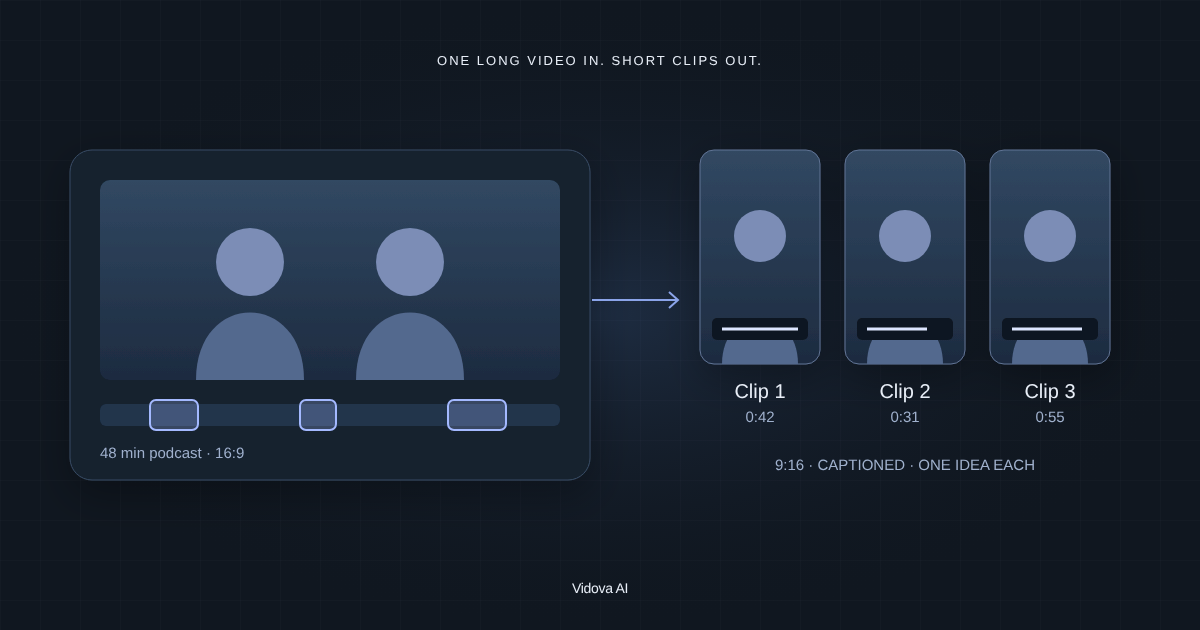
From this 48-minute episode, make three vertical clips of 30 to 45 seconds: the story about our first customer, the pricing mistake and the hiring advice. Keep the speaker centered, add captions in our brand color and cut to my product screen recording when he names a feature.
For a high volume of clips every week, OpusClip is built for that job. Vidova suits clips you want to direct. You can start free, and free-plan exports carry a watermark. Paid plans start with Creator at $19 a month, or $190 a year, then Pro from $39 and Studio from $88. They remove the watermark and export up to 4K at 60 fps. See Vidova vs OpusClip, how to turn an interview into captioned clips and podcast clips that go viral.
How to choose
- If you are about to record, record in Riverside and use Magic Clips on the same recording.
- If you post clips from finished long videos every week, count your monthly minutes of source video and pick the OpusClip plan that covers them.
- If your team already edits in VEED, use Clips there and finish each clip in the same editor.
- If each clip needs B-roll, a reframe or a look made for your brand, describe it to Vidova.
- Before you post, check captions against the safe zones for Reels, TikTok and Shorts, or use the free safe zone checker.
Related guides
Sources
All sources checked 7 November 2026.