 Vidova
How to use Edit with AI in YouTube Shorts, step by step
YouTube's Edit with AI turns your clips into a first-draft Short with music, transitions and a voiceover. The steps, limits, countries and what it cannot do.
 Vidova team
Last updated
The short answer
Edit with AI is a YouTube feature that turns your own clips into a first draft of a Short, with music and transitions, and in the YouTube Create app a voiceover and captions. In the YouTube app, tap Create, then Short, add clips, tap Edit with AI and pick a template. It takes no text prompt. It is an experiment in select countries, and it needs at least 5 seconds of clips: up to 3 minutes in the YouTube app and up to 5 minutes in YouTube Create.
Key takeaways
- Edit with AI turns your own clips into a first-draft Short with music and transitions. In YouTube Create it can also add a voiceover and captions.
- Start it in the YouTube app from Create, Short, Add and Edit with AI, or from the Create Shorts banner in the YouTube Create app.
- It takes no text prompt. You choose a template or features, and the clips you pick steer the draft.
- It is an experiment in select countries. YouTube Create lists 14 countries and voiceover in Bengali, English, Hindi and Portuguese.
What is Edit with AI on YouTube?
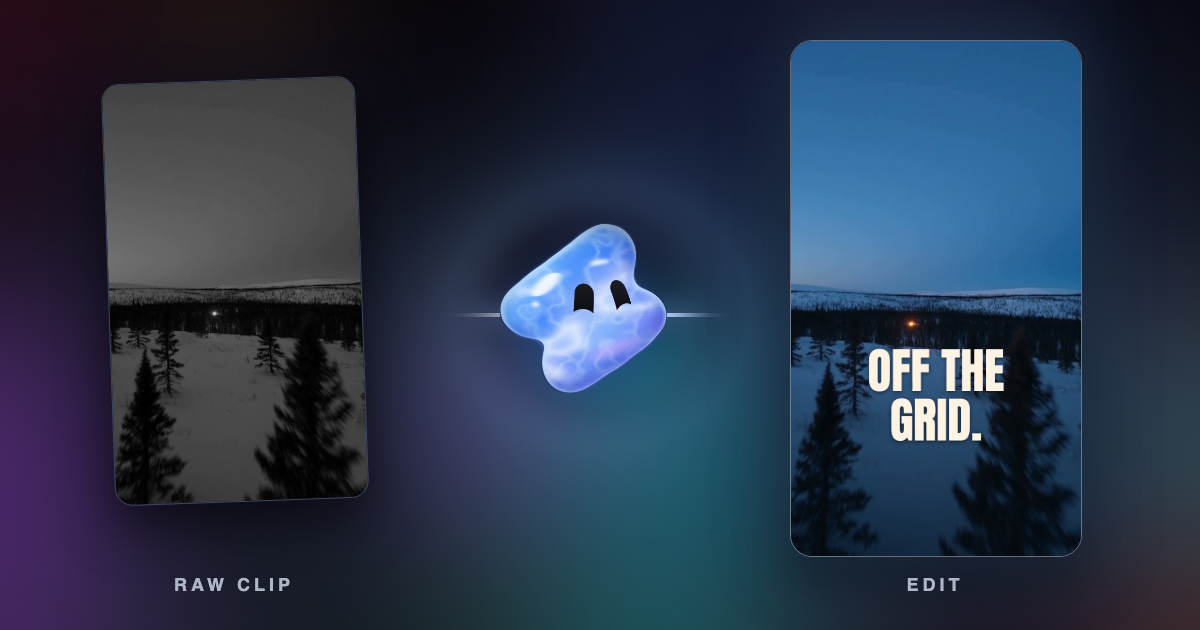
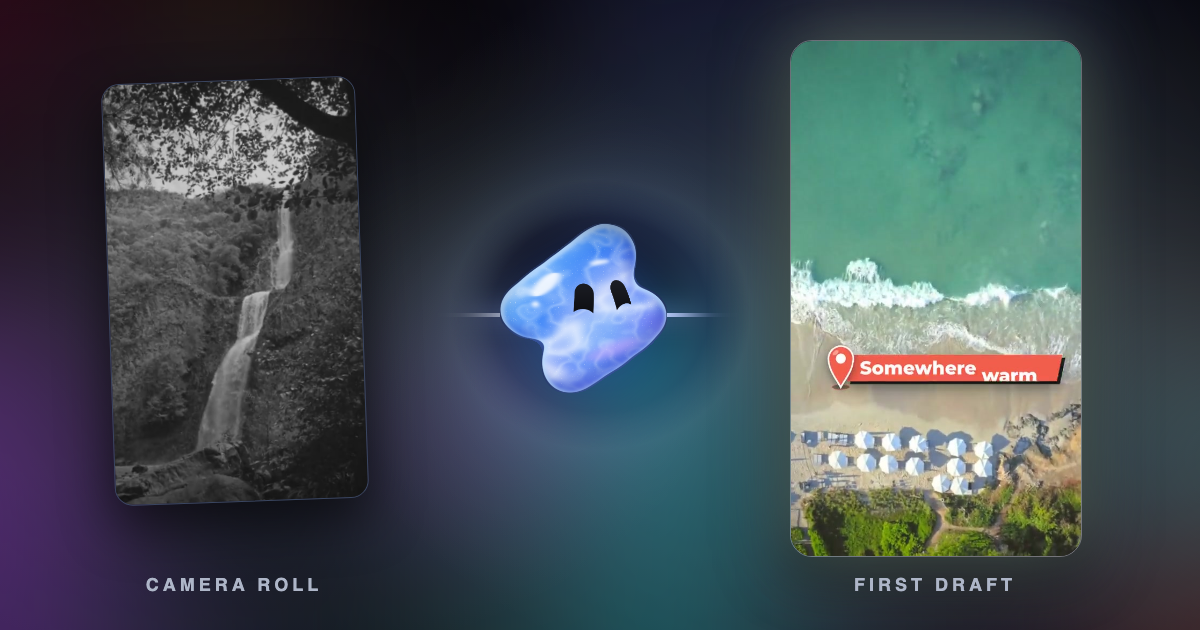
Edit with AI is a YouTube feature that makes a first draft of a Short from your own clips. YouTube announced it at Made on YouTube on 16 September 2025. In the launch post, YouTube says it transforms raw camera roll footage into a first draft. It finds and arranges your best moments, adds music and transitions, and can add a playful voiceover that reacts to what happens in the video.
It works on the footage you give it. The YouTube Create page describes it as AI that trims and arranges your clips into a first draft. YouTube says it uses SynthID watermarks and content labels to show when its creation tools generated something with AI.
You find it in two places: the Shorts camera in the YouTube app, and YouTube Create, YouTube's free editing app for Android and iOS. YouTube calls it an experiment, and it is available only in some countries.
| Detail | YouTube app (Shorts camera) | YouTube Create app |
|---|---|---|
| Where you start | Create, then Short, then Add | The Create Shorts banner at the top |
| What you add | Videos or photos, 5 seconds to 3 minutes in total | 1 to 25 videos or photos, 5 seconds to 5 minutes |
| What you choose | An edit style from templates | Voiceover, music and captions, and a length: under 15 seconds, 15 to 30 or 31 to 60 |
| After the draft | More edits with the Shorts tools, or other music | Change the music volume or the voiceover, or go back with Edit video |
| Result | You continue to upload it as a Short | You export it, then download it or upload it to YouTube |
| Voiceover languages | Not listed | Bengali, English, Hindi and Portuguese |
| Countries | Not available in all regions | Argentina, Australia, Brazil, Canada, Hong Kong, India, Indonesia, New Zealand, Singapore, South Korea, Taiwan, Thailand, Türkiye and the United States |
Sources: YouTube Help pages Create YouTube Shorts and Create with AI in the YouTube Create app.
How to use Edit with AI in the YouTube app
These are the steps from YouTube Help for the Shorts camera:
- Open the YouTube app and sign in.
- Tap Create, then Short.
- Tap Add in the bottom left corner.
- Select the videos or photos you want to use.
- Tap Edit with AI.
- Choose an edit style from the templates, then tap Next.
- Wait while YouTube makes the edited video.
- Watch the draft, then tap Next.
- Continue to upload your Short.
Add at least 5 seconds and at most 3 minutes of clips in total. After the draft, you can add more edits with the Shorts editing tools or change the music. If Edit with AI does not appear, it is probably not available in your country yet: YouTube says the feature is not available in all regions.
How to use Edit with AI in YouTube Create
YouTube Create gives you more choices before the draft is made (YouTube Help):
- Open YouTube Create and tap the Create Shorts banner at the top.
- Select 1 to 25 videos and photos, then tap Next.
- Choose the editing features you want, such as voiceover, music and captions, then tap Next.
- Watch the draft. Change the music volume or the voiceover here, or tap Edit video to go back to the editing features.
- Tap Export, then Done.
- Download the video or upload it to YouTube.
You can choose the length of the draft: under 15 seconds, 15 to 30 seconds, or 31 to 60 seconds. The clips you upload must be 5 seconds to 5 minutes long. At launch the voiceover spoke English or Hindi (Google India blog). The help page now lists Bengali, English, Hindi and Portuguese.
Can you prompt Edit with AI?
No. Neither help page describes a text prompt for Edit with AI. In the YouTube app you pick a template, and in YouTube Create you pick features and a length. The draft is built from the clips you select, so choosing the clips is how you steer it.
YouTube has separate tools that do take a prompt. They make new clips, images or backgrounds. They do not edit your footage into a Short:
- Create video in the Shorts camera: a standalone clip up to 10 seconds long from a text prompt and up to 3 reference photos (AI-generated features for Shorts). It is not available in the EEA, and reference photos are not available in the UK.
- Green screen background: describe what you want and pick a style, and YouTube makes an image or a video to put behind you. It is not available in the EEA.
- Photo to video: turns one photo from your gallery into a clip with one of the suggested prompts. It is not available in the EEA, the UK or Switzerland.
- Gemini Omni in YouTube Create: vertical or horizontal clips up to 10 seconds long from a prompt of up to 900 characters and up to 3 reference images (YouTube Help).
Prompt examples, and how to steer Edit with AI with your clips
We wrote these prompts for the 10-second clip tools above. They are examples, not tested results. Name the subject, the place, the light and one camera move, so the new clip matches the footage around it.
A close-up of fresh espresso pouring into a white cup on a wooden café counter, warm morning light, slow push-in, vertical.
A wide shot of a city street at dusk after rain, neon reflections on the wet road, people walking past, slow pan to the right, vertical.
Edit with AI itself takes no words, so the clips you add are the brief:
- Pick clips where one thing clearly happens: the reveal, the reaction, the finished result.
- Trim the start and end of long clips in your gallery first, so the draft does not use setup or dead time.
- Add the clips in the order the story happens.
- In YouTube Create, leave the voiceover off when your clips already have speech you want to keep.
What Edit with AI cannot do
- It takes no written instructions. You cannot ask it to cut on the beat, open on a certain shot or keep a certain line.
- It makes Shorts. In YouTube Create the longest draft option is 31 to 60 seconds.
- It is available only in some countries, and the voiceover only in four languages.
- It runs in phone apps: the YouTube app and YouTube Create.
- In the YouTube app, the help page lists two changes after the draft: more edits with the Shorts tools, or other music.
When you want to direct the edit
If you want to say exactly how the Short should go, use an editor that takes instructions. Vidova's AI agent edits your own clips on a timeline from a request in plain words. It writes captions you can correct word by word, detects the beats of a track to cut on, and exports 9:16 video for Shorts, Reels and TikTok. It works in a web browser.
Make a 30-second vertical Short from these clips. Open on the moment the cake comes out of the oven, keep the clips in the order I filmed them, cut on the beat of an upbeat track and add captions to what I say in clip 3. Keep all text inside the area Shorts leaves clear.
You can start free. Paid plans start at $19 a month, remove the watermark and export up to 4K at 60 fps. To start from one long video instead of clips, see turn a long video into Shorts, Reels and TikToks.
Related guides
Sources
All pages checked on 7 November 2026.
- YouTube Help: Create YouTube Shorts
- YouTube Help: Create with AI in the YouTube Create app
- YouTube Help: Create content for Shorts using AI-generated features
- YouTube Blog: Unpacking the magic of our new creative tools (16 September 2025)
- Google India blog: Unpacking the magic of our new creative tool in the YouTube Create app (16 September 2025)
- YouTube Creators: YouTube Create app