Vidova
Cursor extraction: control the cursor in any screen recording
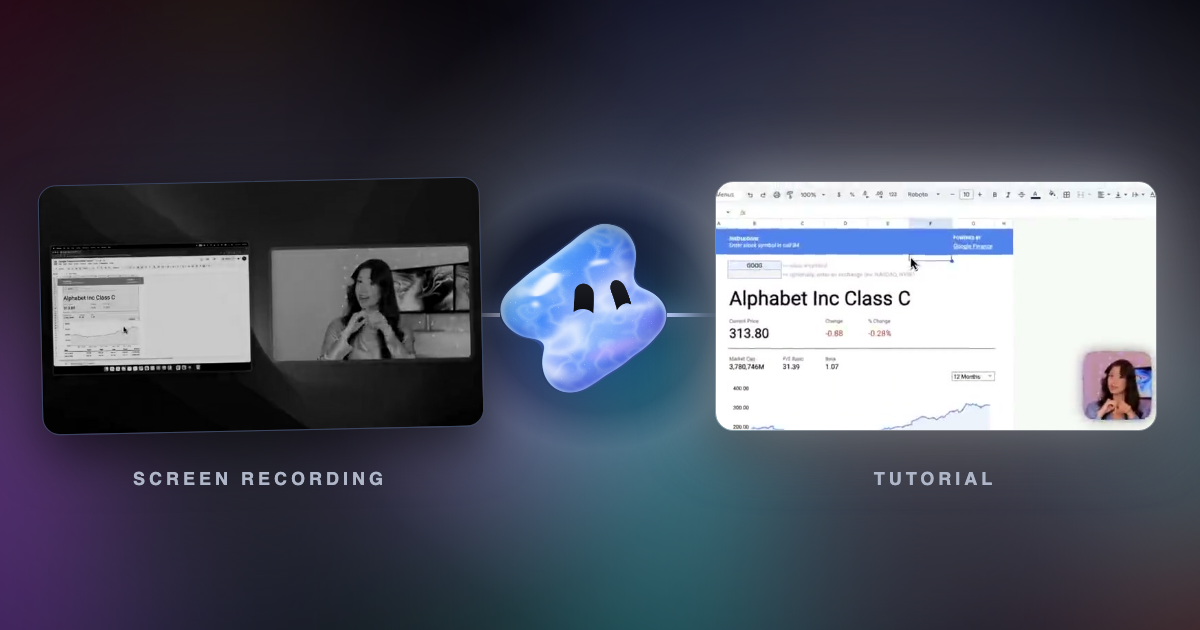
Vidova finds the cursor, the clicks and the scrolls in a screen recording from any app. Then you can restyle the cursor, add click effects and zoom where you work.
 Vidova team
Last updated
The short answer
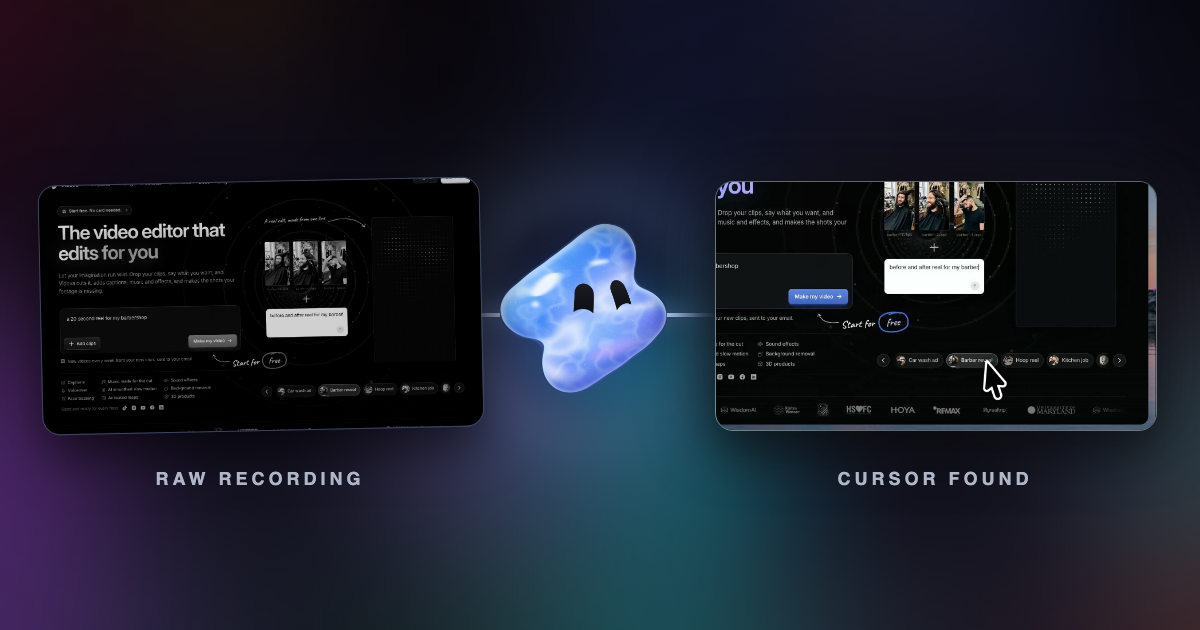
Most screen recorders save only the picture. The cursor is part of the pixels, so an editor cannot tell where it is or when you clicked. Vidova's cursor extraction uses machine learning to find the cursor, every click and every scroll in a recording from any app. It then takes the old cursor out of the video, so Vidova can draw a clean one and zoom in where you work.
Key takeaways
- Cursor extraction works on screen recordings from any app, such as QuickTime, OBS, Loom, Zoom or the Windows recorder.
- It finds the cursor on every frame, with each click and scroll, and takes the original cursor out of the picture.
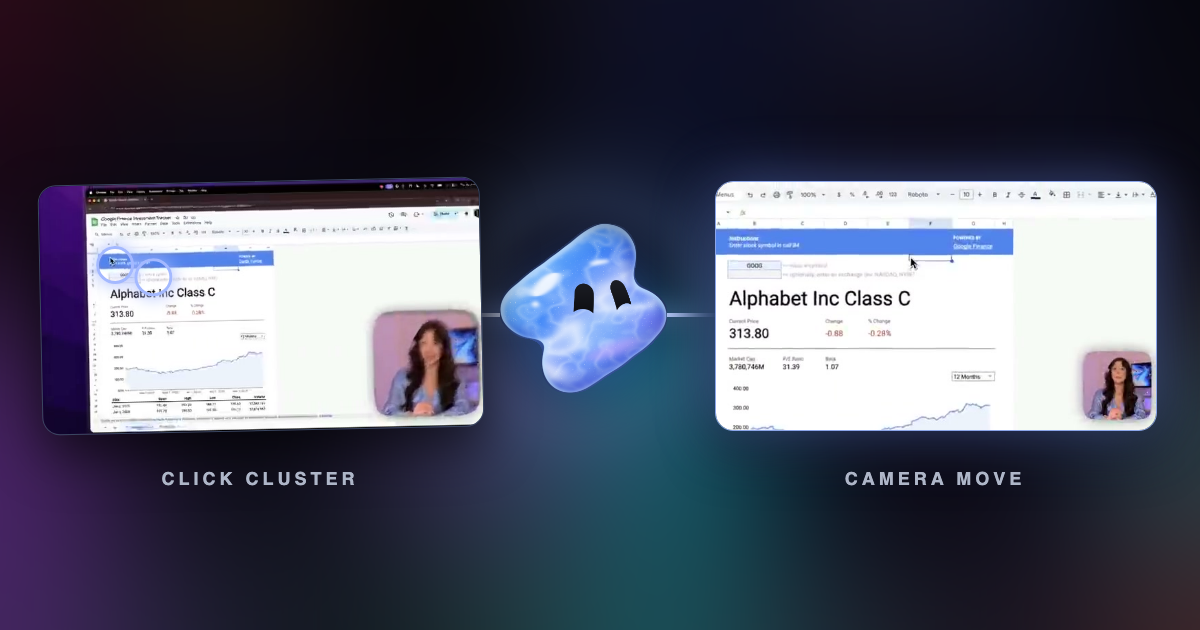
- The recording then edits like one made with Vidova Recorder: a new cursor style and size, smooth motion, click effects and zooms that follow the cursor.
What is cursor extraction?
A screen recording from most apps is only a video. The cursor is drawn into the picture, the same as a window or a button. The file does not say where the cursor is or when you clicked. Without that data, an editor cannot zoom in on your clicks or change how the cursor looks.
Cursor extraction gets that data back from the picture. Vidova runs a machine learning model over the recording. It finds the cursor on every frame, reads each click and each scroll, and gives you a cursor path you can edit.
What you can do with the cursor
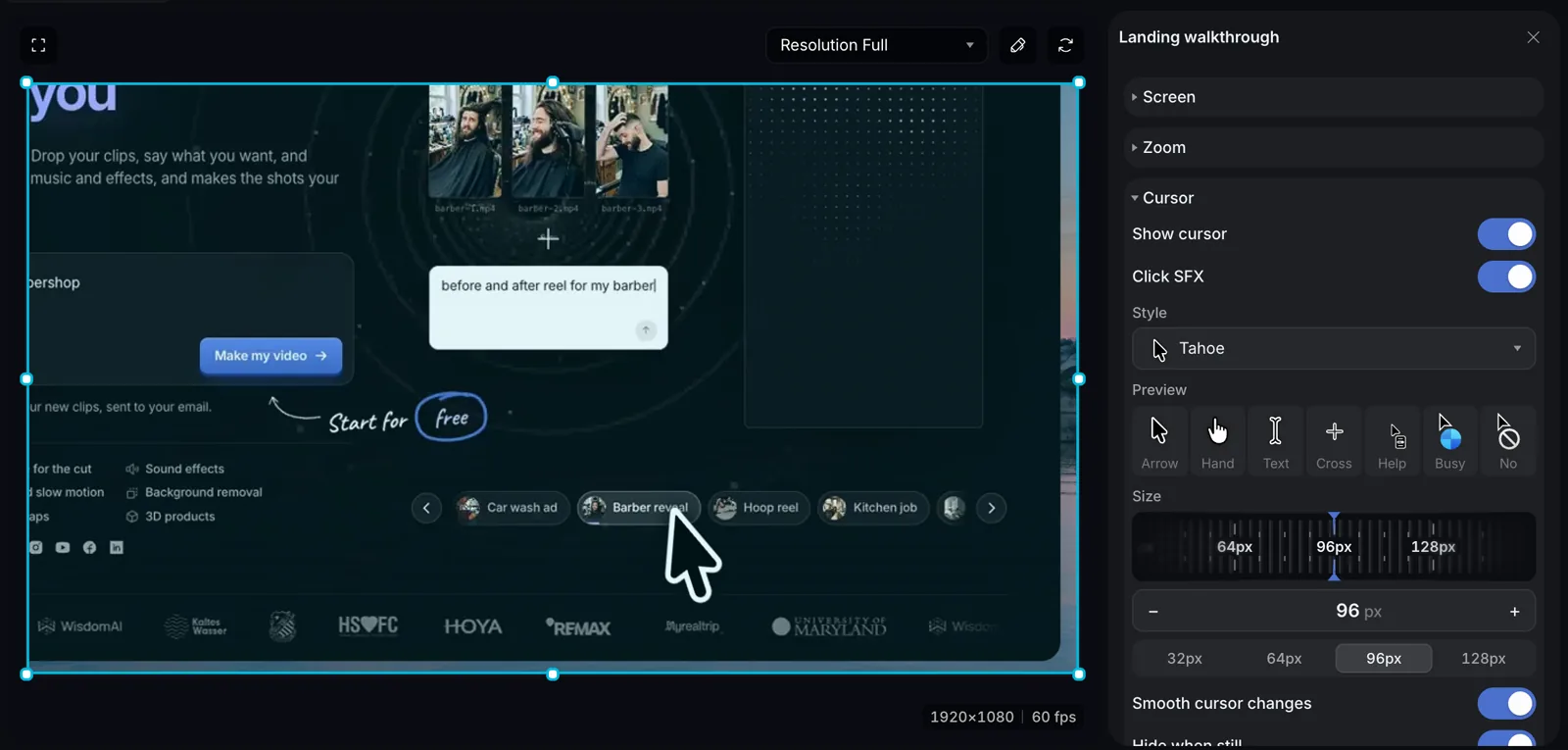
After extraction, Vidova takes the original cursor out of the video and draws its own cursor on top. That cursor is part of the edit now, so you can change it at any time.
- Pick a cursor style, such as Tahoe, WhiteSur or Bibata, and set its size from 16 to 256 pixels.
- Smooth the cursor path, so small shakes become clean moves.
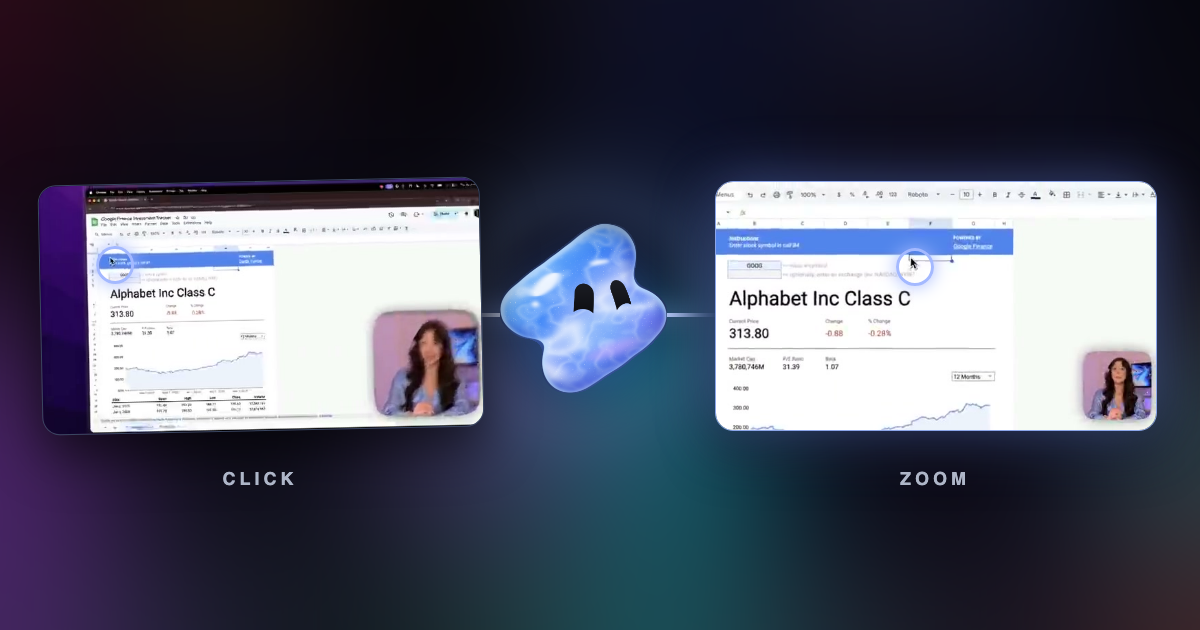
- Add a click sound and a click effect on each click.
- Dim the screen around each click with a spotlight.
- Zoom in on your clicks, with a camera that follows the cursor.
- Hide the cursor while it does not move.
Which recordings it works on
Cursor extraction works on a computer screen recording from any recorder: QuickTime, OBS, Loom, Zoom, the Windows recorder, or a screen share saved from a call. You do not need to record again or install anything.
Recordings made with Vidova Recorder or the Vidova CLI do not need it. They save the cursor path, the clicks and the keys during the take.
How to use it
In the Vidova editor, upload the recording and ask the agent. It finds the cursor, puts the new recording on the timeline and adds the zooms you ask for.
This is a screen recording. Find the cursor, make it bigger and zoom in on every click.
For a quick result without the editor, use the free Auto zoom tool. It uses the same cursor extraction and gives your recording back with a zoom on each click.