How automatic zoom screen recording works
How a recorder turns clicks into zooms: which clicks earn a zoom, why a still cursor does not, and the timing rules that keep the camera from jumping all the time.
Last updated

The short answer
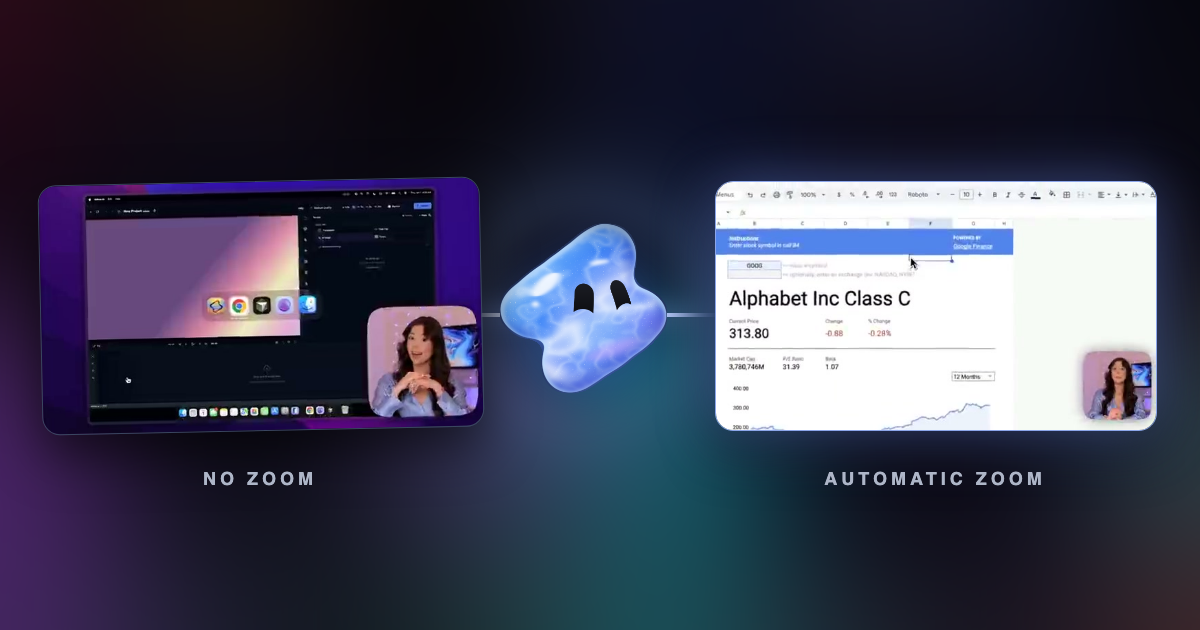
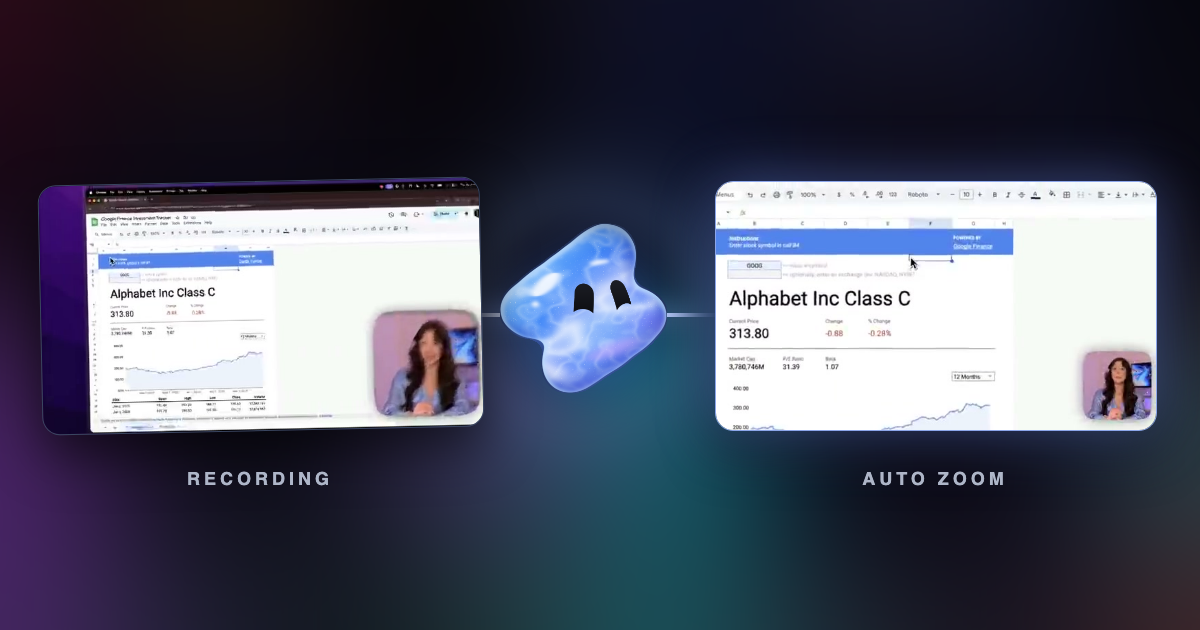
Automatic zoom groups the clicks saved during a recording into bursts by time and place. A burst of two or more clicks in one area earns a zoom that starts just before the first click and holds just after the last one. Zooms that are too close together merge, and no more than about two thirds of a clip is zoomed, so the camera moves with purpose instead of all the time.
Key takeaways
- A burst of clicks in one place earns a zoom. A single click or a still cursor does not.
- Lead-in and hold times make the camera settle before the click and stay long enough to show the result.
- Limits on length, gaps and coverage stop the timeline from turning into a zoom every two seconds.
What the recorder saves
While you record, the recorder saves three things next to the picture: the cursor position many times a second, each click with its time and place, and the keys you press. The editor places zooms from this data after the take. The picture itself is never cropped while you record, so you can always go back to the full frame.
Why clicks earn zooms and a still cursor does not
Some recorders treat a cursor that stops moving as a sign of interest. In practice the cursor sits still all the time while a person reads the screen or talks. Zooming on stillness gives a zoom every couple of seconds, and the video becomes tiring to watch.
A click is a stronger signal. A burst of clicks in one area is stronger still: it means someone is doing something there. Vidova counts the press of a click and ignores the release, so one click is not counted twice.
The rules Vidova uses
| Rule | Value | Why |
|---|---|---|
| Clicks needed for one zoom | 2 or more in one area | One click is someone passing through. A burst of clicks is someone working there. |
| Time between clicks in one zoom | 3 seconds or less | Clicks further apart are separate moments. |
| Size of one area | 18% of the frame diagonal | Clicks further apart share no region. |
| Start before the first click | 0.45 seconds | The camera has settled when the click lands. |
| Hold after the last click | 1.1 seconds | The viewer sees what the click did. |
| Shortest zoom | 2.8 seconds | A shorter zoom looks like a twitch. |
| Longest zoom | 10 seconds | A longer push-in stops being emphasis. |
| Gap that merges two zooms | Less than 1.4 seconds | Out and straight back in looks worse than staying in. |
| Most of a clip that can be zoomed | 65% | Above that, a zoom no longer reads as emphasis. |
| Default zoom depth | 1.5 times | Close enough to read a button, wide enough to keep context. |
The click position is averaged over 0.2 seconds around the click, so cursor jitter does not move the target.
How the camera moves
Between zooms, the camera can follow the cursor with a smooth path and motion blur. Each zoom eases in and out instead of cutting. A short zoom leaves no settled moment between the move in and the move out, so a late click lands during the move out and the camera jerks. That is why the shortest zoom is 2.8 seconds.
Editing what the rules decided
Rules get most zooms right, not all of them. A burst of clicks on a menu you close straight away can earn a zoom you do not want. In Vidova every zoom is a clip on its own track, so you can move it, change its depth or delete it. You can also add a zoom by hand where the rules found none.