Automatic zoom vs manual zoom in screen recordings
When to let the recorder place zooms on your clicks, when to draw them yourself, and how to mix both on one track so a screen recording looks edited by hand.
Last updated
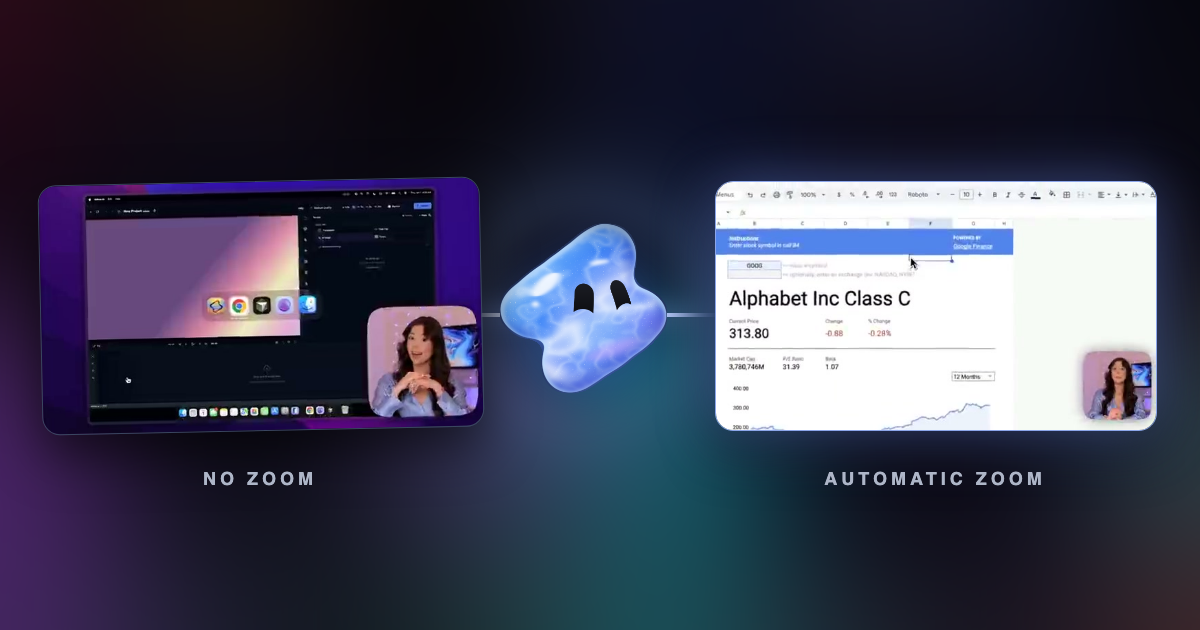
The short answer
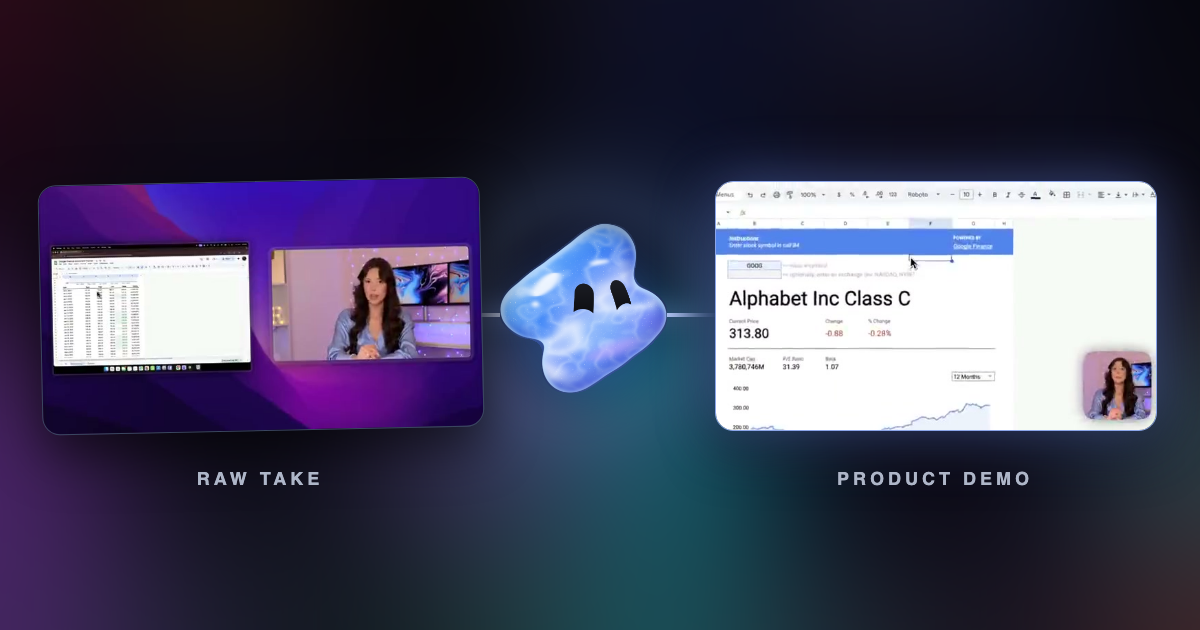
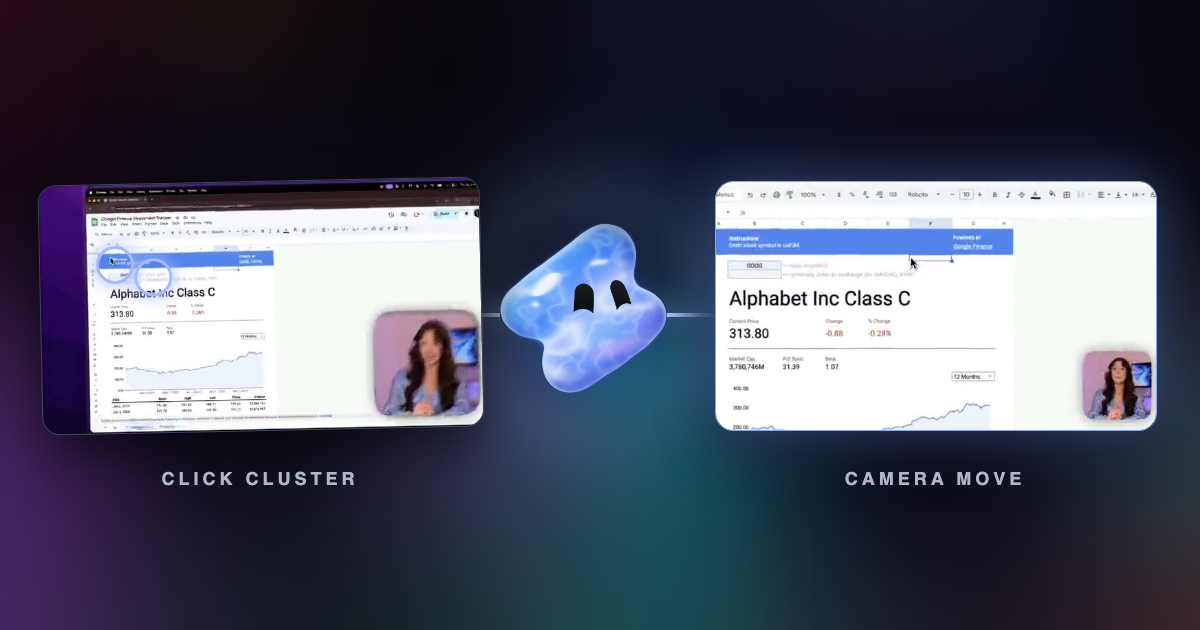
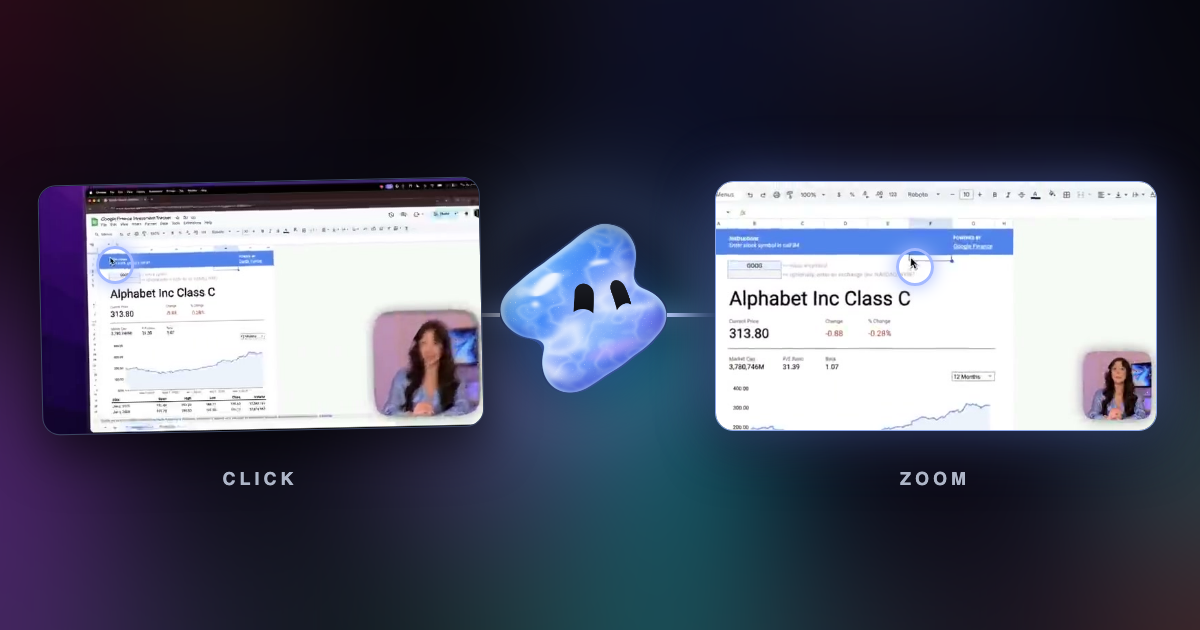
Automatic zoom is faster: the recorder places a zoom on each burst of clicks in seconds. Manual zoom gives exact control over where and when the camera moves. For most product demos and tutorials, start with automatic zoom and fix the few zooms that miss. Draw zooms by hand when the important thing on screen is not a click, such as a chart that changes or a line of text you talk about.
Key takeaways
- Automatic zoom handles click-driven steps well and takes no editing time.
- Manual zoom is for moments without clicks: a result that appears, a number you point out, a line of code.
- The best results come from both on one track: automatic first, then a few manual fixes.
Automatic and manual zoom side by side
| Question | Automatic zoom | Manual zoom |
|---|---|---|
| Time to edit a 5-minute demo | Seconds, then a review | Often 20 minutes or more of keyframes |
| Knows where you clicked | Yes, from saved click data | Only where you look |
| Handles moments without clicks | No | Yes |
| Consistent timing | Same lead-in and hold every time | Depends on the editor |
| Works on a plain video file | No, needs click data | Yes |
When automatic zoom is the right call
- Product demos where each step is a click: open a menu, fill a form, press a button.
- Tutorials and help videos you record often and need to publish fast.
- Bug reports, where the clicks are exactly what the viewer must see.
- Any recording longer than a few minutes, where drawing every zoom is not worth the time.
When to draw zooms yourself
- A result appears without a click, like a chart that loads or a build that finishes.
- You talk about part of the screen without touching it.
- The recording came from another app and has no click data.
- A zoom must start on an exact word in your voiceover.
Use both on one track
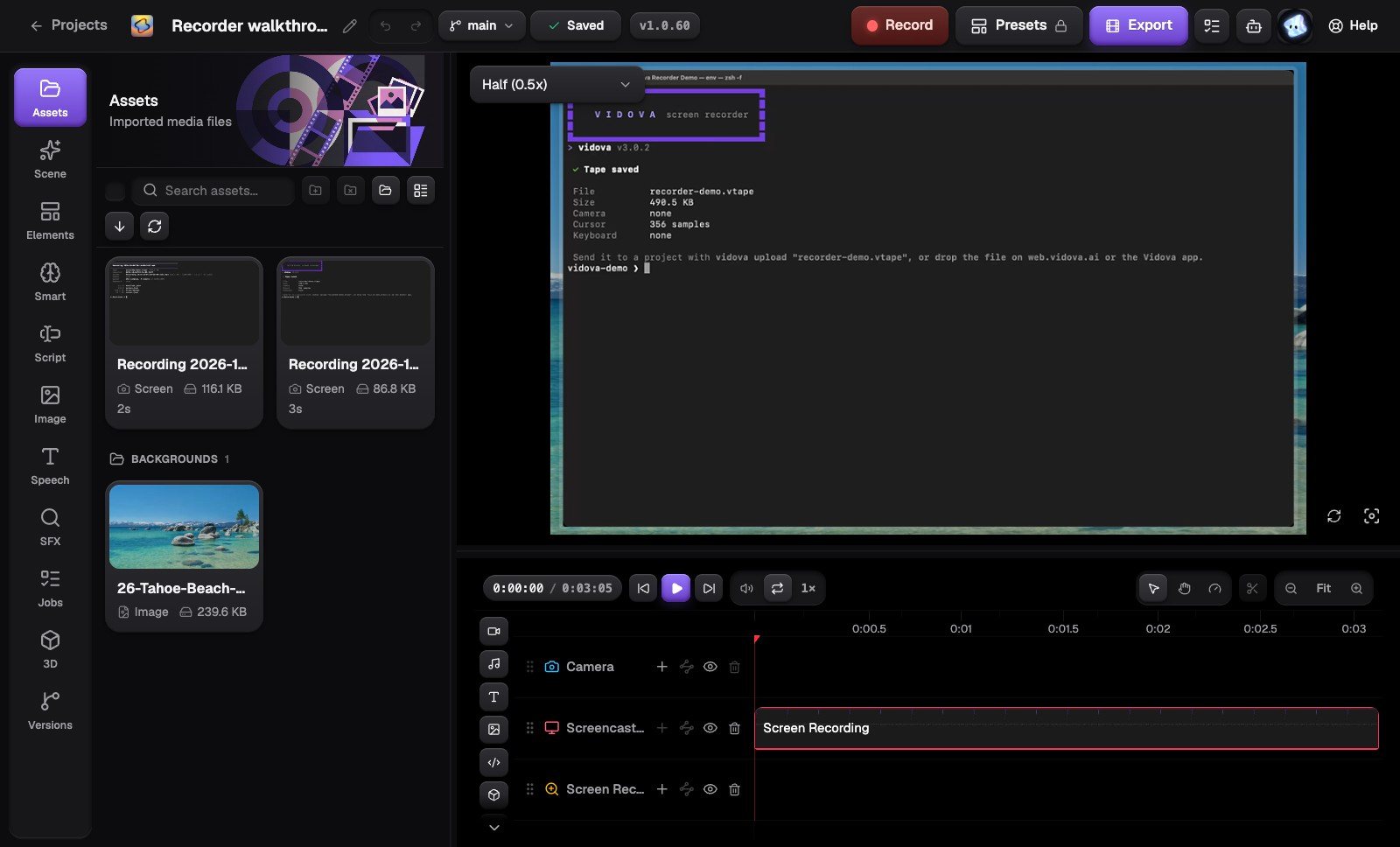
In Vidova, automatic and manual zooms are the same kind of clip on the same zoom track. Record, let the editor place zooms on your clicks, and play the take once. Delete any zoom that lands on a menu you closed straight away. Place the playhead where something happens without a click and add a Zoom from the Add menu. Change depth, timing and easing on any zoom, whoever placed it.