Vidova
Canva video editor alternatives in 2026 for footage-led videos
Vidova is our pick: its AI agent edits your footage into a finished video, cut on the beat, from a brief. CapCut, Clipchamp, Kapwing and VEED compared with Canva's video editor.
 Vidova team
Last updated
The short answer
Vidova is our pick for a Canva video alternative when the video is mostly footage: you upload your clips, describe the video, and its AI agent cuts it on the beat with captions and titles. Canva is strong for designed videos built from templates. CapCut has more video tools and effects. Microsoft Clipchamp is a simple browser editor that exports 1080p with no watermark for free. Kapwing and VEED suit teams that edit in the browser.
Key takeaways
- Canva is a design tool with a video editor inside. For videos made mostly of footage, a video editor fits better.
- Keep Canva for brand templates and use a video tool for the cut, or let an agent such as Vidova make it.
- Clipchamp is the closest free match: a simple browser editor with 1080p exports and no watermark.
What Canva does and what it costs
Canva is a design tool with a video editor inside. You start from a template, add brand fonts, colours and Brand Kits, and its Beat Sync moves clips onto the beats on Pro.
Canva Pro costs US$18 a month, or US$144 a year. The free plan exports MP4 up to 1080p and 30 minutes, with no watermark when you use free elements.
Why people look for a Canva alternative
- Footage-led videos, such as product demos, sports or travel, take more manual work than in a video editor.
- Automatic beat sync needs Pro.
- Paid elements add a watermark on the free plan.
Canva alternatives compared
| Editor | Best for | Runs on | Paid from (US) | Free option |
|---|---|---|---|---|
| Canva | Designed videos with brand fonts and templates | Browser, desktop and phone apps | Pro US$18 a month | 1080p, no watermark with free elements |
| Vidova | A finished video from your own clips, cut by an AI agent | Browser on desktop and phone | $19 a month | 7 days with 2,000 credits and no watermark |
| CapCut | Templates and effects | Phones, Windows, Mac and web | Standard $9.99 a month on the US App Store | Free app. Some templates add a watermark |
| Microsoft Clipchamp | A simple editor in the browser | Edge or Chrome, and a Windows app | Premium with Microsoft 365 Personal or Family | Up to 1080p, no watermark |
| Kapwing | Edits by chat with a team in a browser | Web | Pro $24 a month, or $16 billed yearly | 720p, 4-minute exports, watermark |
| VEED | A team that edits and subtitles in the browser | Web | Creator $25 a month per seat, or $12.25 billed yearly | 720p with a watermark |
How we judged them
We read Canva's pages and each alternative's pricing page, help center and store listing between 27 October and 14 November 2026. We compared what each tool is built for, where it runs, its price and its free limits. We did not run our own test of the other editors. Vidova is our product, and it is our pick. We say where another tool fits better.
Vidova: our pick for footage-led videos
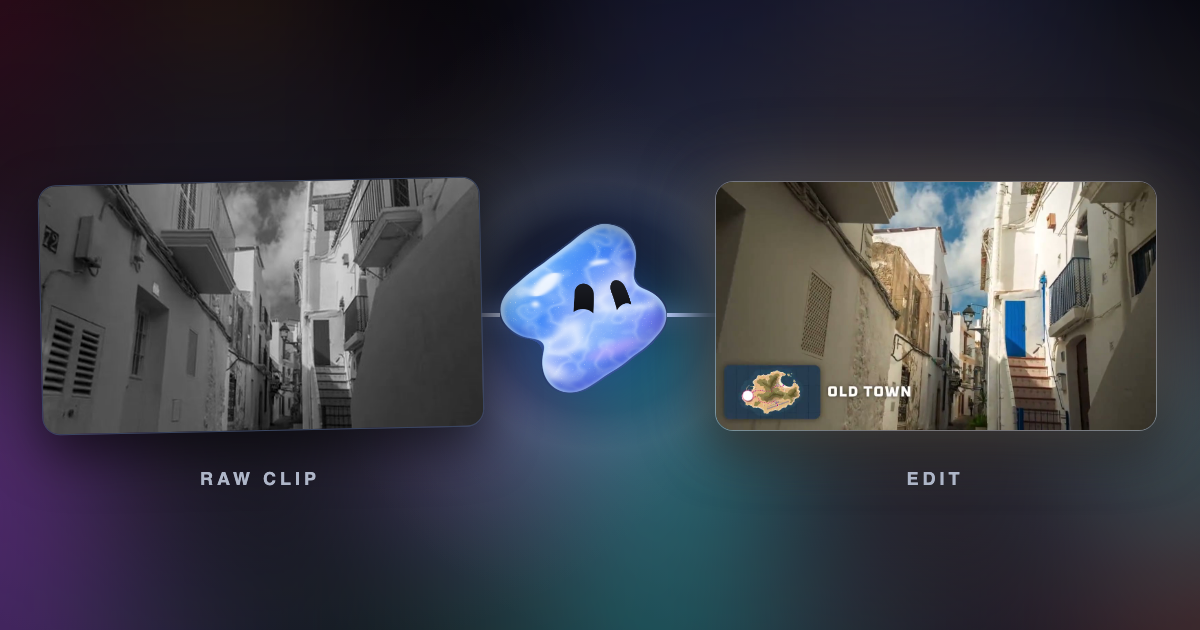
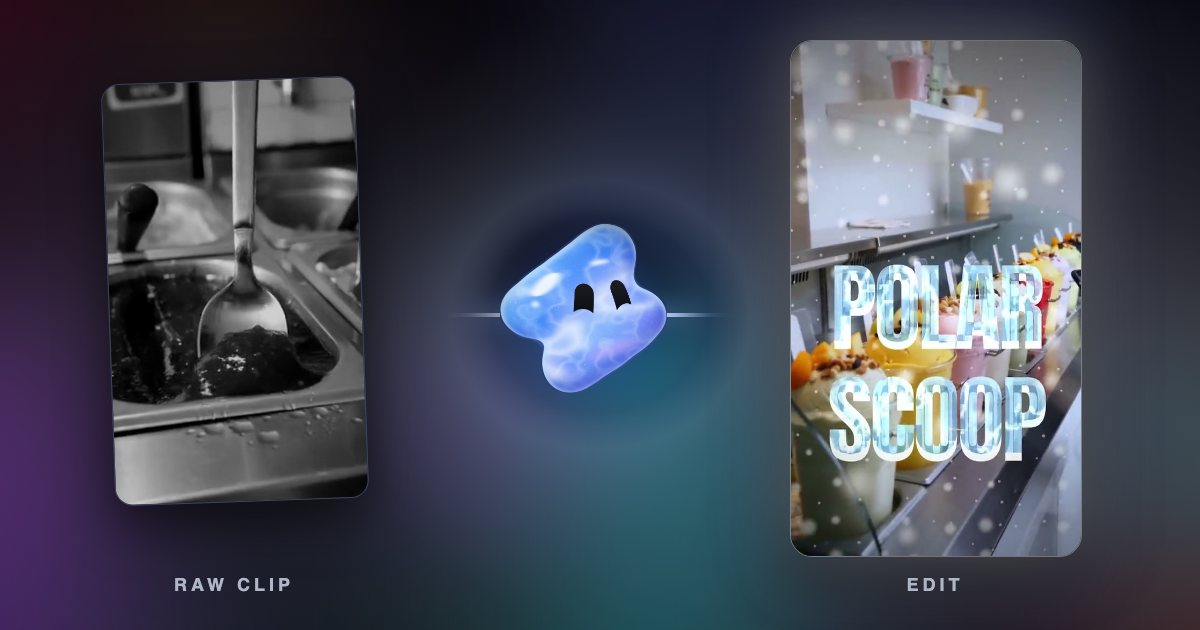
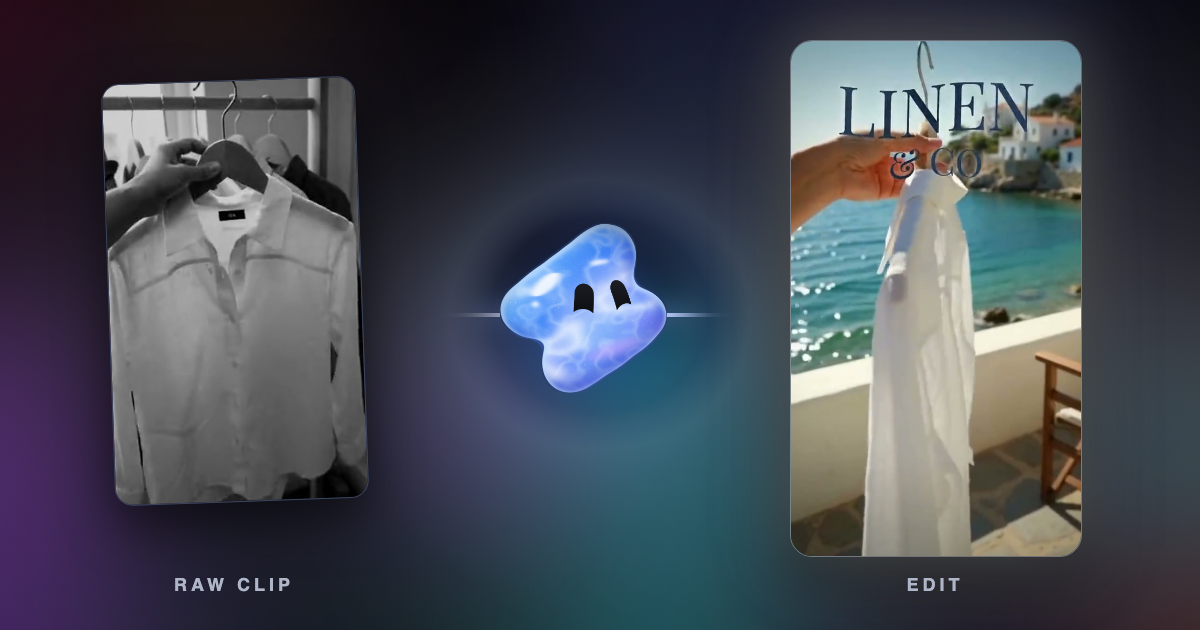
In Vidova, you upload your clips and describe the video. The AI agent edits a real multitrack timeline from your own footage: it picks the shots, cuts on the beat, removes pauses and filler words, adds word-by-word captions and titles, and reframes 16:9 to 9:16 by tracking a face. Before it hands the cut over, it previews frames of its own work and runs a quality check. You can change any clip by hand or by asking.
Make a 20-second Reel for our linen shirts from these clips. Open on the shirt on the hanger, cut to it held over the sea on the beat, and put LINEN as the title.
See Vidova vs Canva for a side-by-side comparison.
Downsides: Vidova is built around the agent, so people who want to place every clip by hand have more mature manual editors. You can try it for 7 days with 2,000 credits and no watermark. The free plan adds a watermark, exports at 720p and takes projects up to 1 minute long. Paid plans start at $19 a month, remove the watermark and export up to 4K at 60 fps.
CapCut: best for templates and effects
CapCut has the largest set of templates, effects and AI tools, on phones, Windows, Mac and the web. The US App Store lists Standard at $9.99 a month and Pro at $19.99 a month.
Downside: some templates, stock and the outro add a watermark, and CapCut is not available in some countries, such as India.
Microsoft Clipchamp: best free editor in a browser
Clipchamp runs in Edge or Chrome on Windows, Mac, Linux and Chromebook, with a desktop app on Windows 10 and 11. Its free plan exports up to 1080p with no watermark and includes AI subtitles, voiceovers and silence removal.
Downside: free stock is limited, and 4K export comes with Microsoft 365 Personal or Family.
Kapwing: best for edits by chat with a team
Kapwing works in the browser. Its assistant, Kai, takes plain requests to trim clips, generate subtitles, adjust visuals and reorganize scenes. Pro costs $24 a month, or $16 billed yearly, with 1,000 credits and 4K export.
Downside: the free plan exports at 720p, up to 4 minutes, with a watermark.
VEED: best for a team that edits in the browser
VEED is a browser editor with subtitles, translation, AI voice and an AI Agent in the editor. Creator costs $25 a month per seat, or $12.25 billed yearly.
Downside: the free plan exports at 720p with a watermark, and every editor on a team is a paid seat.
How to choose
- If the video is mostly footage and you want it edited for you, use Vidova.
- If you want more video tools and effects, use CapCut.
- If you want a free, simple browser editor, use Clipchamp.
- If a team edits together in the browser, use Kapwing or VEED.
Related guides
Sources
- Vidova plans and credits
- Canva pricing
- Canva Help: Downloading designs as video or GIF
- Canva Beat Sync
- CapCut on the App Store
- CapCut: export without a watermark
- Clipchamp pricing
- Clipchamp AI editing
- Kapwing pricing
- Kapwing AI assistant
- VEED plans and prices
- VEED: introducing AI Agent
- VEED Help: how to use OpenEdit