Vidova
Best AI video editing apps for beginners in 2026
Vidova is our pick for beginners: describe the video in plain words, and its AI agent makes the edit. Edits, CapCut, Clipchamp, Canva, iMovie and Premiere compared.
 Vidova team
Last updated
The short answer
Vidova is our pick for beginners: you upload your clips, describe the video in plain words, and its AI agent makes the edit, so you do not need to learn a timeline first. If you want to learn to edit yourself, Edits by Instagram is the easiest free app on a phone, CapCut has templates for every trend, Clipchamp and Canva work in a browser, iMovie is free on Apple devices, and Adobe Premiere mobile is a free full editor when you are ready for more control.
Key takeaways
- A beginner can skip learning a timeline: an AI agent makes the edit from a description.
- To learn editing yourself, start with a free app that has templates and automatic captions.
- Pick the app for where you edit: a phone, a browser or a computer.
The short answer: the best app for each kind of beginner
- Our pick, if you do not want to learn editing: Vidova. Describe the video, and an AI agent makes it.
- Easiest free app on a phone: Edits by Instagram.
- Best templates for trends: CapCut.
- Easiest in a browser: Microsoft Clipchamp or Canva.
- Free on a Mac, iPhone or iPad: iMovie.
- Free full editor for when you want more control: Adobe Premiere mobile.
The apps compared for beginners
| App | How you edit | Runs on | Price | Good first project |
|---|---|---|---|---|
| Vidova | You describe the video. An AI agent makes the edit | Browser on desktop and phone | 7 days with 2,000 credits and no watermark. Paid from $19 a month | A Reel or an ad from your phone clips |
| Edits | Tap and trim, with automatic captions | iPhone, Android and Mac | Free | A Reel with captions |
| CapCut | Pick a template and swap in your clips | Phones, Windows, Mac and web | Free. Standard $9.99 a month on the US App Store | A trend video from a template |
| Microsoft Clipchamp | Drag clips on a simple timeline | Edge or Chrome | Free up to 1080p | A slideshow or a short tutorial |
| Canva | Start from a design template | Browser, desktop and phone apps | Free. Pro US$18 a month | A video post with text and your brand colours |
| iMovie | Magic Movie and storyboards | Mac, iPhone and iPad | Free | A trip or family video |
| Adobe Premiere mobile | A full multitrack timeline | iPhone and Android | Free | A longer edit once you know the basics |
How we judged them
We read each editor's site, help center, pricing page and store listing between 27 October and 14 November 2026. We compared how each app starts a first edit, where it runs and what it costs. We did not run our own test of the other editors. Vidova is our product, and it is our pick. We say where other editors fit better.
Vidova: our pick if you do not want to learn editing
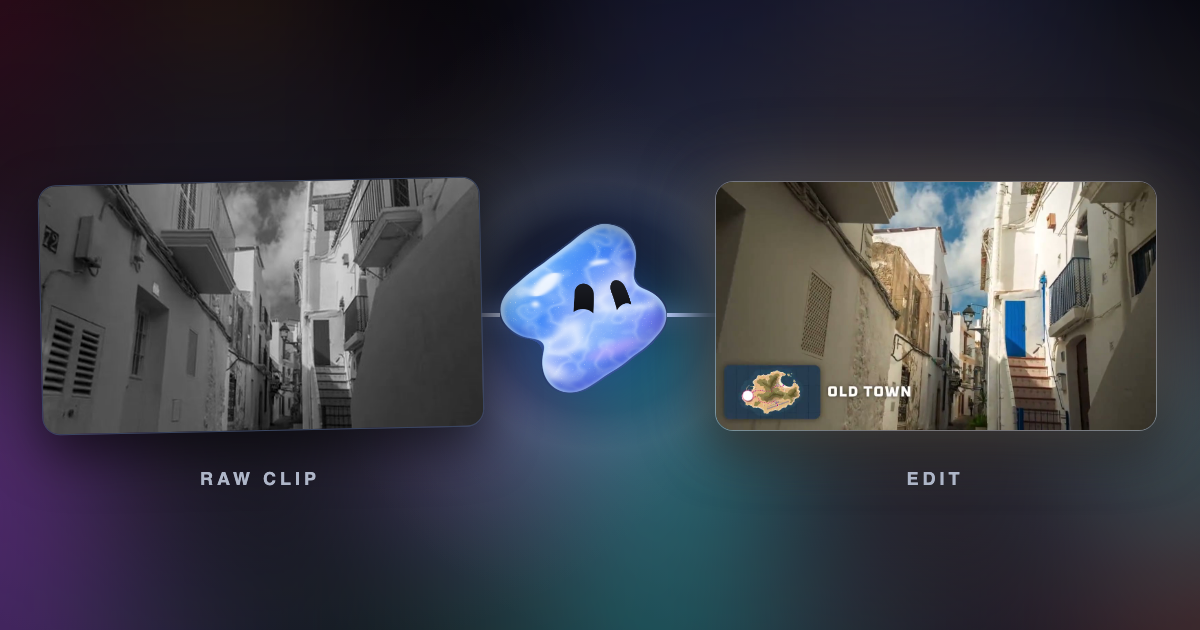
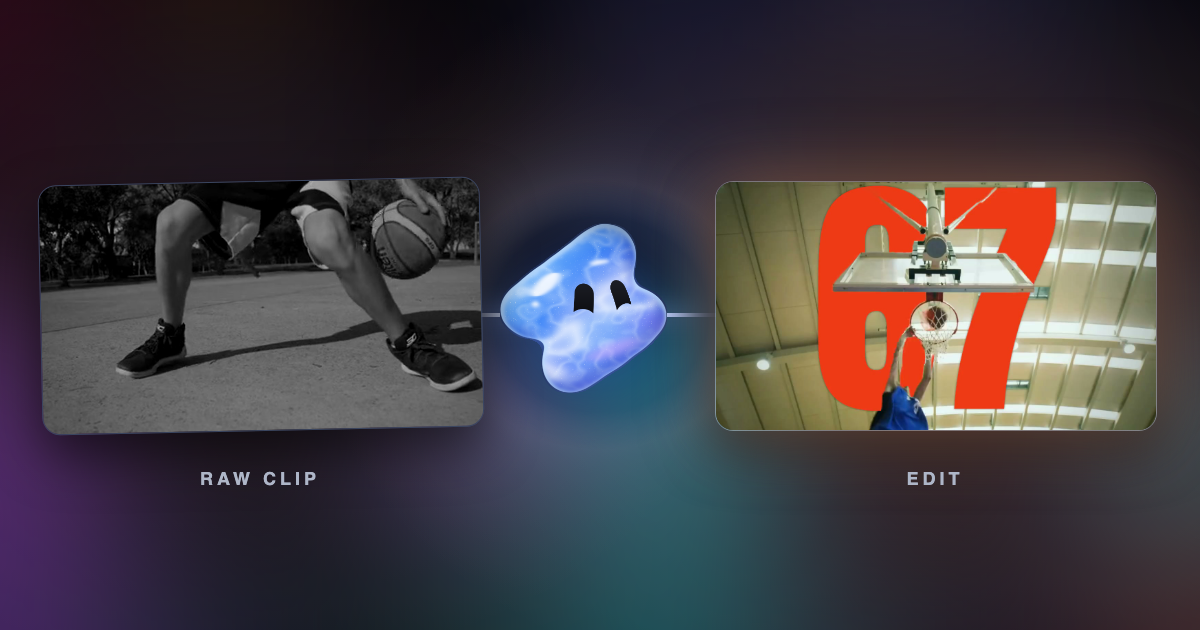
Most editors expect you to learn cuts, layers and keyframes. In Vidova, you upload your clips and write what you want in your own words, in any language. The AI agent picks the shots, cuts them on the beat, adds captions and titles, and checks frames of its own work. When you want a change, you ask for it in the chat, or drag the clip yourself on the timeline.
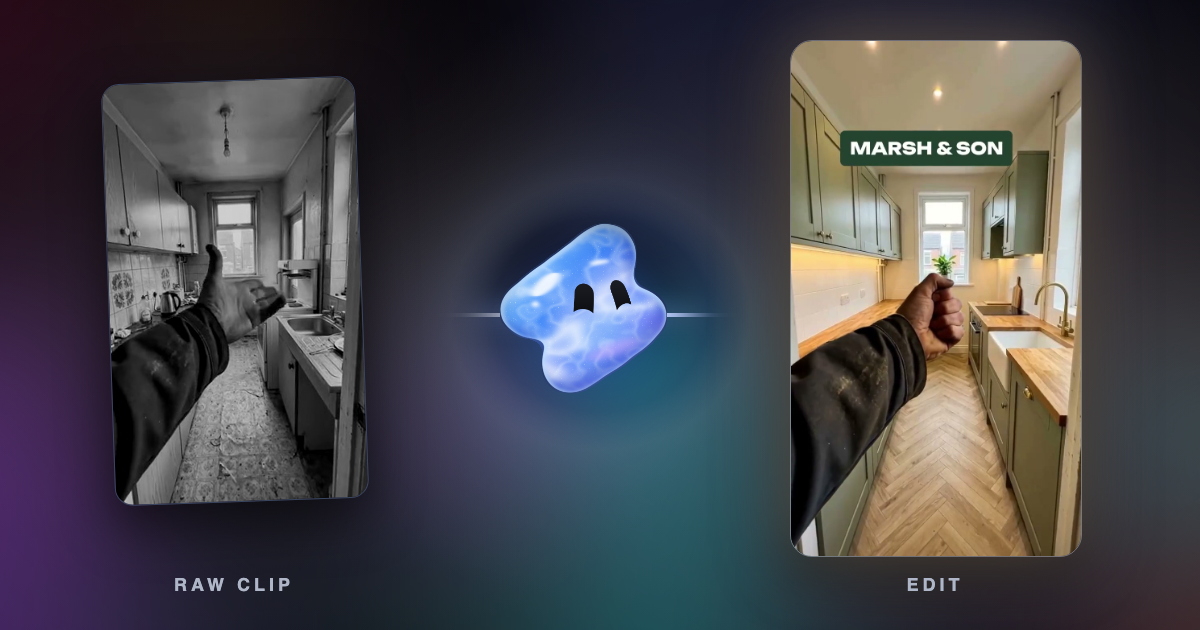
Make a 15-second Reel for my kitchen renovation business from these before and after clips. Show the old kitchen first, then the new one on the beat drop, and put our name at the end.
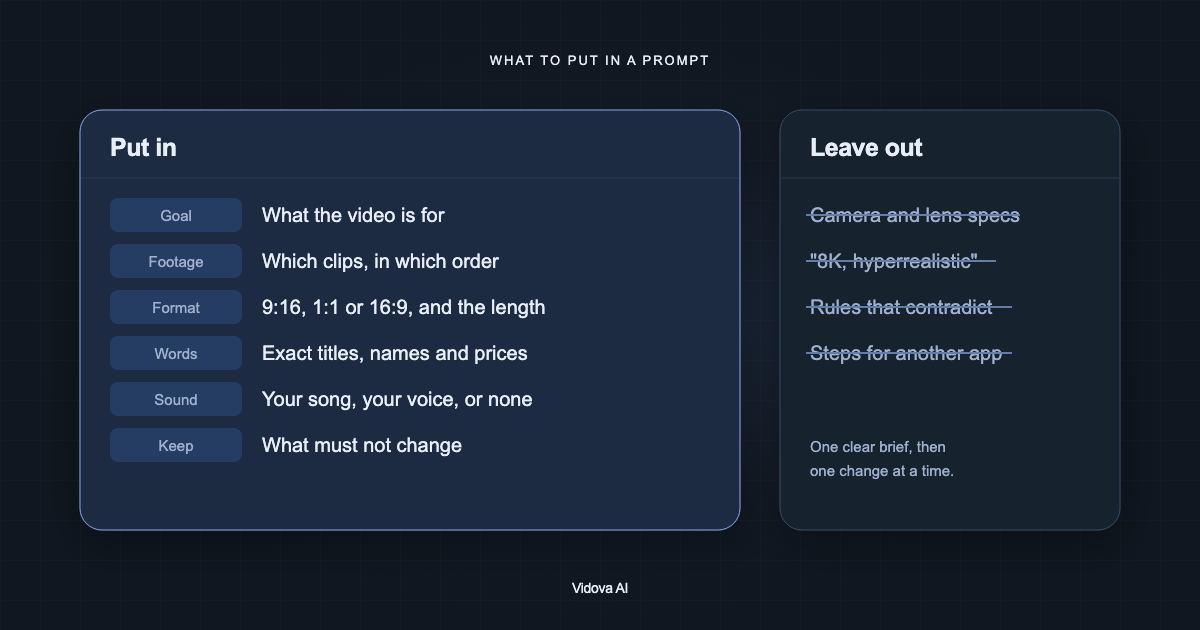
See how to write a prompt for an AI video editor for what to put in your first brief.
Downsides: Vidova is built around the agent, so people who want to place every clip by hand have more mature manual editors. You can try it for 7 days with 2,000 credits and no watermark. The free plan adds a watermark, exports at 720p and takes projects up to 1 minute long. Paid plans start at $19 a month, remove the watermark and export up to 4K at 60 fps.
Edits by Instagram: easiest free app on a phone
Edits is Meta's free editor for iPhone, Android and Mac. It records, trims and adds captions automatically, and its store listing says it exports in 4K with no watermark.
Downside: it is built for Instagram, and there is no Windows or web version.
CapCut: best templates for trends
CapCut has the largest set of templates, effects and AI tools. A beginner can pick a template, drop in clips and post a trend video in minutes. The US App Store lists Standard at $9.99 a month. See Vidova vs CapCut.
Downside: some templates, stock and the outro add a watermark, and CapCut lists auto captions as a Pro tool.
Microsoft Clipchamp: easiest editor in a browser
Clipchamp runs in Edge or Chrome on Windows, Mac, Linux and Chromebook. It has a simple timeline, templates, AI subtitles and silence removal, and its free plan exports up to 1080p with no watermark. See Vidova vs Clipchamp.
Downside: free stock is limited, and 4K export comes with Microsoft 365 Personal or Family.
Canva: best for designed videos
Canva starts from a design template, so a beginner who already makes posts in Canva can turn them into video. Its free plan exports up to 1080p with no watermark when you use free elements. See Vidova vs Canva.
Downside: it is a design tool with a video editor inside, so footage-led edits take more work than in a video app.
iMovie: free on a Mac, iPhone or iPad
iMovie is free on Apple devices. On iPhone, Magic Movie builds a video from your clips and storyboards guide you through a trailer or a recipe video. It exports up to 4K at 60 fps on iPhone.
Downside: its App Store listing describes no automatic captions, and it runs only on Apple devices.
Adobe Premiere mobile: free full editor for more control
Adobe Premiere for iPhone and Android is free, with a multitrack timeline, templates and speed effects, and it exports up to 4K without watermarks. It is a good next step once you know the basics.
Downside: generative AI features use paid credits, and a full timeline takes longer to learn.
How to choose
- If you have clips and no time to learn editing, describe the video to Vidova.
- If you post Reels from a phone, start with Edits.
- If you want to follow trends, use CapCut templates.
- If you edit on a laptop, try Clipchamp. If you already design in Canva, edit there.
- When you want full control, move to Adobe Premiere mobile.