 Vidova
How to add memes and sound effects to a video at the right moment
A funny edit lands when each meme, sound effect and zoom hits the exact frame of the joke. What to add, where to put it, and where meme clips and sounds can come from.
 Vidova team
Last updated
The short answer
To add memes and sound effects to a video, find the frame where each joke lands and put one thing on it: a sound effect, a punch-in zoom on the face, a reaction GIF or sticker, a caption or a freeze frame. Leave a short pause before the punchline and keep the rest clean. Build the joke on your own footage, because re-uploaded clips can be removed. In Vidova you upload the clip, say what is funny, and the agent places the GIFs, sounds, zooms and captions.
Key takeaways
- One effect per joke, on the exact frame where the joke lands. When every cut has an effect, none of them stands out.
- Sound effects, zoom punches, reaction GIFs, caption bars and freeze frames each fit a different kind of joke.
- Build the joke on footage you own. Platforms remove infringing clips, and a credit line does not make a copy fair use.
How a funny edit works
Most short comedy has three parts: a setup, a short pause and the punchline. The edit does not make the joke. It marks the punchline so nobody misses it. A sound effect, a zoom on a face or a reaction GIF says "this is the moment".
That is why timing matters more than the choice of effect. A boom that lands a few frames late feels like a mistake. The same boom on the exact frame of the look to camera gets the laugh.
What to add and when
| Effect | Fits | Where it goes |
|---|---|---|
| Sound effect (boom, record scratch, ding, pop, crowd laugh) | A reveal, a fall, a look to camera | Its loudest point on the frame of the moment |
| Punch-in zoom on a face | A reaction, a deadpan stare, the punchline line | Snaps in over a few frames, follows the face, then cuts back wide |
| Reaction GIF or sticker | When the person in the clip says nothing and the GIF says it for them | Beside the face, never over it, for about a second |
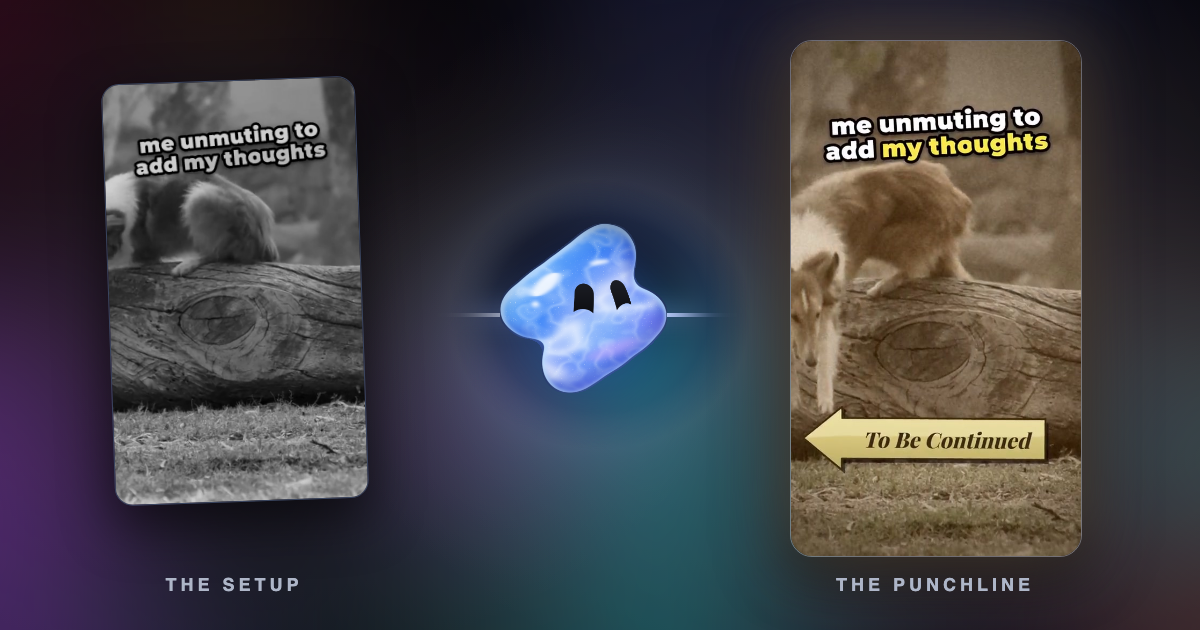
| Caption bar | "me when", "POV" and setup lines | A white bar across the top with the joke in black letters |
| Freeze frame | The moment just before it goes wrong | Freeze, change to sepia or black and white, add a record scratch |
| Emoji beside a face | A feeling the face already shows | Pinned next to the face so it moves with the person |
| Speech captions | When the joke is in the words | One or two key words stand out in each line |
The classic formats combine these. In a "to be continued" meme, a captioned setup gets a zoom with a boom, then the payoff freezes in sepia right before it goes wrong, with a record scratch and the To Be Continued arrow. In a "wait for it" clip, a short text hook builds suspense and the payoff gets a flash, a punch-in and the music's drop.
Put the sound on the frame
- Find the frame. Step through the clip one frame at a time to the instant of the reveal, the impact or the look.
- Line up the loudest point, not the start of the sound file. Many sounds start with a short silence or a rise.
- Make room. Lower or stop the music for a beat before the punchline. The hit lands harder after a short quiet.
- Keep the real sound. The person's own reaction, a gasp or a laugh, is often funnier than any effect. Add sound effects under it, not instead of it.
- Pair the sound with the picture. A boom with a zoom, a record scratch with a freeze. A sound change without a picture change feels like a glitch.
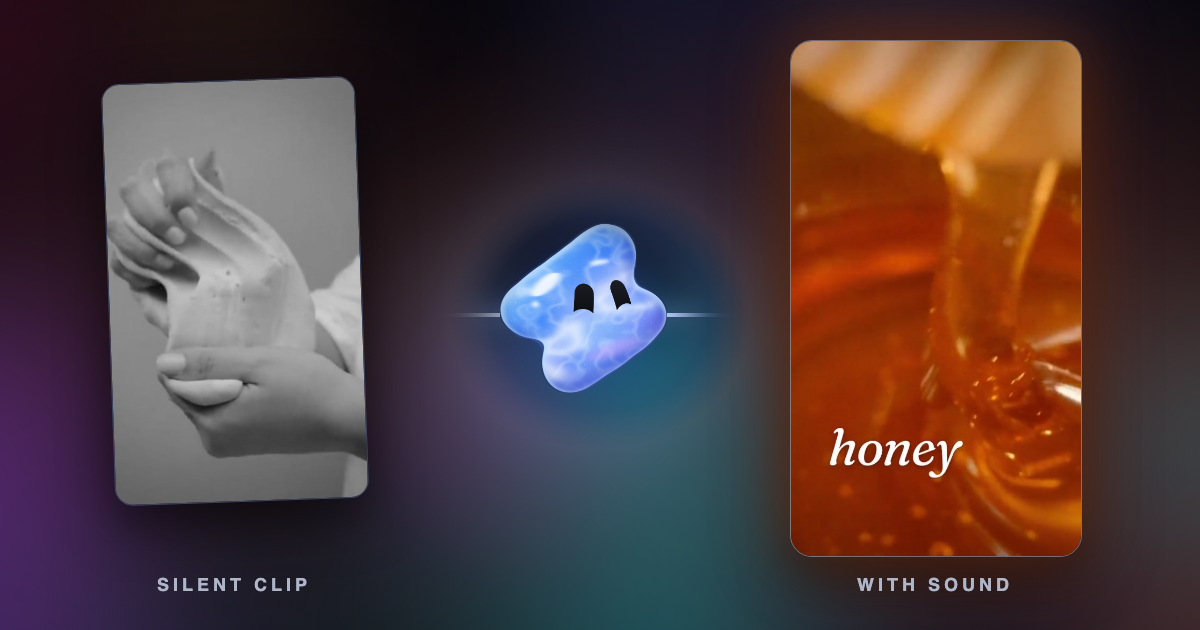
In Vidova, a sound effect the agent makes comes with its measured placement: where its loudest point is, so it lands on the action, and a volume that sits under the music, level with it or on top for the one big hit.
Where GIFs, meme clips and sounds come from
- Your own footage. The safest and the funniest material. A friend's real reaction beats any stock clip.
- Reaction GIFs and stickers. In Vidova the agent searches a library of reaction GIFs, memes, animated text and emoji. Stickers have transparent backgrounds, so they sit over your footage. Searching and adding a GIF uses no credits.
- Sound effects from a library. Vidova's sound library has whooshes, impacts, risers, pops, clicks, dings, shutters, glitches and more. Adding one from the library uses no credits.
- Generated sound effects. When the library has no fitting sound, the agent can make one from a description, such as "a cartoon slide whistle going down". This uses credits. You can also try it in the free AI sound effect generator.
Vidova also has ready-made templates for these formats: Meme caption bar, To be continued meme, Face zoom punch, Freeze-frame BAM, Wait for it and Emoji reactions. The agent picks one that fits your clip and adapts it.
Copyright, plainly
Many meme clips come from films, TV shows and songs, and those belong to their owners. Here is what the platforms themselves say:
- TikTok says that user content that infringes another person's copyright may be removed. It may ban accounts that repeatedly infringe, and it names US fair use and EU exceptions for quotation, review, caricature, parody and pastiche as cases where use without permission can be allowed (TikTok).
- YouTube explains that fair use in the US depends on four factors, including how much of the work you use and whether your use harms its market. It also says that giving credit to the owner, or writing "no infringement intended", does not make a copy fair use (YouTube Help).
- Instagram says re-uploading someone else's work without meaningful creative input does not count as original. Only adding a border, a watermark, subtitles or a credit does not qualify, while your own text on the content that adds context can. Accounts that post a lot of unoriginal content can lose recommendations (Instagram).
In practice, film the joke yourself, use short library reactions as accents, and add your own words. Music has its own rules, covered in how to make a Reel with photos and music. This is general information, not legal advice.
Memes in any language
A meme caption works best in the language your audience speaks, with their slang. Write the caption exactly as it should appear, in that language. In Vidova you can write your request in any language, and the agent replies in the language you write in. Speech captions follow the language spoken in the video. Read how to add subtitles to a video automatically for caption details.
Make it in Vidova
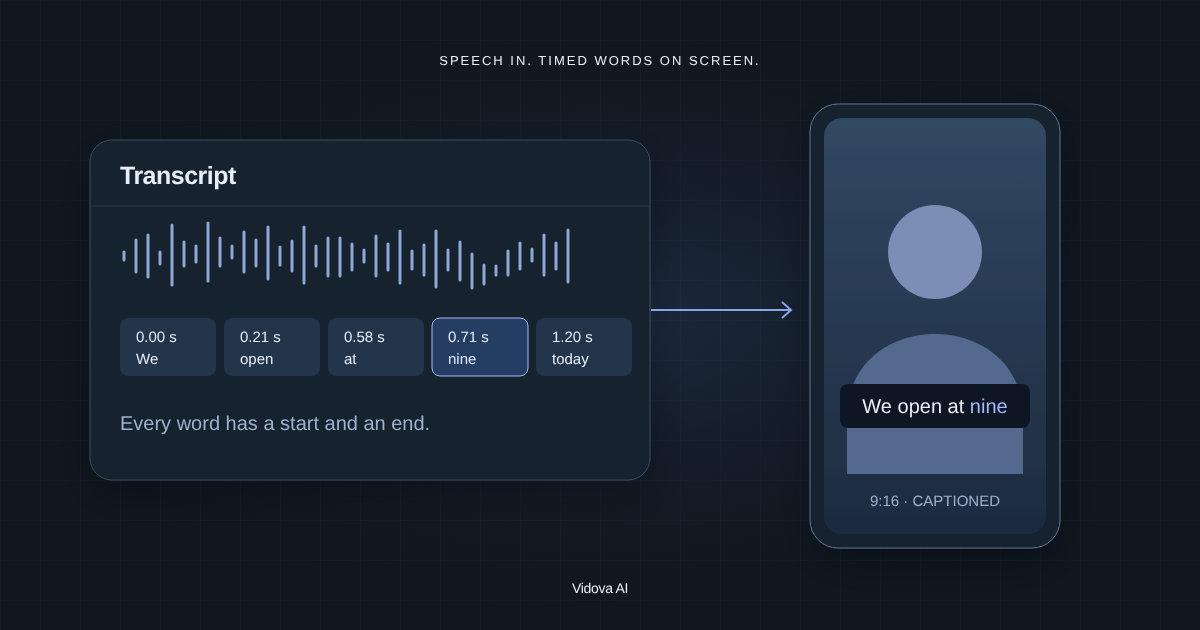
- Upload the clip. The agent transcribes any speech, so it knows what is said and when.
- Say what is funny and where, in words or by time: "when he looks at the camera at 0:06".
- The agent finds the exact frames, adds the sound effects, zooms, GIFs, stickers and captions, and mixes the sounds under the real audio.
- Watch it with sound and ask for changes: "bigger boom", "move the GIF to the left of her face" or "no captions on the last line".
Make this clip of my dog and the cake into a funny Reel. Top caption: "me pretending I was not going to eat the whole thing". Zoom in on the dog's face with a boom when he looks up at 0:04. Freeze on the moment the cake slides off the table, black and white, with a record scratch. Keep the real sound. 9:16, under 12 seconds.
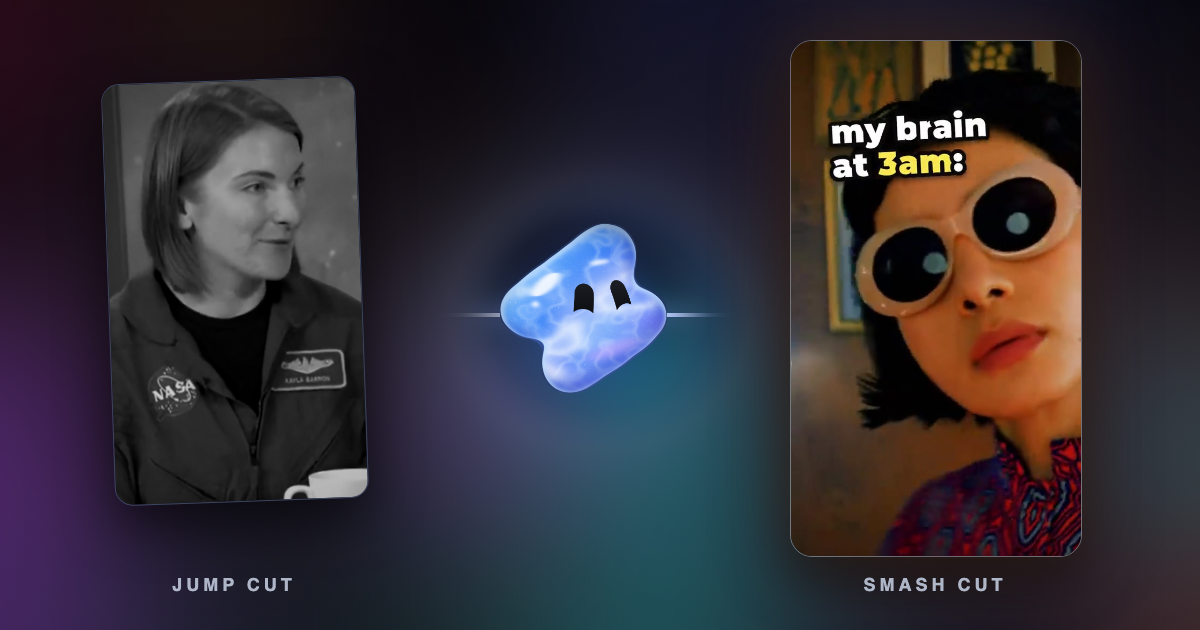
For a version with jump cuts and harder hits, read jump cut vs smash cut.
Mistakes that kill the joke
- A sound effect on every cut. The real punchline then gets no reaction.
- Sounds that land a few frames early or late.
- A GIF or emoji over the face that is the joke.
- Music at full volume over the punchline.
- A caption that explains the joke the picture already tells.
- Muting the real sound and replacing it with stock effects.
- Building the whole video on someone else's clip with only a caption on top.
Sources
All sources checked November 2026.
Make your first funny edit
Paid plans start at $19 a month, remove the watermark and export up to 4K at 60 fps.