How to make a Reel with photos and music
Turn a folder of photos and a song into a 9:16 Reel or TikTok: how many photos to use, how long to show each one, how to cut to the beat and what to check before you post.
Last updated
The short answer
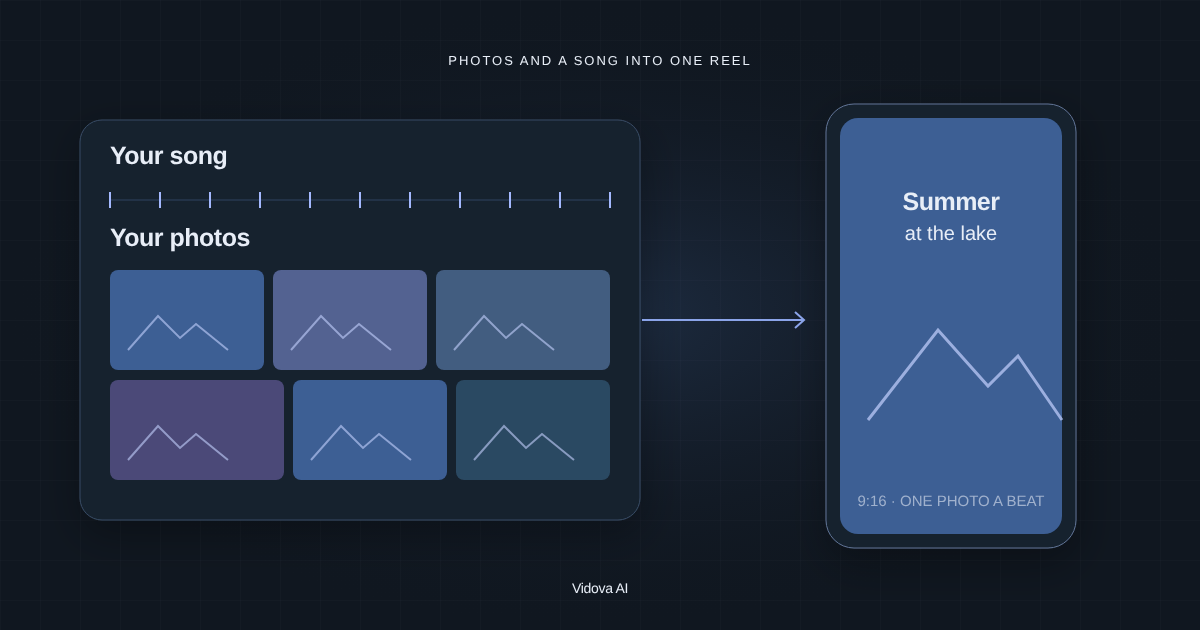
To make a Reel from photos and music, pick 10 to 20 photos and one song, then show each photo for one or two beats in a 9:16 frame. Order the photos as a short story with a start, a middle and an end. In Vidova you attach the photos and the song and describe the Reel. The agent finds the beats, cuts each photo on them, adds slow movement and puts your title in the safe area.
Key takeaways
- 10 to 20 photos and a 15- to 30-second section of one song are enough for a Reel.
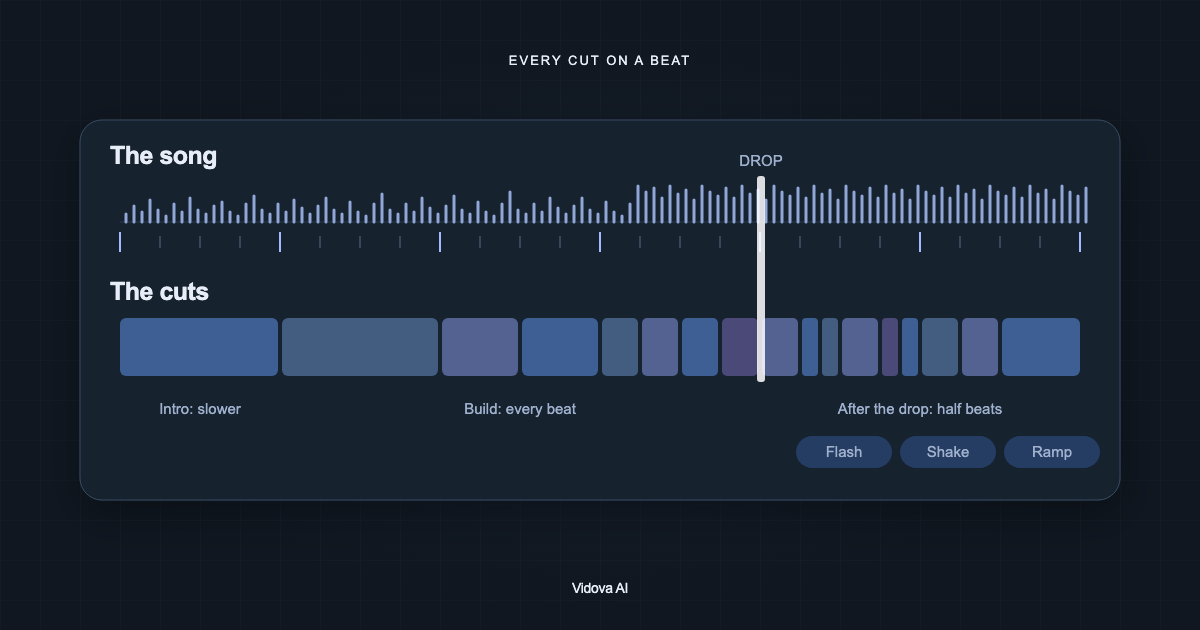
- Change the photo on the beat. One photo every one or two beats feels fast. One photo every four beats feels calm.
- Use music you have the right to use. Songs from the app's own library are the safe choice for posts.
Pick the photos
Choose photos that tell a short story: where you were, what you did and how it ended. Put the strongest photo first. It is what people see while they scroll.
- Use 10 to 20 photos for a 15- to 30-second Reel.
- Prefer vertical photos. A horizontal photo in a 9:16 frame loses its sides or gets bars above and below it.
- Mix wide photos with close details: the view, then a face, then hands or food.
- Leave out near-duplicates. Two photos of the same moment slow the Reel down.
- Short clips mix well with photos. A 2-second video of a wave or a laugh makes the Reel feel alive.
Pick the music and the tempo
The song sets the pace. A fast song with photos changing every beat feels like a party recap. A slow song with a photo every four beats feels like a memory video. Pick the section of the song you want, such as the chorus, and make the Reel that long.
| Photo every | Time on screen | Feel |
|---|---|---|
| 1 beat | 0.5 s | Fast, energetic |
| 2 beats | 1 s | Lively, easy to follow |
| 4 beats (one bar) | 2 s | Calm, time to look |
Music rights matter. A song you upload yourself can be muted or blocked if you do not have the rights to it. If you want a popular song, add it from the app's own music library when you post. You can use the same song in the editor to time the cuts, then mute it before you export.
Make the Reel in Vidova
Open Vidova and start a new project. The **Family edit** card on the home screen starts this kind of edit: your photos and clips, cut to music. You can also attach the files to the prompt and describe the Reel yourself.
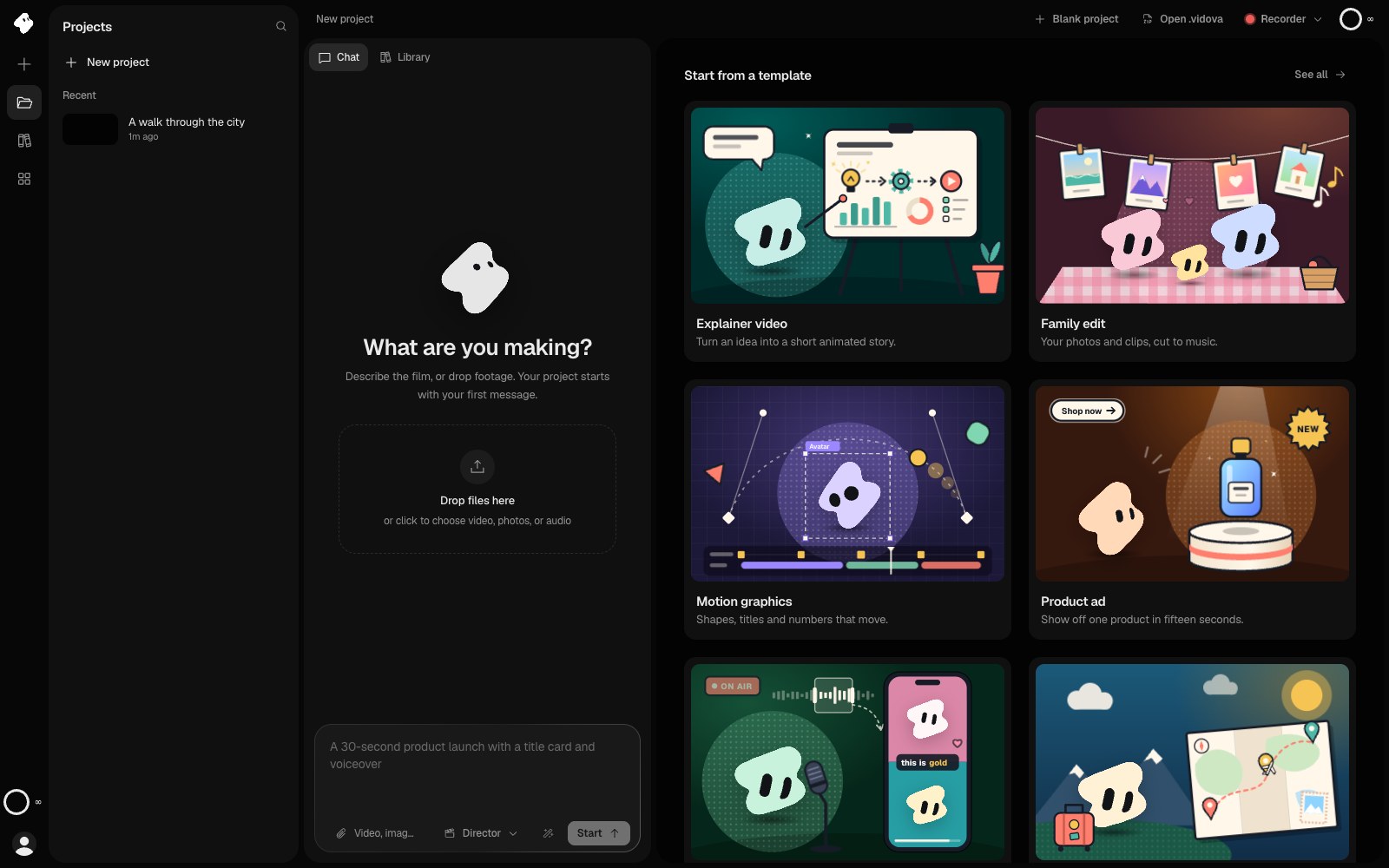
Make a 20-second 9:16 Reel from these 14 photos and this song. Use the chorus from 0:42. Change the photo on every second beat and keep the order I uploaded them in. Add a slow zoom to each photo. Put the title “Summer at the lake” on the first photo for 2 seconds and end on the sunset photo.
The agent detects the beats in the song and cuts each photo on them. Every photo is a clip on the timeline, so you can drag one to a new place, make it longer or swap it. Ask for one change at a time, such as “hold the group photo for one more beat”.
Add movement to still photos
A still photo on screen for two seconds looks frozen in a Reel. A slow zoom in or out, or a slow pan across a wide photo, keeps it moving. Use the same movement for most photos and change it for one or two key photos. Too many different moves look busy.
Ask for a transition only where the story changes, such as from the day to the evening. A straight cut on the beat is the best choice for most photos.
Check it before you post
- The first photo is the strongest one, and it shows in the first frame.
- Every face is inside the frame after the crop to 9:16.
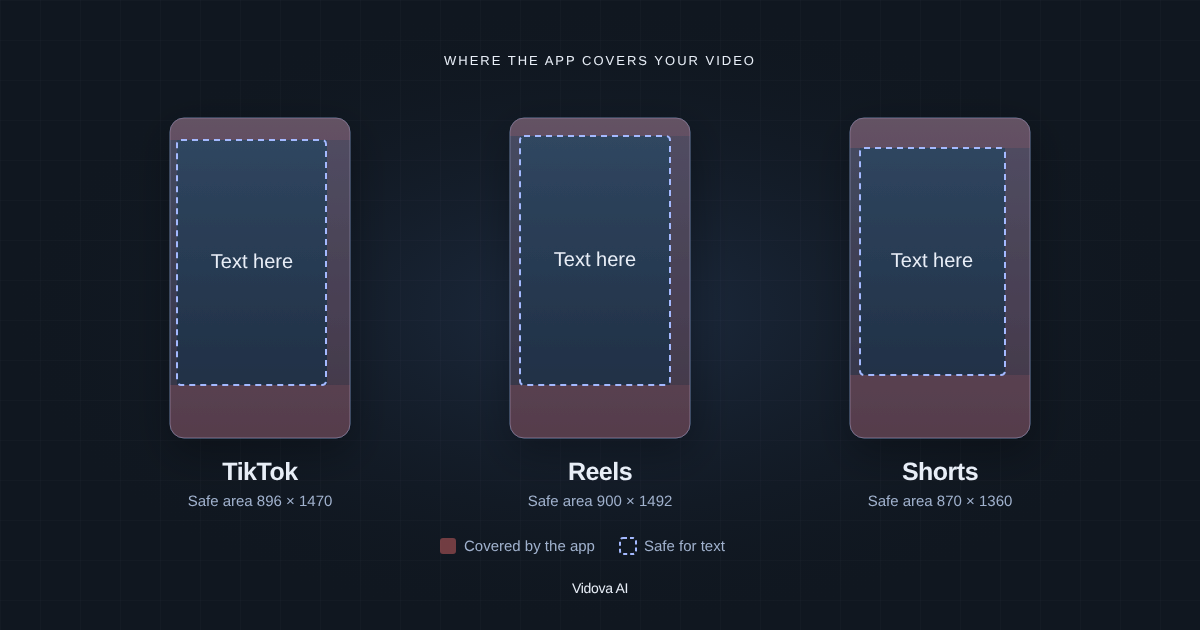
- The title is inside the safe area and is on screen long enough to read twice.
- The cuts land on the beat all the way to the end.
- The Reel ends on a beat or at the end of a musical phrase, not in the middle of a word.
You can try this on the free plan. It gives you 750 credits once, exports at 720p, takes projects up to 1 minute long and adds a Vidova watermark. Depending on your country, it can ask for a card check that charges nothing. Paid plans start at $19 a month, export up to 4K at 60 fps and remove the watermark and the length limit.