 Vidova
How to remove background noise from a video
Clean the sound of a video with a free voice isolation tool, then compare Vidova, Adobe Podcast, Descript, CapCut, iMovie, Premiere, Resolve and Audacity.
 Vidova team
Last updated
The short answer
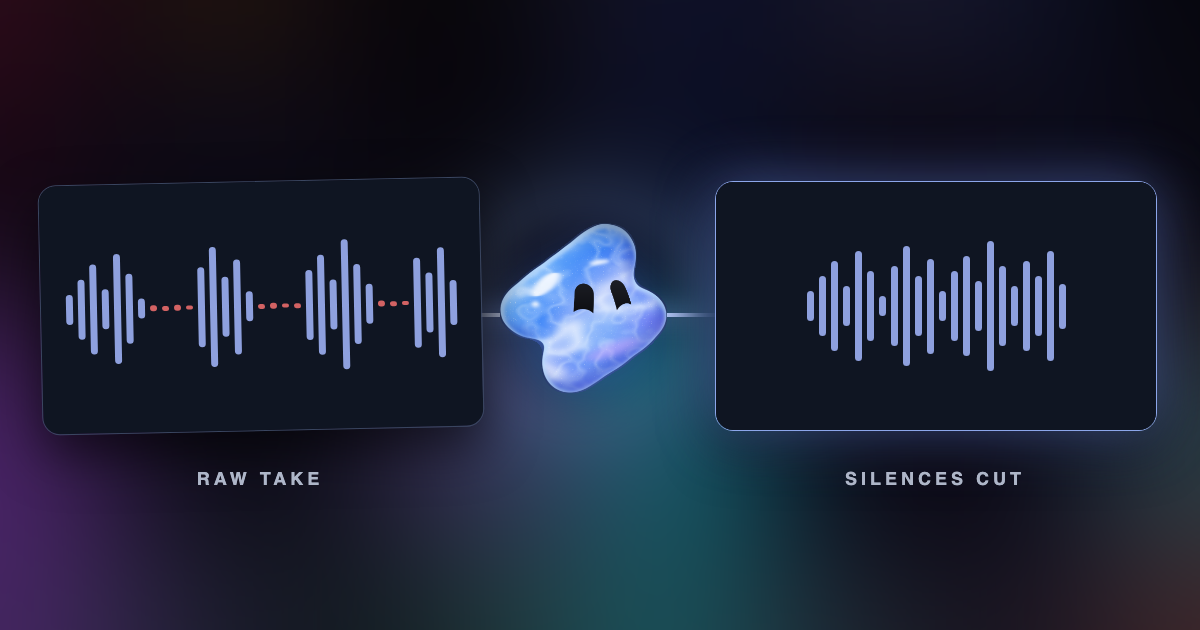
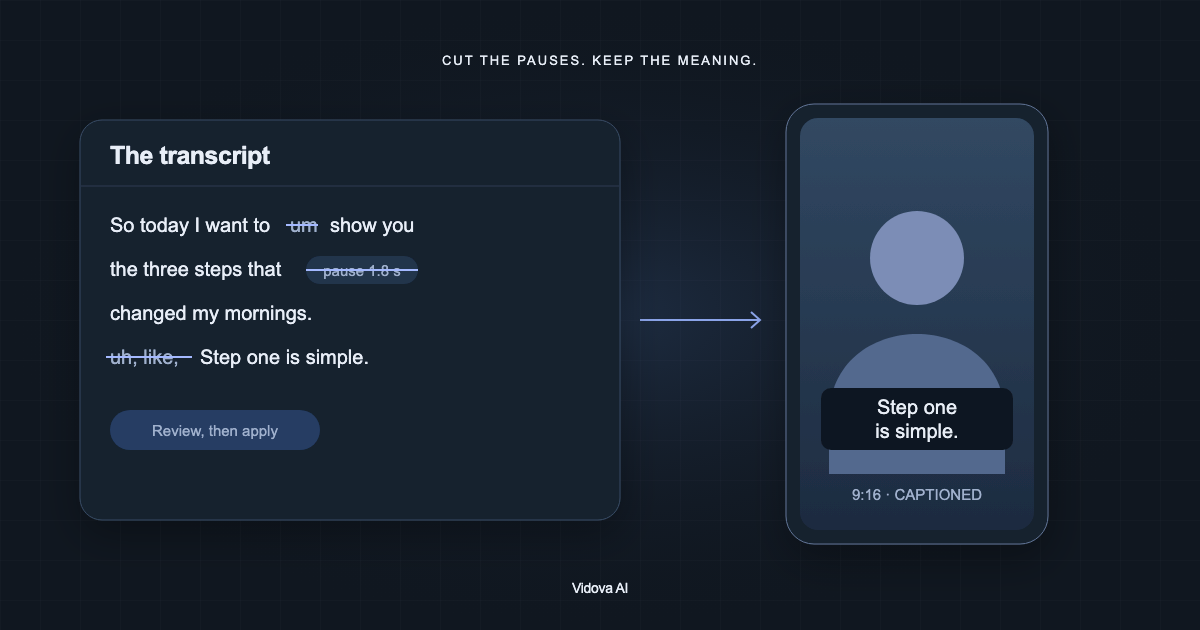
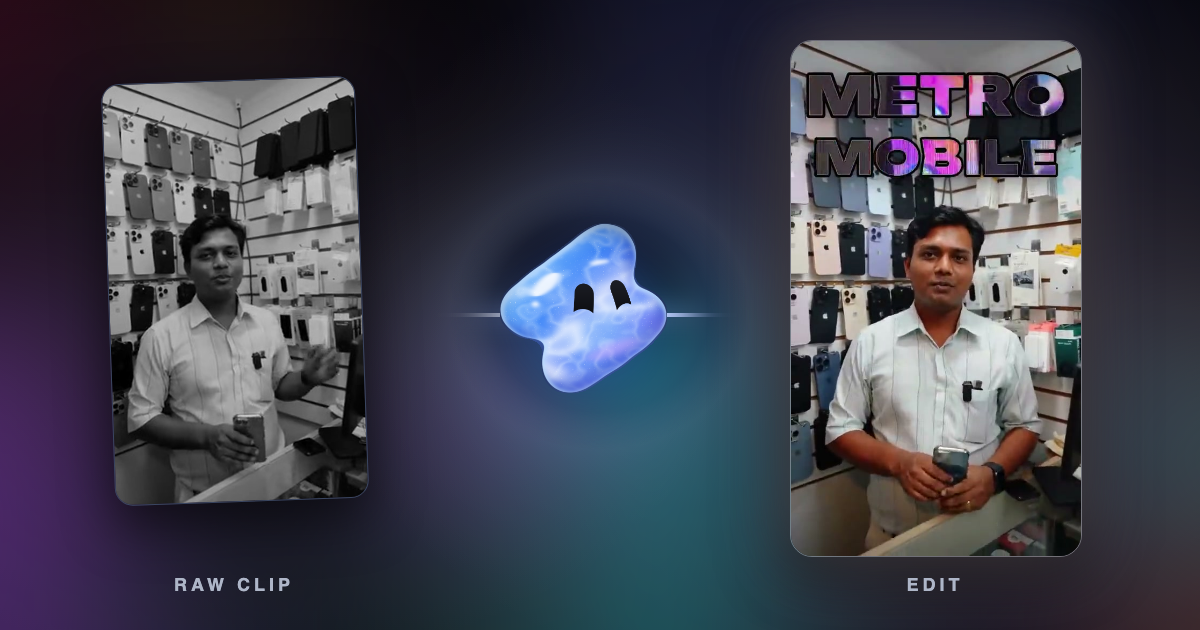
Vidova is an AI video editor with a free noise remover. Drop a video, and it keeps the voices and removes wind, traffic, music and echo. To get the video back with the clean sound, open it in the Vidova editor, where the agent swaps the sound and you export. For a steady hum or hiss, CapCut, iMovie and Audacity have noise controls. Descript and Premiere fit people who already edit there, and Adobe Podcast fits a sound file with no picture.
Key takeaways
- Voice isolation keeps speech and removes everything else, music included. A noise slider lowers the noise and keeps the rest of the sound.
- Vidova's free tool cleans the first 10 seconds of a file without an account, so you can hear the result first.
- A tool that returns only a sound file leaves one more step: that sound has to go back under the picture.
Which tool for which noise
- Wind, traffic, a crowd or music under speech: use an AI speech tool. The Vidova noise remover, Descript Studio Sound, Premiere Enhance Speech and Voice Isolation in DaVinci Resolve Studio are built for this.
- A steady hum, hiss or whine: a noise control can be enough. Audacity's manual says its Noise Reduction is for constant sounds such as hum, whistle, whine, buzz and hiss. iMovie on a Mac and CapCut have a noise slider.
- A sound file with no picture: Adobe Podcast Enhance Speech is free for files up to 30 minutes and 500 MB, for up to 1 hour a day.
- A video you want back with the clean sound: open the video in the Vidova editor, or use a video editor with its own control, such as CapCut, iMovie, VEED or Kapwing.
How to remove background noise with Vidova
These steps use Vidova's free tool, which runs the same voice isolation as the agent in the editor.
- Open the noise remover and drop a video or a sound file. Your browser takes out the sound and uploads only the sound. The picture stays on your device.
- Wait for the voice track. Without signing in, Vidova cleans the first 10 seconds of the file, 2 times a day. With an account, a file can be up to 10 minutes long and uses your plan's credits.
- Play the voice track and compare it with your file. The track is as long as the file and stays in time with it.
- Download the voice track as an MP3, or open the video in the editor.
- In the editor, the agent puts the voice track in place of the old sound. Check it on the timeline, then export the video as an MP4.
A cleaned file holds only voices. If you want some of the place back, say so in chat. This is an example brief:
Clean up the voices in this video: keep the speech and remove the background noise. Then bring the original sound back at 10 percent under the voice, so the street can still be heard.
In the editor, one source can be up to 30 minutes long. Cleaning uses about 47 credits for each minute of sound.
Noise removal tools, compared
| Tool | How it works | Takes | Price and limits | Fits |
|---|---|---|---|---|
| Vidova noise remover | Voice isolation: keeps every voice and removes the rest | A video or a sound file | Free for the first 10 seconds, 2 times a day. With an account, up to 10 minutes using plan credits. Plans from $49 a month | Speech over changing noise, when you want the video back too |
| Adobe Podcast Enhance Speech | AI filter for spoken audio | Free: audio only. Premium: MP4, MOV and more | Free: 30 minutes and 500 MB a file, 1 hour a day. Premium: 2 hours and 1 GB a file, 4 hours a day | A podcast or a voiceover file |
| Descript Studio Sound | AI filter for noise and echo | A recording in a Descript project | Uses AI credits. The free plan has 100 credits once and limited use, and exports 720p with a watermark. Hobbyist from $16 a month billed yearly, or $24 | People who already edit in Descript |
| CapCut | Noise reduction slider or switch in the Audio tab | A clip on the timeline | CapCut's page calls it free | Hums, hisses and clicks in a hand edit |
| iMovie on a Mac | Reduce background noise slider, from 0 to 100 percent | A clip on the timeline | Free | A quick fix on a Mac |
| Adobe Premiere Enhance Speech | AI speech cleanup in the Essential Sound panel | Mono or stereo dialogue clips | Premiere is US$22.99 a month on an annual plan billed monthly | People who already edit in Premiere |
| DaVinci Resolve Voice Isolation | AI effect of the Neural Engine | A clip or a track | In Studio, listed at $236, down from $295 | People who already edit in Resolve |
| VEED Clean Audio | A switch under AI tools | A video in the browser | Free to try. A paid plan keeps it going | A quick fix in a browser |
| Kapwing Clean Audio | One click in the editor | A video or a sound file | Its pricing table lists up to 5 minutes on Free and 500 minutes a month on Pro, at $24 a month or $16 billed yearly. Its tool page says the noise remover needs Pro | A quick fix in a browser |
| Audacity | You sample the noise, then reduce it | Sound only | Free and open source, on Windows, Mac and Linux | Steady noise in a sound file |
We have not tested these tools against each other. Each row comes from the vendor's own pages, linked under Sources. Prices and limits change.
How to do it in other editors
iMovie on a Mac: select the clip on the timeline and click the Noise Reduction and Equalizer button. Select Reduce background noise and move the slider. Play the clip and adjust the slider until it sounds right.
CapCut: put the clip on the timeline and select it. In the Audio tab, move the Noise reduction slider or turn on its switch, then export. CapCut says to lower the slider if the voice sounds robotic or under water.
Descript: select the script layer, open the Properties panel and turn on Studio Sound under Audio Effects. It applies to every use of that file in the project.
Premiere: select the dialogue clip, open the Essential Sound panel and select Enhance. Then use the Mix Amount slider to balance the result with the original. Adobe says a stereo clip comes out as a mono downmix.
VEED: add the video to the editor and turn on Clean Audio under AI tools.
Kapwing: select the clip on the timeline, open the Edit options on the right and click Clean Audio.
How to clean a sound file in Audacity
Audacity works on sound, so first take the sound out of the video. The free video to MP3 tool does this. Then follow the steps from its manual:
- Select a part of the sound with only noise in it, at least 2,048 samples long. That is about 0.05 seconds at 44,100 Hz.
- Choose Effect, then Noise Reduction, and click Get Noise Profile.
- Select the whole part you want to clean and open Noise Reduction again.
- Set the levels, use Preview to listen, then choose Reduce and click OK.
You then need a video editor to put the clean sound back under the picture. Audacity does not keep the noise profile after it closes, so take a new one in each session.
Why the kind of noise matters
A noise profile learns one sound and lowers it across the file. Audacity's manual says this suits constant sounds. It does not suit single clicks and pops, or irregular noise such as traffic or an audience. The manual also warns that removal may be impossible when the noise is very loud or when it changes.
Voice isolation starts from the voice. Vidova's tool keeps every voice and removes everything else, including wind, traffic, music, a crowd and the echo of a room. It also removes sound you may want to keep, such as waves or a song in the room. A person talking in the background stays, because that person is a voice too.
What goes wrong, and how to fix it
| Problem | Cause | Fix |
|---|---|---|
| The voice sounds robotic or under water | The reduction is too strong | Lower the slider, as CapCut advises, or use the Mix Amount slider in Premiere. In Vidova, bring the original sound back at a low level |
| A person in the background can still be heard | Voice isolation keeps every voice | Cut that stretch, or lower the sound there |
| The music is gone | Voice isolation removes music with the other sounds | Add music back after you clean the voice. To keep the music and remove the voices, use the [vocal remover](/tools/vocal-remover) |
| The video sounds empty | The sound of the place went with the noise | Bring the original sound back at a low level under the voice |
| You hear tinkly sounds after Audacity | The noise profile does not match the noise | Take a new profile from a part with only noise |
| Traffic is still there after Audacity | The noise changes over time | Use a voice isolation tool |
| The voice is out of time with the picture | The clean track starts at a different time from the clip | Give it the same start as the clip. Vidova's track is as long as the file and in time with it |
| You only have a sound file | The free tool gives the clean sound as its own file | Open the video in the editor, and the agent puts the clean sound under the picture |
Get less noise when you record
- Put the microphone close to the mouth. A clip-on microphone picks up more voice and less room than a phone across the room.
- Turn off fans and air conditioning if you can.
- Record a few seconds of the room with nobody talking. Audacity needs a part with only noise to learn from.
Questions about removing noise from a video
Can I remove background noise from a video for free? Yes. Vidova's tool cleans the first 10 seconds without an account. iMovie on a Mac is free, and CapCut's page calls its noise tool free. Audacity and Adobe Podcast clean sound files for free.
Does cleaning the sound change the picture? In Vidova's free tool, no: your browser sends only the sound, and the picture stays on your device. In the editor, the agent changes only the sound, and you export the video.
Can it remove music from a vlog? Yes. Music under speech goes with the other sounds.
Can it keep one voice and remove another? No. Every voice that speaks stays. Cut or lower the part with the voice you do not want.
Is my file kept? A file uploaded without signing in is deleted a day later.
Can I do this from ChatGPT or Claude? Yes. Connect them to Vidova over MCP, and the agent can clean a clip in your project.
Clean your first video
Start with the free noise remover. To fix the video itself, use a Vidova plan. Plans start at $49 a month, with no watermark.
Sources
- Adobe Podcast features
- Adobe: frequently asked questions about Enhance Speech
- Adobe: enhance speech in Premiere
- Adobe Premiere plans
- Descript features
- Descript pricing
- Descript help: Studio Sound
- CapCut: remove background noise
- Apple: correct and enhance audio in iMovie on Mac
- iMovie on the Mac App Store
- DaVinci Resolve
- DaVinci Resolve Studio
- Blackmagic forum: Voice Isolation Mode in Fairlight
- VEED: remove background noise from video
- Kapwing: remove background noise
- Kapwing pricing
- Audacity manual: Noise Reduction
- Audacity