 Vidova
Can AI pick the best moments from my raw clips?
Yes, with limits. Compare how Vidova, OpusClip, CapCut, Descript, Kapwing, Merra, Gling, Google Photos and Premiere find moments, what they cost and what goes wrong.
 Vidova team
Last updated
The short answer
Yes, with limits. Vidova is an AI video editor: its agent finds moments by what they show or sound like, then cuts them on a timeline you can change. OpusClip, CapCut and Descript pick highlights from one long video. Kapwing's Kai and Merra arrange a batch of raw clips. Google Photos picks from your phone library by person, place or date. Say what the video is for, because no tool can tell which moment matters to you.
Key takeaways
- One long video and a batch of clips are different jobs. OpusClip and CapCut start from a long video. Kapwing's Kai, Merra and Vidova can start from a batch.
- Few tools say how they score a moment, so watch every pick before you post.
- Give the tool a goal. Say who the video is for and which moment it should build to.
- In Vidova, each video is read once, and later searches use about 0.19 credits each.
Tools that pick moments, compared
| Tool | Starts from | How it picks | Stated limits | Price |
|---|---|---|---|---|
| Vidova | Clips in a project, or your Library | Finds moments by what they show or sound like, then the agent cuts them | Results are 5-second windows. A trial project is limited to 1 minute | 7-day free trial with 3,000 credits and no watermark. Plans from $19 a month |
| OpusClip ClipAnything | Any type of video | Visual, audio and sentiment cues, plus prompts in plain language | Clips up to 15 minutes | Free with a watermark and a 3-day limit. Starter $15 a month, Pro $29 a month |
| CapCut AI clip maker | A long video | Detects highlight scenes and speech. Its page does not give the criteria | You choose the duration, in 16:9 or 9:16 | Free version online |
| Descript | A recording in Descript | Underlord picks key moments. Its page does not give the criteria | You choose the number of clips and the duration | Free: 60 media minutes a month, 720p, watermark. Hobbyist from $16 a month billed yearly, or $24 |
| Kapwing Kai | A raw upload | Reviews footage, finds moments, removes unusable takes and arranges clips | Free exports up to 4 minutes at 720p with a watermark | Free: 10 credits. Pro from $16 a month, Business from $50 a month |
| Merra | A batch of raw phone clips, with no sorting | Finds a hook, a setup, a story order and a payoff | Creator includes 20 videos a month | Free plan listed at 3 videos a month. Creator $25 a month, Pro $99 a month |
| Gling | Recorded talking footage | Transcribes it, then removes bad takes, silences and filler words | Free: 1 hour of AI edited media a month, with a watermark | Plus $10 a month billed yearly, or $20 |
| Google Photos | Your photo library | Help me select picks content from the people, places, themes or dates you type | Built on highlight video templates | In the Google Photos app |
| Adobe Premiere | Footage in your project | You search by description, speech or metadata, then pick the shot yourself | Visual search is English only and misses some small details and fast motion | Paid Premiere plan |
Prices and limits change. Each row comes from the vendor's site, linked under Sources.
What “best” means to a tool
A tool reads signals in the file: words, sounds and what is in the picture. OpusClip says ClipAnything uses visual, audio and sentiment cues. CapCut and Descript do not list their criteria on the pages we checked.
Signals can find a laugh, a crash or a strong line. They cannot tell that a quiet shot of your father at the door is the one you care about. So give the tool a goal: who the video is for, how long it is, and which moment it should build to.
Method 1: give an AI editor a batch of clips
This route fits you if you filmed many short clips and want a finished edit. These steps use Vidova.
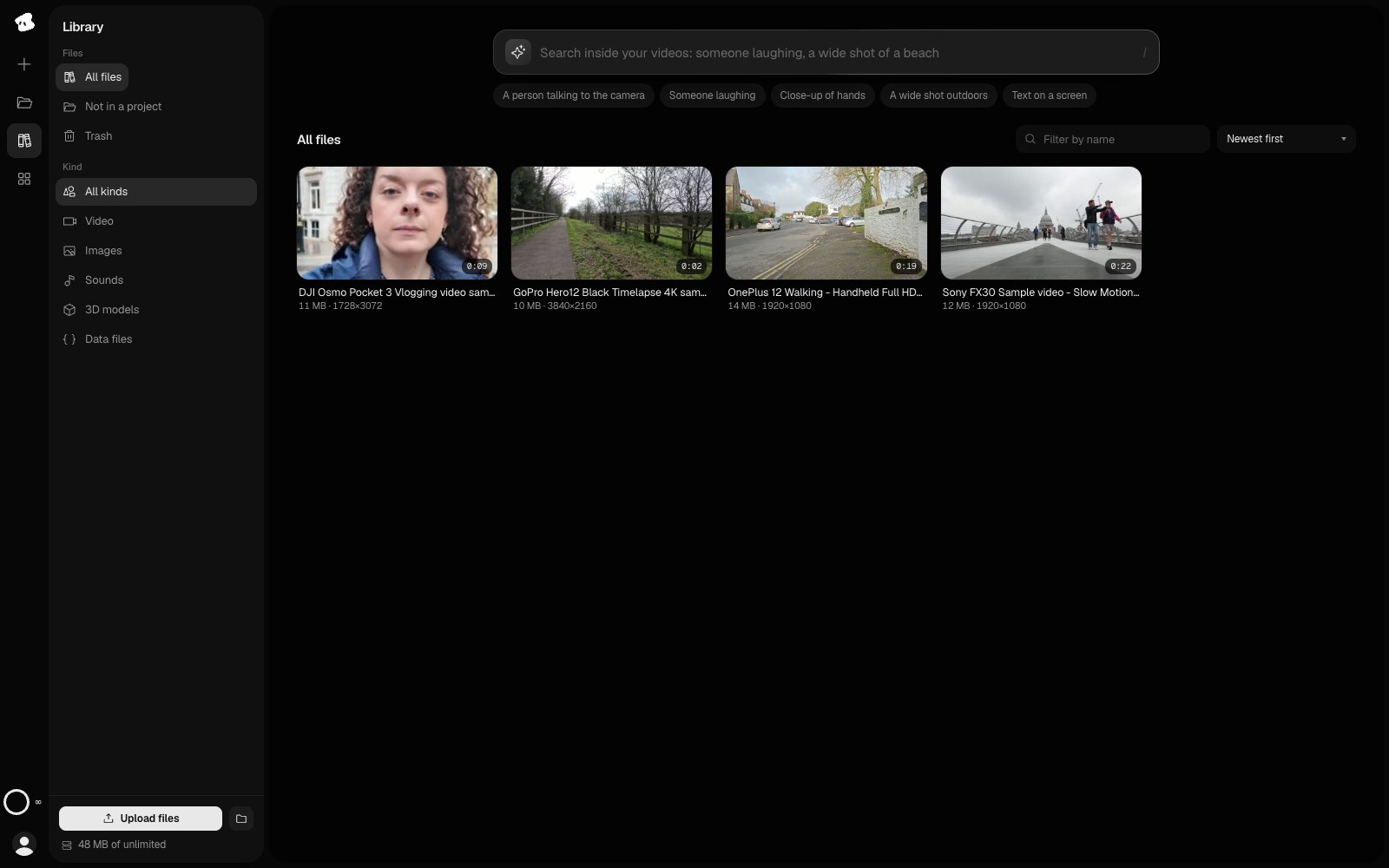
- Upload your clips. The Library takes up to 200 files at once.
- Write the goal in the brief, and say what must stay in.
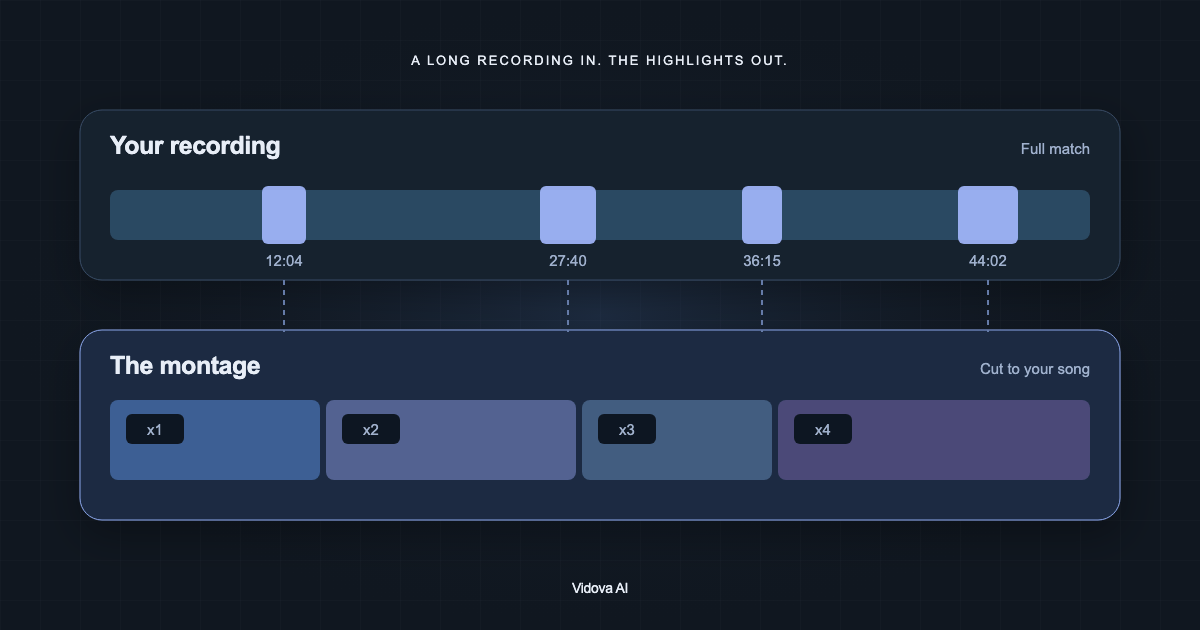
- The agent's search_footage tool finds moments by what they show or sound like, such as a dog leaping, a car window or a laugh. It answers with 5-second windows, the file name and the source seconds.
- The agent looks closely at those windows, cuts the ones that fit and checks frames of the result.
- Watch the edit. Ask for a change in chat, or drag a cut point on the timeline.
These are 40 clips from our team day. Find the moments where people laugh, the moment the boat leaves and any shot of the whole group. Make a 30-second vertical video for Instagram that ends on the group shot. Use only my clips.
This is an example brief. Search uses credits. The first search reads every video that has not been read, at about 28 credits a minute of video. Later searches read only your words, at about 0.19 credits each. At that rate, 3,000 credits would read about 107 minutes of video if you spent them on nothing else.
Two other tools take the same route. Kapwing's Kai can review raw footage, find relevant moments, remove unusable takes and arrange the rest. Merra takes a full batch of raw clips with no sorting and returns a short social video. Merra fits short videos with a voiceover and captions. Kai fits you if you already edit in Kapwing.
Method 2: cut one long video into clips
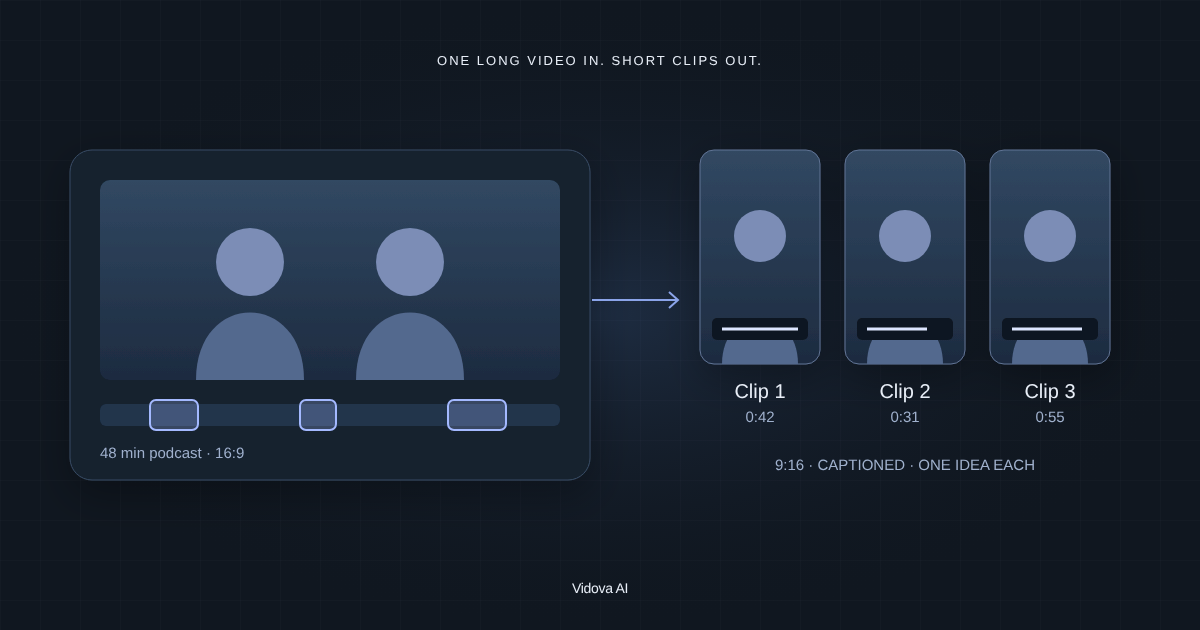
This route fits a podcast, a webinar, a stream or a long vlog.
- OpusClip ClipAnything says it can clip any type of video, and you can ask for a scene or an action in plain language. Its page says its ClipBasic mode clips only talking-head video well.
- CapCut's AI clip maker detects highlight scenes and speech. You choose the parts and the duration, and you can crop to 16:9 or 9:16.
- Descript lets Underlord pick the moments. You choose the number of clips and the duration, and each clip is its own composition to review.
Our guide to turning a long video into Shorts, Reels and TikToks covers this route in detail, and Vidova vs OpusClip compares the two.
Method 3: remove the bad takes from talking footage
This route fits footage where you talk and repeat yourself. The tool works from speech, so it does not judge the picture.
- Gling is built for YouTube creators. It removes bad takes, silences and filler words, and it works with Final Cut Pro, DaVinci Resolve and Premiere.
- Flodit cuts filler words, retakes and dead air. New accounts get 30 free credits, enough for one 30-second video.
- VEED's Magic Cut removes filler words and silences in one click.
- Clipchamp makes a transcript and finds pauses or silences over 3 seconds. You review each suggestion before it applies.
- Vidova cuts footage by what is said in the transcript, and its editing rules place each speech cut inside a pause.
Method 4: let your phone pick from your library
This route fits family videos, trips and birthdays that are already in your phone library.
- In Google Photos, tap Create, then Highlight video, and choose a template.
- Tap Help me select, then type a few words about the people, places, themes or dates, such as “Birthday” or “Japan”.
- Change the clips, music or text, then save.
iMovie's Magic Movie on iPhone and iPad is free and takes a few taps, but you select the album or the clips yourself. It then builds the video with titles, transitions and music. It needs iOS or iPadOS 27 or later.
Method 5: search the footage and pick yourself
This route fits you if you want the final choice. Adobe Premiere's Media Intelligence finds shots by visual description, spoken words or metadata, and a result opens with its range marked. Analysis runs on your device. Adobe's help says visual search works in English only, and that it can miss small details and fast motion.
In Vidova, describe a moment in AI search in the Library and press Search. The best match plays first. Use the arrow keys to move between moments, Space to play and X to select. Press New project, write what to make and press Start. The agent cuts the parts you picked.
What goes wrong, and how to fix it
| Problem | Cause | Fix |
|---|---|---|
| The tool picks a loud moment that means nothing to you | It reads signals and does not know your goal | Name the moment you want and who the video is for |
| A clip starts or ends in the middle of a sentence | The cut missed a pause | Move the cut point on the timeline, or ask for the cut at the end of the sentence |
| A search returns the wrong shot | The description is too short or too general | Describe what is in the frame in several words. Adobe gives the same advice for its search |
| The picked moment is blurry | The search matched what the shot shows, and a shot can match and still be blurred | Ask for another take of the moment, or for sharp shots only |
| A video is missing from the results | It has not finished uploading or has not been read yet | Check the upload tray, wait for it to finish, and search again |
| The edit stops at 1 minute | The trial has a 1-minute project limit | Cut your strongest minute first, or pick a plan for a longer edit |
Questions about AI picking moments
Can AI pick moments from clips with no speech? Yes, when the tool reads the picture. OpusClip's ClipAnything uses visual cues, and Vidova searches by what a clip shows. Gling works from a transcript, so it needs speech.
How much footage can I give it? Vidova's Library takes up to 200 files at once. On the trial, each clip can be up to 10 minutes and 2 GB. On the Creator plan, each clip can be up to 2 hours and 20 GB.
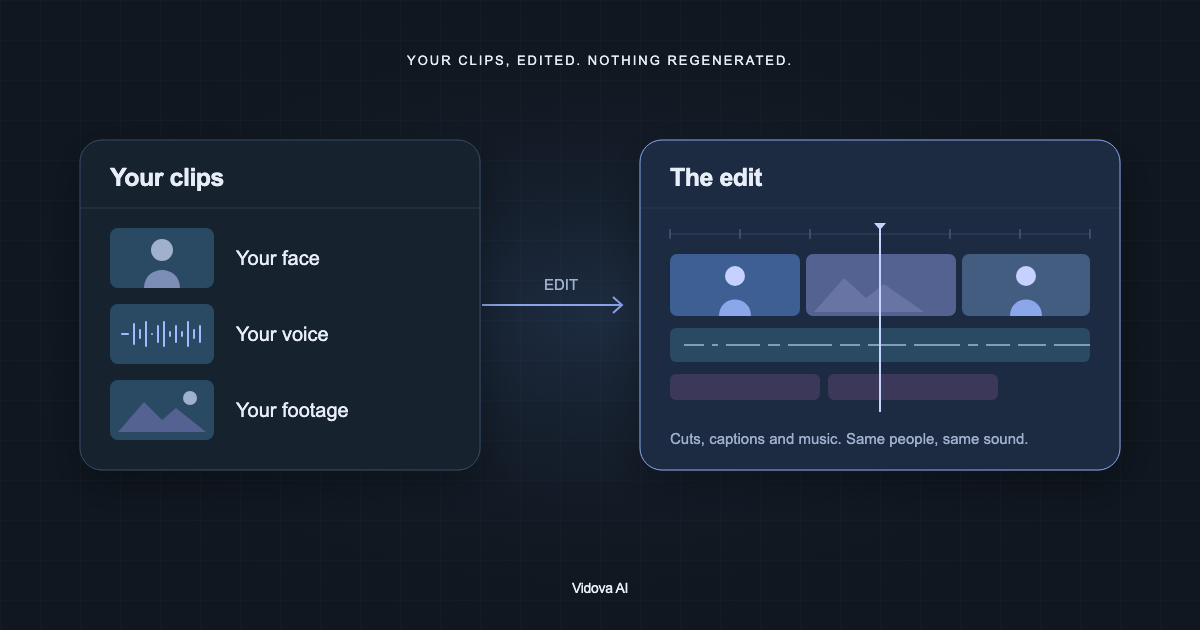
Does picking moments change my footage? No. A cut plays the frames you filmed. Our guide on what an AI editor changes explains where generation comes in.
Can I write the brief in my own language? In Vidova, yes. The agent replies in the language of your message. Adobe's visual search works in English only.
Is there a phone app? Vidova has no iPhone or Android app yet. On a phone, you can send clips to the @vidovabot bot in Telegram, or use Google Photos or iMovie for the library route.
Try it with a few clips
New Vidova accounts start on a 7-day free trial with 3,000 credits and no watermark. The trial has a 1-minute project limit. Plans start at $19 a month.