 Vidova
Best auto caption apps in 2026, free and paid
Seven auto caption apps compared on price, watermark, languages and limits: Edits, Adobe Premiere, CapCut, Captions, Submagic, VEED and Vidova's free tools.
 Vidova team
Last updated
The short answer
The best free auto caption apps without a watermark are Edits by Instagram and Adobe Premiere for iPhone. Both make captions automatically and export with no watermark. CapCut has the most caption styles, but its help center lists auto captions as a Pro tool. Captions and Submagic suit talking-head creators who pay for AI edits. For a subtitle file, Vidova's free auto subtitle generator makes an SRT or VTT file in the browser.
Key takeaways
- Edits and Adobe Premiere for iPhone make auto captions for free and add no watermark.
- A subtitle file (SRT or VTT) is plain text, so it never carries a watermark. Upload it beside the video.
- Read every caption before you post. Names, prices and brand words are where speech recognition fails most.
The short answer: the best caption app for each need
- Best free captions on a phone, no watermark: Edits by Instagram.
- Best free captions in a full editor, no watermark: Adobe Premiere for iPhone.
- Best for caption styles and effects: CapCut.
- Best for talking-head creators who want AI edits: Captions.
- Best web app for viral-style captions: Submagic.
- Best web editor with subtitles and translation: VEED.
- Best free subtitle file (SRT or VTT): Vidova's auto subtitle generator.
The seven apps compared
| App | Runs on | Auto captions on the free plan | Watermark on free exports | First paid plan |
|---|---|---|---|---|
| Edits | iPhone, Android | Yes | No | No paid plan needed |
| Adobe Premiere | iPhone, iPad, Android | Yes, unlimited | No | $7.99 a month for generative AI credits |
| CapCut | Phones, Windows, Mac, web | Listed as a Pro tool | Only on some templates and effects | Standard $9.99 a month (App Store) |
| Captions | iPhone, Mac, web | Basic features export free | Most AI features need a paid plan | Basic $9.99 a month |
| Submagic | Web | Try it free, limits not stated | No watermark on paid plans | Starter $12 a month billed yearly |
| VEED | Web | 10 minutes a month | Yes | Creator $147 a year or $25 a month |
| Vidova | Web | Yes: SRT or VTT file, and burned-in captions | The file has none, burned-in captions carry the Vidova mark | $19 a month |
Prices change, and App Store prices differ by country. Each row links to its source at the end of this guide.
How we judged them
We read each vendor's pricing page, help center and App Store listing on 27 October 2026. Most searches for caption apps ask for free captions without a watermark, so we compared:
- Cost of the captions themselves: free, limited or paid.
- Watermark: whether a free export carries the app's mark.
- Output: captions burned into the picture, a subtitle file, or both.
- Limits: minutes a month, video length and languages, as each vendor states them.
- Editing: how easily you fix a wrong word and restyle the captions.
Burned-in captions or a subtitle file?
Auto captions come out in one of two forms. The choice changes where a watermark can appear.
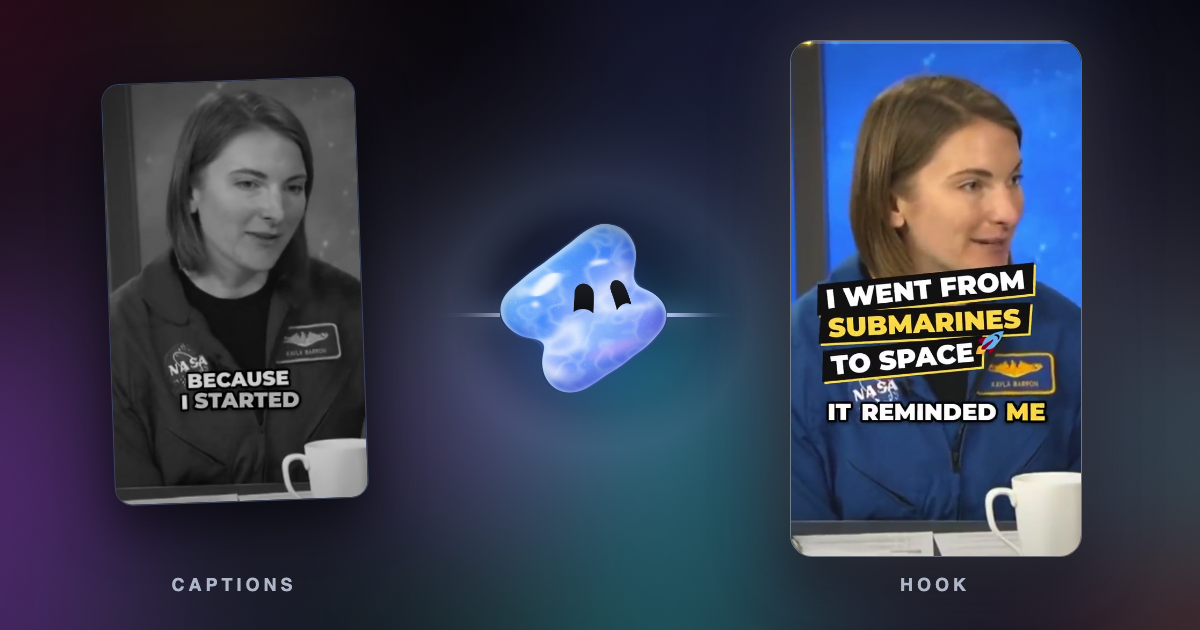
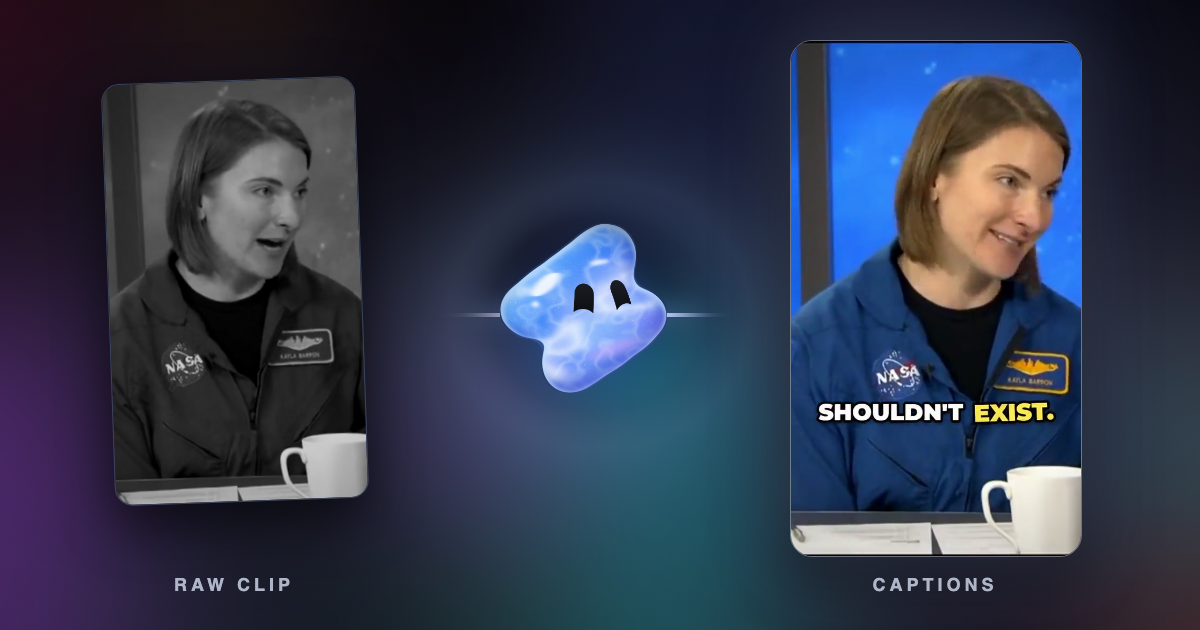
- Burned-in captions are part of the picture. They look the same on every platform and can be styled, for example word by word with key words in color. A free app that adds a watermark puts it on this video.
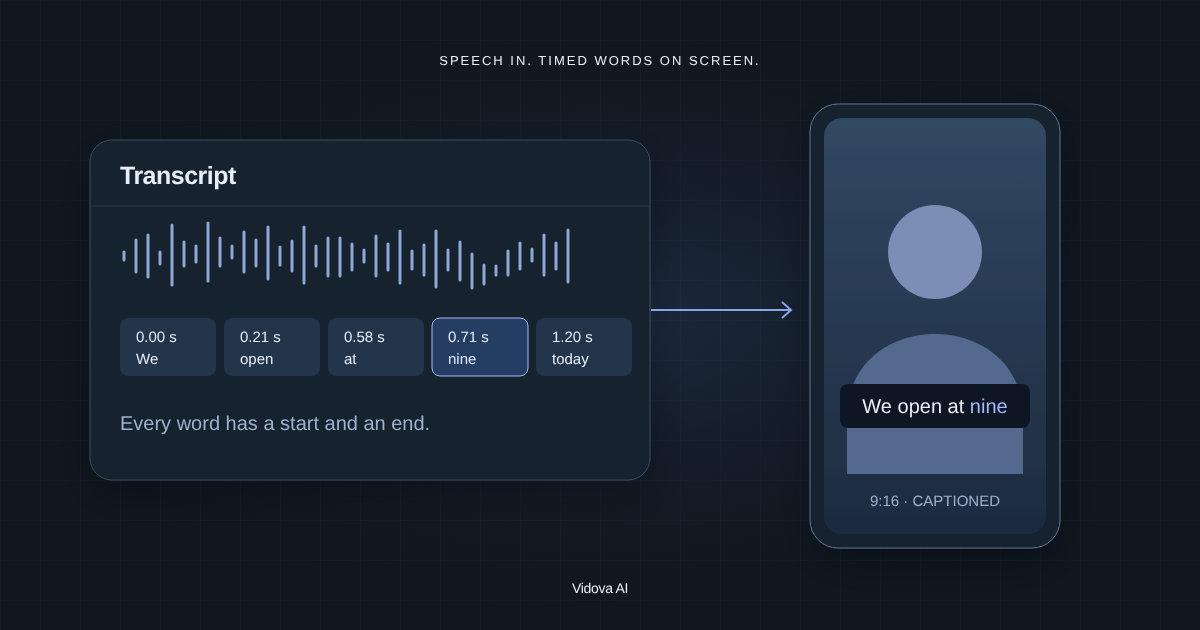
- A subtitle file (SRT or VTT) is plain text with times. You upload it beside the video on YouTube, LinkedIn or your website, and viewers can turn it on or off. A text file has no picture, so it has no watermark.
Short vertical videos usually get burned-in captions, because many people watch them with the sound off. Long videos on YouTube or a website usually get a subtitle file.
Edits by Instagram: best free captions on a phone
Edits is Meta's free video editor. Its App Store listing says it can "generate captions automatically and customize how they appear in your video" and "export your videos in 4K with no watermark". It runs on iPhone and Android.
Downside: Meta does not list how many languages the captions support, and the App Store listing says "Only for iPhone", so there is no iPad version.
Adobe Premiere for iPhone: best free captions in a full editor
Adobe's mobile Premiere app makes auto captions with AI speech to text, and Adobe calls them free and unlimited. The app has no ads or watermarks and exports up to 4K for free. You only pay for Firefly generative AI credits, at $7.99 a month or $69.99 a year in the US App Store.
Downside: Adobe does not list the caption languages on the pages we read. The app needs iOS 18 or later on iPhone.
CapCut: best for caption styles and effects
CapCut has the largest set of caption styles, animations and templates of any app here, on phones, Windows, Mac and the web. CapCut says most free exports have no watermark, but some templates, effects and stock elements add one.
Downside: CapCut's help page on Standard and Pro lists auto captions among Pro's advanced AI tools. Standard is $9.99 a month and Pro is $19.99 a month in the US App Store.
Captions: best for talking-head creators
Captions is built for people who talk to the camera. Its App Store listing promises captions in 91 or more languages and dubbing into 29 languages, with AI Edit and eye contact correction. Basic is $9.99 a month with 200 credits, and Max is $24.99 a month with 500 credits.
Downside: its help center says basic editing exports on the free plan, but "most AI-powered features require an active subscription to export". The web version is in English only.
Submagic: best web app for viral-style captions
Submagic is a web app that adds animated captions to short clips. Its site says it generates captions in more than 50 languages. Starter is $12 a month billed yearly or $19 billed monthly, and every paid plan exports with no watermark.
Downside: Starter takes videos up to 2 minutes long. Pro raises that to 5 minutes and Business to 30 minutes.
VEED: best web editor with subtitles and translation
VEED is a browser video editor with auto subtitles. Paid plans include up to 50 hours of subtitles a month, and Pro and Studio translate subtitles into more than 50 languages. Creator costs $147 a year or $25 a month.
Downside: VEED says the free plan shows a watermark in the corner of videos, exports at 720p, includes 10 minutes of auto subtitles a month and does not let you download subtitle files.
Vidova: a free subtitle file, and captions an AI agent styles for you
Vidova has two free caption tools in the browser:
- The auto subtitle generator makes subtitles from the speech in a video. You correct the lines and download an SRT or VTT file. Without signing in, it takes files up to 60 seconds, 5 times a day. Only the sound is uploaded.
- The TikTok captions tool burns animated word-by-word captions into the video. Without signing in, it takes videos up to 60 seconds and exports at 720p with the Vidova mark. Paid plans export it at 1080p without the mark.
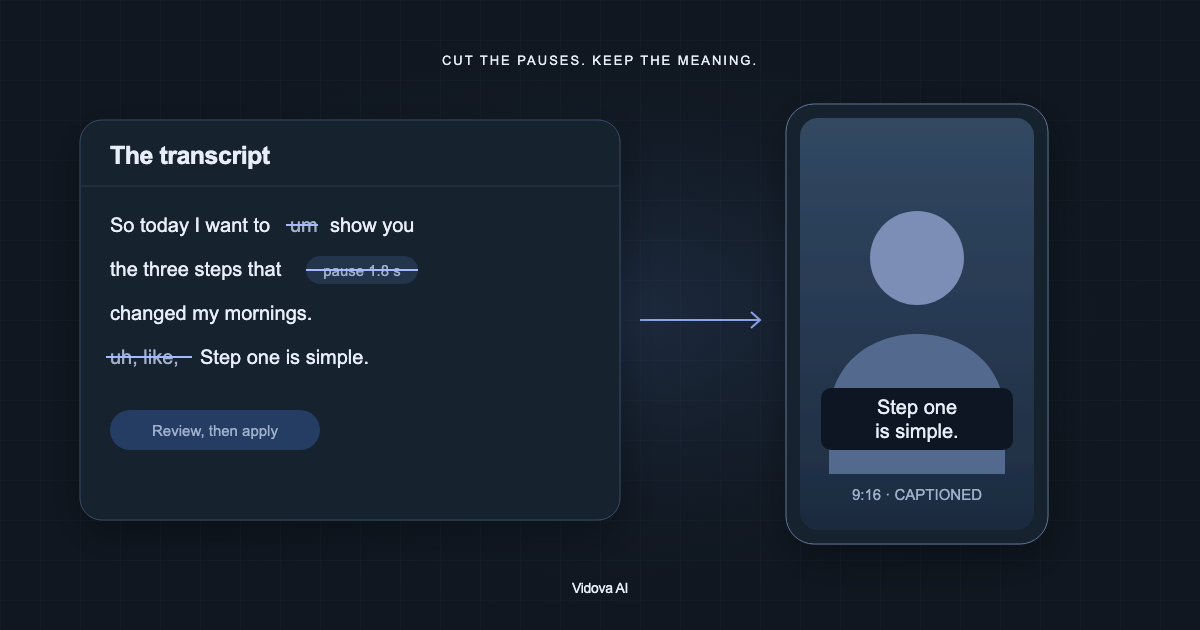
In the Vidova editor, the AI agent transcribes the speech, cuts pauses and filler words, and adds captions in two lines: the spoken words, then the one or two words that matter, larger and in color, with problem words in red.
Add captions to what I say. Put the one or two words that matter in each line in color, problem words in red, and keep the captions on my chest, clear of the TikTok buttons. Change “Vidoba” to “Vidova” wherever it appears.
Downsides: burned-in captions from the free tools and the free plan carry the Vidova watermark, and the free plan exports at 720p with projects up to 1 minute long. You can start free. Paid plans start at $19 a month, remove the watermark and export up to 4K at 60 fps.
Other options
- Descript includes captions on every plan, with transcription in 25 languages, but free exports are 720p with a watermark.
- Kapwing makes subtitles for up to 10 minutes on its free plan, and every free export carries a watermark.
How to choose
- For free burned-in captions with no watermark on a phone, use Edits or Adobe Premiere.
- For a subtitle file for YouTube or your website, use a generator that exports SRT or VTT, such as Vidova's.
- For many caption styles and templates, use CapCut and check which tools your plan includes.
- If you post talking-head clips every day and want AI edits too, compare Captions and Submagic.
- If you want the captions styled and the pauses cut for you, describe it to the Vidova agent.