 Vidova
How to turn a video into anime with AI and keep the motion and sound
Turn a real clip into anime with AI: what footage works, the prompt, how Vidova keeps the motion and sound, the anime-opening template, and what the free plan includes.
 Vidova team
Last updated
The short answer
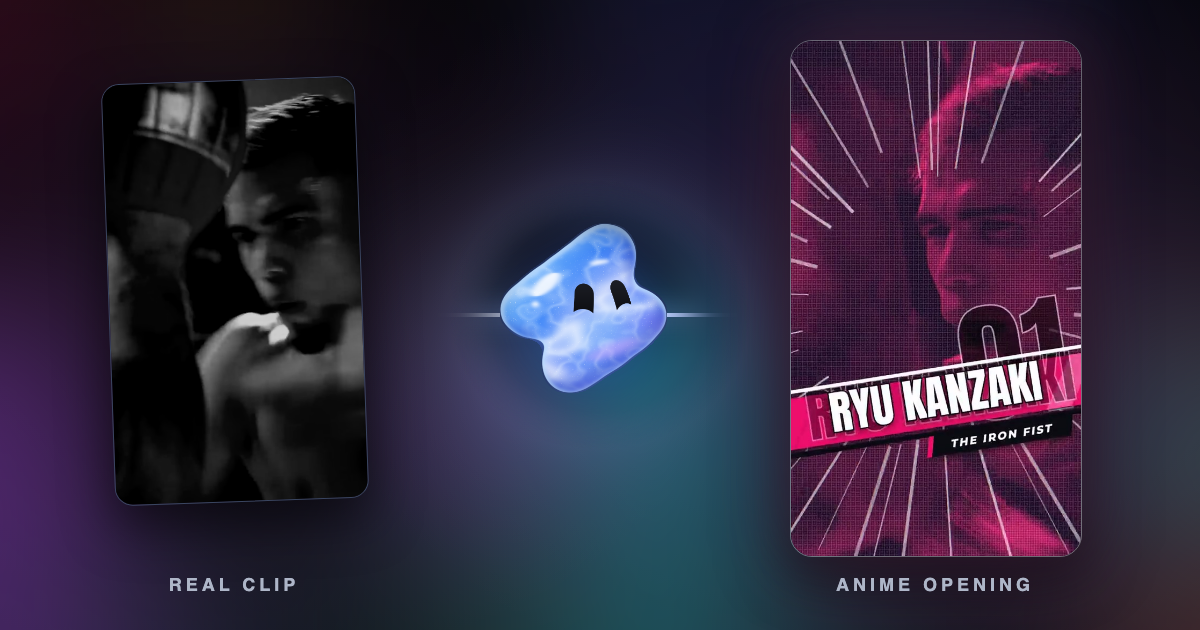
To turn a video into anime with AI, pick a short clip with one clear action and ask an AI video editor to change the whole look to anime and keep everything else the same. Vidova redraws the chosen seconds as anime, and the motion, the camera and the sound stay as filmed. You can start free. Free exports carry a Vidova watermark and are 720p.
Key takeaways
- Pick 3 to 10 seconds with one clear action: a spin, a jump, a kick, a hair flip.
- Ask for one change, the whole look as anime, and say that everything else stays the same.
- Cut from the real clip to the anime clip on the same frame mid-action, slowed down, so people see it is the same video.
What makes an anime edit work
An anime edit works when people see that it is the same moment. The strongest version plays the real clip first, speeds into the action, then cuts to the anime version on the same frame in the middle of the move. The anime part plays slowly, at about a third of normal speed with AI smoothing, while the music swells. The viewer sees the same spin, the same hair and the same camera, now drawn by hand.
We built this shape for a reel of a couple dancing in the street: the real clip, the cut into anime mid-spin, and a slow anime spin. It worked because nothing in the move changed. Only the look did.
What footage works
- 3 to 10 seconds per change. A longer video is changed in parts, or only at its best moment.
- One or two people, with faces in view and in good light.
- One clear action: a spin, a jump, a kick, a run, a hair flip.
- A steady camera or a smooth move. Heavy motion blur gives soft, smeared frames.
- Footage you own, of people who agreed to be in it.
Two ways to get an anime video
| Feature | AI anime look | Anime opening template |
|---|---|---|
| What changes | The picture is redrawn as anime | Your real clips are cut like an anime title sequence |
| What stays | Motion, camera, timing and sound | Your footage, as filmed |
| Length | 3 to 10 seconds per edit | 9:16, about 25 seconds |
| Looks like | Cel shading, drawn faces, painted backgrounds | Freeze frames as duotone name cards, speed lines, colour flashes on the beat, a title slam |
| Cost | Uses credits for each second | No AI edit needed |
You can combine them: build the opening from your clips with the anime-opening template, and turn its best moment into the drawn anime look.
Anime styles to ask for
Name the look in a few plain words and add the place and the light. Each line below is a full style for one edit.
| Look | Style line |
|---|---|
| Romance | A hand-drawn romance anime scene, cel shading, big expressive eyes, a painted golden-hour street |
| Action | A shonen action anime frame, bold ink lines, hard shadows, a sky with streaked clouds |
| Retro | A 1990s TV anime look, soft film grain, flat colours, a hand-painted city at dusk |
| Calm | A soft watercolour anime look, pastel colours, a quiet countryside in morning light |
Then add the line that keeps the clip: "Keep the people, their moves, the camera and the sound the same." Say "the whole video" when the look should cover everything, or point at one thing, such as "only the sky".
Make it in Vidova
- Upload the clip.
- Say which seconds to change and describe the anime style in a few words: cel-shaded, hand-drawn, big expressive eyes, a painted background, the light.
- The agent makes one AI video edit: "turn the whole video into" your style, then "keep everything else the same". A short, plain prompt changes only the look.
- It places the anime clip on the same seconds, compares frames before and after, and checks that the look holds through the clip. When the edit misses, it tries once more with a simpler prompt.
- It builds the cut, slows the anime part with AI smoothing, sets the music and runs a quality check.
Turn the spin in this clip into anime. Play the real clip first and speed it up into the spin, then cut to the anime version on the same frame mid-spin and slow it to about a third with AI smoothing. Style: a hand-drawn romance anime scene, cel shading, big expressive eyes, a painted golden-hour street. Keep their dance, the spin, the camera move and the sound the same. Vertical 9:16, about 12 seconds.
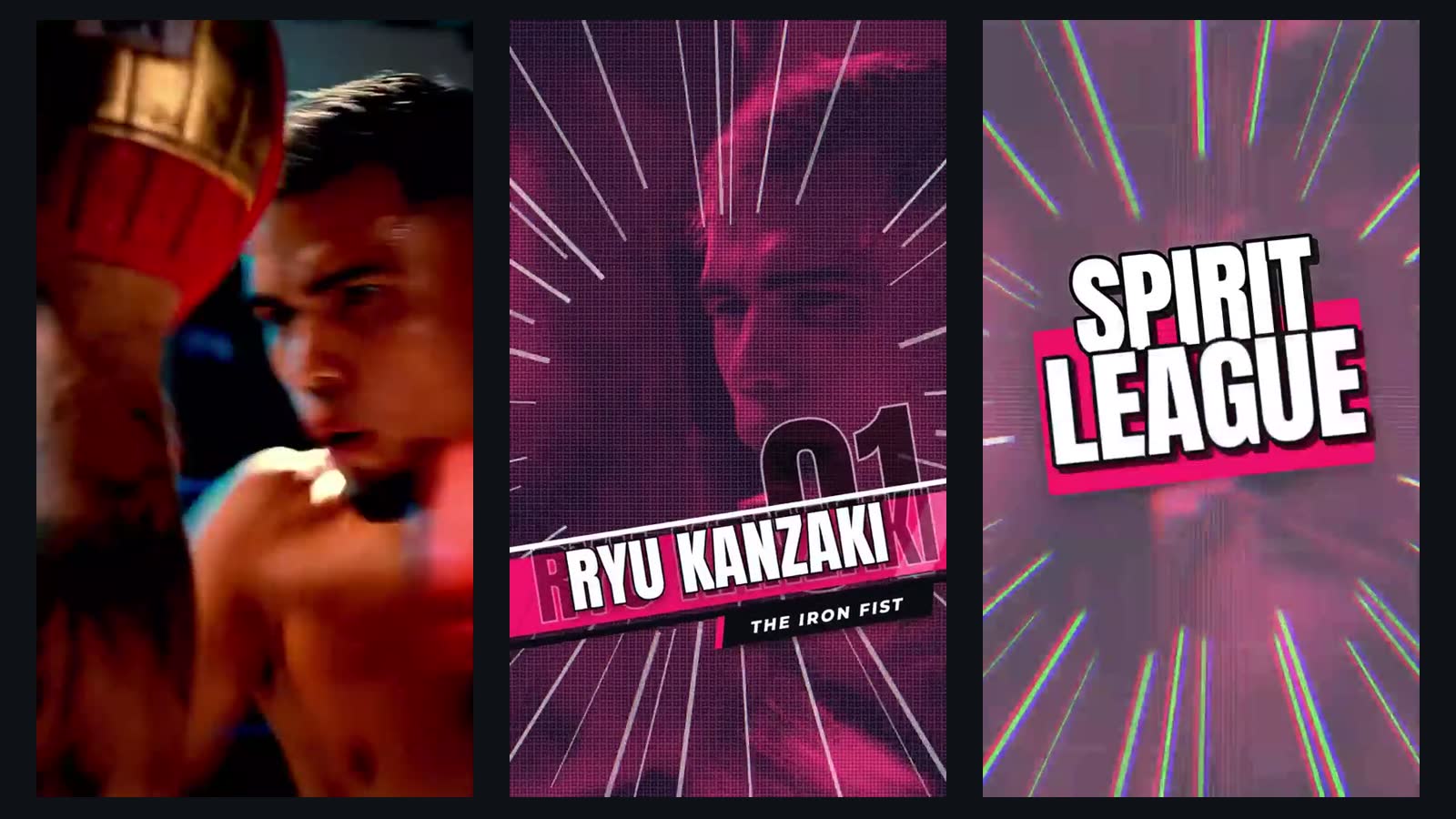
For a title sequence instead, ask: "Make an anime opening from these clips of my friends with the anime-opening template. Freeze each of us on a beat with a name card. Title: SPIRIT LEAGUE."
What the anime-opening template looks like
Can you do it free?
You can start free. On the free plan, previews and exports carry a Vidova watermark, export at 720p and 30 fps, and projects can be up to 1 minute long. The anime look is an AI video edit, which uses credits. Paid plans start at $19 a month, remove the watermark and export up to 4K at 60 fps.
Mistakes to avoid
- A long clip in one edit. Pick the 3 to 10 seconds that matter.
- Several changes in one prompt. Change the look first, then make a second change on the new clip.
- A long description of every detail. It changes things you did not name. Name the style, then say "keep everything else the same".
- Fast, blurry footage. Pick a clip where the action is sharp.
- A hard cut between unrelated moments. Cut on the same frame of the same move.
- Clips of people who did not agree, or footage you do not own.
An anime look is clearly not realistic. YouTube asks creators to disclose AI-made or altered content "that seems realistic", and lists clearly unrealistic content among the examples that do not need it (YouTube, checked October 2026).