 Vidova
How to change the background of a video with AI, no green screen needed
Change a video background with AI: cut the person out without a green screen, put them on a photo, a video or a generated scene, or key a real green screen. Step by step.
 Vidova team
Last updated
The short answer
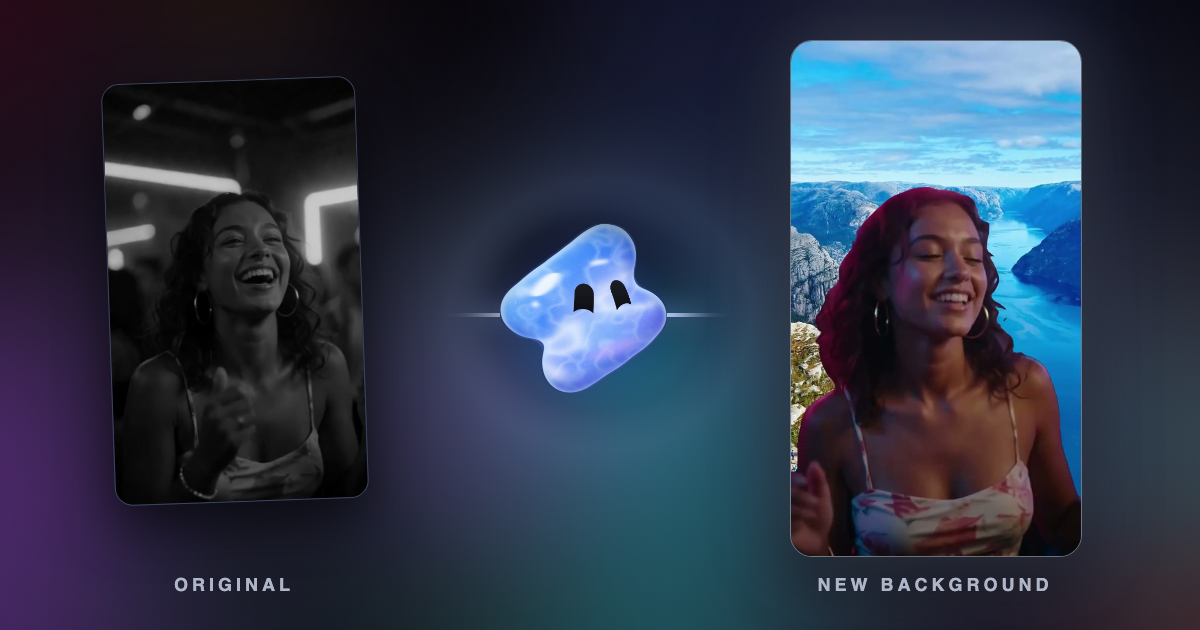
To change the background of a video with AI, cut the person out of every frame, then put a new background behind them: a photo, another video or a generated scene. No green screen is needed. If you filmed on a green screen, key the green out instead. Vidova does both, and can also redraw the background itself with an AI video edit that keeps the motion and sound.
Key takeaways
- AI cutout finds the person on every frame, hair included, so any room works as the set.
- A real green screen still gives the cleanest edges when you can light it evenly.
- Match the light, the camera height and the movement of the new background, or it looks pasted on.
Three ways to change a background
| Method | How it works | Best for | Watch out |
|---|---|---|---|
| AI cutout, no green screen | AI finds the person on every frame and cuts them out, with soft edges at the hair | Talking heads, reactions, dance clips filmed anywhere | Heavy motion blur and things that pass in front of the person |
| Green screen key | Removes one colour, the green behind the person | Planned shoots, presenters, weather-report style videos | Uneven light, green spill on the person, green clothes |
| AI video edit of the background | Redraws the background of the same shot and keeps the person's motion and the sound | A new place with light that matches the person | 3 to 10 seconds per edit. Check the face and hands after the edit |
What to film
For an AI cutout:
- One person, from the waist up or the whole body, with good light on them.
- A background that does not match their clothes or hair colour.
- A steady camera. A still background behind a shaky shot looks pasted on.
- Nothing passing in front of the person.
For a green screen:
- Light the green evenly, with no shadows or creases on it.
- Stand a step or two in front of it, so no green light falls on you.
- No green clothes and no shiny objects that reflect the green.
For the new background, pick or make one with the light from the same side as in your clip, the same time of day, and the camera at about the same height.
Make it in Vidova
- Upload the clip, and the new background if you have one: a photo or a video.
- Say what goes behind you. With no background file, describe the place and the agent generates it as an image or a video clip.
- For an AI cutout, the agent cuts you out of every frame and puts the background behind you. A photo behind a person pushes in slowly, and a little blur makes it read like a real lens.
- For a green screen, it picks the green from your footage, keys it out, keeps the hair edges soft and removes green spill.
- It previews frames, runs a quality check, and keeps your voice. Ask for changes: "more blur behind me", "make it night".
Cut me out of this clip and put me on a rooftop at sunset in a big city. Generate the rooftop with the sun behind me on the left, like the light in my clip. Blur the background a little, like a real lens, and push in slowly. Keep my voice and add captions. Vertical 9:16.
Key out the green screen in clip 1 and put me in front of clip 2, the weather map. Keep my hair edges soft and remove the green on my shoulders.
To only remove the background and download the result, use the free video background remover. It puts the person on green, blue, white, black or any colour. An MP4 file has no transparency, so pick green or blue when another editor will key it. For a single picture, use the image background remover.
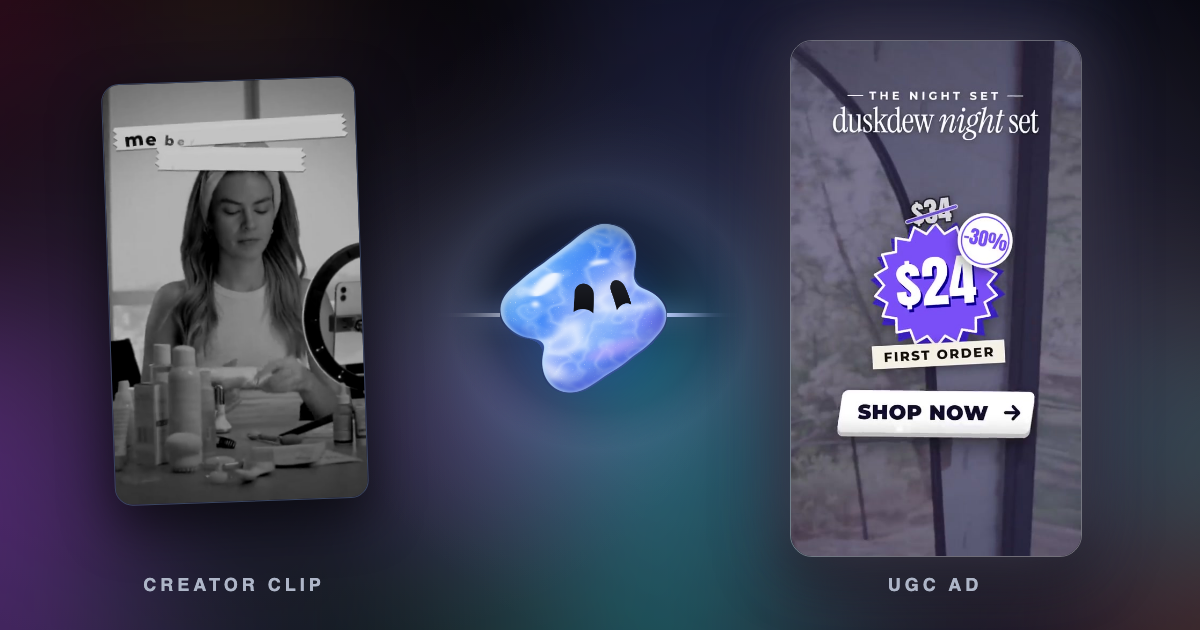
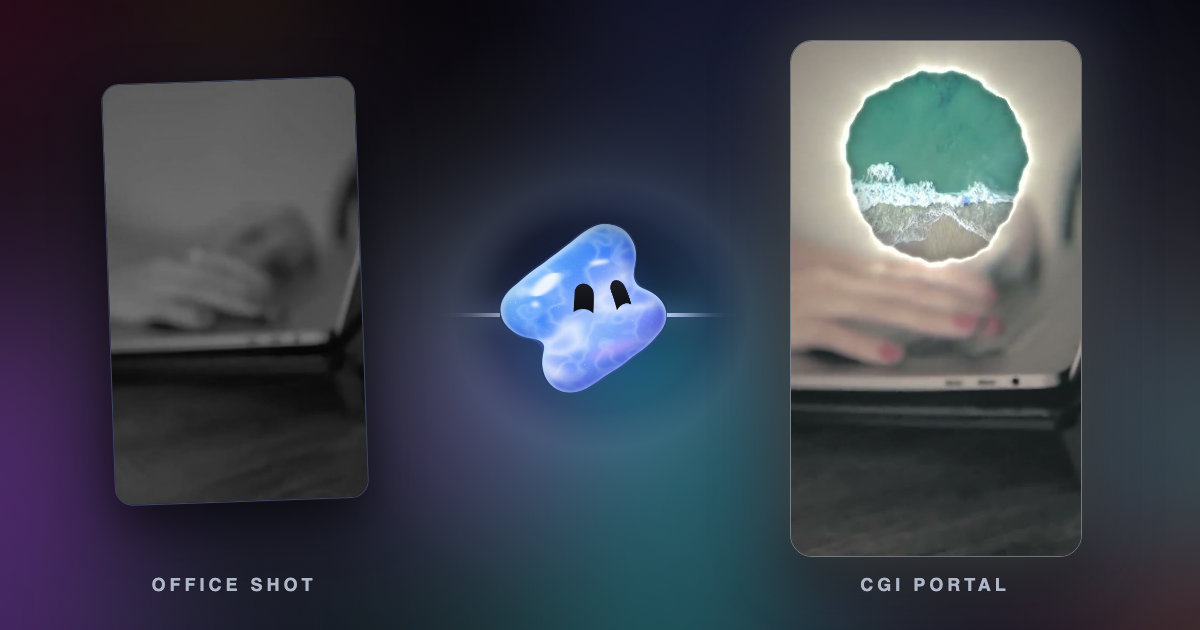
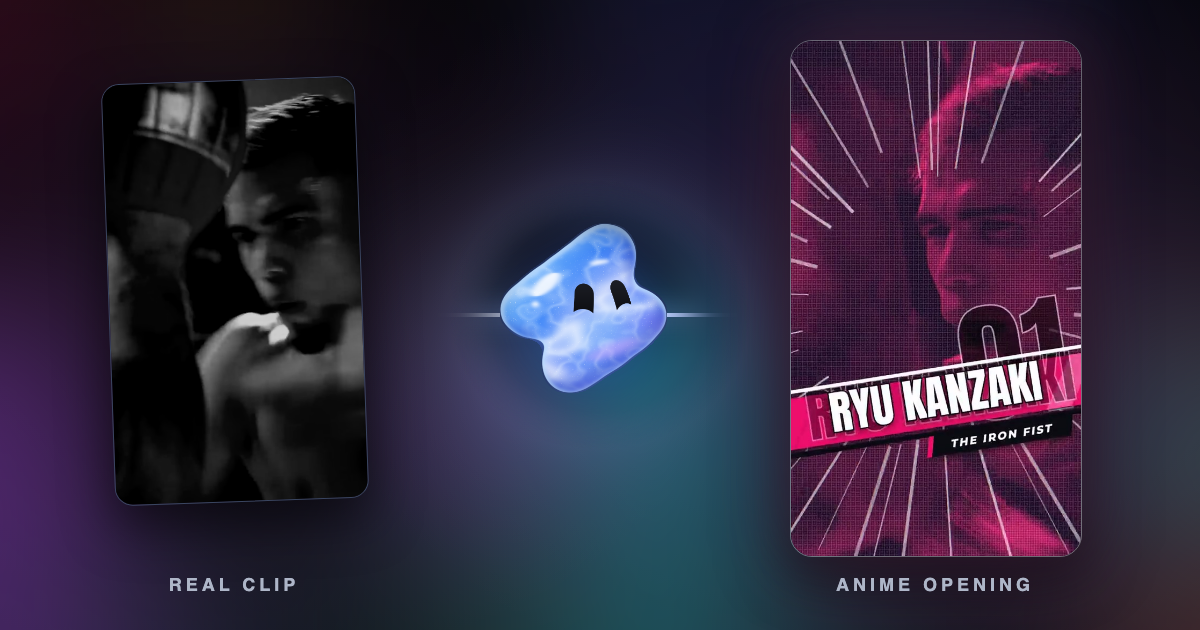
What the results look like
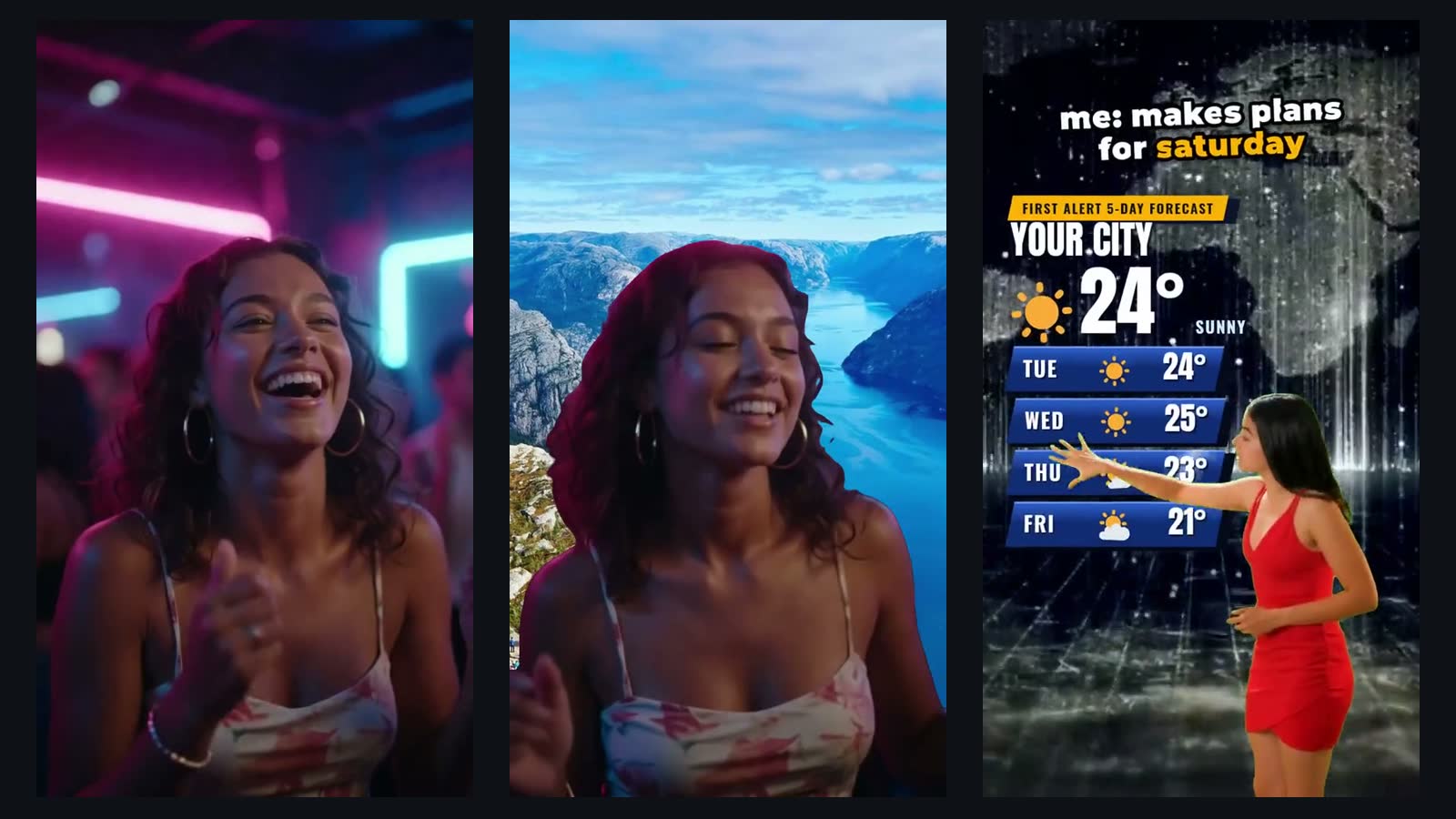
Make the new background believable
- Light: the sun or the lamp comes from the same side on the person and in the background.
- Colour: warm person, warm background. Grade both with one look.
- Camera height: a background seen from above behind a person filmed at eye level looks wrong.
- Blur: real lenses blur what is far away. A little blur on the background hides the join.
- Movement: a hand-held shot needs a moving background, or a slow push on both.
- Sound: a person cut out of a loud club still sounds like the club. Vidova can remove background noise and keep the voice.
Mistakes to avoid
- Green clothes on a green screen. The clothes disappear with the background.
- Shadows and creases on the green. They leave patches behind the person.
- A busy background behind fast-moving hair. Film against a calm wall.
- A sunny background behind a person lit by a lamp at night.
- A still photo behind a shaky shot.
- A realistic fake place with no label. YouTube requires disclosure of realistic content that alters footage of a real place (YouTube, checked October 2026).
Sources
Change your first background
You can start free. Paid plans start at $19 a month, remove the watermark and export up to 4K at 60 fps.