 Vidova
What is a J-cut and an L-cut in video editing?
A J-cut starts the next shot's sound early. An L-cut lets a shot's sound run on after the picture cuts. See both in a real interview edit, with the request.
 Vidova team
Last updated
The short answer
A J-cut is a split edit in which the sound of the next shot starts before its picture, and an L-cut is a split edit in which the sound of a shot keeps playing after the picture has cut to the next one. The names come from the shapes the audio and video make on a timeline. Editors use them to make cuts in interviews and dialogue feel smooth.
Key takeaways
- J-cut: you hear the next shot before you see it. L-cut: you still hear the last shot after you see the next one.
- Both are split edits, where sound and picture change at different times.
- They make interviews, dialogue and B-roll feel continuous instead of chopped.
What is a J-cut and an L-cut?
Both cuts are split edits. In a split edit, the sound and the picture of a cut change at different moments. Apple's Final Cut Pro guide says the technique results in L-shaped and J-shaped clips with audio extending to the left or the right, and that these are known as L-cuts and J-cuts (Apple).
| Aspect | J-cut | L-cut |
|---|---|---|
| What leads | The sound of the next shot | The picture of the next shot |
| What you notice | You hear the next scene before you see it | You still hear the last scene after it has cut away |
| Shape on the timeline | The next clip's audio reaches left under the current picture, like a J | The current clip's audio runs right under the next picture, like an L |
| Typical use | Introduce a speaker, a place or a new scene | Reaction shots, B-roll over a speaker, narration into a montage |
Adobe gives a film example of a J-cut: in The Wolf of Wall Street, the music of the next scene's “Money Chant” plays over DiCaprio's reaction to his first stock sale before the film cuts to that scene. Adobe also notes that L-cuts are more common in dialogue scenes (Adobe). Wikipedia says the L-cut often appears in interviews, documentaries and dialogue-heavy scenes (Wikipedia).
Why J-cuts and L-cuts feel natural
In real life, you often hear something before you look at it, and you keep hearing a person after you look away. A hard cut, where sound and picture change on the same frame, can feel abrupt in a conversation. A split edit lets the sound carry the viewer across the cut, so the change of picture feels like a turn of the head.
A J-cut and an L-cut in a Vidova edit
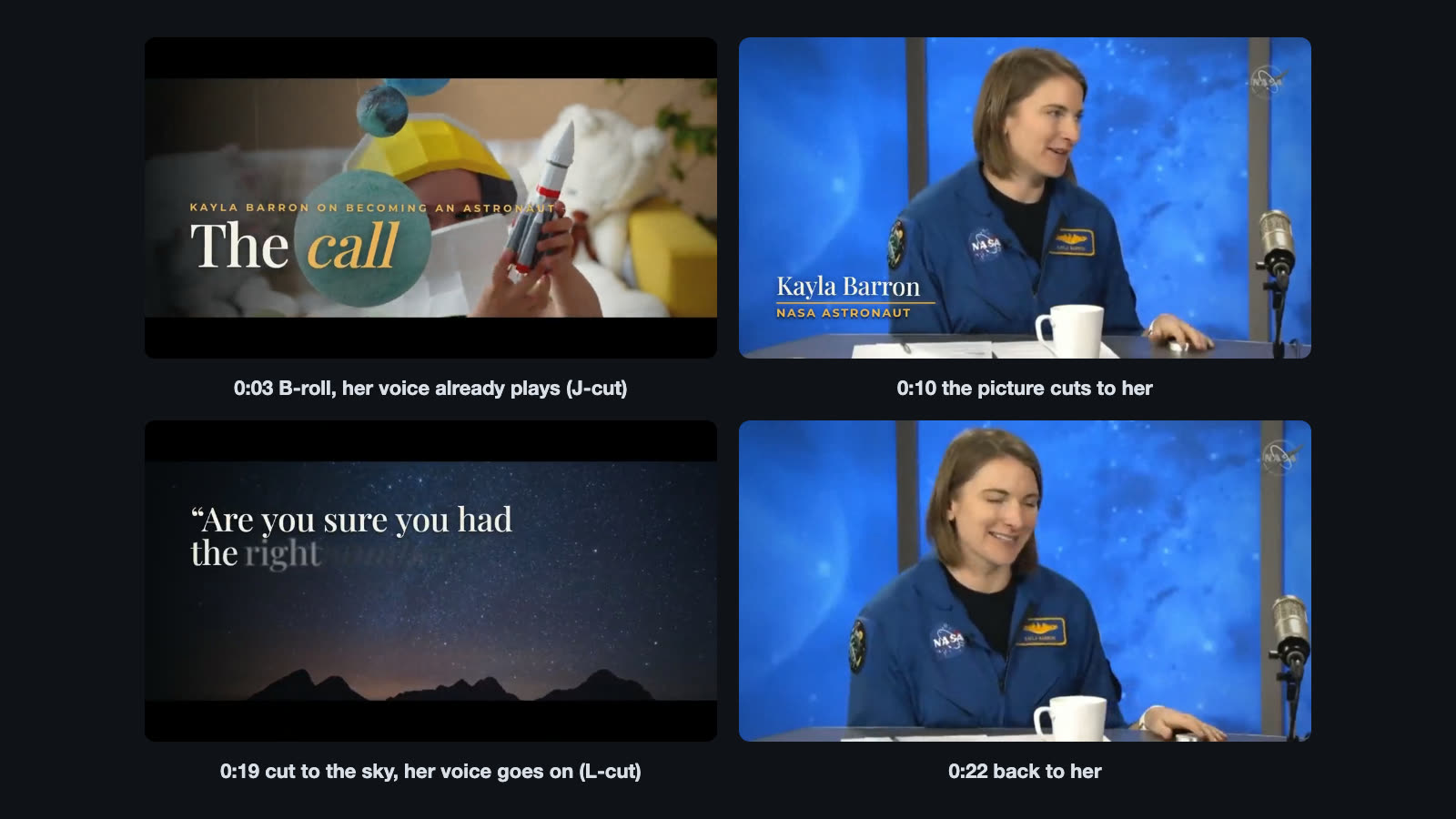
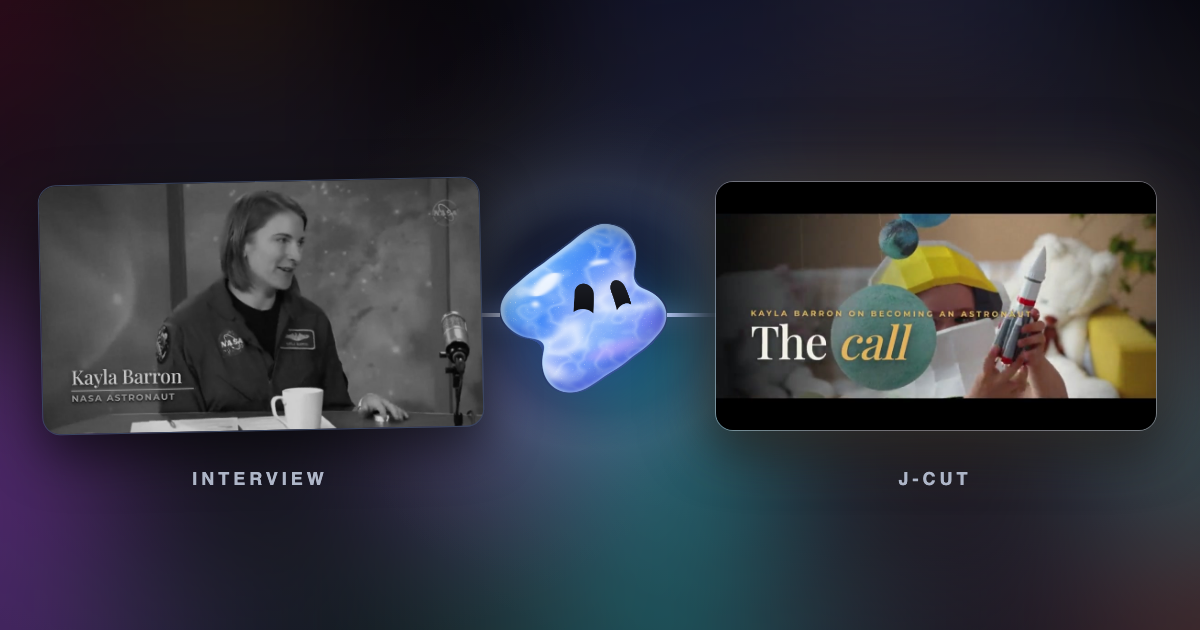
This 31-second template uses both cuts. B-roll opens the film from 0 to about 9.5 seconds. Her voice comes in at 2.4 seconds, under the B-roll, before we see her. That is a J-cut with a long lead. At about 9.5 seconds the picture cuts to her, and a lower third names her.
At about 18.3 seconds the source footage has a weak wide shot. The edit covers it with a slow night sky while her answer keeps playing, and her line comes back on screen word by word. The sound of the interview runs on past the picture cut: the shape of an L-cut.
The template keeps the interview as one unbroken clip on its own track and lays the B-roll on the track above it. The voice never breaks, because only the picture changes. The quiet classical music drops to about 14 percent of its level right after her voice comes in.
How to make J-cuts and L-cuts in Vidova
Vidova edits a real multitrack timeline, so the voice and the picture can sit on separate tracks. You describe the cut and the agent places it. The first request below is the one behind the interview documentary template.
Make a documentary cut of this interview. Open on B-roll with a big title while her voice comes in, cover the weak parts with B-roll, add a pull quote over the night sky, and use quiet classical music. The video is 16:9 and about 31 seconds long.
Start his voice two seconds before we see him, over the shot of the street. When he finishes the answer, cut to her reaction but let his last words play over it.
If you finish your edit in another editor, Vidova exports Premiere Pro (FCPXML) and DaVinci Resolve (OTIO) timelines. In Final Cut Pro, Apple's guide says to choose Clip > Expand Audio (Control-S), then drag the start of the video portion of the clip to the right to make a J-cut.
When to use a split edit and when not
- Use a J-cut to bring in a new speaker, to start a scene with its sound, or to open a film on B-roll while the narrator starts talking.
- Use an L-cut to show a listener's reaction, to cover a cut in an interview with B-roll, or to let a line land over the next image.
- Use a hard cut when the picture and the sound must hit together: a punchline, a beat drop, a scare or a lip-synced line.
Common J-cut and L-cut mistakes
- Two voices at once. When the overlap puts two people on top of each other, trim one of them or lower its level.
- A click at the edit. A sound that starts or stops on a hard edge pops. Add a short fade at each audio edit.
- Music that does not move. Lower the music under speech so the voice carries the cut.
- A lead that is too long. If the viewer hears a voice for a long time with no clue who it is, put a name or a related image on screen.
- Cutting the picture mid-gesture. Even with the sound running on, the picture cut should land on a natural pause or a look.
Sources
- Create split edits in Final Cut Pro for Mac, Apple (checked October 2026)
- L cut: What is an L cut and J cut in film?, Adobe (checked October 2026)
- L cut, Wikipedia