How to record a polished SaaS product demo
A step-by-step checklist for a SaaS product demo video: plan the path, set up the screen, record with automatic zoom, cut pauses, add captions and chapters, then export.
Last updated
The short answer
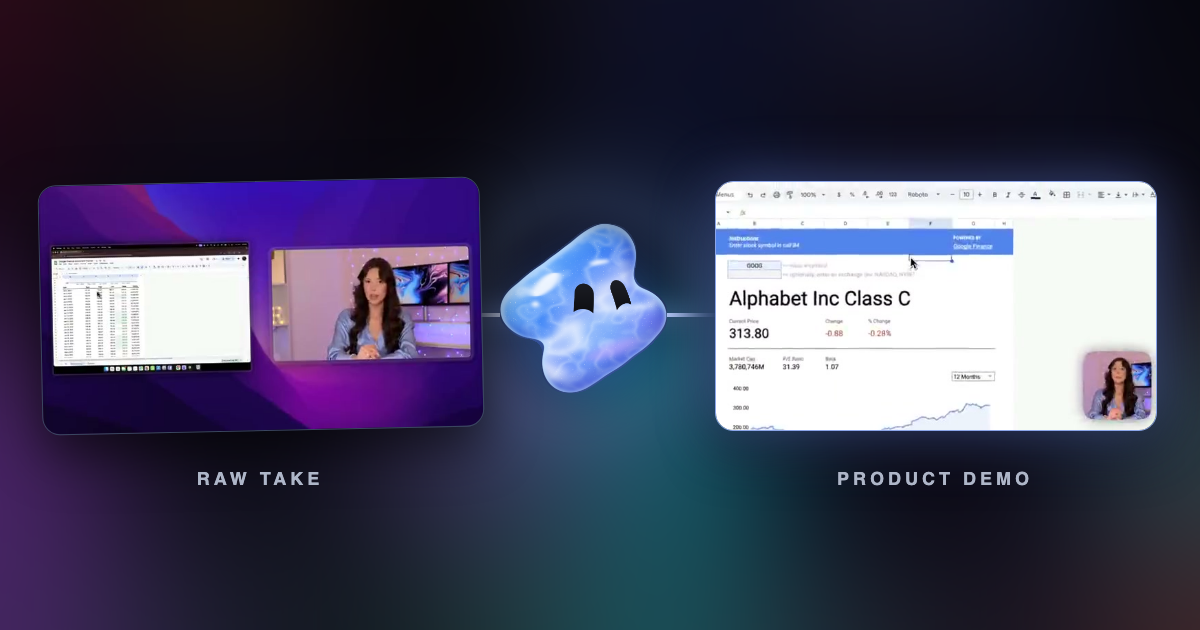
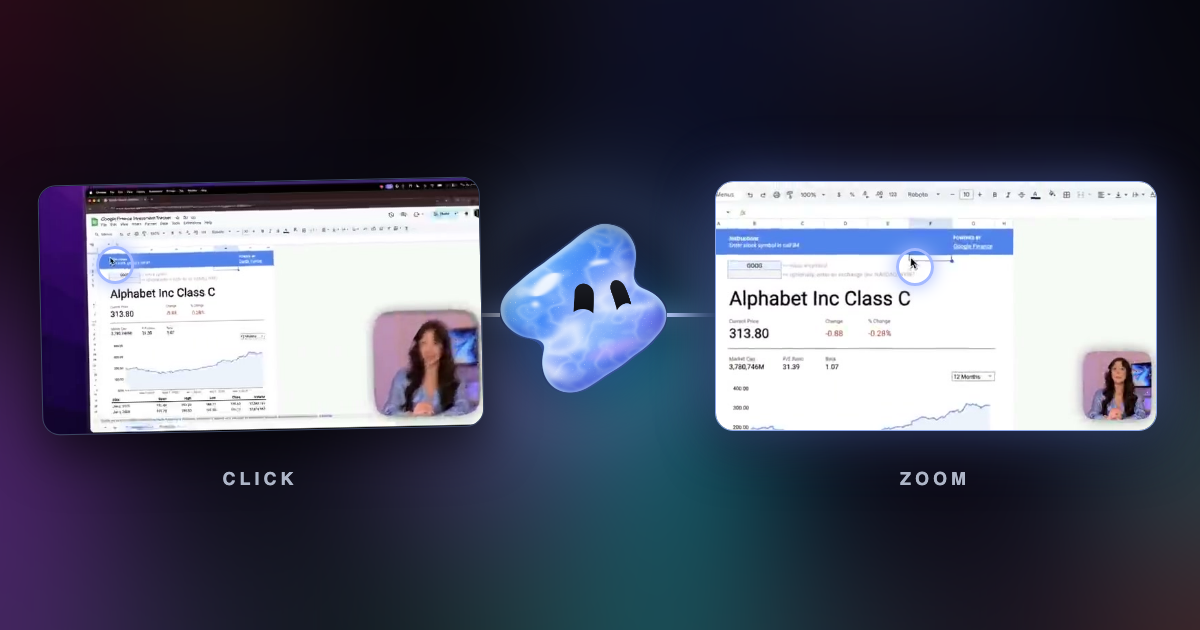
To record a polished SaaS product demo, plan one path through the product, prepare a clean account with real-looking data, and record with a recorder that zooms in on clicks. Then cut pauses, check the captions, add chapters and export a 16:9 version for your site plus a vertical version for social posts. In Vidova the zooms, cuts, captions and chapters are added after the take, and each one stays editable.
Key takeaways
- Plan one path and one outcome. A demo that shows everything shows nothing.
- Prepare the account first: clean data, no notifications, a window size that fits the frame.
- Let the editor do the zooms, cuts, captions and chapters, then review each one.
Plan the path
- Pick one viewer and one outcome, such as a new user sending their first invoice.
- Write the steps as clicks: open, fill, send, see the result.
- Write two or three sentences to say at each step. Put them in the teleprompter.
- Aim for 60 to 120 seconds for a feature demo and 3 to 5 minutes for a full tour.
Prepare the screen
- Use a demo account with names, prices and dates that look real.
- Turn on Do Not Disturb and close other tabs and apps.
- Record one window, not the full display. Size it to 16:9 if you can.
- Zoom the browser to 110 or 125% so text is readable on small screens.
Record the take
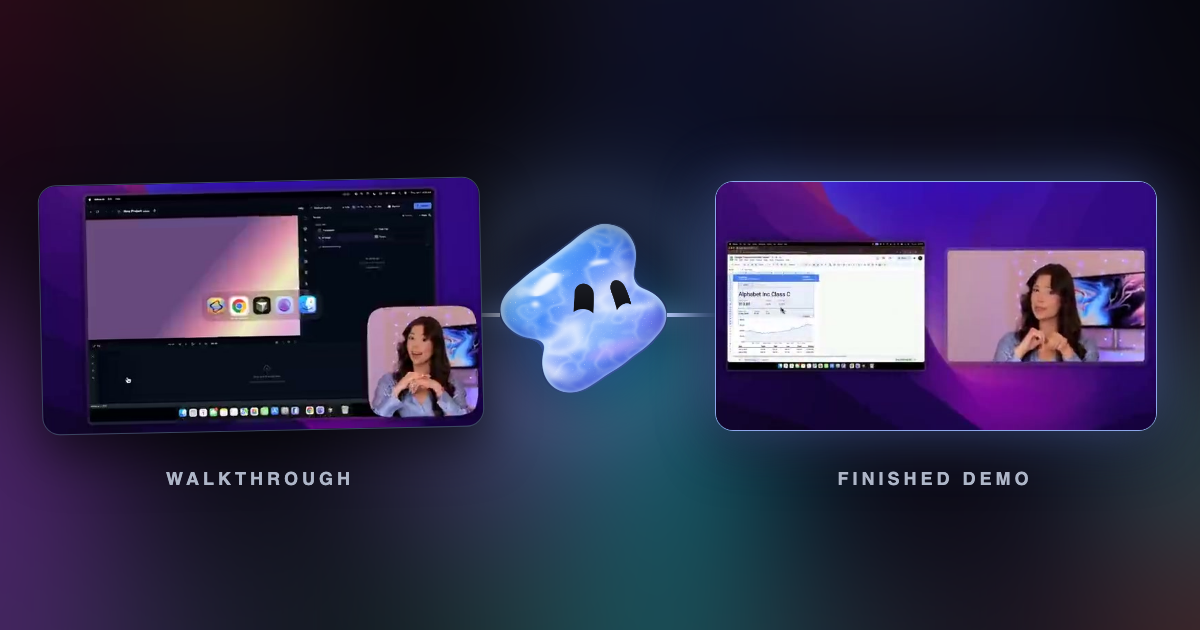
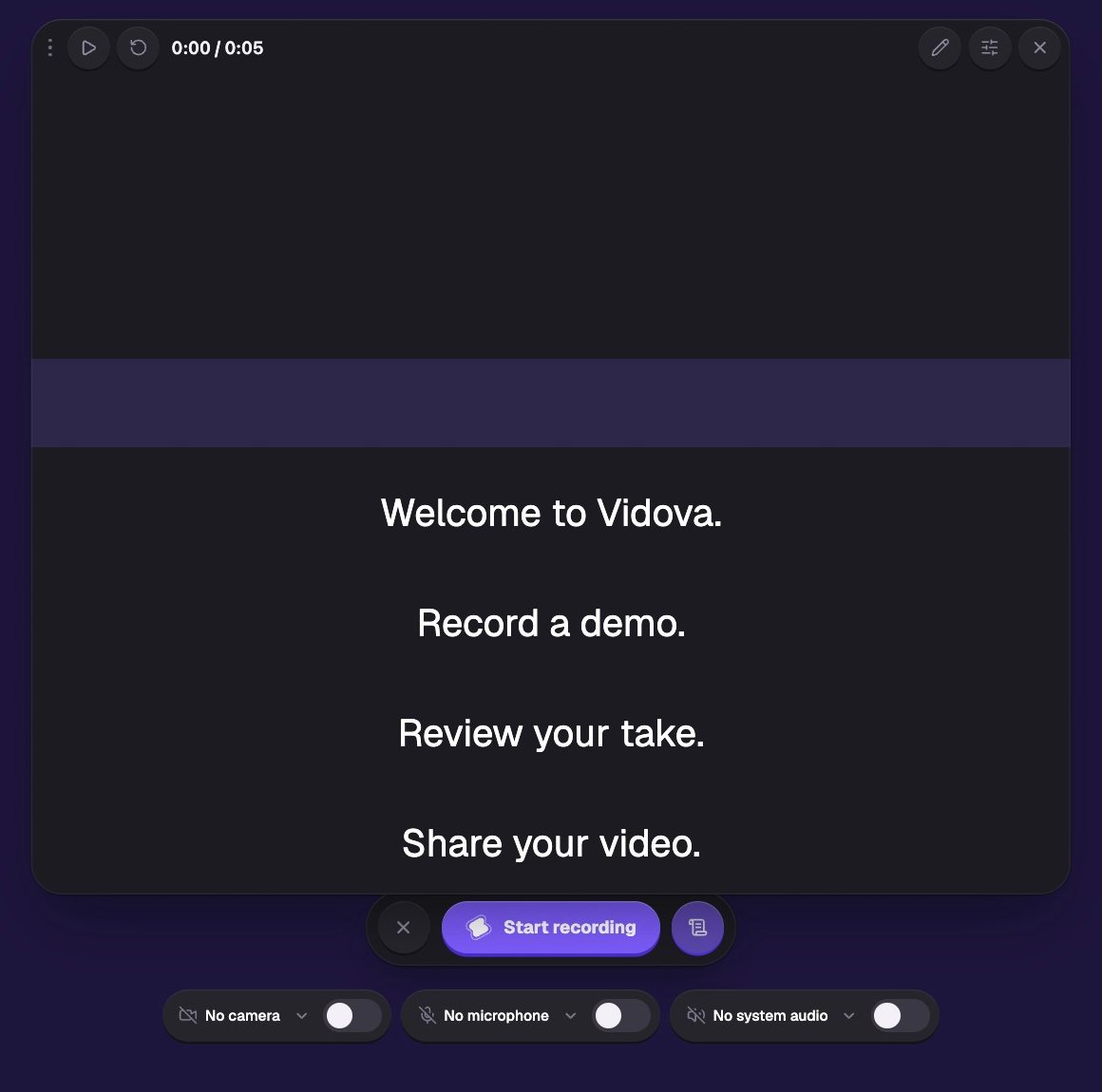
In Vidova, choose Record, pick the window and turn on your camera and microphone. Open the teleprompter with your script. Record at 60 frames per second for smooth scrolling and cursor moves.
- Click in bursts where you want a zoom, and hold for a beat after each result.
- If you stumble, pause, then say the sentence again. The pause makes the cut easy.
- Use the global shortcuts to pause while you set up the next step.
Clean up the take
- Play the automatic zooms once. Delete or move any that miss.
- Cut silences and filler words, then listen for clipped words at each cut.
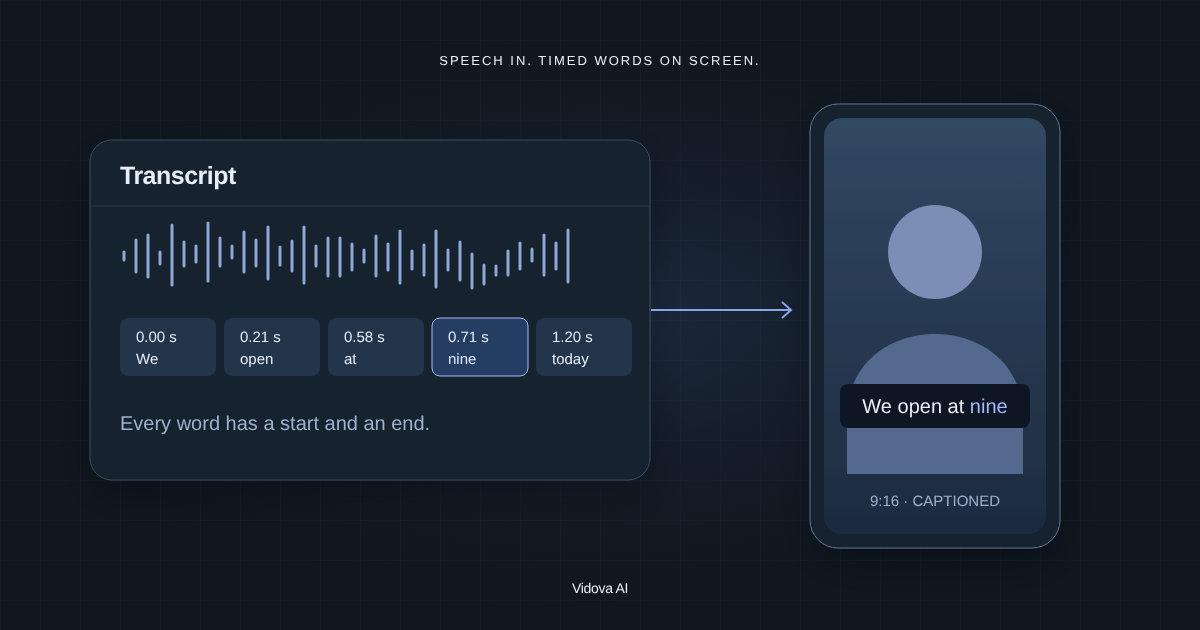
- Check the captions for product names, numbers and spelling.
- Add chapters so viewers can jump to the step they need.
You can also ask the agent in plain words:
Cut the long pauses and my false starts, keep the zooms on clicks, fix the spelling of our product name in the captions, and add chapters for each step.
Export for each place
- Website and help center: MP4, 1920 × 1080, 16:9.
- LinkedIn and X: the same 16:9 file, with captions on.
- Reels, TikTok and Shorts: a 9:16 version that follows the zooms.
- Premiere Pro or DaVinci Resolve: export FCPXML or OTIO for a final pass by an editor.