How to edit video with Claude Code and the Vidova MCP server
Connect Claude Code to Vidova with one command, ask for an edit, and watch the agent build a timeline, check frames and fix its own mistakes. Real screenshots inside.
Last updated
The short answer
To edit video with Claude Code, add the Vidova MCP server with claude mcp add --transport http --scope user vidova https://mcp.vidova.ai/mcp, sign in in the browser, and describe the edit. Claude Code creates or opens a Vidova project, edits the timeline, checks rendered frames, and gives you a link to the project in the web editor.
Key takeaways
- One command connects Claude Code to Vidova. The first tool call opens a browser sign-in.
- Name the source clip and the text you want. Ask the agent to check frames at the start, middle and end.
- The edit lives in a Vidova project, so you can open it in the web editor and keep changing it.
Connect Claude Code to Vidova
Claude Code supports remote MCP servers over HTTP with OAuth sign-in. Vidova runs a hosted server, so there is nothing to install or run on your computer. Add it once at user scope and it is available in every folder.
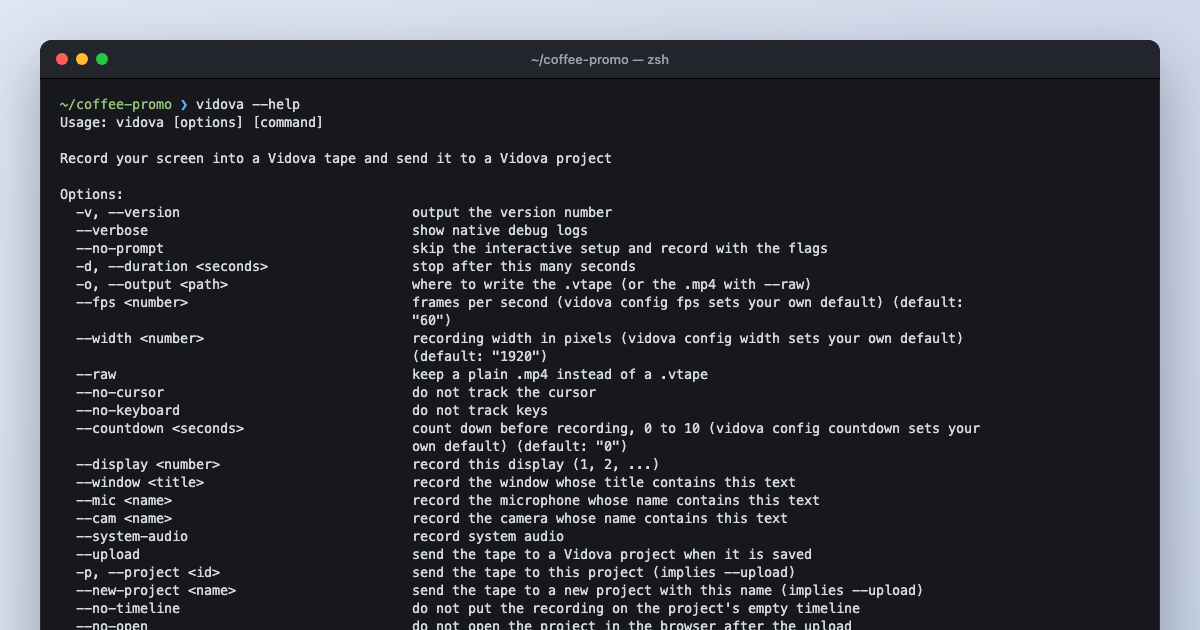
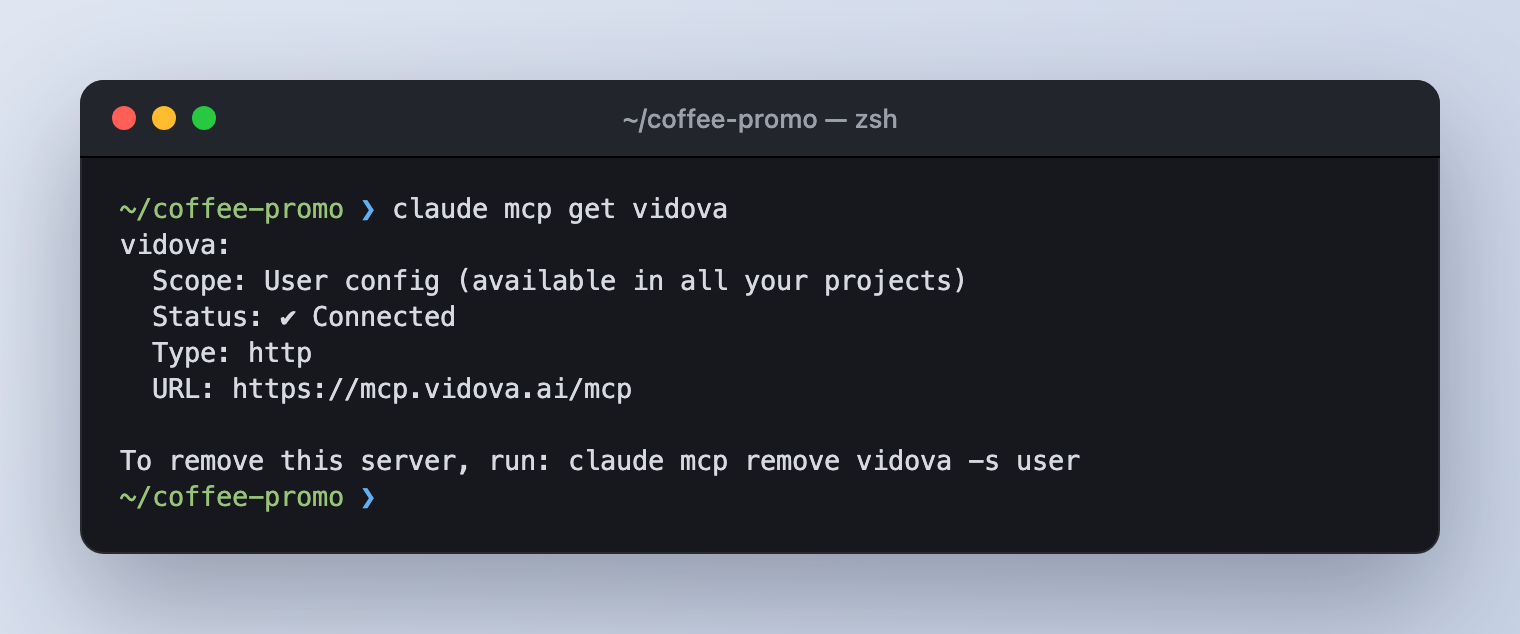
claude mcp add --transport http --scope user vidova https://mcp.vidova.ai/mcpRun /mcp in Claude Code and choose Authenticate for vidova. Claude Code opens auth.vidova.ai in your browser. Sign in with the same account you use for the Vidova editor. You can confirm the connection from the terminal:
Codex, Cursor and Windsurf use the same URL. The Vidova MCP guide has the exact setting for each client.
Write a brief the agent can act on
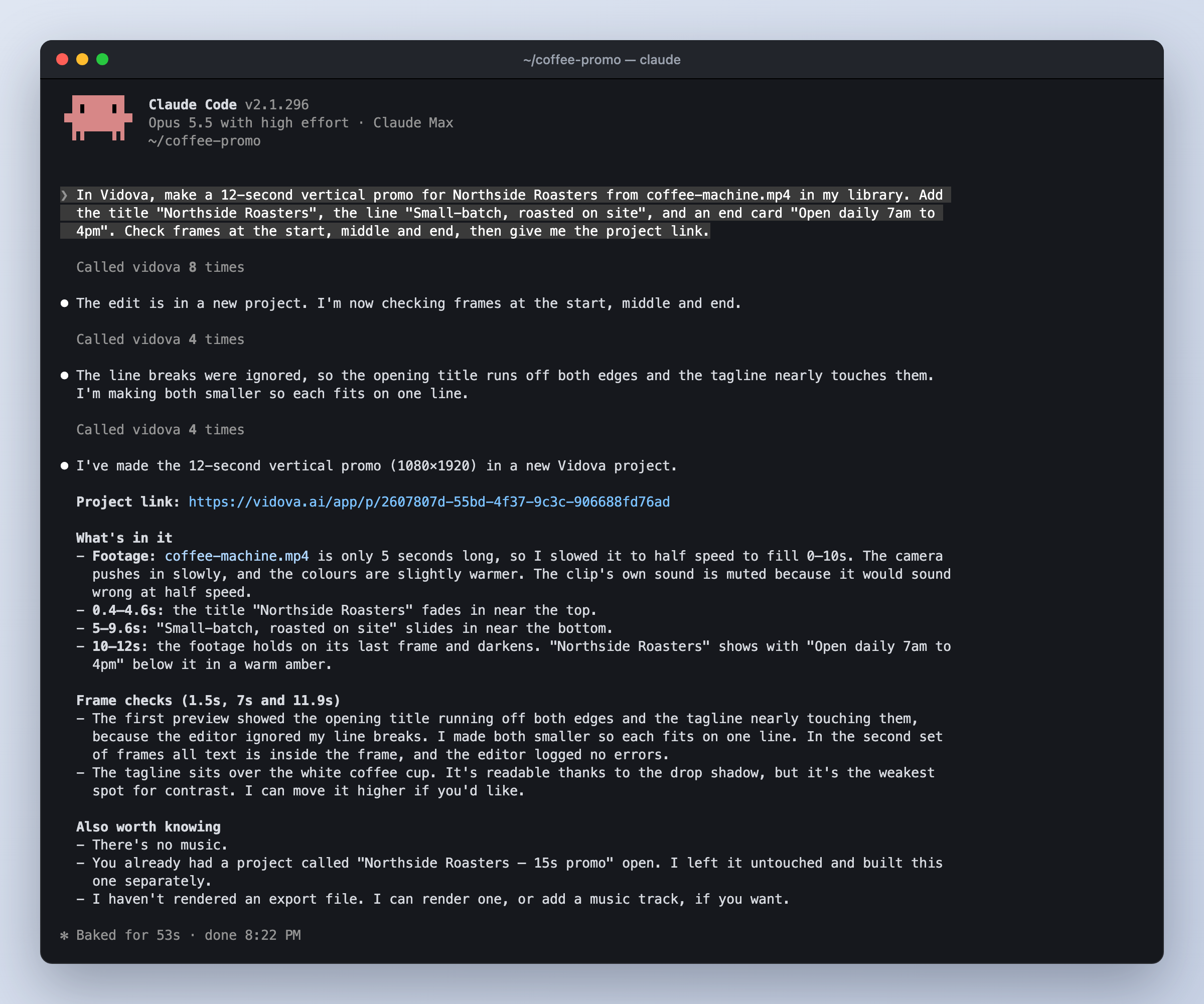
We tested this with a 5-second clip of an espresso machine that was already in our Vidova Library. The brief names the clip, the format, every line of text, and the checks we wanted.
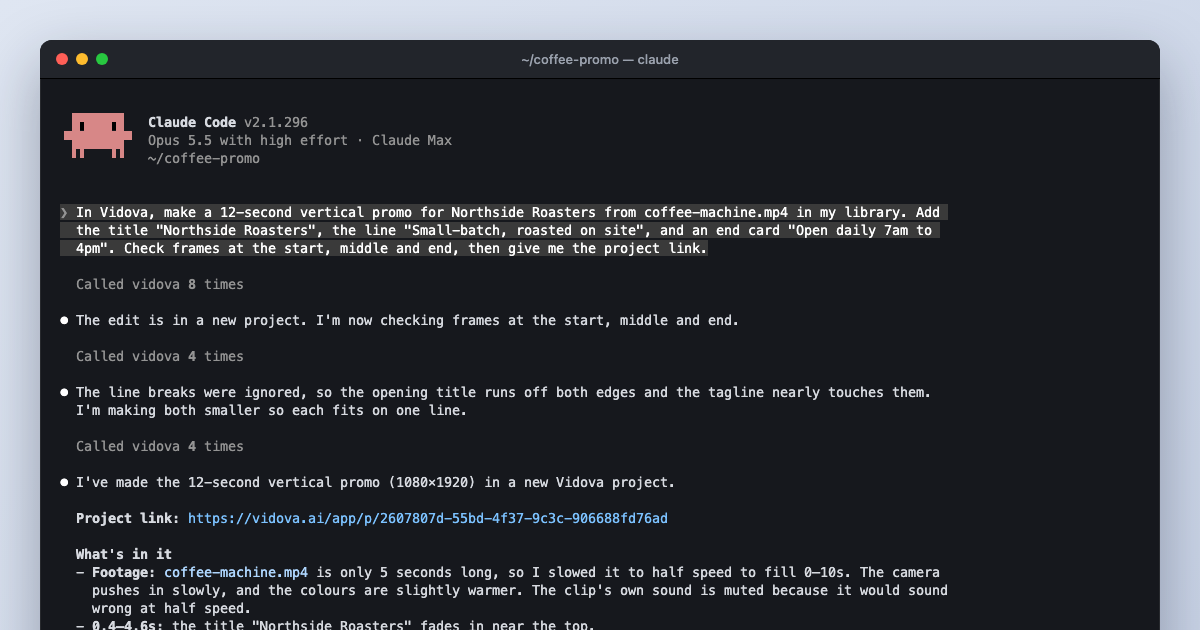
In Vidova, make a 12-second vertical promo for Northside Roasters from coffee-machine.mp4 in my library. Add the title "Northside Roasters", the line "Small-batch, roasted on site", and an end card "Open daily 7am to 4pm". Check frames at the start, middle and end, then give me the project link.
A specific brief removes guesswork. The agent does not need to ask which clip you mean, how long the video is, or what the end card says.
What the agent did
Press Ctrl+O in Claude Code to see every tool call. The agent read the open project, searched the Library for the clip, and searched Vidova's edit templates before it wrote anything.
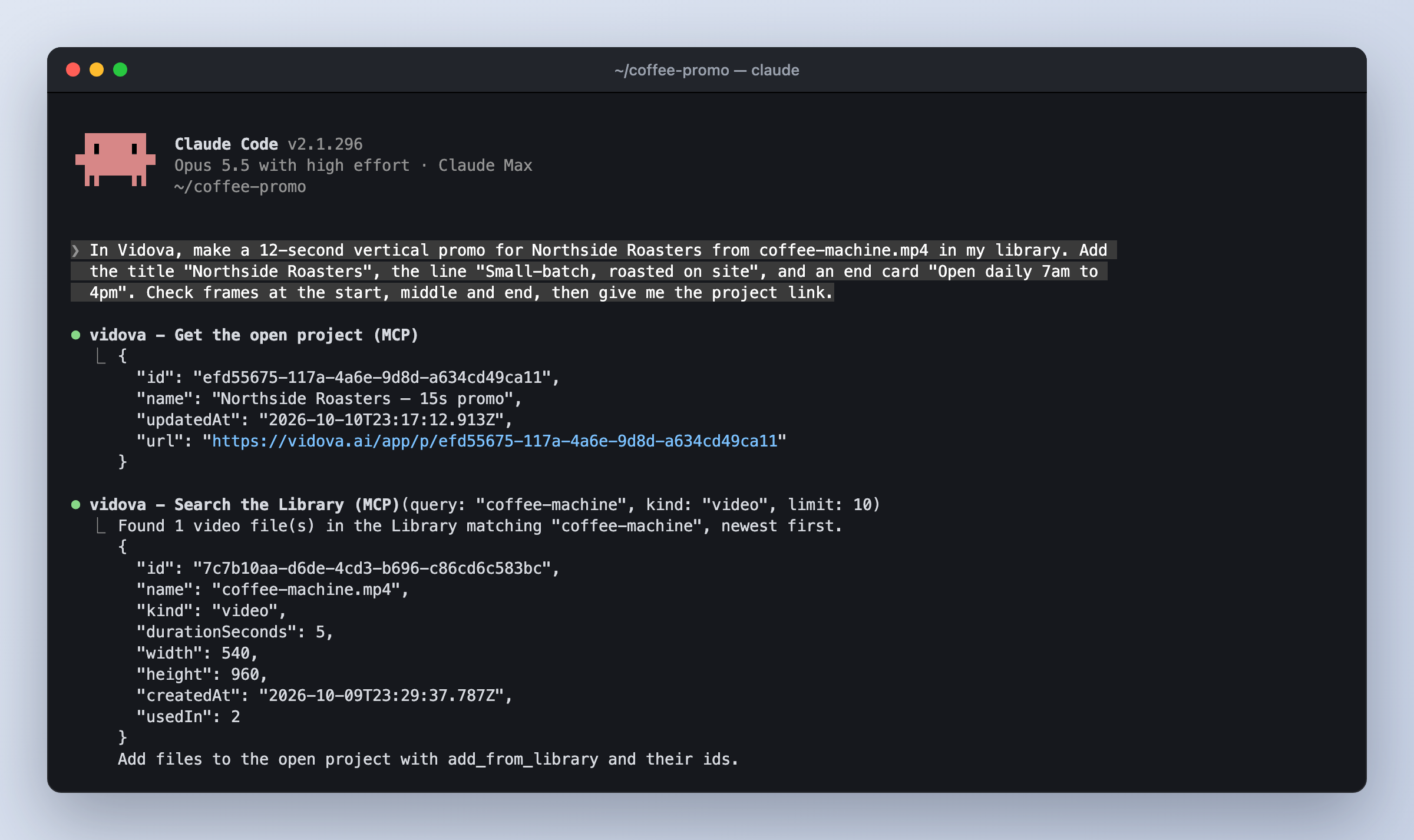
No template matched a single-clip promo, so the agent created a new project, added the clip from the Library, and wrote the timeline. A Vidova project is a text document called a film. The agent reads it with read_film and changes it with patch_film, which replaces exact lines. That makes each change small and easy to review.
The agent checks frames and fixes its own mistakes
A common claim is that an AI model reads transcripts, not pixels. That depends on the tools. Vidova's preview_frame tool renders the timeline at a time you choose and returns the image to the model.
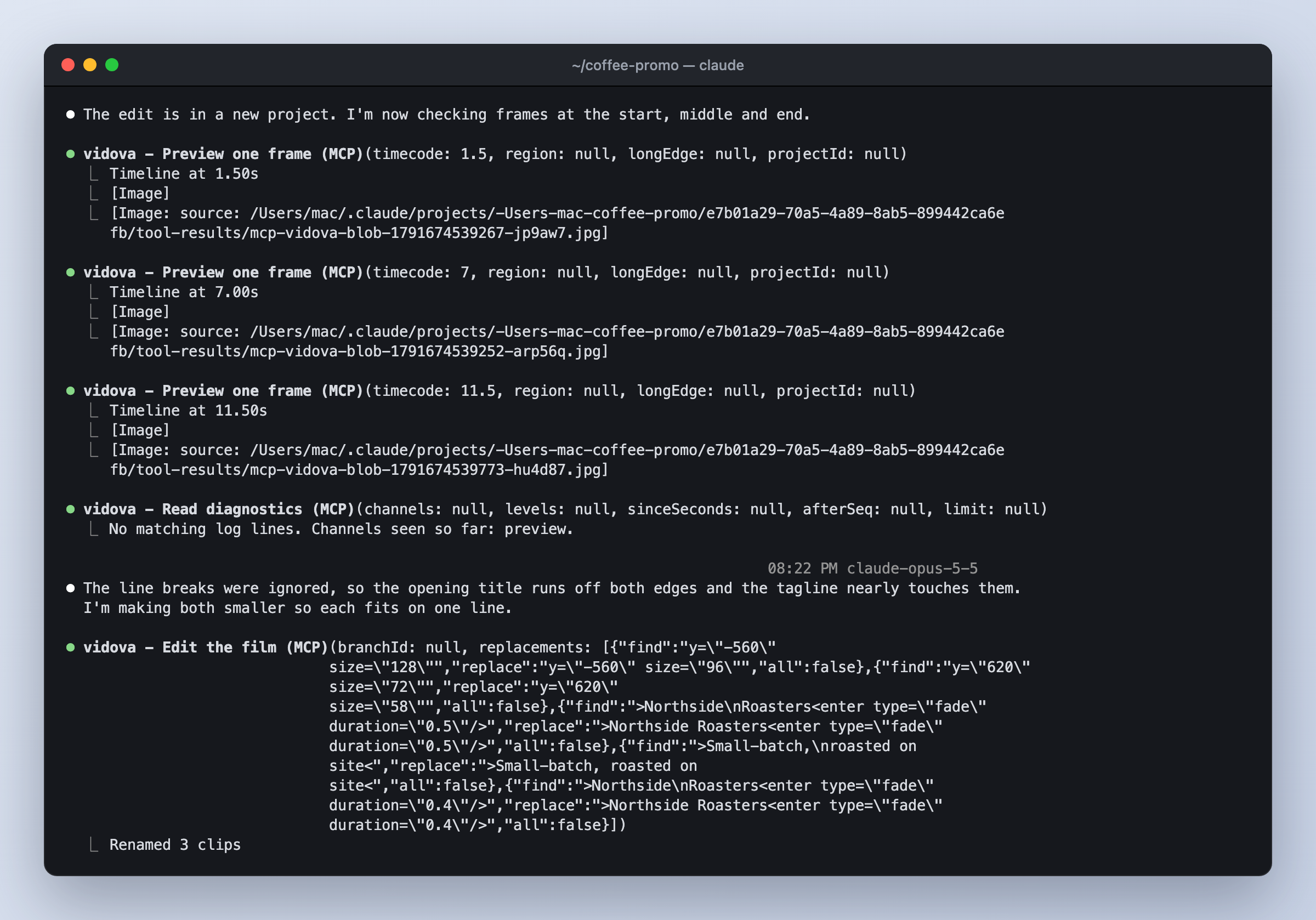
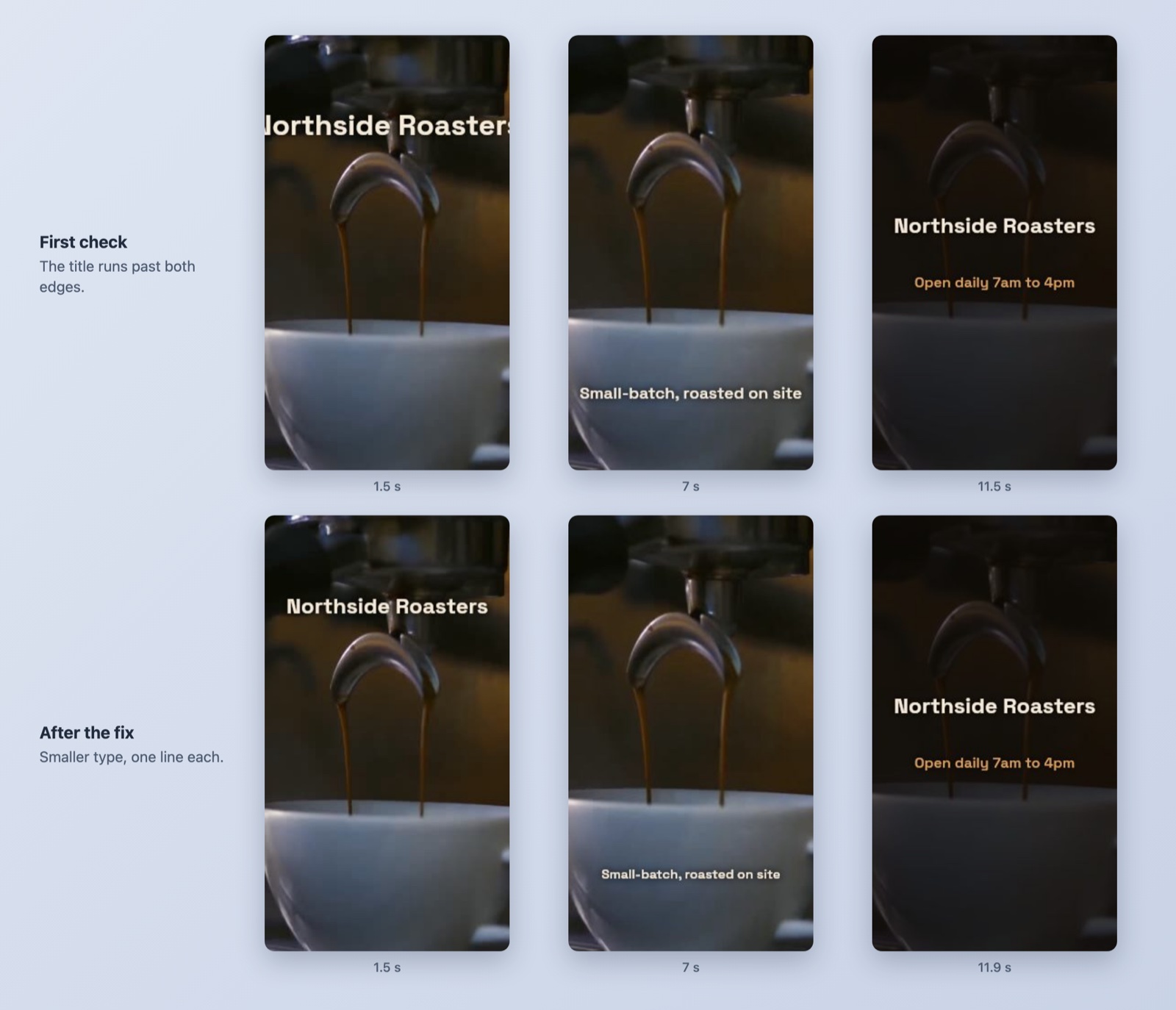
At 1.5 seconds the title ran past both edges of the vertical frame. The agent said so, made the title and the line smaller, and checked the same frames again.
Open the result in the editor
The agent ended with a summary and the project link. It said what it changed and why: the clip was only 5 seconds, so it slowed it to half speed and muted the clip's own sound. It also named the weakest spot, a tagline over a white cup, and offered to move it.
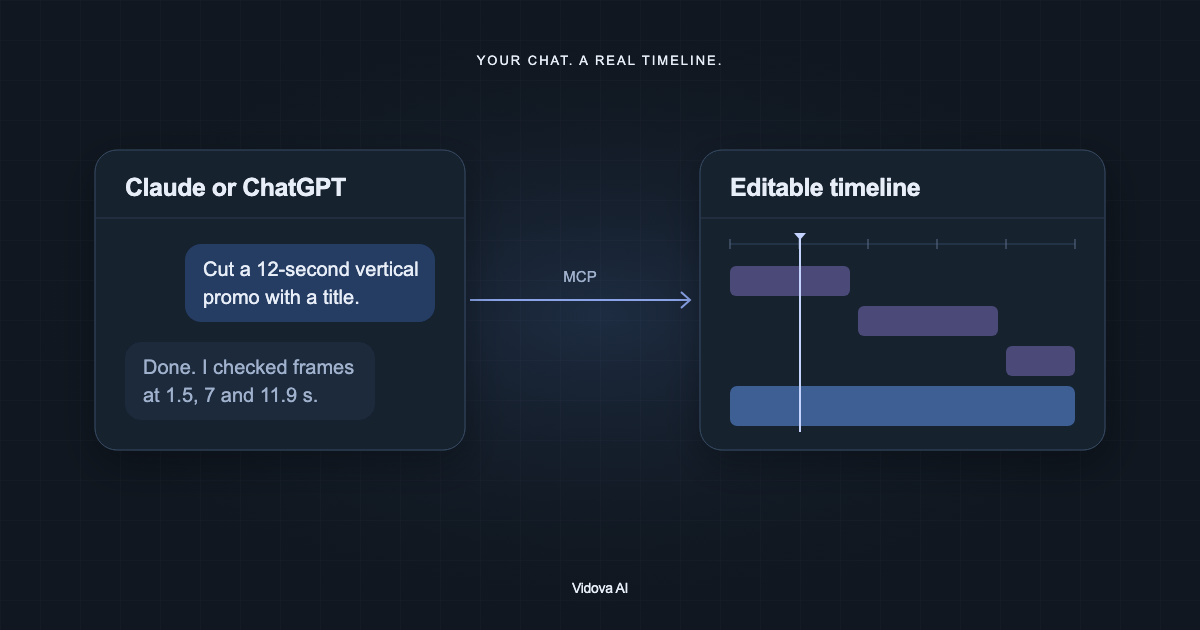
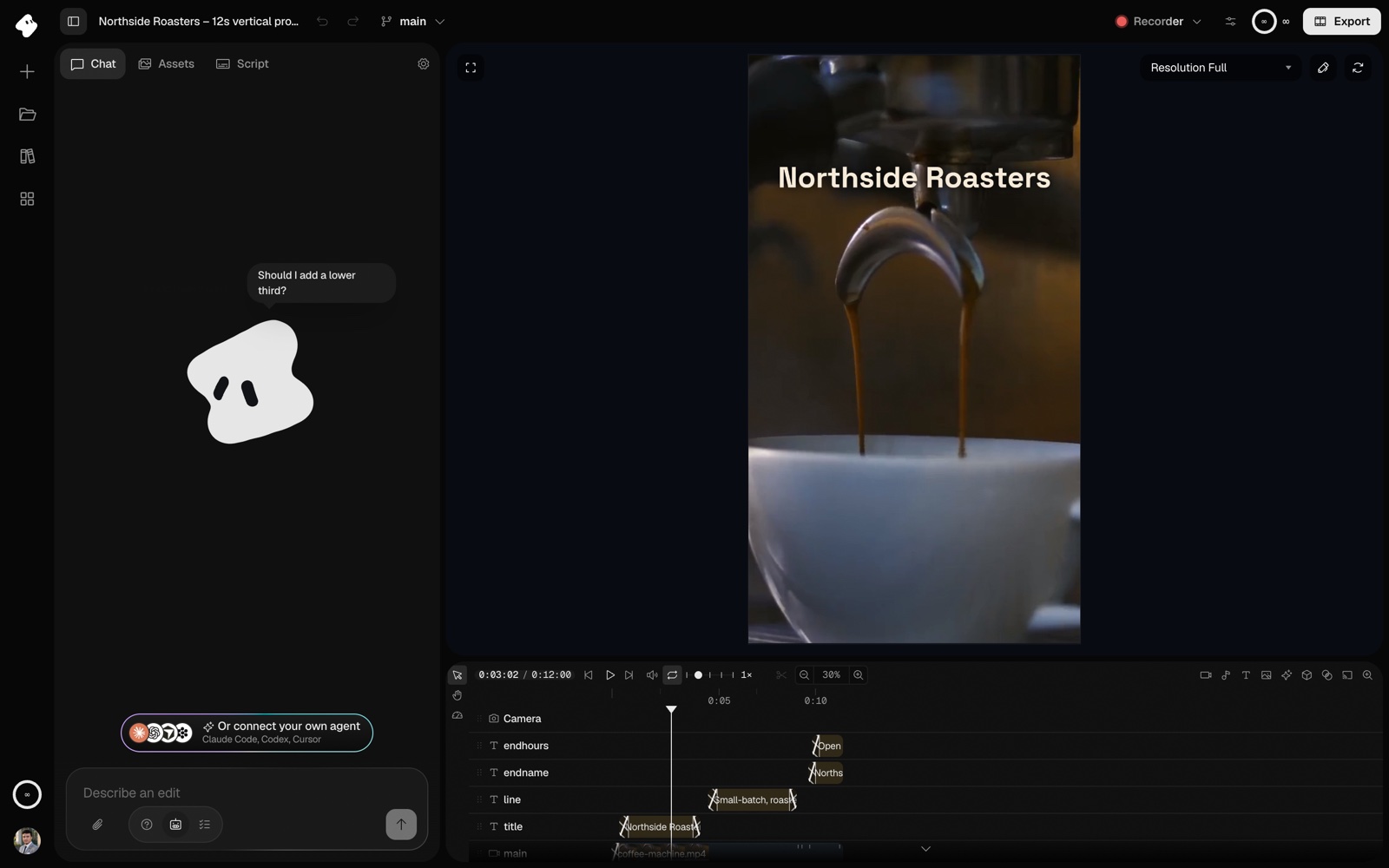
The link opens the project in the Vidova web editor. Every track the agent wrote is on the timeline: the clip, the title, the line, and the two end-card texts. You can play it, drag a clip, change the text, or keep editing with Vidova's own chat.
Tips for better results
- Name the source file and the exact text. Quote titles so the agent copies them exactly.
- Ask for frame checks at specific times, and for a check after each correction.
- Ask for one change at a time once the first cut exists: "Move the tagline above the cup."
- Ask the agent to make a branch before a big change. Vidova has create_branch, diff_branches and merge_branch.
- Ask for a cloud render when you want a file. The agent calls render_video and gives you a download link when it is done.